How to Remove Malware From a Windows PC: Complete Step-by-Step Guide
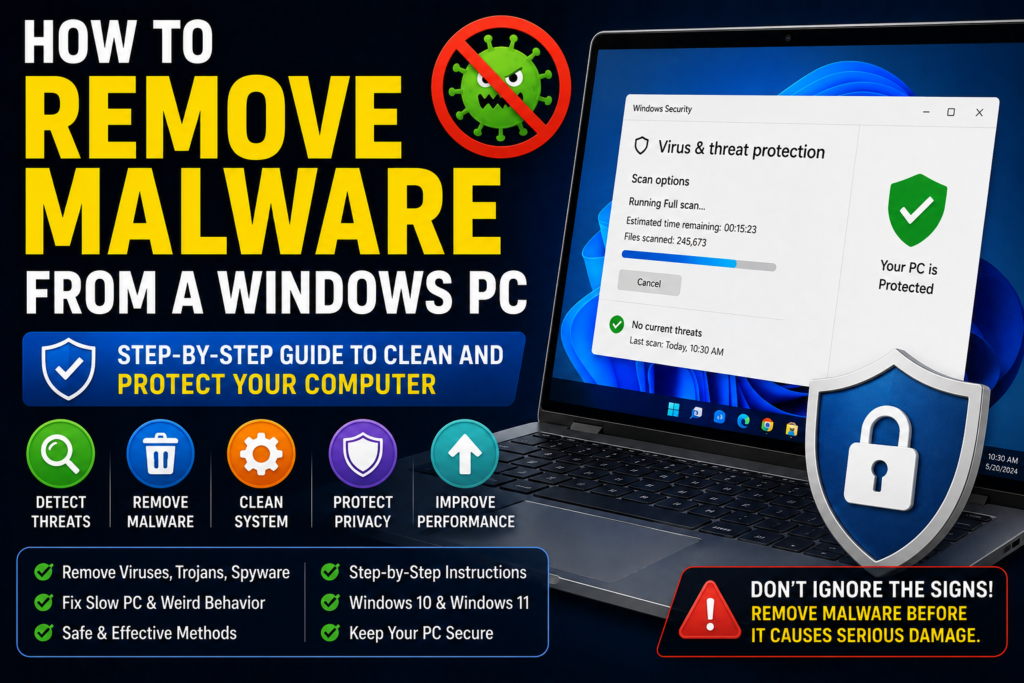
Malware can cause strange problems on a Windows PC, including unwanted pop-ups, browser redirects, slow performance, unknown applications, disabled security tools, excessive CPU usage, and unexpected changes to system settings. Some malware is easy to remove, while more persistent infections may require offline scanning or even a Windows reset.
If you are searching for How to Remove Malware From a Windows PC, the safest approach is to start with trusted Windows security tools rather than downloading random “PC cleaner” programs from the internet.
In this guide, you will learn how to identify possible malware symptoms, scan your Windows computer, remove suspicious programs and browser extensions, use Microsoft Defender’s stronger scanning options, and protect your PC after the infection is removed.
Quick Answer
To remove malware from a Windows PC, first disconnect the computer from the internet if you believe an active infection is communicating with an attacker. Then use Windows Security to run a full scan. If Windows Security detects a threat, follow its recommended removal or quarantine action.
If the problem continues, run Microsoft Defender Offline scan, which restarts the computer and scans Windows before the normal desktop environment loads. You should also uninstall suspicious applications, remove unknown browser extensions, check startup programs, install Windows updates, and scan again.
Warning: Before making major changes such as resetting Windows, back up important personal files. If the malware involves banking, passwords, identity information, or business data, use a clean device to change important passwords after securing the affected PC.
Why Malware Gets on a Windows PC
Malware is malicious software designed to perform unwanted or harmful actions. Different types include viruses, trojans, spyware, ransomware, adware, and other unwanted programs.
Understanding how malware gets onto a computer can help you prevent another infection.
Downloading Unsafe Software
Malware can be bundled with:
- Pirated software
- Cracked applications
- Fake updates
- Unknown utilities
- Modified installers
- Suspicious browser extensions
- Files from untrusted websites
A program that looks useful may install additional software without making the consequences clear.
Phishing Emails and Messages
An attacker may send a message containing a malicious attachment or a link to a dangerous website.
The message may pretend to be from a company, delivery service, bank, colleague, or another trusted organization.
Fake Browser Alerts
Some websites display alarming messages such as “Your computer is infected” or “Your Windows security has expired.”
These messages can be designed to make you download questionable software.
A genuine Windows security warning should not automatically be trusted simply because it uses Windows logos or security terminology.
Unsafe Browser Extensions
Browser extensions can interact with websites and browsing data. Installing extensions from questionable sources can create privacy and security risks.
Outdated Software
Security vulnerabilities in Windows and applications can sometimes be exploited by attackers. Keeping software updated reduces exposure to known security problems.
How to Remove Malware From a Windows PC
The safest approach is to work through the following methods in order. Start with the least disruptive options before considering advanced recovery steps.
Method 1: Disconnect the PC From the Internet
If you strongly suspect an active malware infection, temporarily disconnect the computer from the internet.
You can:
- Turn off Wi-Fi.
- Disconnect an Ethernet cable if one is connected.
- Avoid logging into banking or other sensitive accounts from the potentially infected PC.
- Continue with malware scanning using trusted security tools already available on Windows.
Disconnecting the computer can limit its ability to communicate over the network while you investigate the problem.
However, some troubleshooting steps may require an internet connection to download updates or security definitions. In that case, reconnect only when necessary and use trusted Microsoft tools.
Method 2: Run a Windows Security Quick Scan
Windows includes Windows Security, which provides Microsoft Defender Antivirus on supported Windows installations.
To run a scan:
- Open the Start menu.
- Search for Windows Security.
- Open the application.
- Select Virus & threat protection.
- Select Quick scan.
Allow the scan to complete.
If Windows Security identifies a threat, review the result and follow Microsoft’s recommended action, such as quarantine or removal.
A quick scan is a useful first check, but it may not provide the same coverage as a full scan.
Method 3: Run a Full Scan
If you suspect malware but the quick scan finds nothing, perform a full scan.
- Open Windows Security.
- Select Virus & threat protection.
- Choose Scan options.
- Select Full scan.
- Start the scan.
- Wait for Windows Security to complete it.
- Review any detected threats.
A full scan checks a much broader range of files and locations than a quick scan.
Depending on the amount of data and the computer’s hardware, a full scan can take considerably longer.
It is usually better to let the scan finish rather than stopping it because the computer appears slow during the process.
Method 4: Use Microsoft Defender Offline Scan
If malware keeps returning or Windows Security cannot remove a suspected threat, Microsoft Defender Offline can be useful.
The offline scan runs after the computer restarts, before the normal Windows environment fully loads. This can make it harder for certain persistent malware to interfere with the scanning process.
To access it:
- Open Windows Security.
- Select Virus & threat protection.
- Select Scan options.
- Choose Microsoft Defender Antivirus (offline scan) if available.
- Save any open work.
- Start the scan.
- Allow Windows to restart.
- Let the scan complete.
Warning: Save your work before starting an offline scan because Windows will restart the computer.
After Windows starts again, review the security results.
Method 5: Uninstall Suspicious Applications
Malware is sometimes installed as a program that appears in Windows’ installed-app list.
Check applications you do not recognize.
On Windows 11:
- Open Settings.
- Select Apps.
- Select Installed apps.
- Review the installed applications.
- Look for programs you do not recognize or did not intentionally install.
- Research the application before removing it.
- Uninstall confirmed unwanted software.
Do not uninstall Windows components simply because their names look unfamiliar.
Some legitimate applications have technical names that are not immediately recognizable.
If you are unsure about a program, investigate the publisher and installation date before removing it.
Method 6: Remove Suspicious Browser Extensions
If malware symptoms mainly involve your web browser, such as redirects, unwanted search results, or excessive advertisements, inspect your browser extensions.
For Chrome:
- Open Chrome.
- Select the three-dot menu.
- Open Extensions.
- Select Manage Extensions.
- Review installed extensions.
- Remove extensions you do not recognize or no longer need.
Other browsers have similar extension-management settings, although the exact menu names vary.
Be especially cautious about extensions that appeared around the same time your browser problems started.
Method 7: Reset Browser Settings if Redirects Continue
If your browser continues opening unwanted pages after removing suspicious extensions, browser settings may have been changed.
Before resetting anything, make sure you understand what the reset does.
For Chrome, the reset option can restore certain browser settings to their defaults. It does not mean reinstalling Windows.
A browser reset can be useful when unwanted changes affect:
- Search settings
- Startup behavior
- New-tab behavior
- Extensions
- Other browser preferences
Warning: A browser reset can change customized settings. Review the browser’s explanation before confirming the operation.
If you use another browser, follow that browser’s official reset or troubleshooting process instead.
Method 8: Check Windows Startup Programs
Some unwanted software attempts to launch automatically when Windows starts.
Windows provides startup controls through Settings and Task Manager.
To review startup applications:
- Press Ctrl + Shift + Esc to open Task Manager.
- Select Startup apps.
- Review applications listed there.
- Check unfamiliar entries before disabling them.
- Disable a suspicious startup application only when you understand what it is.
Disabling a startup entry does not necessarily remove the underlying malware. It simply prevents that application from automatically launching through that startup mechanism.
Afterward, run another security scan.
Method 9: Install Windows Updates
Windows updates can include security fixes and improvements to Microsoft’s built-in security features.
To check for updates:
- Open Settings.
- Select Windows Update.
- Select Check for updates.
- Install available updates as appropriate.
- Restart the PC if Windows requests it.
Also update important applications and browsers.
Important: If you suspect an active infection, prioritize scanning and securing the PC rather than assuming an update alone will remove malware.
Method 10: Run Another Trusted Malware Scan
If Windows Security does not resolve the problem, you can consider using a reputable second-opinion malware scanner.
Only download security software directly from the developer’s official website.
Avoid search results that advertise “one-click virus removal” tools with exaggerated claims.
Before installing another antivirus product, check whether it is intended to work alongside Microsoft Defender or whether it changes the system’s primary antivirus protection.
Running multiple full-time antivirus products simultaneously can cause conflicts or unnecessary resource usage.
Platform-Specific Solutions
Windows 11
Windows 11 includes Windows Security and Microsoft Defender Antivirus on supported systems.
The most useful built-in sequence is generally:
- Check Windows Security.
- Run a quick scan.
- Run a full scan if necessary.
- Use Microsoft Defender Offline if the problem persists.
- Remove confirmed unwanted applications.
- Update Windows.
- Scan again.
Menu names can change between Windows versions and updates, so your screen may not look exactly like another Windows 11 computer.
Windows 10
Windows 10 also includes Microsoft Defender Antivirus and Windows Security on supported installations.
The general troubleshooting approach is similar, although some Settings screens may have different layouts.
If you are still using Windows 10, also pay attention to Microsoft’s support status and your device’s upgrade options because security updates are an important part of long-term protection.
Google Chrome on Windows
If malware symptoms are limited to Chrome, check:
- Extensions
- Search engine settings
- Startup pages
- Notification permissions
- Recently installed software
Websites can also abuse browser notification permissions. If a suspicious site is repeatedly sending notifications, review Chrome’s site notification permissions and remove permission for sites you do not trust.
Things to Check Before Trying Advanced Solutions
Before making major changes to your Windows installation, check the following.
Back Up Important Files
If your files are accessible, back up important documents, photos, videos, and other personal data.
Use a backup location that is not permanently connected to the potentially infected computer when practical.
This is particularly important if ransomware is suspected.
Record Important Information
Before uninstalling applications or resetting settings, make a note of important information such as:
- Applications you need
- License information
- Browser bookmarks
- Important files
- Email account details
- Wi-Fi information
- Backup locations
Identify the Actual Symptoms
Not every slow computer has malware.
Common malware warning signs can include:
- Unwanted browser redirects
- Unknown applications
- Persistent pop-ups
- Security software being disabled unexpectedly
- Unknown browser extensions
- Unexpected system changes
- Unusual network activity
- Files becoming inaccessible or encrypted
A slow PC can also be caused by insufficient storage, failing hardware, too many startup applications, overheating, or outdated software.
What to Do If Malware Keeps Coming Back
If the same malware returns after removal, do not simply run the same scan repeatedly without investigating why.
Check:
- Startup applications.
- Scheduled tasks if you understand how to inspect them.
- Browser extensions.
- Recently installed software.
- Suspicious user-installed applications.
- Other security software.
- Windows updates.
- Other devices or accounts that may be involved.
If the malware has compromised important accounts, use a separate clean device to change passwords.
This is particularly important for:
- Banking
- Social media
- Cloud storage
- Shopping
- Work accounts
Enable multi-factor authentication wherever available.
When a Windows Reset May Be Necessary
Sometimes malware is persistent enough that completely reinstalling or resetting Windows becomes a practical option.
A reset can remove applications and settings depending on the option you choose, so it should not be the first step for every malware problem.
Warning: A Windows reset can remove applications and may remove personal files depending on the selected reset option. Back up important data before proceeding.
A clean Windows installation may be appropriate when:
- Malware repeatedly returns.
- You cannot trust the current Windows environment.
- Important system components have been severely modified.
- Multiple malware infections are present.
- Security tools cannot successfully clean the system.
- A professional recommends reinstalling Windows.
Before resetting, make sure you have backups and access to the accounts and software you will need afterward.
Common Mistakes to Avoid
Downloading Random Malware Removal Tools
Searching for a security tool and downloading the first program you see can lead to another unwanted application.
Use Microsoft’s official tools or reputable security software from its legitimate developer.
Installing Multiple Antivirus Programs
More security software does not automatically mean more protection.
Multiple real-time antivirus products can interfere with one another.
Ignoring Browser Extensions
If browser redirects continue, installed extensions should be checked.
Paying Fake Technical Support Services
Scammers sometimes claim that your computer has hundreds of infections and demand payment for immediate repair.
Do not give remote access to unknown people who contact you unexpectedly.
Changing Important Account Passwords on an Infected PC
If you believe malware may be capturing keystrokes or browser information, use a known-clean device to change passwords.
Resetting Windows Without a Backup
A reset can cause data loss depending on the option selected.
Always back up important files first.
When to Get Professional Help
Professional assistance is appropriate when the infection is unusually persistent or involves important information.
Consider contacting a qualified technician or cybersecurity professional if:
- Ransomware has encrypted your files.
- Malware keeps returning after trusted scans.
- Windows security tools have been disabled or manipulated.
- You suspect a serious data breach.
- Banking information may have been exposed.
- Your business computer is infected.
- Multiple computers on your network show suspicious behavior.
- You cannot safely determine which files or programs are malicious.
For business systems, avoid experimenting with aggressive removal procedures before checking your organization’s IT or security process.
If ransomware is involved, do not immediately delete encrypted files or reinstall Windows without considering whether you need evidence, recovery options, or professional assistance.
Frequently Asked Questions
How do I remove malware from a Windows PC?
Start with Windows Security and run a Quick scan. If necessary, perform a Full scan and then use Microsoft Defender Offline scan for persistent threats. Also remove confirmed unwanted applications and browser extensions, update Windows, and scan again.
Can Windows Defender remove malware?
Microsoft Defender Antivirus can detect and remove or quarantine many types of malware. Its effectiveness depends on the particular threat and the state of the computer, so persistent infections may require additional investigation or an offline scan.
How do I know if my Windows PC has malware?
Possible warning signs include unexpected pop-ups, browser redirects, unknown programs, unfamiliar extensions, unusual system behavior, disabled security features, and unexplained changes. However, these symptoms can also have non-malware causes, so run a trusted security scan before assuming the computer is infected.
Can malware survive a Windows reset?
A properly performed clean installation can remove malware from the Windows installation, but the broader security situation still matters. Restoring infected files, reinstalling malicious software, or reconnecting compromised accounts can reintroduce problems. Back up carefully and reinstall applications from trusted sources.
Should I disconnect my computer from the internet if I suspect malware?
Temporarily disconnecting a potentially infected PC can be sensible when you suspect active malicious communication. However, some security tools require internet access for updates and threat intelligence, so reconnect only when necessary and use trusted security tools.
Is a slow Windows computer always infected with malware?
No. Slow performance can result from many causes, including limited storage, too many startup applications, hardware problems, overheating, outdated software, or demanding applications. Malware is one possible cause, not the only one.
Should I change my passwords after removing malware?
If malware may have stolen passwords, changing important passwords is strongly recommended. Use a known-clean device when possible, especially if you suspect the infected computer contained password-stealing malware. Use unique passwords and enable multi-factor authentication.
What should I do if malware is blocking Windows Security?
If normal Windows Security scans are being interfered with, Microsoft Defender Offline may be useful because it scans outside the normal Windows environment. If the problem continues, consider professional assistance or a clean Windows installation after backing up important data.
Final Thoughts
Knowing How to Remove Malware From a Windows PC can help you deal with suspicious behavior without immediately resorting to a complete Windows reinstall.
Start with the tools already included in Windows. Run Windows Security, perform a full scan when necessary, and use Microsoft Defender Offline for threats that appear persistent. Then inspect recently installed applications, browser extensions, startup programs, and Windows updates.
Do not overlook account security. If you believe malware may have stolen passwords, use a separate clean device to change important credentials and enable multi-factor authentication.
Most importantly, avoid downloading questionable “virus removal” programs just because a website displays an alarming warning. Use trusted security software and official sources.
If the infection involves ransomware, financial information, business systems, or malware that repeatedly returns, professional assistance may be safer than experimenting with increasingly aggressive fixes.
Once your PC is clean, prevention becomes the next priority: keep Windows and applications updated, download software from trusted sources, use strong unique passwords, enable multi-factor authentication, and maintain regular backups of important files.