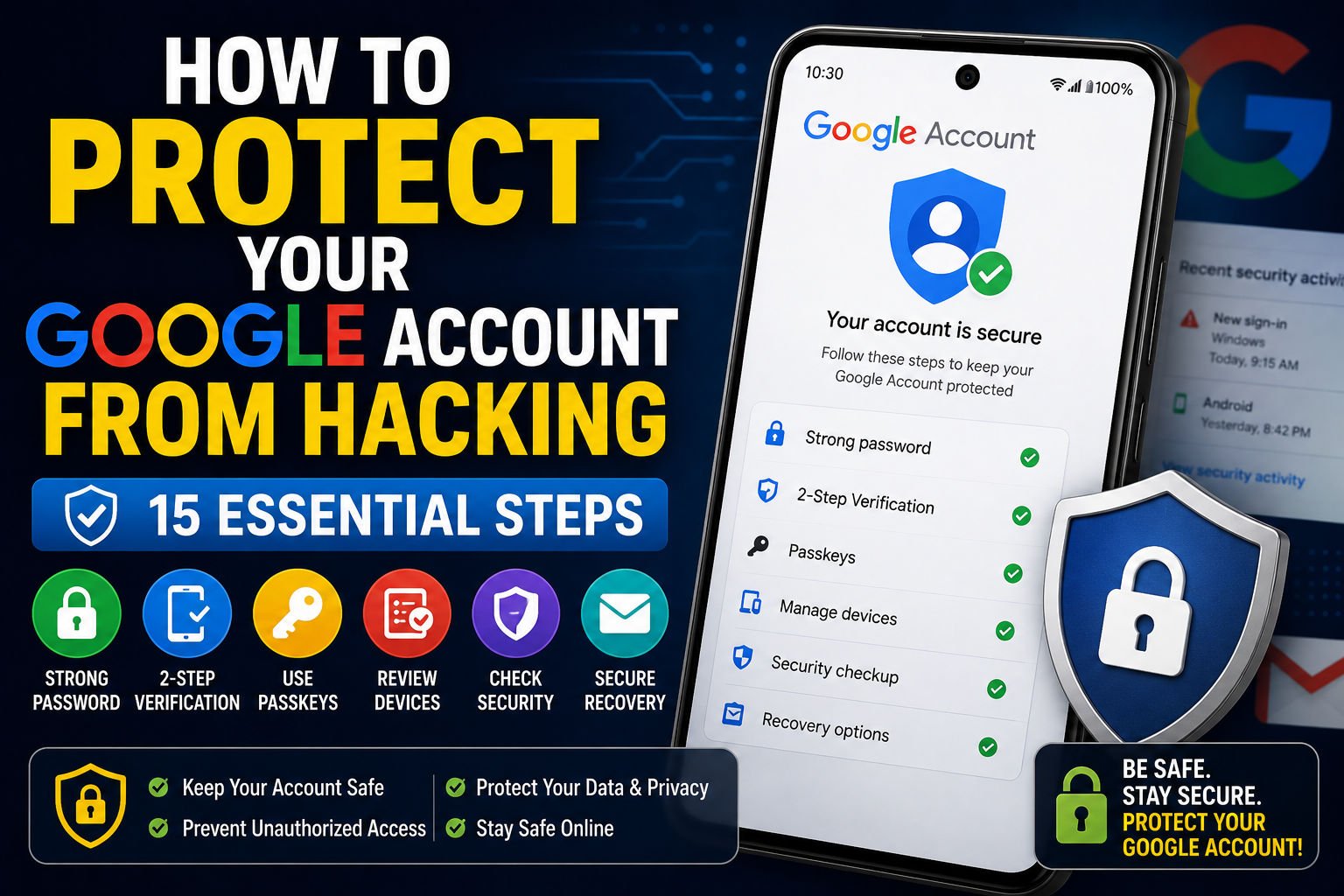
How to Enable Two-Factor Authentication on Google: Complete Step-by-Step Guide
Your Google Account can contain Gmail messages, Google Drive documents, Google Photos, contacts, YouTube information, Android backups, saved passwords, and access to many other services. If someone gets your password, they may be able to access much more than your email.
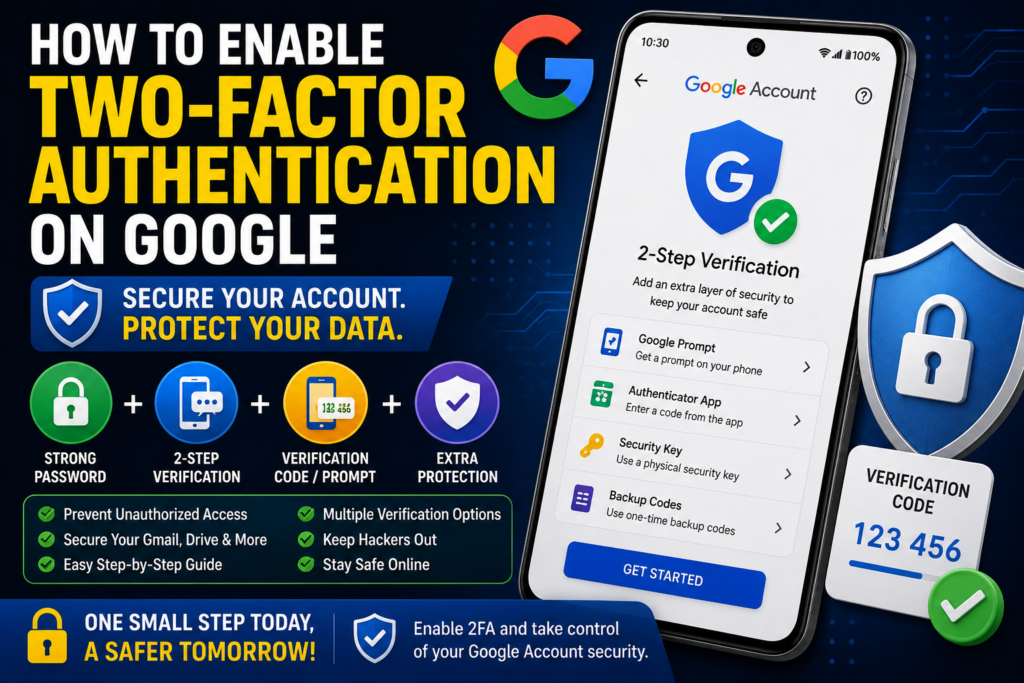
That is why How to Enable Two-Factor Authentication on Google is an important security question for anyone who uses Gmail or another Google service. Two-factor authentication, also called 2-Step Verification by Google, adds another security layer after your password.
Even if someone discovers your password, they may still be unable to sign in without the additional verification method associated with your account.
In this guide, you will learn how to enable Google’s two-factor authentication, choose an appropriate verification method, prepare backup options, and avoid common mistakes that could lock you out of your account.
Quick Answer
To enable two-factor authentication on Google, open your Google Account, go to Security, find 2-Step Verification, and follow the setup instructions. Google will ask you to confirm your identity and configure one or more additional verification methods.
Depending on your account and devices, Google may offer options such as Google prompts, authenticator codes, security keys, passkeys, or other supported verification methods. The exact options can vary by account, device, and Google’s current security requirements.
Before enabling two-factor authentication, make sure you have access to your recovery email, recovery phone, and other backup methods. This is especially important if you frequently sign in from different devices or travel without your primary phone.
Why Google Two-Factor Authentication Matters
A password is only one layer of account security. If someone obtains it through phishing, a data breach, malware, password reuse, or another method, they could potentially attempt to sign in to your account.
Two-factor authentication adds a second step.
The basic idea is:
Password + Additional verification = Stronger account protection
The second factor helps Google determine that the person signing in is actually you.
Password Theft Is a Common Risk
People sometimes reuse passwords across multiple websites. If one of those websites experiences a security breach, an exposed password may be tested against other services.
Using a unique Google password is important, but adding two-factor authentication provides another layer of protection.
Phishing Can Steal Passwords
Phishing websites are designed to look like legitimate login pages. An attacker may send an email or message claiming that your Google Account has a security problem.
If you enter your password on the fake page, the attacker may obtain it.
Two-factor authentication can make unauthorized access more difficult, although you should still avoid entering credentials on suspicious websites.
Your Google Account Can Unlock Other Services
Your Google Account may be used to access Gmail, Drive, Photos, YouTube, Android-related services, and third-party websites.
Protecting the account therefore helps protect several connected services at once.
How to Enable Two-Factor Authentication on Google
Google calls its main two-factor authentication feature 2-Step Verification.
The process is generally straightforward, although the exact screens and available options can change.
Method 1: Enable 2-Step Verification From Your Google Account
This is the main method for turning on Google’s two-factor authentication.
- Open a web browser on your phone or computer.
- Sign in to your Google Account.
- Open your Google Account settings.
- Select Security.
- Find 2-Step Verification.
- Select the option to begin setup.
- Google may ask you to enter your password again.
- Follow the on-screen instructions.
- Select an available verification method.
- Complete the verification test if Google asks you to do so.
- Confirm that you want to turn on 2-Step Verification.
Once enabled, Google may request an additional verification step when you sign in from an unfamiliar device or under other circumstances.
The exact behavior depends on Google’s security systems and the verification methods configured for your account.
Method 2: Use Google Prompts
Google may allow you to confirm sign-ins through a notification or prompt on a device where you are already signed in.
Instead of typing a temporary code, you may receive a prompt asking whether you are trying to sign in.
If you recognize the login, you can approve it.
If you do not recognize the login, do not approve it.
This is important because an attacker who knows your password may attempt to trigger repeated sign-in prompts hoping that you will accidentally accept one.
If you receive an unexpected Google sign-in prompt, reject it and review your account security if necessary.
Method 3: Use an Authenticator App
Authenticator apps can generate temporary verification codes without requiring an SMS message for every login.
Depending on your account and setup, you may be able to configure an authenticator app through Google’s 2-Step Verification settings.
A typical setup involves:
- Open your Google Account.
- Go to Security.
- Open 2-Step Verification.
- Sign in if requested.
- Find the authenticator-related option.
- Follow Google’s setup instructions.
- Add the account to your authenticator application.
- Enter the generated verification code when Google requests it.
- Complete the setup.
Keep your authenticator access protected. If your authenticator is stored only on one device and that device is lost, you may need another recovery method.
Method 4: Use a Security Key
A security key is a physical authentication device designed to provide strong protection against account attacks.
It can be particularly useful for people who want a dedicated hardware-based authentication method.
If your Google Account supports security keys:
- Open your Google Account.
- Go to Security.
- Open 2-Step Verification.
- Look for the security-key option.
- Follow Google’s instructions.
- Register the security key.
- Test the sign-in process.
Keep the physical security key somewhere safe.
For important accounts, some users choose to maintain a backup security key stored separately.
Method 5: Consider a Passkey
Passkeys are another modern sign-in technology supported by Google.
Instead of relying only on a traditional password, a passkey uses cryptographic credentials associated with a supported device or password manager.
If passkeys are available in your Google Account:
- Open your Google Account.
- Select Security.
- Look for Passkeys.
- Follow the instructions.
- Create or register a passkey on a trusted device or supported password manager.
- Complete the required device authentication.
Only create passkeys on devices you control and trust.
A passkey should not be created on a public or shared computer.
Which Google Two-Factor Authentication Method Should You Choose?
There is no single method that is ideal for every user.
Google Prompts
Google prompts can be convenient because you can approve or reject a sign-in from a trusted device.
They are particularly useful if you regularly carry your Android phone.
Authenticator App
An authenticator app is useful if you prefer generating temporary codes and do not want to rely entirely on text messages.
Make sure you have a recovery plan if you lose access to the device containing the authenticator.
Security Key
A security key can provide strong protection and is worth considering for accounts containing highly sensitive information.
Passkey
Passkeys can provide convenient and strong authentication on compatible devices and password managers.
SMS Verification
SMS-based verification may be available for some accounts and situations. However, it is generally better not to rely exclusively on one recovery or authentication method.
If your account supports stronger alternatives, consider configuring them.
Things to Check Before Enabling Two-Factor Authentication
Before turning on 2-Step Verification, take a few minutes to prepare your account.
Confirm Your Recovery Email
Make sure your recovery email address is current and accessible.
Your recovery email should also have good security because it may help you recover your Google Account.
Check Your Recovery Phone
If a recovery phone number is attached to your account, make sure you still control that number.
An old phone number that has been disconnected or reassigned should not remain your only recovery option.
Make Sure Your Main Phone Works
If you plan to use Google prompts or an authenticator app, make sure your phone is available and working correctly before completing setup.
Check Your Signed-In Devices
Review the devices currently associated with your Google Account.
If you see an unfamiliar device, investigate it before changing security settings.
Use a Strong Google Password
Two-factor authentication works alongside your password, not instead of good password practices.
Use a unique password that you do not use for other websites.
Back Up Important Information
Two-factor authentication itself should not delete your files, Gmail messages, or Google Photos.
However, you should still maintain normal backups of important files because account security and data backup are separate issues.
What Happens After You Enable 2-Step Verification?
After enabling Google’s two-factor authentication, the sign-in process can require more than your password.
For example, when Google determines that additional verification is required, you may need to:
- Enter your Google email address.
- Enter your password.
- Complete the additional verification step.
- Finish signing in.
The exact experience can vary depending on your device, browser, account settings, and verification method.
On devices you regularly use, Google may not ask for the additional step every time under every circumstance.
This does not mean two-factor authentication has stopped working. Google’s sign-in system evaluates different security factors when determining whether additional verification is necessary.
How to Add Backup Verification Methods
One of the most important parts of setting up two-factor authentication is preparing for the possibility that your main verification device becomes unavailable.
For example, you might:
- Lose your phone.
- Break your phone.
- Replace your phone.
- Lose access to your mobile number.
- Lose access to an authenticator.
- Lose a physical security key.
Google may provide multiple recovery and verification options depending on your account.
Review the 2-Step Verification section of your Google Account and configure appropriate backup methods.
Warning: Do not store backup codes or other recovery information somewhere that another person can easily access.
If Google provides backup codes for your account, keep them somewhere secure.
How to Use Google Backup Codes
Backup codes can help you access your account when your usual verification method is unavailable, if Google provides them for your account.
Treat these codes like sensitive authentication information.
Important Rules for Backup Codes
- Do not share them with anyone.
- Do not post them online.
- Do not send them to strangers claiming to be support staff.
- Store them securely.
- Replace them if you believe they have been exposed.
- Check your Google Account security settings if you need to manage your codes.
A backup code should only be used when you need it for account access.
How to Protect Your Google Account After Enabling 2FA
Turning on two-factor authentication is an excellent step, but it is not the end of account security.
Use a Unique Password
Never reuse your Google password on another website.
Watch for Phishing
Be cautious with emails asking you to “verify” your Google Account.
Instead of clicking an unexpected login link, open Google directly through a trusted browser or app.
Never Share Verification Codes
Google verification codes are private.
If someone asks you for a code, do not provide it.
This includes people claiming to be:
- Google employees
- Technical support workers
- Friends
- Security specialists
- Account recovery agents
Review Security Activity
Regularly check your Google Account’s security section for unfamiliar activity.
Look for:
- Unknown devices
- Unexpected sign-ins
- Password changes
- Recovery-setting changes
- Suspicious third-party access
Remove Old Devices
If you sell or permanently stop using an old phone or computer, review your Google Account and remove its access when appropriate.
Android-Specific Tips for Google 2FA
Android users can benefit from keeping their Google Account and phone properly secured.
Keep Android Updated
Install available Android and security updates appropriate for your device.
Use a Secure Screen Lock
Your phone itself can contain access to your Google Account. Use a strong PIN or another supported screen-lock method.
Protect Your SIM
If your phone number is used for account recovery or verification, protect your mobile account as well.
If you suspect someone has taken control of your number, contact your mobile carrier through an official channel.
Avoid Unknown APK Files
Installing applications from untrusted sources can increase security risks.
For normal apps, use trusted sources and review permissions before installing software.
Windows and Chrome Security Tips
If you sign into Google from a Windows computer, protect the computer as well.
Keep Windows and your browser updated.
Also review Chrome extensions regularly.
Remove extensions that:
- You do not recognize
- You no longer need
- Come from questionable sources
- Request permissions that do not make sense for their purpose
Avoid saving your Google password on computers that other people use.
If you use a shared computer, sign out after completing your work.
Common Mistakes to Avoid
Turning on 2FA Without a Recovery Plan
Enabling two-factor authentication without considering what happens if you lose your phone can create unnecessary account-recovery problems.
Configure appropriate backup methods.
Sharing Verification Codes
Never give a Google verification code to someone who contacts you unexpectedly.
Using the Same Password Elsewhere
Two-factor authentication does not make password reuse a good practice.
Use a unique Google password.
Approving Unknown Google Prompts
If a Google prompt appears and you were not trying to sign in, do not approve it.
Saving Backup Codes in an Unsafe Location
Anyone who obtains sensitive recovery information may potentially use it against your account.
Store it securely.
Disabling 2FA Because It Is Inconvenient
If verification requests become annoying, review your authentication methods and trusted-device settings rather than immediately disabling account protection.
When to Get Professional Help
Most users can enable Google 2-Step Verification without professional assistance.
However, additional help may be appropriate if:
- You are locked out of your Google Account.
- Your recovery information was changed without permission.
- Someone appears to have accessed your account.
- Your computer may contain malware.
- Multiple accounts have been compromised.
- Your business Google account has been affected.
- You cannot determine why unfamiliar sign-ins are occurring.
For account-access problems, use Google’s official account-recovery and security tools rather than paying an unknown person who promises to recover or “hack back” your account.
Frequently Asked Questions
Is Google two-factor authentication the same as 2-Step Verification?
Google commonly calls its account feature 2-Step Verification. It provides an additional verification step beyond your password and can use different authentication methods depending on your account and available devices.
How do I enable two-factor authentication on Google?
Open your Google Account, go to Security, select 2-Step Verification, and follow the setup instructions. Google will guide you through choosing and configuring an available verification method.
Is Google 2-Step Verification free?
Google’s account security features are generally available as part of Google Account security, although specific third-party hardware such as a physical security key may cost money. The options available to you depend on your account and setup.
What happens if I lose my phone after enabling Google 2FA?
Your ability to sign in depends on which verification and recovery methods you configured. This is why it is important to prepare backup options before you lose access to your primary device.
Depending on your account, Google may provide recovery methods such as backup codes, recovery information, or other supported authentication options.
Can I use an authenticator app for Google 2FA?
Yes, Google supports authenticator-based verification for accounts where the option is available. You can configure it through the 2-Step Verification section of your Google Account.
Are Google prompts safer than SMS codes?
Google provides several authentication methods, and the appropriate choice depends on your circumstances. Google prompts can be convenient, but you should never approve a prompt that you did not initiate. Stronger authentication options such as passkeys or security keys may also be available.
Should I enable 2FA if my Google password is already strong?
Yes. A strong password is important, but two-factor authentication adds another layer of protection if your password is stolen or exposed.
Can I turn off Google 2-Step Verification later?
Google provides account settings for managing 2-Step Verification. However, turning it off removes an important layer of account protection, so you should generally keep it enabled unless you have a specific reason to change your security configuration.
Final Thoughts
Learning How to Enable Two-Factor Authentication on Google is one of the most practical steps you can take to improve the security of your Google Account.
Start by opening your Google Account and visiting the Security section. Find 2-Step Verification and follow Google’s setup instructions. Choose an authentication method that works for your devices and prepare backup options before you need them.
For stronger protection, consider using a passkey or security key if one is appropriate for your situation. Keep your Google password unique, protect your recovery information, and never share verification codes with another person.
After enabling 2-Step Verification, continue checking your account’s security activity and signed-in devices. Account security is not a one-time task. Reviewing your settings when you replace a phone, lose a device, or notice unusual activity can help prevent problems later.
The most important practical step is simple: enable 2-Step Verification now, then make sure you have a secure recovery method available.