How to Protect Your Google Account From Hacking: 15 Essential Security Steps
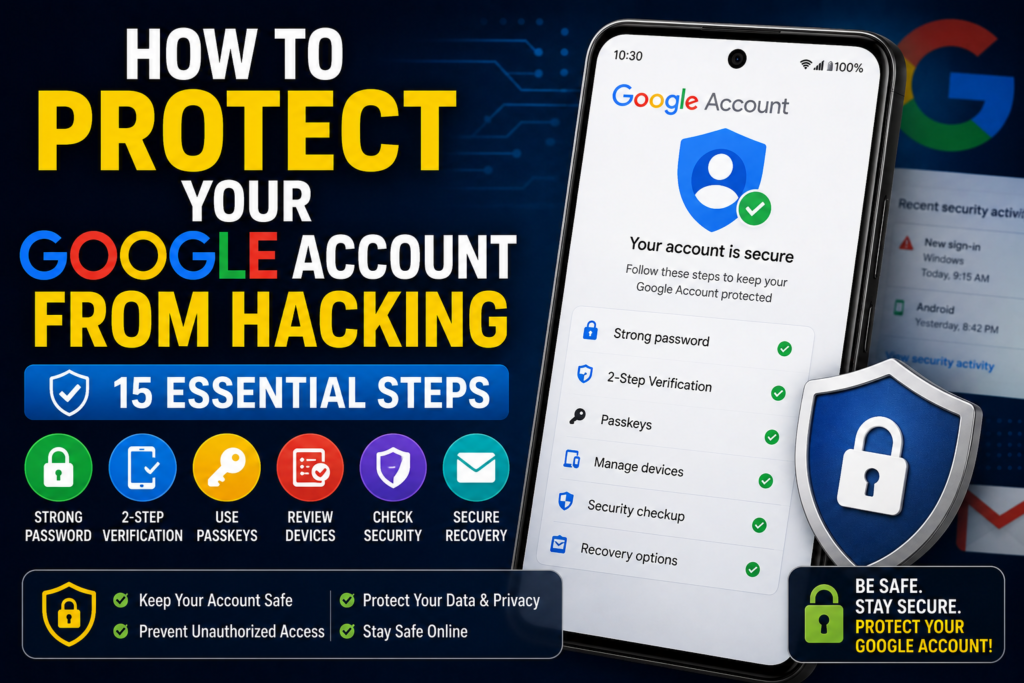
Your Google Account may contain far more information than just Gmail messages. It can provide access to Google Drive files, Google Photos, YouTube, contacts, saved passwords, Android backups, location-related information, and other services connected to your account. If someone gains access to it, the consequences can go beyond losing access to email.
Learning How to Protect Your Google Account From Hacking is therefore an important part of everyday cybersecurity. The good news is that you can significantly improve your account security by using strong authentication, reviewing account activity, protecting recovery options, avoiding phishing, and keeping your devices updated.
This guide explains practical steps you can take to protect your Google Account without relying on complicated security software. It also covers what to do if you notice unfamiliar sign-ins or believe someone has already accessed your account.
Quick Answer
The best way to protect your Google Account from hacking is to enable strong two-step verification or a passkey, use a unique and strong password, keep your recovery email and phone information updated, and never enter your Google password into suspicious websites.
You should also regularly review your Google Account’s security settings, recent activity, signed-in devices, third-party app access, and saved passwords. If you see an unfamiliar device or login, secure the account immediately rather than ignoring it.
For stronger protection, use a passkey or security key where appropriate, keep Android, Windows, Chrome, and other devices updated, and avoid sharing verification codes with anyone. Google will not need you to give another person your password or one-time security code to “verify” your account.
Why Google Accounts Get Hacked
Understanding common attack methods makes it easier to protect your account.
Weak or Reused Passwords
Using the same password for Gmail and other websites creates a major security risk. If another website suffers a data breach and your password is exposed, attackers may try the same credentials against your Google Account.
A password that is unique to Google reduces this risk.
Phishing Attacks
Phishing is one of the most common ways attackers try to steal account credentials.
A phishing message may pretend to come from Google, a bank, a workplace, a delivery company, or another trusted service. It may tell you that your account is about to be suspended or that suspicious activity has been detected.
The goal is usually to make you click a fake login page and enter your password.
Stolen Verification Codes
Attackers may also try to trick users into revealing one-time verification codes.
A criminal might contact you and claim to be helping secure your account. They may ask for a code that was sent to your phone or another device.
Never give an unexpected verification code to another person.
Malware and Unsafe Software
Malicious software can potentially steal passwords, browser data, or session information.
Downloading pirated programs, modified applications, unknown browser extensions, and suspicious files increases the risk.
Compromised Devices
Even a strong Google password cannot fully protect an account if an attacker has significant access to the device you use to sign in.
Keeping Android, Windows, browsers, and applications updated is therefore part of protecting your Google Account.
Unsafe Third-Party Applications
Some applications and services can request access to your Google Account.
If you authorize a service you no longer use, its access may remain until you remove it. Reviewing connected services helps reduce unnecessary account access.
How to Protect Your Google Account From Hacking
The following steps can help strengthen your Google Account security.
Method 1: Use a Strong, Unique Google Password
Your Google password should not be reused on other websites.
A good password should be difficult to guess and different from passwords used elsewhere.
Consider using a reputable password manager to create and store unique passwords.
To review your Google security settings:
- Open your Google Account.
- Go to the Security section.
- Find the password settings.
- Change your password if it is weak, reused, or suspected to be exposed.
- Sign in again where Google requires it.
Avoid using easily guessed information such as your name, birthday, phone number, or common words.
If you already use a unique, strong password and have no reason to believe it has been exposed, changing it repeatedly is not necessarily more secure than maintaining strong authentication and monitoring account activity.
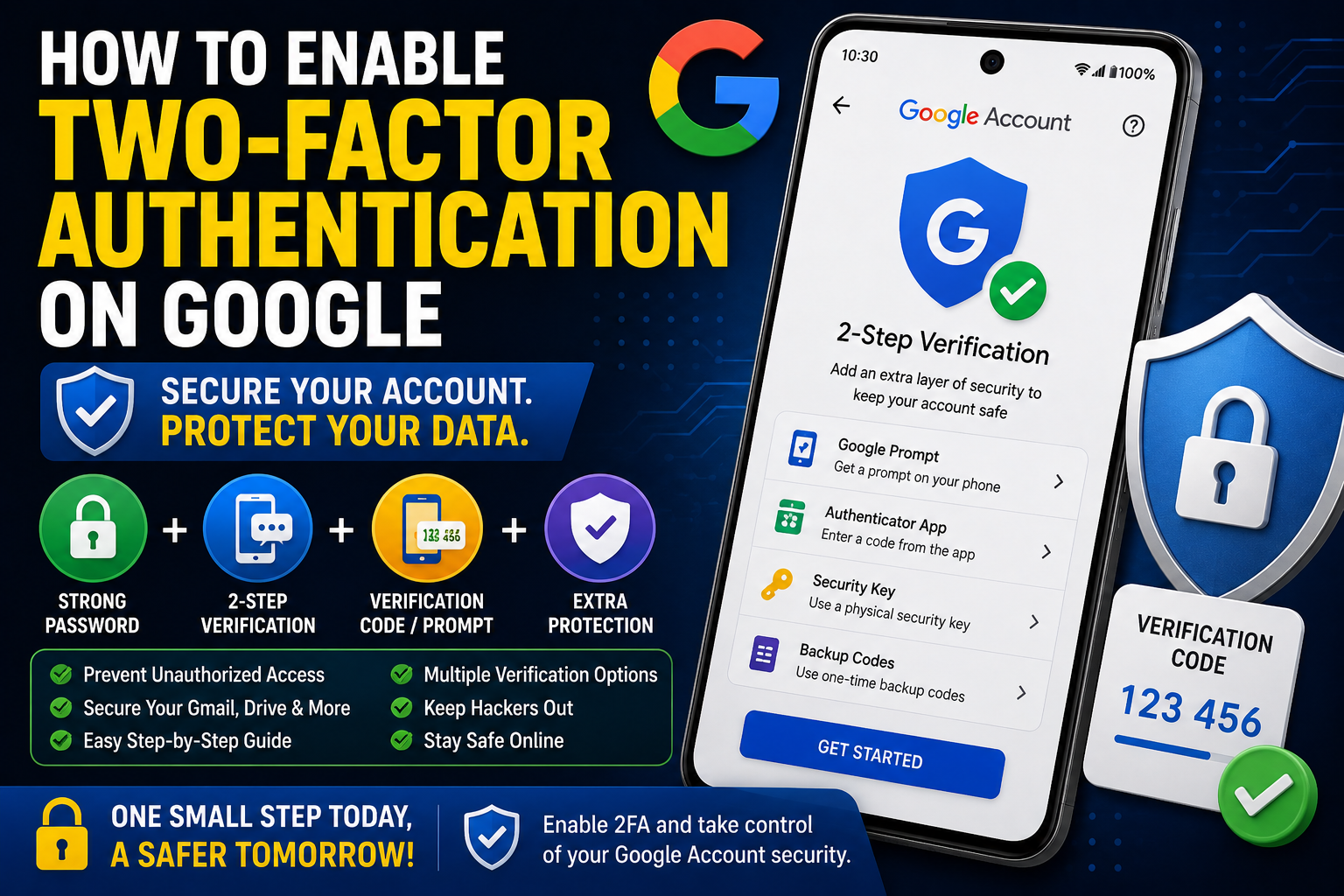
Method 2: Turn On Two-Step Verification
Two-step verification adds another security layer after your password.
With it enabled, knowing your password alone may not be enough to access the account.
Google provides different verification options depending on the account and device. These can include prompts, authenticator-based codes, security keys, and other supported methods.
To enable it:
- Open your Google Account.
- Select Security.
- Find 2-Step Verification.
- Follow Google’s setup instructions.
- Add an appropriate verification method.
- Store backup or recovery options securely.
Two-step verification is one of the most important protections you can add to a Google Account.
Method 3: Consider Using a Passkey
Passkeys are designed to provide a more secure and convenient sign-in method than traditional passwords in supported situations.
A passkey uses cryptographic credentials associated with your device or password manager rather than requiring you to type your Google password every time.
If passkeys are available for your account and compatible devices:
- Open your Google Account.
- Go to Security.
- Look for the passkey option.
- Follow Google’s instructions.
- Confirm the device or authentication method you want to use.
Only create passkeys on devices and services you trust.
Method 4: Keep Your Recovery Information Updated
Your recovery information can help you regain access if you forget your password or Google detects suspicious activity.
Review the recovery options associated with your account.
Depending on your account, these may include a recovery phone number or recovery email address.
Make sure:
- Your recovery information belongs to you.
- You can actually access it.
- It is not an old number you no longer control.
- Your recovery email has its own strong security.
Important: Your recovery email is itself an important security target. Protect it with a strong, unique password and appropriate two-step verification.
Method 5: Review Recent Security Activity
Regularly checking account activity can help you spot suspicious behavior.
Open your Google Account’s Security section and review recent security events.
Look for activity you do not recognize, such as:
- Password changes
- New sign-ins
- Security setting changes
- New devices
- Recovery information changes
- Unexpected authentication activity
If you see something you did not do, follow Google’s security prompts and secure your account immediately.
Do not assume an unfamiliar location automatically means your account was hacked. IP addresses and device locations can sometimes appear differently from your actual physical location.
Look at the complete event, including the device and time, before deciding whether activity is suspicious.
Method 6: Check Devices Signed In to Your Google Account
Your Google Account can be used across phones, tablets, computers, browsers, and other devices.
Review the devices associated with your account.
- Open your Google Account.
- Go to Security.
- Find the section showing your devices or signed-in devices.
- Review the list.
- Select an unfamiliar device.
- Follow the available option to sign it out if you do not recognize or trust it.
This is especially important if you have sold, lost, replaced, or given away an old phone or computer.
Method 7: Remove Unknown Third-Party Access
Some websites and applications can connect to your Google Account after you grant permission.
Over time, you may authorize services you no longer use.
Review third-party connections from your Google Account’s security and connected-services settings.
Remove access for:
- Services you no longer use
- Applications you do not recognize
- Old websites
- Duplicate connections you no longer need
Warning: Removing access can cause an application or service to stop working. Only remove connections you understand.
Removing access does not necessarily delete your data stored by the third-party service, so check that service’s own privacy and account settings when necessary.
Method 8: Protect Your Gmail Account From Phishing
Because Gmail can contain sensitive messages and account-recovery links, protecting your email is particularly important.
Be suspicious of messages that:
- Demand immediate action
- Ask for your password
- Request a verification code
- Claim your account will be deleted
- Ask you to “confirm” payment information
- Contain unexpected login links
- Use unusual sender addresses
- Create panic or urgency
When you receive a security-related message, avoid clicking its link immediately.
Instead, open your browser or Google app yourself and visit your account through a trusted route.
This makes it harder for a fake website to capture your credentials.
Method 9: Never Share Google Verification Codes
One-time codes should be treated as private security credentials.
If someone contacts you and asks for a Google verification code, do not give it to them.
This includes someone claiming to be:
- Google support
- A technician
- A friend
- A workplace administrator
- A security representative
If you did not personally initiate a login or account recovery action, an unexpected code can be a warning that someone is attempting to access your account.
Method 10: Secure Your Android Phone
For Android users, protecting the phone itself is part of protecting the Google Account.
Use a secure screen lock such as a strong PIN or another supported authentication method.
Also:
- Keep Android updated.
- Install applications from trusted sources.
- Review applications you no longer use.
- Avoid suspicious APK files.
- Keep Google Play-related security features enabled where supported.
- Do not leave your phone unlocked when unattended.
If your phone is lost or stolen, use Google’s available device-management and account-security tools as soon as possible.
Method 11: Keep Windows and Chrome Updated
Many people use their Google Account on Windows computers.
A compromised computer can put browser sessions, saved passwords, and account information at risk.
Keep:
- Windows updated
- Chrome or your preferred browser updated
- Security software active
- Browser extensions reviewed
Avoid installing pirated applications or suspicious programs.
If an unfamiliar browser extension has access to sensitive browsing information, investigate it and remove it if it is unnecessary or untrusted.
Method 12: Review Saved Passwords
If you use Google’s password-management features, periodically review saved passwords.
Look for:
- Reused passwords
- Weak passwords
- Old credentials
- Accounts you no longer use
- Passwords that may have appeared in security alerts
Password reuse is especially dangerous because one compromised website can expose credentials that attackers try elsewhere.
Using unique passwords for important accounts significantly limits the damage from individual breaches.
Method 13: Use Google Security Checkup
Google provides account-security tools designed to help users review important settings.
A security check can help you examine areas such as:
- Account activity
- Devices
- Recovery options
- Authentication methods
- Third-party access
- Other available security recommendations
Instead of waiting until you suspect hacking, perform a security review periodically.
This is particularly useful after buying a new phone, replacing a computer, or changing your recovery information.
Method 14: Be Careful With Public or Shared Computers
Avoid signing into your Google Account on computers you do not trust.
If you must use a shared computer:
- Do not save your password in the browser.
- Avoid saving payment information.
- Sign out when finished.
- Close sensitive sessions.
- Do not install browser extensions.
- Avoid performing highly sensitive account recovery tasks when possible.
A computer controlled by someone else may contain software capable of capturing information.
Method 15: Secure Other Accounts Connected to Google
Your Google Account may be used to sign in to other websites and applications.
If someone gains access to Google, they may potentially access services connected to your account or use email-based password recovery.
Therefore, protect other important accounts as well.
Use unique passwords and two-step verification where available, especially for:
- Banking
- Shopping
- Social media
- Cloud storage
- Work accounts
- Password managers
- Cryptocurrency services
Security works best as a complete system rather than as protection for one account alone.
Things to Check Before Trying Advanced Security Changes
Before making major account changes, review what is currently happening.
Check:
- Whether you received an unexpected Google security alert
- Whether an unfamiliar device appears in your account
- Whether your password was recently changed
- Whether recovery information changed
- Whether unfamiliar third-party services have access
- Whether emails were sent without your permission
- Whether suspicious browser extensions are installed
- Whether another person may know your password
If you find evidence of unauthorized access, prioritize account recovery and security rather than simply deleting suspicious emails.
Warning: If you are currently locked out of your Google Account, do not randomly change recovery settings or repeatedly enter incorrect information. Use Google’s official account-recovery process.
What to Do If You Think Your Google Account Has Been Hacked
If you believe someone has accessed your account, act quickly.
Step 1: Change the Password
If you can still sign in, change your Google password to a new, unique password.
Do not reuse the suspected password.
Step 2: Review Security Activity
Look for unfamiliar sign-ins and security changes.
Pay particular attention to password and recovery-setting changes.
Step 3: Sign Out Unknown Devices
Remove access from devices you do not recognize or no longer trust.
Step 4: Check Recovery Information
Make sure the recovery phone number and email address still belong to you.
Step 5: Review Third-Party Access
Remove suspicious or unnecessary connections.
Step 6: Secure Your Device
Scan and investigate the computer or phone you normally use to access the account.
Update the operating system and remove suspicious software.
Step 7: Check Gmail for Suspicious Changes
Review Gmail settings for unexpected forwarding rules, filters, delegated access, or other changes.
Attackers who gain access to an email account may attempt to maintain access even after a password change.
Step 8: Secure Other Accounts
If you reused the same password elsewhere, change those passwords too.
Use unique passwords for every important account.
Common Mistakes to Avoid
Using the Same Password Everywhere
A Google password should not also be your password for shopping, social media, or another email account.
Clicking Security Links in Unexpected Emails
Even if a message looks convincing, open Google directly instead of clicking the link.
Sharing Verification Codes
No legitimate helper should need you to disclose a private one-time verification code unexpectedly.
Ignoring Unknown Devices
If an unfamiliar device appears in your account, investigate it rather than assuming it is harmless.
Keeping Old Recovery Information
An old phone number or email address that you no longer control should not remain your primary recovery option.
Installing Unknown Browser Extensions
Browser extensions can have significant permissions. Only install extensions from trusted developers and review extensions you no longer need.
Relying Only on a Password
A strong password is important, but additional authentication provides another layer of defense.
When to Get Professional Help
Most Google Account security problems can be handled through Google’s account-security and recovery tools. However, professional help may be appropriate if your device itself appears compromised.
Consider getting help from a qualified cybersecurity professional or trusted technician if:
- Malware repeatedly returns.
- You cannot secure a compromised computer.
- Unknown software controls or changes your device.
- Multiple accounts are being compromised.
- Your business or workplace Google account has been affected.
- You have lost access to important data.
- You suspect a serious identity or financial security incident.
For a Google Account that you cannot access, use Google’s official account-recovery process rather than paying an unknown person who claims they can “hack your account back.”
Frequently Asked Questions
How can I protect my Google Account from hackers?
Use a unique strong password, enable two-step verification or an appropriate passkey, keep recovery information updated, review signed-in devices, remove unnecessary third-party access, and avoid phishing links. Keeping your phone and computer secure is also important.
Is two-step verification enough to protect a Google Account?
Two-step verification provides an important additional security layer, but it does not make an account completely immune to attacks. You should still use a strong unique password, avoid phishing, protect your devices, and keep recovery options secure.
How do I know if someone has logged into my Google Account?
Open your Google Account’s Security section and review recent security activity and signed-in devices. Look for unfamiliar devices, login events, or security changes. Remember that displayed locations may not always exactly match your physical location.
What should I do if someone knows my Google password?
Change the password immediately to a unique password that you have not used elsewhere. Then review security activity, signed-in devices, recovery information, and third-party access. If the same password was used on other websites, change those passwords as well.
Can someone hack my Google Account with my phone number?
A phone number alone generally should not provide direct access to your Google Account. However, phone-based recovery and verification can become a security concern if an attacker gains control of your number or tricks you into revealing verification information. Use additional security methods where appropriate.
Should I use a passkey for my Google Account?
A passkey can provide a strong alternative to traditional password-based authentication on supported devices and services. If available, consider setting one up on a device or password manager that you trust and control.
How often should I check my Google Account security settings?
There is no universal schedule that applies to everyone, but reviewing your account after major changes—such as getting a new phone, losing a device, changing passwords, or noticing suspicious activity—is useful. Periodic security reviews can also help identify old devices and unused third-party connections.
What should I do if I receive a Google verification code I did not request?
Do not share the code with anyone. If you did not initiate a sign-in or account-recovery attempt, open your Google Account directly and review recent security activity. Consider changing your password if anything appears suspicious.
Final Thoughts
Learning How to Protect Your Google Account From Hacking is less about one complicated security trick and more about building several layers of protection.
Start with a strong, unique password and enable two-step verification or a supported passkey. Keep your recovery information current and review your signed-in devices regularly. Remove third-party access that you no longer need and pay close attention to unexpected Gmail messages, login prompts, and verification codes.
Your devices also matter. Keep Android, Windows, Chrome, and other software updated, avoid suspicious downloads, and review browser extensions and installed applications.
Most importantly, never let urgency pressure you into entering your Google password or sharing a verification code. When a message claims there is an emergency with your account, open Google directly and check the account yourself.
A few minutes spent reviewing your Google security settings can prevent a much bigger problem later.