How to Check If Your Phone Has a Virus: Complete Security Guide
If your phone suddenly becomes slow, displays strange pop-ups, drains its battery quickly, or starts showing advertisements you did not expect, you may wonder whether it has a virus. Not every unusual phone problem is caused by malware, but certain symptoms can indicate that a malicious or unwanted app is installed.
Learning How to Check If Your Phone Has a Virus can help you distinguish genuine security problems from normal issues such as an aging battery, low storage, outdated software, or a poorly optimized app.
Modern Android and iPhone devices have built-in security features that can help detect suspicious activity. Android users can use Google Play Protect and review installed apps and permissions, while iPhone users can check for unfamiliar apps, configuration profiles, account activity, and other signs of compromise.
This guide explains the practical checks you can perform, how to remove suspicious software safely, what warning signs to look for, and when professional help may be necessary.
Quick Answer
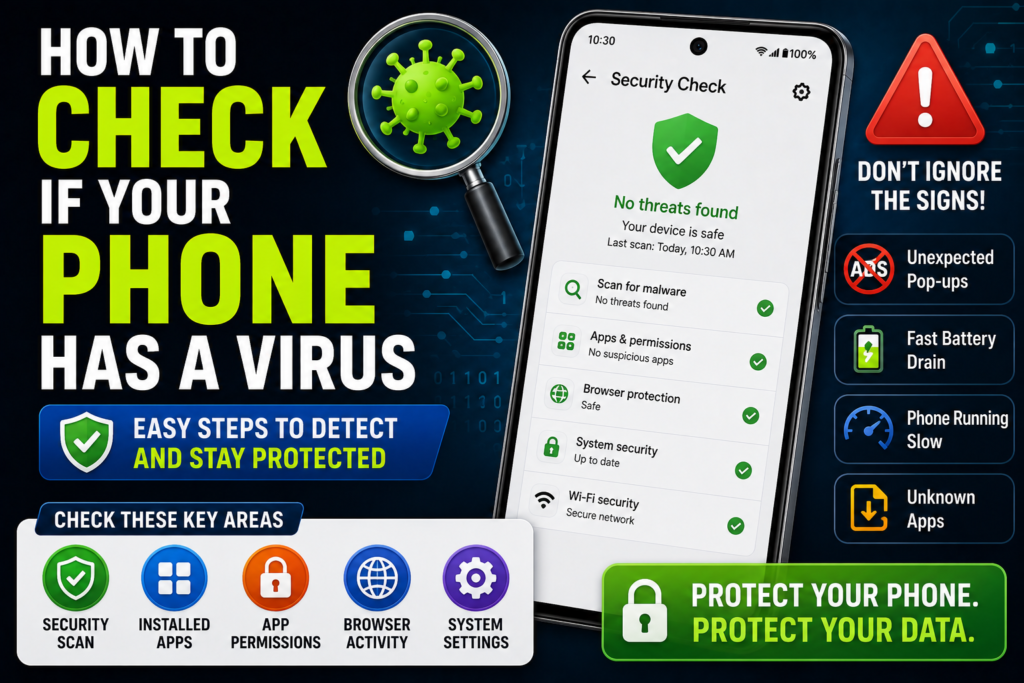
To check if your phone has a virus or other malware, start by looking for unusual symptoms such as persistent pop-ups, unknown applications, unexpected browser redirects, rapid battery or mobile-data usage, overheating when the phone is idle, or changes you did not make yourself.
On Android, open Google Play Store > profile picture > Play Protect and run a scan. Then review recently installed apps, app permissions, browser notifications, and device administrator or accessibility access where applicable. Remove apps you do not recognize or no longer trust.
On iPhone, traditional system-wide viruses are less common because of Apple’s app security model, but unwanted apps, malicious websites, scam profiles, compromised accounts, and other security issues can still cause problems. Check installed apps, Settings > General > VPN & Device Management when that option is present, Safari settings, Apple Account security, and iOS updates.
Do not immediately install a random “virus cleaner” because a website claims your phone is infected. Many fake virus warnings are designed to make users install questionable apps or pay for unnecessary services.
Why Your Phone May Appear to Have a Virus
A phone behaving strangely does not automatically mean it has malware.
Several ordinary technical problems can produce symptoms that look like an infection.
Too Many Apps Running
Some applications perform background tasks, synchronize data, check notifications, or use location services.
If many demanding applications are installed, the phone may become slower or consume more battery.
Low Storage
When your phone has very little free storage, applications and system processes may not work as smoothly.
Low storage can contribute to slow performance, app crashes, and problems installing updates.
Aging Battery
An older battery may have reduced capacity.
This can cause the phone to require charging more frequently and may contribute to performance changes on some devices.
Problematic Applications
An app can contain bugs or behave poorly without actually being malware.
A recently updated application may also introduce a problem that causes crashes, overheating, or excessive battery usage.
Browser Notifications
One of the most common reasons people think their phone has a virus is repeated browser notifications saying things such as:
- “Your phone is infected!”
- “Virus detected!”
- “Your device needs cleaning!”
- “Security warning!”
- “Click here to remove threats!”
These messages can come from websites that have been granted notification permission. They do not necessarily mean the phone itself is infected.
Common Signs That May Indicate Malware
There is no single symptom that proves a phone has a virus. However, several unusual changes happening together deserve attention.
Unexpected Pop-Ups
If advertisements appear outside normal apps or repeatedly appear on the home screen, investigate recently installed applications and browser notification permissions.
Unknown Apps
An application you do not remember installing deserves investigation.
Do not automatically delete system applications simply because their names look unfamiliar. Some legitimate apps are installed by the phone manufacturer or carrier.
Unusual Battery Drain
Malicious software can potentially run background processes, but battery drain also has many ordinary causes.
Check which applications are consuming the most battery before assuming malware is responsible.
Unexpected Mobile Data Usage
A suspicious app may use network data in the background.
However, cloud backups, video streaming, automatic updates, social media, and photo synchronization can also consume large amounts of mobile data.
Phone Overheating
A phone that becomes unusually warm while doing very little may need investigation.
But heat can also result from gaming, video calls, navigation, charging, direct sunlight, or demanding applications.
Browser Redirects
If your browser repeatedly opens websites you did not request, check browser settings, recently installed applications, and notification permissions.
Apps Crashing Frequently
Repeated crashes are usually not proof of malware.
They can be caused by bugs, insufficient storage, outdated software, or compatibility problems. However, if crashes started immediately after installing an unknown application, investigate that application.
How to Check If Your Phone Has a Virus
The best approach is to check the phone systematically instead of relying on one symptom.
Method 1: Check Recently Installed Apps
One of the first things to investigate is your app list.
On Android
The exact menu varies between manufacturers and Android versions, but you can generally open:
Settings > Apps
Review the installed applications and pay particular attention to software you do not recognize.
Ask yourself:
- Did I install this?
- Do I know the developer?
- Do I still need it?
- Did the problem start after installing it?
- Does the app request permissions that seem unnecessary?
If an application is clearly unwanted, uninstall it.
Warning: Do not remove unfamiliar system components simply because you do not recognize their names. If you are unsure, research the exact app name and package information before uninstalling it.
On iPhone
Open the App Library or Home Screen and review your installed applications.
You can also open:
Settings > General > iPhone Storage
This provides a useful view of installed apps and their storage usage.
Remove applications that you do not recognize or no longer need.
Method 2: Run Google Play Protect on Android
Google Play Protect is one of the most useful built-in tools for checking Android applications.
To run a check:
- Open the Google Play Store.
- Tap your profile picture.
- Select Play Protect.
- Review the security status.
- Start a scan if the option is available.
Play Protect can check applications for potentially harmful behavior and may warn you about suspicious software.
Keep Play Protect enabled unless you have a specific reason to change its settings.
If Play Protect identifies a harmful app, follow the instructions it provides.
Method 3: Check Android App Permissions
An application may request access to sensitive information or device functions.
Depending on your Android version and manufacturer, permission settings can usually be found through:
Settings > Apps > [App Name] > Permissions
Review permissions such as:
- Camera
- Microphone
- Location
- Contacts
- Phone
- SMS
- Files and media
Not every permission request is suspicious. For example, a navigation app may legitimately need location access.
The important question is whether the permission makes sense for what the application is supposed to do.
If a simple application requests access that appears unrelated to its purpose, investigate further.
Method 4: Check Battery Usage
Battery statistics can help identify applications that are unusually active.
On many Android devices, you can find this under a section such as:
Settings > Battery > Battery usage
The exact wording differs between manufacturers.
Look for an application consuming an unusually large amount of battery compared with how often you use it.
On iPhone, open:
Settings > Battery
Review the activity shown for individual apps.
High battery usage does not prove that an app is malicious. Use it as a clue rather than a final diagnosis.
Method 5: Check Mobile Data Usage
Unexpected network activity can also provide clues.
On Android, look for a section such as:
Settings > Network & internet > Internet > App data usage
The exact path can differ by device.
On iPhone, go to:
Settings > Cellular
Review which applications are using mobile data.
If an unfamiliar application has significant data usage, investigate it.
Again, high data consumption can have legitimate causes, so consider what the app does before removing it.
Method 6: Check Browser Notifications
If the problem consists mainly of repeated “virus detected” notifications, the browser may be the source.
A website may have been given permission to send notifications.
Chrome on Android
Open Chrome and review its notification and site settings.
You can generally manage website permissions through Chrome’s settings and remove notification permission for suspicious websites.
The exact menu can vary between Chrome versions.
Safari on iPhone
Safari does not work exactly like Chrome on Android, and website behavior is different on iOS. If you are seeing suspicious pop-ups or alerts, avoid interacting with them and close the webpage.
Do not install an app simply because a webpage says your iPhone has a virus.
Method 7: Restart the Phone
A restart will not remove genuine malware, but it can help determine whether a temporary software problem is responsible for unusual behavior.
Before restarting:
- Close important work.
- Save anything you are doing.
- Restart the phone normally.
- Observe whether the problem returns.
If suspicious behavior immediately returns after restarting, continue with app and security checks.
Method 8: Update Your Phone
Security updates can fix vulnerabilities and improve system security.
Android
Open your phone’s Settings and look for System update, Software update, or a similarly named option.
The exact location varies by manufacturer.
iPhone
Open:
Settings > General > Software Update
Install available updates appropriate for your device.
Keep applications updated through their official app store as well.
Method 9: Check for Unusual Accessibility or Device Control Access on Android
Some malicious applications attempt to obtain powerful permissions that allow them to interact with the device.
Depending on the Android version and manufacturer, review settings related to:
- Accessibility
- Device administrator apps
- Install unknown apps
- VPN
- Notification access
Be particularly cautious if an unknown app has powerful access that you did not intentionally provide.
Do not disable legitimate security or accessibility services simply because they sound technical.
If you identify an unfamiliar app with powerful permissions, research it carefully and remove it if appropriate.
Method 10: Check iPhone Configuration Profiles
iPhones can use configuration profiles for legitimate purposes such as school or workplace management.
However, if you see a profile you did not intentionally install, it deserves investigation.
Depending on the iOS version, check:
Settings > General > VPN & Device Management
If you see an unfamiliar profile, determine where it came from before removing it.
Warning: A legitimate organization-managed iPhone may require its configuration profile. Do not remove a work or school management profile without checking with the responsible administrator.
Android-Specific Virus Checks
Android gives users considerable flexibility, which is useful but also means users should be careful about where they install applications.
Be Careful With APK Files
An APK is an Android application installation file.
Installing APK files from outside trusted sources can increase security risk.
If you recently installed an APK and your phone started behaving strangely, consider uninstalling the associated application and running Play Protect.
Check Unknown App Installation Permissions
Android can allow certain applications to install other applications when the user grants the appropriate permission.
Review Install unknown apps settings on your device if you suspect an unwanted application has been installed.
Only enable this capability when you have a clear reason to use it.
iPhone-Specific Virus and Malware Checks
The term “iPhone virus” is often used broadly, but iPhones have security protections that make traditional system-wide malware different from what users may encounter on less restricted platforms.
That does not mean iPhones are immune to every security problem.
Potential issues can involve:
- Malicious or unwanted websites
- Scam messages
- Compromised Apple Accounts
- Unwanted configuration profiles
- Malicious links
- Vulnerable or outdated software
- Untrusted applications or services
Check Your Apple Account
If you suspect someone has accessed your Apple Account, review the devices associated with it and account security settings.
If you see an unfamiliar device, investigate it.
Change your password from a trusted device if you believe your credentials have been compromised.
Things to Check Before Trying Advanced Solutions
Before performing a factory reset or deleting large amounts of data, complete these basic checks.
Back Up Important Data
Back up important:
- Photos
- Videos
- Contacts
- Documents
- Messages
- Other irreplaceable information
Use a trusted backup method.
Warning: Do not assume that every phone problem requires a factory reset. A reset can remove apps, settings, and potentially personal data depending on the process you choose.
Remember Which App Was Installed Recently
Think about when the problem started.
If the symptoms appeared immediately after installing an app, that timing is useful evidence.
Check Storage
Look at your available storage.
A phone with very little free space can become slow and unstable without any malware being present.
Check Battery Health or Usage
Battery deterioration can cause frequent charging and unexpected shutdowns.
Do not mistake normal battery aging for a virus without checking other symptoms.
Common Mistakes to Avoid
Trusting Fake Virus Alerts
A website saying “Your phone has 5 viruses” does not prove anything.
Close the page instead of following its instructions.
Installing Random Antivirus Apps
Do not download an unknown security application simply because another app or webpage tells you to.
On Android, start with Google Play Protect and use reputable security software if you need a second opinion.
On iPhone, be skeptical of apps claiming they can perform a traditional system-wide virus scan like a desktop antivirus program.
Giving Apps Too Many Permissions
Only grant permissions that are necessary for an app’s purpose.
Ignoring Unknown Apps
If an unfamiliar application appeared shortly before your problems started, investigate it.
Factory Resetting Too Quickly
A factory reset is a major step.
It can remove your apps and settings and may cause data loss if your information is not backed up.
Use it only when simpler solutions have failed or when there is a strong reason to start over.
When to Get Professional Help
You may need professional assistance if your phone shows serious or persistent security problems.
Contact the phone manufacturer, a reputable technician, or an appropriate security professional if:
- You cannot remove a suspicious application.
- The phone repeatedly installs unwanted software.
- Someone appears to have access to your accounts.
- Banking or payment information may have been exposed.
- The device is controlled by an unknown administrator or organization.
- You suspect targeted spyware.
- The phone continues behaving abnormally after trusted security checks.
- You have important business or personal information at risk.
If you believe an account has been compromised, use another trusted device to change the password and enable two-factor authentication.
Frequently Asked Questions
How do I know if my phone has a virus?
Look for multiple unusual signs rather than one symptom. Unexpected pop-ups, unknown apps, browser redirects, unusual battery or data usage, unexplained overheating, and changes you did not make can justify a security check. However, these symptoms can also have ordinary technical causes.
How can I check if my Android phone has a virus?
Start by running Google Play Protect from the Google Play Store. Then review recently installed apps, permissions, battery usage, mobile-data usage, browser notifications, and powerful access such as accessibility or device administrator permissions.
Can an iPhone get a virus?
iPhones have security protections that make traditional system-wide viruses less common, but iPhone users can still encounter malicious websites, scams, compromised accounts, unwanted configuration profiles, and other security threats. Keeping iOS updated and reviewing unfamiliar apps and account activity is important.
Does a phone virus drain the battery?
Malware can potentially cause increased background activity and battery usage, but battery drain alone does not prove that your phone has a virus. Battery age, poor signal, background synchronization, video apps, games, and other normal activities can also cause rapid battery consumption.
Why am I getting fake virus warnings on my phone?
Fake virus warnings commonly come from malicious or misleading websites, browser pop-ups, or notification permissions. Do not click the warning or install software it recommends. Close the page and review your browser’s notification permissions.
Should I install an antivirus app on my phone?
Android users can start with Google Play Protect, which is built into Google Play. A reputable security app can sometimes provide additional features, but avoid random “phone cleaner” or “virus removal” apps that make exaggerated claims.
iPhone users should be especially cautious about apps claiming to perform a traditional system-wide virus scan because iOS limits what third-party apps can inspect.
Will a factory reset remove a virus from my phone?
A factory reset removes apps, settings, and personal data depending on the device and reset options, and it can resolve some persistent software problems. However, it should not be treated as the first solution to every suspected infection. Back up important data first and investigate account security as well.
Can a slow phone mean it has malware?
Yes, malware can contribute to poor performance, but slow performance is much more commonly associated with factors such as limited storage, aging hardware, background processes, software bugs, or demanding applications. Run security checks before concluding that malware is responsible.
Final Thoughts
Learning How to Check If Your Phone Has a Virus starts with understanding that unusual behavior does not automatically mean your phone is infected. Battery drain, slow performance, overheating, and app crashes can have many ordinary explanations.
For Android, begin with Google Play Protect, then review installed applications, permissions, battery usage, mobile-data usage, browser notifications, and powerful device-access settings. For iPhone, check installed apps, iOS updates, suspicious configuration profiles, Safari behavior, and Apple Account security.
Most importantly, do not trust alarming pop-ups that tell you your phone is infected. A legitimate security check should come from a trusted operating-system feature or reputable security provider, not from a random website demanding immediate action.
If you discover a suspicious application, remove it carefully and then check your important accounts from a trusted device. Change compromised passwords and enable two-factor authentication where available.
Finally, keep your phone updated, install applications from trusted sources, review permissions regularly, and maintain backups of important information. These simple habits can significantly reduce the risk of malware and make it easier to recover if something does go wrong.