How to Stop Android Phone From Overheating: 15 Practical Ways to Fix It
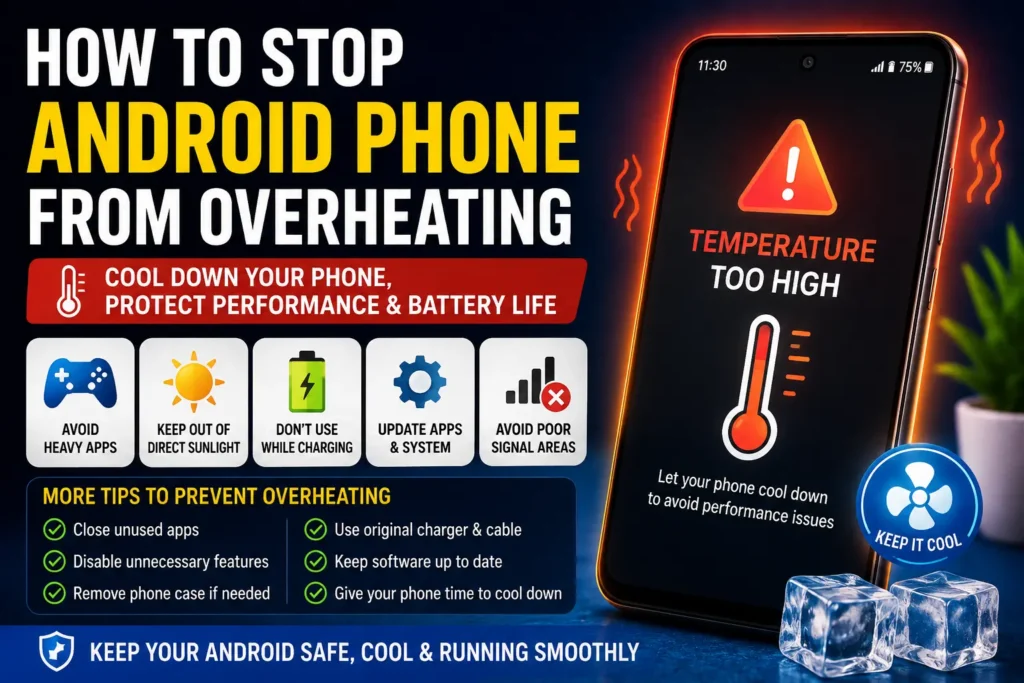
An Android phone can become warm during gaming, video recording, charging, navigation, or other demanding activities. However, if your phone frequently becomes very hot during light use, gets hot while sitting idle, or shows temperature warnings, there may be an underlying issue that needs attention.
If you are searching for how to stop Android phone from overheating, the first step is to identify what is making the device work harder than normal. Common causes include demanding apps, direct sunlight, poor cellular signal, charging while performing intensive tasks, excessive background activity, outdated software, and a battery or hardware problem.
This guide explains practical ways to cool an Android phone, reduce unnecessary heat, identify problematic apps, and recognize situations where professional repair is safer than continued troubleshooting.
Quick Answer
To stop an Android phone from overheating, stop demanding activities, remove the phone from direct sunlight, disconnect the charger if the device is unusually hot, close or stop problematic apps, and allow the phone to cool naturally. Avoid placing a hot phone in a refrigerator or freezer because sudden temperature changes and condensation can cause additional damage.
Next, check Android’s battery and app usage information to identify applications consuming excessive processing power. Reduce unnecessary background activity, install available system and app updates, avoid using the phone heavily while charging, and make sure the charging equipment is appropriate for your device.
If the phone repeatedly overheats while performing simple tasks, becomes extremely hot when idle, shuts down unexpectedly, or shows signs of a swollen or damaged battery, stop using it and contact the manufacturer or an authorized repair professional.
Why Android Phones Overheat
Heat does not always mean something is broken. Smartphones contain processors, batteries, radios, displays, and other components that produce heat while operating.
The problem occurs when the phone produces more heat than it can comfortably dissipate.
Heavy Apps and Games
3D games, video editing applications, camera apps, augmented reality applications, and other demanding software can place considerable load on the phone’s processor and graphics hardware.
The harder these components work, the more heat they can generate.
Some games can make a phone noticeably warm after extended sessions. This does not necessarily indicate a hardware fault, especially if the temperature returns to normal after the activity stops.
Using the Phone While Charging
Charging naturally produces some heat. Using the phone for demanding activities at the same time can add additional heat from the processor, display, network hardware, and battery.
Gaming, video recording, navigation, and high-resolution streaming while charging can therefore make the device considerably warmer.
Direct Sunlight
A phone exposed to direct sunlight can heat up even when you are not actively using it.
Leaving an Android phone on a car dashboard, near a window in strong sunlight, or outdoors on a hot surface can cause its temperature to rise quickly.
Poor Cellular Signal
Your phone constantly communicates with cellular networks.
When reception is poor, the device may use additional power while attempting to maintain connectivity. If your phone becomes noticeably warmer and loses battery faster in a particular location, weak cellular reception may be contributing to the problem.
Background Applications
Some apps continue performing tasks when you are not actively using them.
Examples include:
- Cloud backups
- Photo synchronization
- Social media updates
- File transfers
- Navigation
- Video uploads
- App updates
- Messaging synchronization
A malfunctioning or poorly optimized application can sometimes consume unusually high processing resources in the background.
Outdated Software
Android updates and application updates can contain bug fixes and performance improvements.
If overheating began after installing a particular app or system update, check whether another update is available before assuming the phone has a hardware problem.
Aged or Damaged Battery
A rechargeable battery naturally changes as it ages.
If a battery has significantly degraded or has been physically damaged, it may exhibit unusual behavior such as rapid battery drain, unexpected shutdowns, excessive heat, or charging problems.
A damaged or swollen battery should not be handled as an ordinary software problem.
How to Stop Android Phone From Overheating
Start with the simplest solutions before changing advanced settings.
Method 1: Stop Demanding Activities
If your Android phone is hot while gaming, recording video, editing media, or using navigation, stop the activity temporarily.
Follow these steps:
- Save your work if necessary.
- Exit the demanding application.
- Stop video recording or navigation if it is no longer needed.
- Disconnect the phone from charging if it is unusually hot.
- Remove the phone from direct sunlight.
- Place it on a cool, dry surface away from heat sources.
- Allow it to return to a normal temperature before heavy use.
Do not try to cool the phone using extreme temperatures.
Method 2: Remove the Phone From Direct Sunlight
If your phone is hot because of its surroundings, move it into a cooler environment.
Avoid placing it:
- On a car dashboard
- Near a heater
- In direct sunlight
- Under a pillow or blanket
- Inside an enclosed hot space
- On another heat-producing electronic device
Let the phone cool naturally.
Do not place a hot smartphone inside a refrigerator or freezer. Rapid temperature changes can create condensation and may damage internal components.
Method 3: Stop Using the Phone While Charging
If your phone gets hot during charging, avoid intensive activities until charging is complete.
In particular, avoid extended:
- Gaming
- Video recording
- Video editing
- Navigation
- Hotspot use
- Large downloads
- High-resolution streaming
If the phone is only mildly warm during normal charging, that can be expected. However, unusual or excessive heat deserves investigation.
Method 4: Check Which Apps Are Consuming Power
One of the most useful steps for learning how to stop Android phone from overheating is identifying the application responsible for excessive activity.
Android menu names vary by manufacturer and software version, but you can generally find battery information through:
Settings → Battery
Look for battery usage or app battery information.
Check whether an application is consuming an unusually large amount of battery compared with how much you actually used it.
For example, if you used an app for only a few minutes but it appears to have consumed significant battery in the background, investigate it.
You can then:
- Update the application.
- Restart your phone.
- Check its background activity settings.
- Remove the app if you do not need it.
- Contact the developer if the problem continues.
Do not disable essential system applications simply because they appear in battery statistics.
Method 5: Restart Your Android Phone
A restart can clear temporary software problems and stop processes that have become stuck.
To restart:
- Save important work.
- Open the power menu.
- Choose the restart option.
- Wait for Android to start completely.
- Use the phone normally.
- Check whether the overheating returns.
If the phone repeatedly becomes hot soon after every restart, continue investigating instead of relying on repeated restarts.
Method 6: Install Android Updates
Check whether your phone has an official system update available.
The exact process differs by manufacturer, but Android devices generally provide software-update controls in Settings.
Before installing an update:
- Back up important data.
- Use a reliable connection.
- Make sure the battery has sufficient charge.
- Follow the manufacturer’s instructions.
- Do not interrupt the installation.
An update can sometimes resolve software bugs that cause unusual processing or battery behavior.
Method 7: Update Your Apps
An outdated application may contain bugs that cause excessive background activity or processing.
Open your phone’s official app store and check for available updates.
Pay particular attention to applications that appear high in battery usage.
If overheating started after installing a specific application, an update may resolve the issue. If the application continues causing unusual battery or processor usage, consider removing it if it is not essential.
Method 8: Reduce Screen Brightness
The display consumes power, especially when used at high brightness for long periods.
To reduce heat and battery consumption:
- Open the brightness controls.
- Lower the display brightness to a comfortable level.
- Use adaptive brightness if it works well on your device.
- Avoid maximum brightness indoors unless necessary.
Reducing brightness is particularly useful when combined with other changes, such as reducing demanding background activity.
Method 9: Turn Off Unnecessary Features
Wireless and location features can consume additional power depending on how they are being used.
When you do not need them, consider turning off features such as:
- Mobile hotspot
- Bluetooth
- GPS/location access for unnecessary apps
- WiFi when appropriate
- NFC when not needed
Do not disable connectivity features that you actively depend on. The purpose is to reduce unnecessary activity, not to turn off everything on your phone.
Method 10: Avoid Poor-Signal Areas When Possible
If your phone becomes hot and loses battery rapidly in one location, check the cellular signal.
A weak signal can cause the phone to work harder to maintain communication with the network.
If possible, move to an area with better reception.
When supported by your device and carrier, reliable WiFi calling can also be useful in locations where cellular reception is consistently poor.
If poor reception occurs throughout your home or workplace, contact your mobile carrier to discuss coverage rather than repeatedly changing phone settings.
Method 11: Remove the Phone Case Temporarily
A protective case does not normally cause dangerous overheating by itself, but some thick cases can make it harder for heat to escape under certain conditions.
If your phone becomes unusually hot during charging or demanding tasks, temporarily remove the case and observe whether the situation improves.
If removing the case makes a noticeable difference, consider whether your case is appropriate for the device and how you use it.
Do not operate the phone without protection permanently if doing so creates a greater risk of physical damage. The goal is to identify whether the case contributes to heat retention.
Method 12: Stop Unnecessary Background Synchronization
Cloud services and applications may synchronize files in the background.
If your phone is uploading hundreds of photos or downloading a large amount of data, both network activity and processor activity can increase.
Check whether your phone is:
- Backing up photos
- Synchronizing cloud files
- Downloading app updates
- Uploading videos
- Restoring data
- Downloading large files
Allow intensive synchronization to finish when practical, or adjust settings for services you do not need running continuously.
Method 13: Use Android’s Battery-Saving Features
Most modern Android phones provide some form of battery-saving mode.
Depending on the manufacturer, it may be called Battery Saver, Power Saving, or something similar.
Battery-saving modes can reduce certain background processes and other activities to extend battery life.
They can be especially useful when your phone is warm because they may reduce the amount of work the device performs.
However, the exact behavior varies by Android version and manufacturer.
Method 14: Check Your Charging Equipment
Charging accessories can affect heat.
Use a compatible charger and cable from a reputable manufacturer and follow your phone manufacturer’s charging recommendations.
If the phone becomes unusually hot every time you use a particular charger or cable, stop using that accessory until you can determine whether it is appropriate and functioning correctly.
Do not use visibly damaged cables.
Also avoid charging your phone in places where heat cannot escape, such as under blankets or pillows.
Method 15: Check Whether the Problem Continues When Idle
An important test is to observe your phone when you are barely using it.
After allowing the device to cool:
- Close unnecessary activities.
- Leave the phone in a normal indoor environment.
- Avoid charging it during the test.
- Check whether it remains unusually warm.
- Review battery usage afterward.
If the phone stays hot despite very little activity, an application, connectivity problem, software issue, or hardware fault may be responsible.
Android-Specific Solutions
Because Android is used by many manufacturers, settings can look different on Samsung, Google Pixel, Xiaomi, OnePlus, Motorola, and other devices.
Check Battery Usage
Go to your phone’s battery settings and look for application usage.
The exact menu may vary, but you are looking for information showing which applications consume battery.
An app that is consistently consuming substantial power in the background deserves attention.
Review App Permissions
Review permissions for applications that do not need continuous access to location, camera, microphone, or other resources.
Only change permissions when you understand how doing so will affect the application.
For example, removing location access from a navigation app can prevent it from providing its primary function.
Check Device Care Features
Some Android manufacturers provide built-in device maintenance or device-care tools.
These may provide information about battery usage, storage, performance, or applications.
Use official built-in tools where available rather than installing unknown applications that promise to “cool” your phone.
Things to Check Before Trying Advanced Solutions
Before resetting your Android phone or making major configuration changes, perform these basic checks.
Check When the Overheating Started
Think about what changed shortly before the problem began.
Did you:
- Install a new app?
- Install a system update?
- Start playing a demanding game?
- Begin using a new charger?
- Change your mobile network?
- Start using a hotspot?
- Travel to an area with poor reception?
The timing can help identify the cause.
Check Whether the Phone Is Charging
Determine whether overheating happens:
- Only while charging
- Only during gaming
- During normal browsing
- While using mobile data
- While connected to WiFi
- While the phone is idle
This distinction can significantly narrow down the possible causes.
Check Battery Drain
Overheating and rapid battery drain often occur together.
If the battery percentage falls unusually quickly while the phone is hot, check battery usage and investigate applications consuming excessive power.
Check the Environment
Consider the temperature around the phone.
A device that feels normal indoors may become significantly hotter outside in direct sunlight.
Move it to a cooler environment before assuming there is a hardware problem.
Back Up Important Data Before Risky Changes
If you eventually need to perform a network reset, factory reset, or repair, back up important photos, documents, contacts, and other data first.
A factory reset can remove personal information and applications from the device.
Do not perform one simply because the phone feels warm.
Common Mistakes to Avoid
Putting a Hot Phone in the Freezer
This is one of the worst ways to attempt to cool an electronic device.
Extreme cold and condensation can damage internal components.
Allow the phone to cool naturally in a safe environment.
Continuing to Game While the Phone Is Extremely Hot
If the phone is already very warm, continuing a demanding game or application can increase the heat further.
Stop the activity and allow the device to cool.
Using the Phone Under a Pillow While Charging
Soft materials can restrict airflow and trap heat around the device.
Keep the phone and charger on a suitable hard surface while charging.
Installing Fake Cooling Apps
Apps cannot physically remove heat from a battery or processor in the way a cooling system does.
Some third-party “phone cooler” or “RAM booster” applications may themselves consume resources.
Start with Android’s built-in battery and system tools instead.
Disabling Every Background Process
Aggressively disabling system services can break notifications, synchronization, or other important functions.
Identify the specific application causing excessive activity rather than changing everything.
Performing a Factory Reset Too Quickly
A factory reset is a major troubleshooting step.
Back up your information first and only consider it when there is a clear reason to believe the issue is software-related and simpler solutions have failed.
When to Get Professional Help
Occasional warmth during demanding tasks is not necessarily a reason to panic. However, persistent or extreme heat should not be ignored.
Contact the phone manufacturer or an authorized repair professional if:
- The phone becomes extremely hot during light use.
- It becomes hot while sitting idle.
- The device repeatedly shuts down because of temperature.
- The battery drains unusually quickly.
- Charging repeatedly causes excessive heat.
- The phone has been physically damaged.
- The battery appears swollen.
- The screen or back cover is lifting away from the device.
- You notice an unusual smell or other signs of physical damage.
Important safety warning: If you suspect that the battery is swollen, punctured, leaking, or otherwise damaged, stop using the phone and do not attempt to open it yourself. Lithium-ion batteries can present a fire or injury risk when damaged.
A qualified technician can inspect the battery, charging system, thermal behavior, and other hardware components.
Frequently Asked Questions
Why is my Android phone getting hot so quickly?
An Android phone can become hot because of demanding apps, gaming, video recording, navigation, charging, direct sunlight, poor cellular reception, background activity, or a battery problem. Check battery usage to identify applications consuming unusual amounts of power.
How can I cool down my Android phone quickly?
Stop demanding activities, disconnect the charger if the phone is unusually hot, move it away from sunlight and heat sources, and allow it to cool naturally on a hard surface. Do not put the phone in a refrigerator or freezer.
Why does my Android phone get hot while charging?
Some warmth during charging can be normal. Heat can increase when you use demanding applications while charging, charge in a hot environment, or use inappropriate or damaged charging accessories. If charging repeatedly causes excessive heat, stop using the questionable accessory and seek professional advice if the issue continues.
Can a phone case cause overheating?
A case does not normally cause overheating by itself, but some thick cases may retain more heat during intensive use or charging. If your phone gets unusually hot, temporarily removing the case can help determine whether it contributes to the problem.
Can poor network signal make an Android phone hot?
Yes. Poor cellular reception can increase power consumption as the phone works to maintain communication with the network. If the phone becomes warmer and loses battery faster in areas with weak reception, network conditions may be contributing.
Does closing apps stop Android phones from overheating?
Closing a problematic application can help when that app is actively consuming excessive resources. However, repeatedly closing every app is not necessarily the best solution. Check battery usage first and identify the application or activity actually causing the problem.
Should I factory reset my Android phone if it overheats?
No. A factory reset should not be your first response to overheating. Start by checking applications, battery usage, software updates, charging equipment, signal strength, and environmental conditions. If a reset eventually becomes necessary, back up your important data first.
Can an old battery cause an Android phone to overheat?
An aging or damaged battery can contribute to unusual heat, rapid battery drain, or charging problems. If the battery has significantly degraded or shows signs of physical damage, have it inspected by an authorized professional.
Why does my Android phone get hot when I am not using it?
If the phone remains hot while idle, background applications, synchronization, poor cellular reception, software problems, or hardware issues may be responsible. Check battery usage and background activity, then seek professional assistance if the phone remains unusually hot.
Final Thoughts
Knowing how to stop Android phone from overheating starts with identifying what is creating the heat. A phone may naturally become warm during gaming, charging, navigation, video recording, or other demanding activities, but persistent or excessive heat deserves attention.
Start by stopping demanding tasks and moving the phone away from direct sunlight or other heat sources. Then check battery usage, update Android and your applications, reduce unnecessary background activity, review location access, and avoid intensive phone use while charging.
Also pay attention to the difference between normal warmth and potentially dangerous overheating. A phone that becomes extremely hot while idle, repeatedly shuts down, has a swollen battery, or shows other physical damage should not be treated with random software fixes.
For most everyday overheating problems, careful troubleshooting can identify the cause without a factory reset or expensive replacement. If the issue continues despite reasonable software and usage changes, professional inspection is the safest next step.