How to Fix Apps Crashing on Android: 15 Practical Solutions That Work
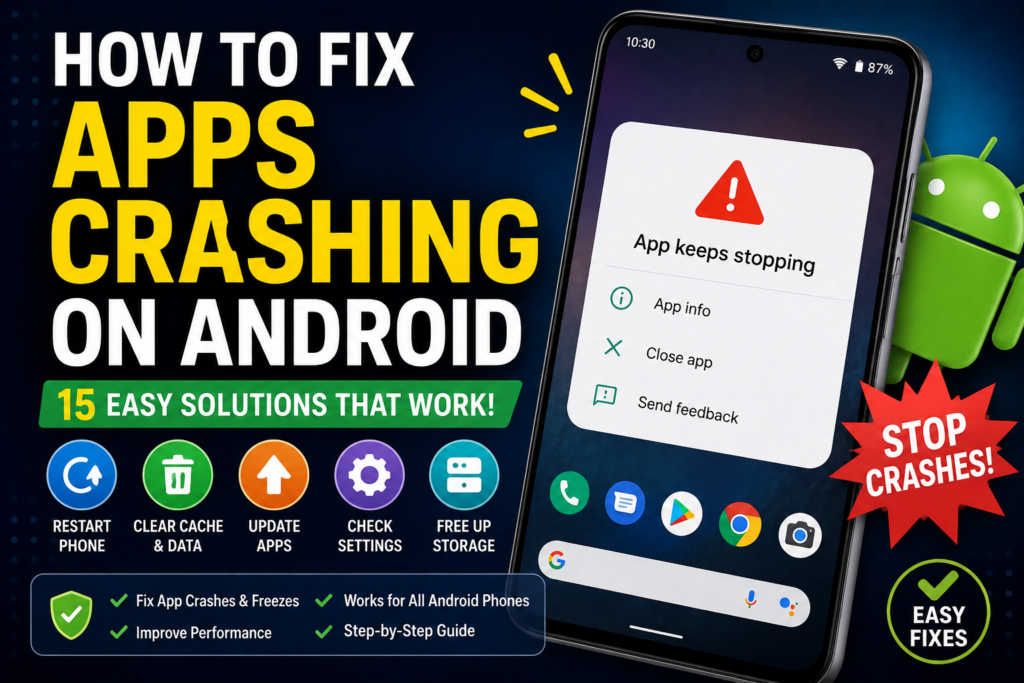
When an Android app suddenly closes, freezes, or shows an “App keeps stopping” message, it can be difficult to know whether the problem is with the app, your phone, or Android itself. App crashes can happen when an application has corrupted temporary files, needs an update, lacks storage space, conflicts with another component, or encounters a software bug.
If you are searching for How to Fix Apps Crashing on Android, you do not always need to uninstall the app or reset your phone. Many crashes can be fixed with a few simple steps, such as restarting the device, updating the app, clearing its cache, checking available storage, or updating Android.
This guide explains the most useful solutions in the right order. It also explains what to do when only one app crashes, when multiple apps crash, and when an app crashes immediately after opening.
Quick Answer
To fix apps crashing on Android, first restart your phone and check for updates for the affected app and Android system. Then make sure you have enough free storage and a stable internet connection if the app requires online services.
If one particular app keeps crashing, open its App info page and try Force stop, followed by Clear cache. If that does not help, you can consider clearing the app’s storage or reinstalling it. Be aware that clearing storage or uninstalling an app can remove locally stored app data.
If many different apps are crashing, the problem may be related to Android system software, insufficient storage, a recently installed application, or another system component. In that situation, update Android, check storage, remove problematic recent apps, and use Safe Mode when appropriate.
Why Apps Crash on Android
Android apps can stop unexpectedly for many different reasons. Identifying the pattern of the crash can help you choose the right solution.
The App Is Outdated
Developers regularly release updates to fix bugs and maintain compatibility with newer Android versions. If an app has not been updated for a long time, it may become unstable after an Android system update or changes to online services.
Android Is Outdated
The opposite can also happen. Your app may be updated while your phone is running an older Android version that has compatibility issues with the application.
Corrupted Cache Files
Apps store temporary files called cache data to improve performance. Sometimes these files become corrupted. Clearing the cache can remove problematic temporary data without normally removing your account or personal files stored elsewhere.
Corrupted App Data
If the app’s stored data becomes damaged, clearing the cache may not be enough. Clearing app storage can provide a deeper reset, but it can also remove locally stored settings, login information, downloaded content, or other app data.
Low Storage Space
Android needs available storage for applications, temporary files, updates, and normal operation. When storage becomes very limited, apps may behave unpredictably.
A Problematic App Update
Occasionally, a newly released app version can introduce a bug. If an app started crashing immediately after an update, the update itself may be part of the problem.
Background Components Are Not Working Correctly
Some Android apps depend on system components and services. Problems with those components can affect multiple applications rather than just one.
Overheating or Heavy System Load
If your phone is extremely hot or many demanding applications are running simultaneously, an app may become unstable. Closing unnecessary applications and allowing the phone to cool can help.
Software Conflicts
A recently installed application, accessibility tool, security application, launcher, VPN, or other system-level utility can sometimes interfere with another app.
Things to Check Before Trying Advanced Solutions
Before changing app data or performing a more significant reset, check these simple things:
- Restart your Android phone.
- Check whether only one app is crashing or several apps are affected.
- Check available storage.
- Update the affected app.
- Check for Android system updates.
- Make sure the phone is not extremely hot.
- Check your internet connection if the app requires an online connection.
- Confirm that the app is installed from a trusted source.
- Check whether the problem started immediately after an app or Android update.
- Back up important information before clearing app storage or uninstalling an app.
These checks can often identify the cause without putting your personal data at risk.
How to Fix Apps Crashing on Android
Try the following methods in order. Android menus vary between manufacturers such as Samsung, Google Pixel, Xiaomi, OnePlus, Motorola, and others, so the exact names may differ.
Method 1: Restart Your Android Phone
A simple restart should be the first troubleshooting step.
Restarting closes running processes and reloads Android system components. It can resolve temporary problems that cause an app to freeze or close unexpectedly.
- Save anything important you are working on.
- Open the phone’s power menu.
- Select Restart.
- Wait until Android finishes starting.
- Open the affected app again.
If the app works normally after restarting but starts crashing again later, continue with the next solutions.
Method 2: Force Stop the Crashing App
Force stopping an app closes its current processes. This can help if the application has become stuck in an unusual state.
- Open Settings.
- Go to Apps, Applications, or a similar menu.
- Select See all apps if necessary.
- Find the app that keeps crashing.
- Open its App info page.
- Tap Force stop.
- Confirm if Android asks.
- Open the app again.
The location of the Force stop button differs by Android manufacturer and software version.
This method does not normally delete your app data.
Method 3: Clear the App Cache
Clearing the cache is one of the most useful solutions when one particular app keeps crashing.
- Open Settings.
- Select Apps or Applications.
- Select the affected application.
- Open Storage or Storage & cache.
- Tap Clear cache.
- Reopen the application.
Clearing cache removes temporary files rather than completely resetting the application.
If the app continues crashing, move to the next method instead of repeatedly clearing the cache.
Method 4: Update the App
An outdated application may contain a bug that has already been fixed by its developer.
- Open the Google Play Store.
- Search for the affected app.
- Open its store page.
- If an Update option is available, select it.
- Wait for the installation to finish.
- Open the app again.
If many apps are outdated, you can also review available updates through your Play Store app-management section.
If the crash started immediately after a recent app update, check whether the developer has released another update addressing the issue.
Method 5: Check Android for System Updates
Android updates can contain compatibility improvements and bug fixes.
The exact menu depends on your phone. Look for a section such as:
Settings > System > Software update
Samsung and other manufacturers may place software updates under a different menu.
- Open Settings.
- Search for Software update if you cannot find it.
- Check for available updates.
- Install an appropriate update.
- Restart the phone if required.
- Test the crashing app.
Keep your phone connected to a suitable power source if an update requires significant battery power.
Method 6: Free Up Storage Space
Very limited storage can cause apps and system processes to behave unexpectedly.
Check your storage under a menu such as:
Settings > Storage
Look at which categories are using the most space.
You can consider removing:
- Unused applications
- Large videos
- Duplicate files
- Unnecessary downloads
- Offline media you no longer need
- Other files you have safely backed up
Warning: Do not delete files simply because you do not recognize their names. Back up important photos, videos, documents, and other personal files before performing large-scale cleanup.
After freeing some storage, restart the phone and test the affected application.
Method 7: Check the App’s Permissions
Some applications need specific permissions to perform their intended functions. Permission requirements vary by application.
If the app crashes after a permission was denied or changed, review its permissions.
- Open Settings.
- Select Apps.
- Choose the affected app.
- Open Permissions.
- Review denied permissions.
- If the app clearly requires a particular permission, follow the app’s normal permission request process.
- Test the application again.
Do not grant unnecessary permissions simply to stop an app from crashing. Only allow permissions that make sense for the application’s features.
Method 8: Clear the App’s Storage
If clearing the cache does not work, clearing the application’s storage can provide a more complete reset.
Warning: This step can remove locally stored app information, including settings, downloaded data, or login state. Important information should be backed up first if the app provides a backup or synchronization feature.
To try it:
- Open Settings.
- Go to Apps.
- Select the affected app.
- Choose Storage or Storage & cache.
- Select Clear storage or Clear data, depending on your Android version.
- Confirm the action.
- Open the app again.
- Sign in again if required.
This is particularly useful when the application’s internal data has become corrupted.
Method 9: Reinstall the App
If the app continues crashing, reinstalling it can replace damaged application files.
Warning: Uninstalling an app can remove locally stored data. Before uninstalling, check whether important information is synchronized with your account or backed up by the application.
To reinstall:
- Open the Google Play Store.
- Search for the affected application.
- Uninstall it using the available option.
- Restart the phone if appropriate.
- Return to the Play Store.
- Install the application again.
- Open it and sign in if necessary.
Only install applications from trusted sources.
Method 10: Update Google Play System Components
Some Android applications depend on system components maintained separately from the main Android version.
Depending on your phone, look in Settings for Google Play system update or search Settings for that term.
If an update is available:
- Open the relevant update page.
- Install the update.
- Restart the phone if requested.
- Test the affected applications.
The exact availability and location of this option varies by device and Android version.
Method 11: Check Android System WebView and Chrome
Some Android applications display web-based content inside the app. System components involved in displaying web content can therefore affect certain applications.
If several apps that display web-based content suddenly begin crashing, check for available updates for Android System WebView and Google Chrome through the Google Play Store, where applicable.
- Open Google Play Store.
- Search for Android System WebView.
- Check for an available update.
- Also check Google Chrome.
- Install appropriate updates.
- Restart the phone.
- Test the affected apps.
Not every app crash is caused by these components, so this method is most useful when multiple applications are affected.
Method 12: Check Whether a Recently Installed App Is Causing Conflicts
If apps started crashing after installing a new application, that timing is important.
Consider applications that can interact with other software, such as:
- Device customization tools
- System cleaners
- Accessibility utilities
- Security applications
- VPN applications
- Launchers
- Overlay tools
If the problem began immediately after installing one of these, review the application’s settings or temporarily remove it if it is safe to do so.
Do not uninstall security software or other important applications without understanding what they do.
Method 13: Use Android Safe Mode for Troubleshooting
Safe Mode starts Android with many third-party applications disabled. The exact process differs by manufacturer, so use your phone manufacturer’s instructions for entering and exiting Safe Mode.
If an app problem disappears in Safe Mode, a recently installed third-party application may be involved.
A useful approach is:
- Enter Safe Mode using the manufacturer’s instructions.
- Test whether the same system behavior occurs.
- If the problem disappears, consider recently installed apps as possible causes.
- Exit Safe Mode.
- Remove or disable the suspected application if appropriate.
- Restart normally.
- Test again.
Safe Mode is particularly useful when multiple apps are crashing or the entire phone behaves unusually.
Method 14: Reset App Preferences
Some Android phones provide a Reset app preferences option.
This can restore certain app-related defaults without performing a full factory reset. However, the exact behavior varies by Android version and manufacturer.
Warning: Resetting app preferences can change default applications, disabled apps, notification-related settings, and permission-related behavior. Review the confirmation screen before proceeding.
If you are not comfortable with what the reset changes, skip this method and investigate the specific app instead.
Method 15: Factory Reset Only as a Last Resort
A factory reset should not be the first response to app crashes.
Warning: A factory reset can erase personal information, applications, settings, and other data stored on the device. Back up important information before considering this option.
A reset may be appropriate only when:
- Many system applications crash.
- Android has serious recurring software problems.
- Normal troubleshooting has failed.
- The phone has other major software symptoms.
- You have a reliable backup.
- Manufacturer or qualified support recommends it.
Before resetting, investigate less destructive solutions first.
If Only One Android App Keeps Crashing
When only one application crashes while everything else works normally, focus on that application.
Use this order:
- Restart the phone.
- Force stop the app.
- Clear its cache.
- Update the app.
- Check permissions.
- Clear app storage if appropriate.
- Reinstall the application.
- Contact the developer if the crash continues.
If the application still crashes after a clean installation, the problem may be a compatibility bug or an issue with the application’s current release.
Check the application’s Play Store page for recent updates and developer information.
If Multiple Android Apps Keep Crashing
Multiple crashes suggest a broader problem.
Check:
- Available storage
- Android system updates
- Google Play system updates
- Android System WebView and Chrome updates where relevant
- Recently installed applications
- Safe Mode behavior
- General phone performance and overheating
If several unrelated apps started crashing at approximately the same time, do not repeatedly clear each application’s cache. Look for a shared system-level cause.
Common Mistakes to Avoid
Clearing App Data Without a Backup
Clear cache and clear storage are not the same thing. Clearing storage can remove locally stored application information.
Installing APK Files From Unknown Websites
An unofficial APK may be modified, outdated, or unsafe. For normal applications, use trusted sources such as Google Play Store.
Using Aggressive “Cleaner” Apps
Third-party cleaning tools may remove useful files, change system settings, or create additional problems. Android already provides built-in storage-management features.
Factory Resetting Too Quickly
A factory reset is a major step. It can erase personal data and does not guarantee that every application crash will be resolved.
Ignoring Storage Warnings
If your phone has almost no available storage, deleting or moving unnecessary files may be more useful than repeatedly reinstalling applications.
Assuming Every Crash Is an Android Problem
Sometimes the application itself has a bug. If one specific app crashes after a fresh installation while other apps work correctly, the developer may need to fix the problem.
When to Get Professional Help
You should consider contacting the phone manufacturer or a qualified technician when app crashes are accompanied by broader hardware or system problems.
Seek assistance if:
- Android frequently freezes or restarts.
- Multiple system applications crash repeatedly.
- The phone overheats abnormally.
- The device recently suffered physical or liquid damage.
- Storage reports errors or behaves unusually.
- The phone cannot complete system updates.
- The device remains unstable after a clean software setup.
- Factory-reset preparation or recovery procedures are required but you are unsure how to protect your data.
If only one third-party app crashes after every troubleshooting step, contact the application’s developer instead of immediately repairing or resetting the phone.
Frequently Asked Questions
Why do apps keep crashing on my Android phone?
Apps can crash because of outdated software, corrupted cache or app data, low storage, bugs in an app update, Android compatibility problems, or conflicts with other applications. Start by restarting the phone, updating the affected app, and checking available storage.
How do I stop an Android app from crashing?
Force stop the app, clear its cache, update it through Google Play Store, and restart your phone. If the problem continues, consider clearing the app’s storage or reinstalling it after backing up important app data.
Why are all my Android apps crashing?
If many unrelated applications are crashing, the cause may be low storage, an Android system problem, an outdated system component, a recently installed application, or another system-level issue. Check storage and updates first, then investigate recently installed apps and Safe Mode.
Will clearing the cache delete my app data?
Normally, clearing an app’s cache removes temporary files rather than the main stored application data. However, Android menus differ between manufacturers, so carefully check whether you are selecting Clear cache or Clear storage/data.
Should I uninstall an app if it keeps crashing?
If restarting, updating, force stopping, and clearing the cache do not help, reinstalling the app can be useful. Before uninstalling, check whether important information is stored locally and whether the app provides account synchronization or backup.
Can low storage cause Android apps to crash?
Yes. Very limited available storage can contribute to application and system instability. Check your phone’s Storage section and safely remove or move unnecessary files after backing up important personal data.
Why does an app crash immediately after opening?
An immediate crash can result from corrupted app data, an incompatible update, missing or restricted permissions, a software bug, or a problem with an Android system component. Try updating the app, clearing its cache, and reinstalling it if necessary.
Can an Android update cause apps to crash?
Yes, an Android update can sometimes expose compatibility problems with applications that have not yet been updated for the new system version. Check the Play Store for updates to the affected apps and install later updates when available.
Final Thoughts
If you are trying to learn How to Fix Apps Crashing on Android, avoid jumping straight to a factory reset. Start by identifying whether one app or several apps are affected.
For a single crashing application, the most useful sequence is to restart the phone, force stop the app, clear its cache, update it, and then consider clearing its storage or reinstalling it. Always check whether important app data is backed up before using the more destructive options.
When several Android apps crash, look beyond individual applications. Check available storage, install Android and system-component updates, investigate recently installed apps, and consider Safe Mode to identify potential conflicts.
Finally, remember that not every crash can be fixed from the phone’s settings. A defective app may require an update from its developer, while persistent crashes accompanied by overheating, physical damage, or broader system failures may require professional assistance.
Work through the solutions from least destructive to most advanced, and you can often restore stable Android app performance without losing your personal data.