How to Fix Laptop WiFi Not Working: 15 Practical Solutions
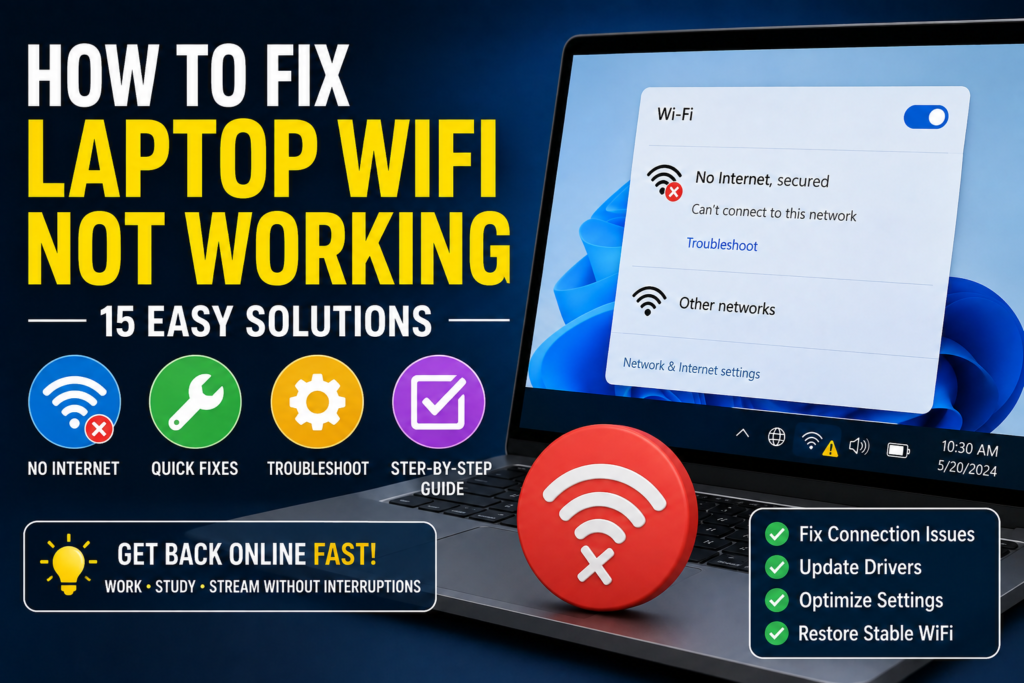
A laptop that suddenly stops connecting to WiFi can be frustrating, especially when your phone and other devices are still connected to the same network. Sometimes the problem is caused by a disabled WiFi adapter, incorrect network settings, an outdated driver, weak signal, router problems, or a temporary software glitch.
If you are looking for How to Fix Laptop WiFi Not Working, the good news is that many WiFi problems can be resolved without replacing hardware or reinstalling the operating system. The key is to determine whether the problem is with your laptop, your WiFi router, or the internet connection itself.
This guide explains the most useful solutions in a practical order. You will learn how to check WiFi settings, restart the router, forget and reconnect to a network, troubleshoot Windows network drivers, reset network settings, and identify when the problem may require professional help.
Quick Answer
To fix a laptop WiFi problem, first make sure WiFi is enabled and Airplane mode is turned off. Restart the laptop and WiFi router, move closer to the router, and check whether other devices can access the internet.
If other devices work normally but your laptop does not, forget the saved WiFi network and connect again. On Windows 10 or Windows 11, you can also run the built-in network troubleshooter, check the WiFi adapter in Device Manager, update its driver, and reset network settings if necessary.
If no device can connect to the WiFi network, the issue is more likely related to the router, modem, or internet service provider. If only the laptop is affected after trying these solutions, the WiFi adapter, driver, or laptop hardware may need further investigation.
Why Laptop WiFi Stops Working
There is no single cause behind every laptop WiFi problem. Understanding the likely cause can help you choose the right solution instead of changing unnecessary settings.
WiFi Is Turned Off
Your laptop may have WiFi disabled through Windows settings, a physical wireless switch, or a keyboard shortcut. Some laptops use a function key with a wireless icon to control wireless connectivity.
If WiFi is disabled at the hardware or software level, Windows may not show available networks.
Airplane Mode Is Enabled
Airplane mode disables wireless communications on many laptops. If it was enabled accidentally, your WiFi connection may disappear even though the wireless adapter itself is working.
The Router Has a Temporary Problem
Your laptop may be working correctly while the router or modem has stopped providing a usable connection. A router can occasionally require a restart after running for a long period or experiencing a temporary software issue.
Weak WiFi Signal
A laptop located far from the router may have a weak or unstable connection. Thick walls, floors, furniture, and interference from other wireless equipment can also affect WiFi performance.
Incorrect Saved Network Information
Windows stores information about WiFi networks you have previously joined. If the saved password or network configuration no longer matches the router, Windows may repeatedly fail to connect.
WiFi Driver Problems
A wireless adapter driver allows Windows to communicate with the laptop’s WiFi hardware. A damaged, outdated, incompatible, or incorrectly installed driver can cause connection problems.
Network Configuration Has Become Corrupted
Windows maintains several network settings and components. If these become misconfigured, the laptop may show WiFi but fail to obtain an IP address or access the internet.
Hardware Problems
If the WiFi adapter is damaged or malfunctioning, software troubleshooting may not solve the problem. Physical damage, liquid exposure, or internal hardware failure can affect wireless connectivity.
Things to Check Before Trying Advanced Solutions
Before changing drivers or resetting network settings, perform these quick checks:
- Make sure WiFi is enabled.
- Turn off Airplane mode.
- Check whether your laptop detects nearby networks.
- Move closer to the WiFi router.
- Restart the laptop.
- Restart the router and modem.
- Check the WiFi password.
- Make sure other devices can connect.
- Check whether the WiFi problem affects one network or every network.
- Look for a physical WiFi switch or wireless function key on the laptop.
- Check whether the router’s status lights appear normal.
- Temporarily disconnect from VPN software if you suspect it is affecting connectivity.
These checks can quickly tell you whether you have a laptop-specific problem or a broader network issue.
How to Fix Laptop WiFi Not Working
Work through these methods from easiest to more advanced. Stop once your WiFi connection starts working normally.
Method 1: Turn WiFi Off and Back On
The first solution is to refresh the laptop’s wireless connection.
On Windows 11:
- Open Settings.
- Select Network & internet.
- Select WiFi.
- Turn WiFi off.
- Wait several seconds.
- Turn WiFi back on.
- Select your wireless network.
- Try connecting again.
On Windows 10, the menu layout is slightly different, but WiFi controls are available under Settings > Network & Internet > WiFi.
You can also use the network controls from the Windows taskbar.
Method 2: Restart Your Laptop
A restart can clear temporary Windows networking problems and reload the wireless adapter.
- Save your work.
- Close applications that you are using.
- Open the Start menu.
- Select the power option.
- Choose Restart.
- Wait for Windows to load completely.
- Try connecting to WiFi again.
If WiFi works after restarting but repeatedly stops later, continue troubleshooting instead of relying on restarts as a permanent solution.
Method 3: Restart Your Router and Modem
If your laptop cannot access the internet, check whether other devices have the same problem.
If phones, tablets, televisions, and other computers also cannot connect, restart the network equipment.
- Turn off the router.
- If you have a separate modem or ONT, follow the manufacturer’s recommended restart procedure.
- Wait for the equipment to shut down.
- Turn it back on.
- Wait until the normal connection indicators return.
- Try connecting the laptop again.
Do not repeatedly unplug equipment if your internet provider specifically instructs you to use a different restart procedure.
Method 4: Check Whether Other Devices Can Connect
This is one of the most useful diagnostic tests.
Take your phone or another computer and connect it to the same WiFi network.
If another device connects successfully:
The router and internet connection are probably working, so focus on the laptop.
If no device can connect:
The problem may be with the router, modem, WiFi service, or internet provider.
If other devices connect but the laptop cannot, continue with the laptop-specific methods below.
Method 5: Forget the WiFi Network and Reconnect
Windows may have incorrect or outdated saved information for your wireless network.
Warning: Make sure you know the WiFi password before forgetting the network.
On Windows 11:
- Open Settings.
- Select Network & internet.
- Select WiFi.
- Open the available or saved network settings.
- Find your wireless network.
- Choose Forget where available.
- Return to the WiFi network list.
- Select the network again.
- Enter the correct password.
- Connect.
Windows 10 provides similar controls, although the exact menu layout differs.
This method is especially useful if your router password was recently changed.
Method 6: Make Sure Airplane Mode Is Off
Airplane mode can disable wireless communication.
- Open Windows Quick Settings or network controls.
- Check Airplane mode.
- If it is enabled, turn it off.
- Make sure WiFi is enabled.
- Search for available networks again.
Also check your laptop keyboard. Some models have a dedicated wireless key or function-key shortcut. The exact key varies by manufacturer.
Method 7: Run the Windows Network Troubleshooter
Windows includes troubleshooting features designed to identify common network problems.
On current Windows 11 versions, you can open:
Settings > System > Troubleshoot > Other troubleshooters
The exact options can vary depending on the Windows version. You can also search Windows Settings for network troubleshooting.
Follow the recommendations provided by Windows.
The troubleshooter may identify problems involving network configuration, adapters, or connectivity. It cannot repair every hardware or driver issue, but it is a useful step before making manual changes.
Method 8: Check the WiFi Adapter in Device Manager
If WiFi is missing or Windows cannot find wireless networks, inspect the WiFi adapter.
- Right-click the Start button.
- Select Device Manager.
- Expand Network adapters.
- Look for a wireless adapter.
- Check whether it has a warning icon.
- Right-click the adapter.
- Select Properties to view its status.
The adapter name varies by manufacturer.
If the adapter is disabled, you may see an option to enable it.
If Windows does not show a wireless adapter at all, the problem could involve the driver, BIOS or firmware settings, hardware, or the adapter itself.
Method 9: Update the WiFi Driver
An outdated or problematic WiFi driver can cause connection problems.
You can first try Windows’ built-in driver update option.
- Open Device Manager.
- Expand Network adapters.
- Right-click the wireless adapter.
- Select Update driver.
- Follow the available driver-search instructions.
- Restart the laptop if necessary.
- Test WiFi again.
If Windows does not find a suitable driver, visit your laptop manufacturer’s official support website.
Search using the exact laptop model and download the appropriate wireless network driver for your Windows version.
Avoid downloading drivers from unknown websites. A driver from the laptop manufacturer is generally the safer choice.
Method 10: Disable and Re-enable the WiFi Adapter
If Windows detects the adapter but it is not functioning correctly, disabling and re-enabling it can refresh the hardware connection.
- Open Device Manager.
- Expand Network adapters.
- Right-click the wireless adapter.
- Select Disable device.
- Wait a few seconds.
- Right-click it again.
- Select Enable device.
- Try connecting to WiFi.
Warning: Disable only the wireless adapter you have identified. Do not disable unrelated network or system hardware.
Method 11: Restart the WLAN AutoConfig Service
Windows uses the WLAN AutoConfig service to manage wireless network connections.
If this service is not working correctly, WiFi behavior can become abnormal.
To check it:
- Press Windows + R.
- Type
services.msc. - Press Enter.
- Find WLAN AutoConfig.
- Right-click it.
- Choose Restart if available.
- If it is stopped, review the available start option.
- Close the Services window.
- Try connecting to WiFi again.
Do not change unrelated Windows services. If you are unsure about a service’s purpose, leave its configuration unchanged.
Method 12: Check Power Management for the WiFi Adapter
Laptop power-saving features can sometimes affect wireless hardware behavior.
To inspect the adapter:
- Open Device Manager.
- Expand Network adapters.
- Right-click the WiFi adapter.
- Select Properties.
- Look for a Power Management tab if your driver provides one.
- Review the available options.
Some computers allow Windows to turn off a device to save power.
Do not automatically disable every power-saving feature. If WiFi problems happen mainly after sleep, hibernation, or when the laptop is running on battery, power management is more relevant to investigate.
Method 13: Reset Network Settings in Windows
If basic solutions do not work, Windows provides network reset functionality.
Warning: Network reset is an advanced step. It can remove network adapters and restore networking components to their default state. Saved network information may also need to be entered again. Make sure you know your WiFi password and have any required VPN information before continuing.
On Windows 11, you can generally find network reset under:
Settings > Network & internet > Advanced network settings > Network reset
The exact wording or location can change with Windows updates.
After resetting:
- Confirm the reset.
- Allow Windows to restart if required.
- Open WiFi settings.
- Select your wireless network.
- Enter the WiFi password.
- Test the connection.
Because this changes network configuration, use it after simpler solutions have failed.
Method 14: Check for Windows Updates
Windows updates can include driver updates, compatibility fixes, and networking improvements.
To check:
- Open Settings.
- Select Windows Update.
- Choose Check for updates.
- Install appropriate updates.
- Restart the laptop if required.
- Test WiFi.
If WiFi stopped working after an update, check whether a newer Windows update is available before considering more drastic actions.
Method 15: Test the Laptop on Another WiFi Network
This test can tell you whether the problem is specific to your home router.
Try connecting the laptop to another trusted WiFi network, such as a mobile hotspot or another network you are authorized to use.
If the laptop connects successfully to another network, your laptop’s WiFi hardware and driver may be working, and the issue could be related to the original router or network configuration.
If the laptop cannot connect anywhere, the problem is more likely to involve the laptop’s WiFi adapter, driver, or Windows configuration.
Windows 11 and Windows 10 WiFi Differences
The basic troubleshooting process is similar on Windows 10 and Windows 11, but the Settings interface is different.
Windows 11
Common locations include:
- Settings > Network & internet
- Settings > Windows Update
- Settings > System > Troubleshoot
- Device Manager
- Services
Windows 11 also provides network controls through Quick Settings.
Windows 10
Windows 10 commonly uses:
- Settings > Network & Internet
- Settings > Update & Security > Troubleshoot
- Device Manager
- Services
If a guide shows a Windows 11 menu that you cannot find on Windows 10, do not assume your computer is missing the feature. Search Windows Settings for terms such as WiFi, network reset, or troubleshoot.
How to Fix Laptop WiFi Connected but No Internet
Sometimes WiFi appears connected, but websites do not load.
This is different from the laptop being unable to detect WiFi.
Try these steps:
- Check whether other devices have internet access.
- Restart the router.
- Disconnect and reconnect the laptop.
- Forget and reconnect to the WiFi network.
- Temporarily disconnect a VPN if you use one.
- Run Windows network troubleshooting.
- Restart the laptop.
- If other devices also have no internet, contact your internet provider if the problem persists.
If Windows shows that the laptop is connected to WiFi but there is no internet, the wireless link between the laptop and router may be working while the router’s internet connection is not.
How to Fix Laptop WiFi That Keeps Disconnecting
Repeated disconnections can have several causes.
Check:
- WiFi signal strength
- Router location
- Wireless driver
- Power management
- Windows updates
- Router firmware or configuration
- Network congestion
- Laptop overheating or hardware problems
First move closer to the router and test the connection.
If the laptop remains stable near the router but disconnects farther away, signal strength or interference may be involved.
If it disconnects even when sitting close to the router, investigate drivers, power management, and the router itself.
Common Mistakes to Avoid
Do Not Immediately Factory Reset the Laptop
A factory reset or complete Windows reinstall can remove applications, settings, and personal data. It should not be your first response to a WiFi problem.
Do Not Randomly Change DNS Settings
Changing DNS servers does not fix every WiFi problem. If the laptop cannot detect wireless networks at all, DNS is not the first thing to troubleshoot.
Do Not Install Random Network Optimizers
Third-party “internet booster” or network repair applications can change settings without solving the underlying problem.
Use Windows’ built-in tools and official hardware drivers first.
Do Not Assume the Router Is Broken
If only one laptop cannot connect while several other devices work normally, focus on the laptop before replacing the router.
Do Not Ignore the WiFi Driver
If WiFi disappears from Windows or the adapter shows a warning in Device Manager, the driver deserves attention.
Do Not Reset Network Settings Without Preparing
Before a network reset, make sure you know your WiFi password and understand that saved network configurations may need to be recreated.
When to Get Professional Help
You may need professional assistance when software troubleshooting does not resolve the problem.
Contact the laptop manufacturer if:
- The WiFi adapter is missing from Device Manager.
- The laptop experienced physical damage.
- The laptop was exposed to liquid.
- WiFi fails on every available network.
- The official WiFi driver will not install.
- The wireless adapter reports a hardware error.
- WiFi repeatedly disappears after restarting.
Contact your internet provider if:
- Multiple devices cannot access the internet.
- The router repeatedly loses its internet connection.
- The modem or router reports a service problem.
- The connection fails across different devices.
If an external USB WiFi adapter works while the laptop’s built-in adapter does not, the internal adapter may require hardware inspection.
Frequently Asked Questions
How do I fix laptop WiFi not working?
Start by checking that WiFi is enabled and Airplane mode is off. Restart the laptop and router, test another device on the same network, forget and reconnect to WiFi, run Windows network troubleshooting, and check the WiFi adapter and driver in Device Manager.
Why is WiFi not showing on my laptop?
WiFi may be missing because the wireless adapter is disabled, the driver is missing or damaged, Airplane mode is enabled, or the hardware is not being detected by Windows. Check Device Manager > Network adapters and look for the wireless adapter.
Why does my laptop connect to WiFi but have no internet?
The laptop may have a working wireless connection to the router while the router itself has lost internet access. Check another device on the same network and restart the router. If every device has the same problem, the issue may be with the router, modem, or internet provider.
Why does my laptop WiFi keep disconnecting?
Frequent disconnections can be caused by weak signal, interference, outdated drivers, power-management settings, router problems, or hardware issues. Test the laptop near the router and update the WiFi driver if necessary.
How do I reset WiFi on a Windows 11 laptop?
You can first turn WiFi off and back on or forget and reconnect to the network. For more persistent problems, Windows 11 provides a Network reset option under Settings > Network & internet > Advanced network settings > Network reset. Review the warning before using it because network configurations may be removed.
How do I update my laptop WiFi driver?
Open Device Manager, expand Network adapters, right-click your wireless adapter, and select Update driver. If Windows does not find an appropriate driver, download the correct wireless driver from your laptop manufacturer’s official support website.
Why does my phone have WiFi but my laptop does not?
If your phone connects to the same WiFi network while the laptop cannot, the router and internet service are likely available. Focus on the laptop’s WiFi settings, saved network information, adapter, driver, and Windows network configuration.
Can a laptop WiFi adapter stop working?
Yes. A WiFi adapter can experience software, driver, or hardware problems. If Windows cannot detect the adapter, multiple networks fail to connect, and driver troubleshooting does not help, the adapter may require professional inspection or replacement.
Final Thoughts
Learning How to Fix Laptop WiFi Not Working is much easier when you first determine whether the problem affects the laptop, the router, or the internet service.
Start with simple checks: make sure WiFi is enabled, turn off Airplane mode, restart the laptop and router, move closer to the router, and test another device. If the problem is limited to your laptop, forget and reconnect to the WiFi network and run Windows troubleshooting.
For more persistent problems, inspect the wireless adapter in Device Manager, update the WiFi driver, restart WLAN AutoConfig, check power-management settings, and install available Windows updates. A network reset can be useful as a later step, but review its effects before using it.
The most useful diagnostic test is to connect the laptop to another trusted WiFi network. If it works elsewhere, investigate your original router or network. If it fails everywhere, concentrate on the laptop’s software, driver, adapter, or hardware.
Avoid unnecessary resets and random driver utilities. With a methodical approach, many laptop WiFi problems can be identified and fixed without losing your personal files or reinstalling Windows.