How to Fix a Phone That Won’t Charge: 14 Practical Solutions
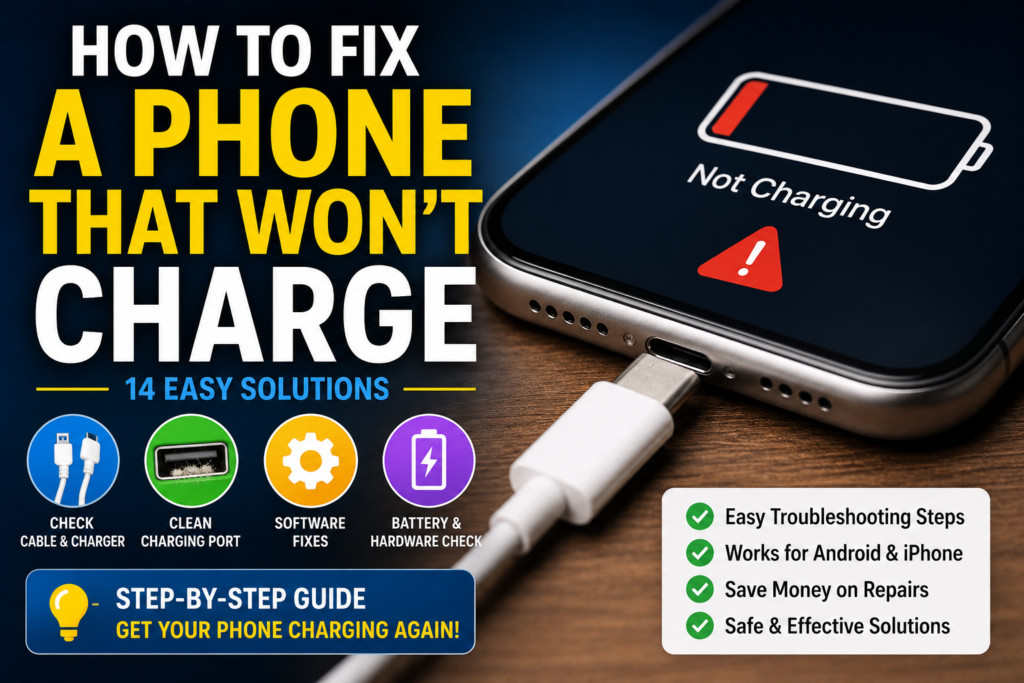
A phone that suddenly refuses to charge can be stressful, especially when the battery is already low. You may plug in the charging cable and see no charging symbol, a slow-charging warning, or a battery percentage that stays stuck. In some cases, the phone charges only when the cable is held at a particular angle.
If you are looking for How to Fix a Phone That Won’t Charge, the problem is not necessarily a dead battery. Charging failures can be caused by a damaged cable, faulty charger, blocked charging port, moisture detection, software glitches, a weak power source, overheating, or a worn-out battery.
This guide explains how to troubleshoot the problem safely, starting with simple checks and moving toward more advanced solutions. The instructions apply broadly to modern Android phones and iPhones, although menu names and charging features can differ between manufacturers and models.
Quick Answer
To fix a phone that won’t charge, first try a different charging cable, wall adapter, and power outlet. Inspect the charging port for lint, dust, moisture, or visible damage. Restart the phone and allow it to cool down if it is unusually hot.
If the phone still does not charge, carefully clean the charging port using a safe method, check whether the phone shows a moisture warning, and try charging while the phone is powered off. Wireless charging can also help determine whether the problem is limited to the wired charging port, provided your phone supports it.
If multiple known-good chargers do not work and the phone remains completely unresponsive, the battery, charging port, charging circuitry, or another internal component may be damaged. In that situation, professional repair is safer than attempting to open the phone yourself.
Why a Phone Won’t Charge
There are several possible reasons a phone stops charging. The important thing is to determine whether the problem comes from the charger, the phone’s software, the charging port, the battery, or internal hardware.
Damaged Charging Cable
Charging cables can wear out from repeated bending, pulling, and twisting. Damage may occur near the connector even when the cable looks fine from the outside.
A damaged cable can cause intermittent charging, extremely slow charging, or no charging at all.
Faulty Charger or Power Adapter
The wall adapter can also fail. If the adapter is damaged or not providing usable power, the phone may not charge.
Testing another compatible charger is one of the easiest ways to determine whether the adapter is responsible.
Dirty or Blocked Charging Port
Pocket lint, dust, and debris can accumulate inside a phone’s charging port. This can prevent the connector from making proper contact.
A port that looks slightly dirty can be enough to cause intermittent charging.
Moisture Detection
Many modern phones can detect moisture around the charging connection and may temporarily prevent wired charging to reduce the risk of electrical damage.
If the phone displays a liquid or moisture warning, do not try to force charging through the warning.
Phone Is Too Hot or Too Cold
Extreme temperatures can affect charging behavior. A phone that becomes unusually hot during use or charging may temporarily limit or stop charging until its temperature returns to a safer range.
Software Glitch
Sometimes the charging hardware is working but the operating system has temporarily stopped responding correctly.
Restarting the phone can resolve certain temporary software problems.
Battery Has Become Severely Depleted
A phone with an extremely depleted battery may take some time before the screen shows a normal charging indicator. This can make it appear as though the charger is not working.
Damaged Charging Port
If the cable feels unusually loose, charging works only when the connector is moved, or the port has visible physical damage, the charging connector may need professional repair.
Battery or Internal Hardware Failure
A worn-out battery, damaged charging circuit, or other internal component can prevent normal charging. These problems generally require a qualified repair technician.
Things to Check Before Trying Advanced Solutions
Before changing settings or considering repair, check the basics.
- Try another compatible charging cable.
- Try another compatible wall adapter.
- Try another power outlet.
- Check the charging port for visible debris.
- Make sure the charging connector is inserted correctly.
- Remove a thick case that may interfere with the connector.
- Check whether the phone displays a charging symbol.
- Look for a moisture warning.
- Check whether the phone feels unusually hot.
- Restart the phone.
- Leave a completely drained phone connected to a known-good charger for a while.
- If supported, test wireless charging.
These checks can help determine whether the problem is caused by an accessory or the phone itself.
How to Fix a Phone That Won’t Charge
Try the following methods in order. Stop once the phone begins charging normally.
Method 1: Try a Different Charging Cable
The cable should be the first accessory you test because it is frequently handled, bent, and transported.
- Disconnect the current cable.
- Inspect both connectors for obvious damage.
- Try another compatible cable.
- Connect the replacement cable directly to the phone and charger.
- Wait for the charging indicator.
- Check whether the battery percentage begins increasing.
If the phone charges normally with the second cable, the original cable is likely the problem.
Do not continue using a cable that is frayed, cracked, bent at the connector, or otherwise damaged.
Method 2: Try a Different Wall Charger
If changing the cable does not help, test another compatible power adapter.
- Disconnect the current adapter.
- Connect a known-good compatible charger.
- Plug it into a different wall outlet.
- Connect the phone.
- Wait for the charging indicator.
- Check whether the battery percentage increases.
If the phone works with another adapter, the original charger may be faulty.
Use chargers and cables that are appropriate for your phone. Avoid damaged or suspicious accessories.
Method 3: Try a Different Power Outlet
The problem may have nothing to do with the phone.
A wall outlet, extension board, power strip, or USB port can sometimes be the source of the problem.
Try plugging the charger directly into another known-working wall outlet.
If you were charging through a laptop, car USB port, power bank, or extension board, temporarily test a suitable wall charger instead.
This helps eliminate the power source as a possible cause.
Method 4: Restart the Phone
A temporary operating system problem can sometimes interfere with charging behavior.
- Disconnect the charger if appropriate.
- Restart the phone using its normal power menu.
- Wait for the phone to boot completely.
- Connect the charger again.
- Check whether charging begins.
If the phone is frozen, the restart procedure may vary by model. Use the manufacturer’s instructions for your specific device rather than repeatedly pressing random buttons.
Method 5: Check and Carefully Clean the Charging Port
A blocked charging port can prevent the connector from making proper contact.
First, shine a light into the port and look for visible lint or debris.
Warning: Do not insert metal objects, pins, needles, or other sharp tools into the charging port. You could damage the contacts or cause an electrical problem.
If you see loose debris, use a gentle, non-damaging cleaning method recommended by your phone manufacturer. Do not force anything deep into the connector.
If the port appears damaged, bent, or loose, stop cleaning and seek professional repair.
After cleaning, reconnect the charger and check whether charging works.
Method 6: Check for a Moisture Warning
If your phone displays a warning about liquid or moisture in the charging port, take it seriously.
Warning: Do not force a cable into a wet charging port and do not attempt to bypass a moisture warning just to make the phone charge.
Instead:
- Disconnect the charging cable.
- Keep the charging port facing downward where practical.
- Allow the phone and port to dry naturally in a safe, dry environment.
- Avoid inserting objects into the port.
- Avoid applying direct high heat to the phone.
- Follow your phone manufacturer’s moisture-detection instructions.
- Try charging again only when the port is considered dry.
If the warning remains for an unusually long time or the phone was exposed to significant liquid, professional inspection may be necessary.
Method 7: Let an Overheated Phone Cool Down
Phones can become hot during gaming, navigation, video recording, fast charging, or use in a hot environment.
If the phone is unusually hot:
- Disconnect the charger if it is safe to do so.
- Stop demanding applications.
- Move the phone away from direct sunlight.
- Remove a case temporarily if it is trapping significant heat.
- Allow the device to cool naturally.
- Try charging again once it has returned to a normal temperature.
Do not put a hot phone in a refrigerator or freezer. Rapid temperature changes can create additional problems.
Method 8: Charge the Phone While It Is Powered Off
If the operating system is experiencing a temporary problem, charging while the phone is powered off can provide useful information.
- Turn the phone off normally.
- Connect a known-good charger.
- Wait several minutes.
- Check whether the phone shows a battery or charging indicator.
If the phone charges while powered off but has charging problems while running normally, a software issue, background application, temperature issue, or power-management behavior may be involved.
This does not prove that the battery or charging hardware is healthy, but it is a useful diagnostic test.
Method 9: Check Whether the Battery Percentage Is Actually Increasing
Sometimes the phone displays a charging icon but the battery percentage does not increase.
Watch the percentage for several minutes while the phone is connected to a known-good charger.
If the battery remains unchanged or continues falling, possible causes include:
- Faulty charger
- Damaged cable
- Heavy phone usage
- High temperature
- Battery degradation
- Charging-port problem
- Internal hardware fault
Close demanding applications and test again while the phone is idle.
Method 10: Test Wireless Charging if Your Phone Supports It
Wireless charging can help determine whether the issue is specifically related to the wired charging connection.
If your phone supports wireless charging:
- Use a compatible wireless charging pad.
- Connect the pad to an appropriate power source.
- Place the phone correctly on the charging area.
- Check for the charging indicator.
- Wait and confirm that the battery percentage increases.
If wireless charging works while wired charging does not, the wired cable, port, or related charging hardware deserves closer attention.
Wireless charging does not work on every phone, so do not assume that a phone supports it.
Method 11: Remove Accessories That May Interfere With the Connection
A thick protective case can occasionally prevent a charging connector from being fully inserted.
Try removing the case temporarily and reconnecting the cable.
Also remove any charging-port accessories, adapters, or extensions and connect the charger directly where possible.
If charging works without the case or accessory, inspect that item for alignment problems or damage.
Method 12: Install Available Software Updates
Software updates can address device bugs and improve compatibility or system stability.
On Android, the update location varies by manufacturer, but it is generally available through Settings > System or Software update.
On iPhone, check:
Settings > General > Software Update
Install an available update when appropriate and then test charging again.
Do not assume an update will fix every charging problem. Hardware faults will not normally be resolved by software updates.
Method 13: Check Battery Health or Battery Diagnostics
Some phones provide battery-health information or diagnostic tools, although the available features vary considerably between manufacturers and models.
If your phone provides battery information in Settings, look for signs of significant battery degradation or service recommendations.
Do not rely on a single battery-health percentage as a complete diagnosis. Charging problems can also originate from the cable, port, charger, software, or charging circuitry.
If the phone reports that the battery requires service, follow the manufacturer’s repair guidance.
Method 14: Reset Settings Only When Appropriate
If charging problems started after a major software configuration change, certain settings may be worth reviewing or resetting. However, there is no universal “charging reset” option on all phones.
Avoid performing a factory reset simply because the phone will not charge.
Warning: A factory reset can erase personal data and installed applications. If you ever reach the point where a factory reset is recommended, back up important photos, contacts, messages, documents, and other data first.
For a physical charging problem, a factory reset is unlikely to repair a damaged cable, port, battery, or charging circuit.
Android-Specific Checks
Android phones from Samsung, Google Pixel, Xiaomi, OnePlus, Motorola, and other manufacturers can use different settings and diagnostics.
If your Android phone will not charge:
- Restart the phone.
- Check for software updates.
- Look for battery or device-care diagnostics if your manufacturer provides them.
- Check for moisture warnings.
- Test another compatible cable and charger.
- Inspect the charging port.
- Test wireless charging if supported.
- Check whether charging works while the phone is powered off.
Do not follow a menu path from another Android phone blindly. Android manufacturers frequently organize battery and device settings differently.
iPhone-Specific Checks
If you use an iPhone, Apple provides its own charging and battery settings.
Try:
- Another Lightning or USB-C cable, depending on the model.
- Another compatible power adapter.
- Another wall outlet.
- A careful inspection of the charging port.
- Restarting the iPhone.
- Checking for iOS updates.
- Checking Settings > Battery for available battery information.
- Testing wireless charging if the model supports it.
If the iPhone displays a liquid-detection warning, disconnect the cable and follow Apple’s guidance for dealing with moisture.
What to Do If the Phone Only Charges at a Certain Angle
A phone that charges only when the cable is held in a particular position should not be treated as a normal charging behavior.
Possible causes include:
- Damaged charging cable
- Debris inside the port
- Worn charging-port contacts
- Physical damage to the port
- Connector damage
Try a different known-good cable first.
If the same problem occurs with multiple cables, stop forcing the connector into different positions. Continued movement can make physical damage worse.
A repair technician can inspect the port safely.
What to Do If the Phone Says It Is Charging but the Battery Is Not Increasing
If the charging icon appears but the battery percentage remains unchanged, check the following:
- Use another compatible charger.
- Try another cable.
- Stop demanding applications.
- Let the phone cool down.
- Check the charging port.
- Restart the phone.
- Test charging while powered off.
- Check battery-health information if available.
If the phone still cannot gain battery percentage with multiple known-good charging accessories, professional diagnosis may be necessary.
Common Mistakes to Avoid
Do Not Use Metal Objects to Clean the Port
Pins, needles, paper clips, and other metal objects can damage delicate charging contacts.
Do Not Force the Charging Cable
If the connector does not fit normally, check for debris, damage, or incorrect orientation. Do not force it.
Do Not Charge a Wet Phone Through a Moisture Warning
If liquid may be present, disconnect the cable and allow the device to dry according to the manufacturer’s guidance.
Do Not Use a Damaged Cable
Frayed, exposed, melted, or badly bent cables should be replaced rather than repeatedly tested.
Do Not Put a Hot Phone in a Freezer
Extreme cooling can create condensation and additional damage. Allow an overheated device to cool naturally.
Do Not Open the Phone Without Proper Experience
Modern smartphones contain tightly integrated components and rechargeable batteries. Opening the device without appropriate tools and knowledge can damage the phone or create safety risks.
Do Not Factory Reset the Phone as the First Solution
A factory reset can erase personal data but will not repair a physically damaged charging port or cable.
When to Get Professional Help
Professional repair is appropriate when basic charging troubleshooting does not solve the problem.
Contact the phone manufacturer or an authorized repair provider if:
- The phone does not respond to multiple known-good chargers.
- The charging port is physically damaged.
- The connector feels unusually loose.
- The phone was dropped and stopped charging afterward.
- The phone was exposed to liquid.
- The battery is swollen or the phone’s body is separating.
- The phone becomes unusually hot during charging.
- The phone repeatedly shuts down when connected to power.
- Wireless charging works but wired charging consistently fails.
- The phone reports a battery or hardware service problem.
Important safety warning: If the battery appears swollen, the phone is producing smoke, there is a strong unusual odor, or the device becomes dangerously hot, stop using and charging it and seek qualified professional assistance. Do not puncture, squeeze, or attempt to remove a swollen battery yourself.
Frequently Asked Questions
How do I fix a phone that won’t charge?
Start by testing another compatible charging cable, wall adapter, and outlet. Restart the phone, inspect the charging port for debris or moisture, and let an overheated phone cool down. If your phone supports it, test wireless charging. If several known-good chargers fail, professional repair may be needed.
Why is my phone not charging even though the charger is connected?
The cable, charger, charging port, battery, software, or internal charging hardware may be responsible. A charging icon does not always mean the battery is receiving enough usable power to increase its percentage. Test another cable and charger and check the port for debris or moisture.
Why does my phone charge only when I move the cable?
This can indicate a damaged cable, debris in the charging port, or a worn or damaged charging connector. Try another compatible cable first. If the problem remains, do not keep bending or holding the connector at an angle because the port may need professional repair.
Can a dirty charging port stop a phone from charging?
Yes. Lint and other debris can prevent the charging connector from making proper contact. Inspect the port carefully and use a safe cleaning method recommended for your phone. Do not insert pins, needles, or other metal objects into the port.
Why won’t my phone charge after getting wet?
The phone may detect moisture and temporarily prevent wired charging to reduce the risk of damage. Disconnect the charger and allow the device to dry naturally according to the manufacturer’s instructions. Do not force a cable into the port or apply direct high heat.
Why is my phone charging very slowly?
Slow charging can result from a low-power charger, damaged cable, battery condition, high phone temperature, demanding applications, or charging limitations built into the device. Test a known-good compatible charger and cable while the phone is cool and not under heavy use.
Should I factory reset my phone if it won’t charge?
Usually, no. A factory reset is not an appropriate first solution for a charging problem because it can erase personal data and will not repair physical hardware. Try different charging accessories, inspect the port, restart the phone, and check for software issues first.
How can I tell if my phone’s charging port is broken?
Warning signs include a loose connector, charging only at a particular angle, repeated disconnections, visible physical damage, or failure with multiple known-good cables and chargers. A technician can inspect the port and determine whether it needs repair.
What should I do if my phone battery is completely dead?
Connect the phone to a known-good compatible charger and leave it connected for a reasonable period. If there is no response, try another cable, adapter, and outlet. If the phone remains completely unresponsive after these checks, the battery, charging port, or internal hardware may require professional diagnosis.
Final Thoughts
Knowing How to Fix a Phone That Won’t Charge starts with eliminating the simplest causes. Test a different cable, charger, and outlet before assuming the phone itself is broken. Then inspect the charging port, check for moisture, restart the device, and allow it to cool if it is unusually hot.
If the phone still refuses to charge, try charging while powered off and test wireless charging if your device supports it. These steps can provide useful clues about whether the issue is related to software or the wired charging connection.
Avoid forcing cables, using metal objects inside the port, charging through a moisture warning, or opening the phone without appropriate experience. If multiple known-good chargers fail, the port is physically damaged, the battery appears swollen, or the phone becomes dangerously hot, stop troubleshooting and seek professional assistance.
In many cases, a simple cable or charger replacement solves the problem. When it does not, careful testing can help identify whether the next step should be software troubleshooting or professional hardware repair.