Why Is My Phone Battery Draining So Fast? 15 Ways to Fix It
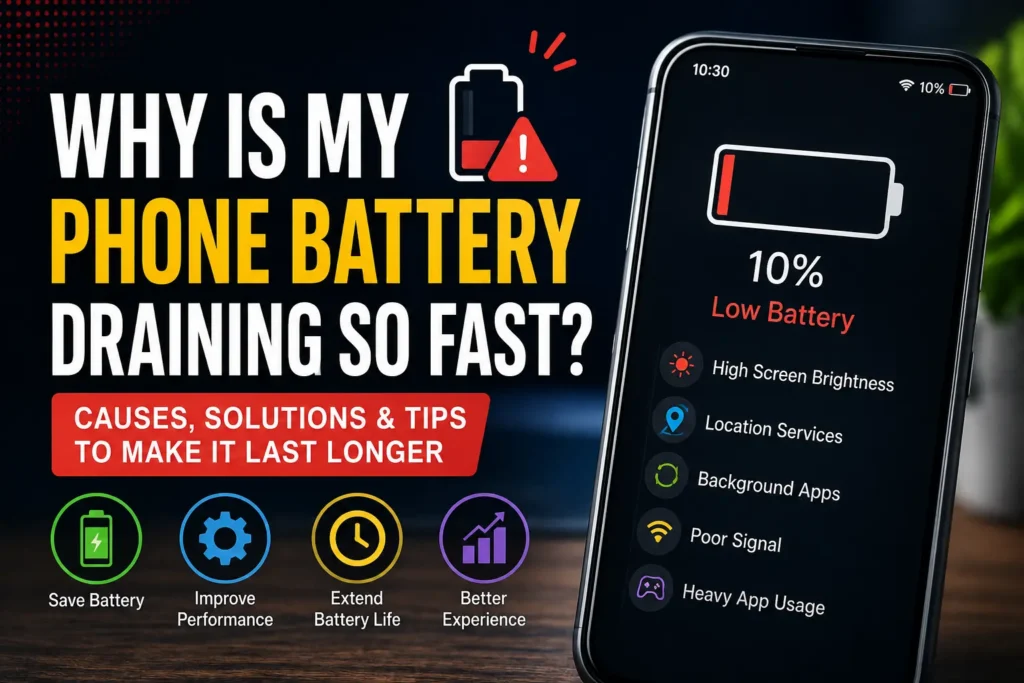
If your phone battery used to last all day but now drops quickly, you may be wondering, “Why is my phone battery draining so fast?” A battery that loses power unusually quickly can make normal activities such as browsing, messaging, watching videos, or making calls frustrating.
Fast battery drain does not always mean that the battery itself is damaged. High screen brightness, demanding apps, weak cellular signals, location services, background activity, outdated software, high temperatures, and an aging battery can all contribute to faster power consumption.
The good news is that you can usually identify the main cause by checking your phone’s battery usage and changing one setting or behavior at a time. This guide explains the most common reasons for fast battery drain and practical solutions for both Android phones and iPhones.
Quick Answer
If you are asking why is my phone battery draining so fast, start by checking which apps and features are using the most power. Open your phone’s battery settings and review battery usage. If one app is consuming an unusually large amount of power, update it, restrict its background activity, or uninstall it if you do not need it.
Other common causes include high screen brightness, an always-on display, constant location access, poor cellular signal, frequent background synchronization, hotspot use, Bluetooth-connected accessories, demanding games, video streaming, and high temperatures.
If your phone continues losing battery unusually quickly after reducing unnecessary activity, the battery itself may have aged. Battery capacity naturally decreases with use and charging cycles. In that situation, checking the phone’s battery health or having the battery professionally inspected may be more useful than changing random settings.
Why Is My Phone Battery Draining So Fast?
There are several possible reasons, and the correct solution depends on what is actually consuming the power.
A Bright Screen Uses Significant Power
The display is one of the most visible sources of battery consumption.
Keeping your screen at very high brightness for long periods can increase power usage. A large, bright display can consume even more energy when you frequently use the phone for videos, games, maps, or social media.
Reducing brightness and using automatic or adaptive brightness where appropriate can help reduce unnecessary screen power consumption.
Background Apps May Be Using Power
Some applications continue performing tasks when you are not actively using them.
Examples include:
- Social media synchronization
- Email fetching
- Cloud photo backups
- Navigation
- Messaging synchronization
- Fitness tracking
- File uploads
- Content refreshing
Not every background activity is harmful. Many apps need some background access to provide their intended features. The important thing is to identify applications that are consuming unusually high amounts of battery.
Poor Cellular Signal Can Increase Power Use
Your phone constantly communicates with cellular networks.
When the signal is weak, the phone may work harder to maintain communication with the network. This can be especially noticeable in locations such as basements, rural areas, elevators, or buildings with thick walls.
If your battery drains much faster in one location than another, poor cellular reception may be part of the problem.
Location Services Can Consume Battery
Navigation, ride-sharing, weather, fitness, maps, and other applications can use location information.
Location access itself is not automatically a problem. However, allowing unnecessary apps to access your location continuously can increase power consumption.
Review which applications actually need location access and choose an appropriate permission option where your phone provides one.
Your Phone May Be Running a Demanding App
Games, video editing applications, camera applications, augmented reality features, and other demanding software can use substantial processing power.
If your phone becomes warm and loses battery rapidly while using one particular application, that application may be responsible for much of the drain.
The Battery May Be Aging
Rechargeable phone batteries naturally lose capacity over time.
An older battery may hold less energy than it did when the phone was new. As a result, the percentage may fall faster during normal use.
Battery aging is different from an application problem. If battery health has significantly declined, changing settings may improve runtime somewhat, but it cannot restore the battery’s original physical capacity.
How to Fix Fast Battery Drain on Your Phone
The following methods can help you identify and reduce unnecessary battery consumption.
Method 1: Check Battery Usage
The first thing to do is find out what is actually consuming the battery.
On Android
Android menus vary between manufacturers and software versions, but battery information is generally available through the phone’s Settings app.
Look for a section such as:
Settings → Battery
You may see battery usage by application or other categories.
Look for apps that have consumed an unusually large percentage of battery compared with how much you actually used them.
For example, if you barely used an application but it appears near the top of battery usage, investigate it.
On iPhone
Open:
Settings → Battery
iPhone provides battery activity information that can help you identify applications and activities associated with battery consumption.
Pay attention to apps that are using a large amount of battery, particularly when you did not actively use them for long periods.
Do not automatically uninstall every app near the top of the list. Some apps naturally consume more power because you use them heavily. The goal is to find unexpected or excessive usage.
Method 2: Reduce Screen Brightness
Lowering screen brightness is one of the easiest ways to reduce display-related battery consumption.
You can:
- Open the brightness controls.
- Reduce the brightness to a comfortable level.
- Enable automatic or adaptive brightness if it works well for you.
- Avoid keeping the display at maximum brightness indoors.
You should not make the screen so dim that you struggle to read it. The goal is to avoid unnecessary brightness while maintaining comfortable visibility.
Method 3: Reduce Screen Timeout
If your phone stays on for several minutes after you stop using it, the display continues consuming power.
Set a shorter screen timeout or auto-lock period that fits your usage.
For example, instead of leaving the phone active for a long period after every interaction, choose a shorter interval if it does not interfere with your normal activities.
This is especially useful for people who frequently put their phone down without manually locking the screen.
Method 4: Find and Restrict Battery-Hungry Apps
If one application is responsible for unusual battery consumption, investigate it before changing system-wide settings.
First:
- Check the battery usage page.
- Identify the application.
- Update the app if an update is available.
- Restart the phone.
- Check whether the battery drain continues.
- Review the application’s background activity and permissions.
- Remove the app if you do not need it and the problem persists.
Android devices may provide battery optimization or background usage controls. The names and available options vary by manufacturer.
On iPhone, review the application’s battery activity and relevant permissions through iOS settings.
Do not restrict important system applications without understanding what they do.
Method 5: Turn Off Unnecessary Location Access
Location services can be useful, but not every application needs continuous access.
Review your location permissions and ask:
- Does this app actually need my location?
- Does it need location access all the time?
- Would access only while using the app be sufficient?
- Is this an app I still use?
Choose the least intrusive permission that still allows the application to work correctly.
Be careful with navigation and safety-related applications. Restricting location access may prevent them from providing features you depend on.
Method 6: Disable Unnecessary Background Activity
Background activity can keep applications working when you are not actively using them.
Look at applications that frequently synchronize information, upload files, or refresh content.
Examples may include:
- Social media apps
- Cloud storage apps
- Shopping apps
- News applications
- Email applications
- Photo backup services
You do not necessarily need to disable background activity everywhere. Focus on apps that are consuming unusual amounts of battery.
Method 7: Use Battery Saver When Appropriate
Modern Android phones and iPhones provide power-saving features.
Android may offer a Battery Saver or similarly named mode.
iPhone provides Low Power Mode.
These features can reduce certain background activities and adjust system behavior to extend battery life.
Battery-saving modes are particularly useful when:
- Your battery is already low.
- You are traveling.
- You cannot charge your phone for several hours.
- You know you will need the phone later.
- You are experiencing temporary unusually high battery usage.
The exact behavior of these modes varies by operating system and device.
Method 8: Update Your Phone Software
Software problems can sometimes contribute to unusual battery behavior.
Check whether your phone has an official system update available.
For Android, the update process varies by manufacturer.
For iPhone, check the software update section in Settings.
Before installing a major update:
- Keep important information backed up.
- Use a reliable WiFi connection when appropriate.
- Make sure the phone has sufficient battery or is connected to power.
- Avoid interrupting the update.
After a major system update, battery usage can sometimes temporarily behave differently while the device completes background tasks. If unusually high drain continues for an extended period, check battery usage again to identify the source.
Method 9: Keep Your Phone Cool
Heat is an important factor in battery health and performance.
Avoid leaving your phone in places such as:
- Direct sunlight
- A hot vehicle
- Near a heater
- Under blankets while performing demanding tasks
- Other unusually hot environments
Heavy gaming, video recording, navigation, and charging in a hot environment can cause the phone to become warm.
If your phone is unusually hot, stop demanding activities and allow it to return to a normal operating temperature.
Do not attempt to cool a hot phone using extreme methods such as placing it in a freezer. Sudden temperature changes and condensation can cause additional problems.
Method 10: Check for Weak Cellular Signal
If your phone battery drains much faster at home, work, or another specific location, check the cellular signal.
Try comparing battery behavior in an area with stronger reception.
If the phone consistently struggles with cellular connectivity in one location, you may be able to reduce the problem by using reliable WiFi calling where supported by your carrier and device, or by discussing coverage options with your mobile provider.
Do not assume that weak WiFi is responsible simply because you are at home. Cellular signal strength can also affect battery consumption.
Android-Specific Battery Solutions
Android phones vary considerably between manufacturers, so the exact settings are not identical.
Check Battery Optimization
Many Android devices provide battery management features that can limit background activity for selected applications.
Look through your battery settings and identify apps that are consuming power unnecessarily.
Use these controls carefully. Restricting background activity can delay notifications or affect features that depend on background processing.
Check Adaptive Battery Features
Some Android versions and manufacturers provide adaptive battery management.
If your phone includes such a feature, it can help manage background activity based on usage patterns.
Keep the feature enabled unless you have a specific reason to change it.
Remove Apps You No Longer Use
Unused applications can sometimes continue receiving updates, synchronizing data, or performing background tasks.
Review your installed applications and remove software you no longer need.
Before uninstalling an app, make sure any important information stored only within that application is backed up or synchronized.
iPhone-Specific Battery Solutions
iPhone users can use several built-in tools to understand battery behavior.
Check Battery Activity
Open:
Settings → Battery
Review which applications and activities are associated with your battery usage.
Pay attention to unexpected patterns. An app consuming a large amount of battery may simply reflect heavy usage, so compare the battery data with how much you actually used that application.
Check Battery Health
Depending on your iPhone model and iOS version, battery health information is available through the battery settings.
This information can help you determine whether the battery’s maximum capacity has declined significantly.
Battery health is different from daily battery usage. A phone can have a healthy battery but still drain quickly because an app, screen, signal, or other feature is consuming excessive power.
Review Background App Refresh
iOS includes background activity controls that can allow applications to update content when you are not actively using them.
Review which apps actually need this functionality.
You do not need to disable it for every application. Focus on apps where background updates are unnecessary for your usage.
Things to Check Before Trying Advanced Solutions
Before performing a network reset, factory reset, or other major change, check the simple causes first.
Check When the Battery Started Draining
Ask yourself when the problem began.
Did it start:
- After installing an app?
- After a system update?
- After changing mobile settings?
- After traveling?
- During unusually hot weather?
- After the phone was dropped or damaged?
The timing can provide useful clues.
Check Whether the Phone Is Getting Hot
If battery percentage falls rapidly while the phone is also hot, check what is running.
A demanding application, poor cellular signal, navigation, gaming, camera use, or other intensive activity may be responsible.
Check Battery Usage Overnight
If your battery drops significantly while you are sleeping and barely using the phone, review the battery activity information.
Unexpected overnight drain can point toward background activity, connectivity issues, synchronization, or another process that remains active.
Test in Safe Conditions
For troubleshooting, compare battery behavior during similar periods.
For example, note how quickly the battery drops during normal browsing versus gaming.
This makes it easier to identify activities that cause unusually high consumption.
Common Mistakes to Avoid
Closing Every App Constantly
Repeatedly force-closing applications is not always an effective battery-saving strategy.
Modern mobile operating systems manage applications and background processes themselves. Instead of constantly closing everything, identify applications that are actually causing excessive battery usage.
Keeping Maximum Brightness All Day
Maximum brightness is often unnecessary indoors.
Use a comfortable brightness level and automatic or adaptive brightness if appropriate.
Ignoring Battery Usage Statistics
Changing random settings without checking battery usage makes troubleshooting much harder.
The battery usage screen is one of the most useful places to start.
Installing Battery-Booster Apps Without Checking Them
Be cautious with third-party applications that promise dramatic battery improvements.
Some may provide little benefit while adding another background process to your phone.
Use the battery management tools already included with Android or iOS whenever possible.
Performing a Factory Reset Too Early
A factory reset can remove personal information, applications, and settings.
Do not use it as the first solution to battery drain.
If a factory reset ever becomes necessary, create a reliable backup first and make sure you know your account credentials and other information required to set the phone up again.
Ignoring Battery Age
If your phone has been used heavily for a long time and battery capacity has significantly declined, software changes may only provide limited improvement.
A worn battery cannot be restored to its original physical capacity through an app or setting.
When to Get Professional Help
You should consider professional assistance when battery drain is accompanied by physical or unusual behavior.
Contact the phone manufacturer or an authorized repair provider if:
- The battery drains extremely quickly even when the phone is barely being used.
- The phone becomes unusually hot during normal use.
- The battery appears swollen.
- The screen or back panel appears to be lifting.
- The phone shuts down unexpectedly.
- Battery health indicates significant degradation.
- The phone suffered physical or liquid damage.
- Charging behavior has become abnormal.
Important: If you suspect the battery is swollen or physically damaged, stop using the device and do not attempt to open or puncture the battery yourself. Lithium-ion batteries can present serious safety risks when damaged.
A professional can determine whether the battery needs replacement or whether another component is causing the problem.
Frequently Asked Questions
Why is my phone battery draining so fast all of a sudden?
A sudden increase in battery drain can be caused by a newly installed app, background activity, software changes, weak cellular signal, high device temperature, or an unusually demanding task. Check the battery usage screen first to identify what changed.
Why does my phone battery drain overnight?
Overnight drain can be caused by background applications, synchronization, cellular connectivity, notifications, location-related activity, or other processes. Check your phone’s battery usage information to see which apps or activities were active during that period.
Does dark mode save battery?
Dark mode can reduce display power consumption on phones with certain display technologies, particularly when large portions of the screen are black or very dark. The actual benefit depends on the phone’s display type, brightness, apps, and usage.
Can a weak signal drain my phone battery?
Yes. When cellular reception is poor, a phone may use more power while maintaining network communication. If battery drain is noticeably worse in locations with weak reception, cellular coverage may be contributing to the problem.
How do I know if an app is draining my battery?
Open your phone’s battery settings and review battery usage by application. Compare the reported consumption with how much you actually used each app. An application using substantial battery despite minimal use deserves further investigation.
Does charging my phone overnight damage the battery?
Modern phones include charging management features designed to control charging behavior. However, battery aging is affected by factors including usage, temperature, and charging patterns. Keeping a phone in a very hot environment while charging should be avoided.
Should I replace my phone if the battery drains quickly?
Not necessarily. First determine whether an application, software issue, high screen usage, poor signal, or another factor is responsible. If the battery itself has significantly degraded, replacing the battery may be a better option than replacing the entire phone, depending on the device and repair cost.
Why does my phone lose battery faster when I use mobile data?
Mobile data can consume more power depending on signal quality, network conditions, and what you are doing online. Activities such as video streaming and large downloads also increase processing and network activity.
Why does my phone get hot and lose battery quickly?
Heat combined with rapid battery drain can indicate demanding processing, intensive apps, poor network conditions, charging-related activity, or another issue. Check battery usage and stop demanding tasks. If the phone remains unusually hot during normal use, seek professional assistance.
Final Thoughts
If you have been asking “Why is my phone battery draining so fast?”, do not immediately assume that the battery needs to be replaced. Start by checking your battery usage and identifying what is actually consuming power.
Reduce unnecessary screen brightness, review background applications, limit unnecessary location access, keep software updated, and avoid excessive heat. Also pay attention to cellular signal strength because poor reception can contribute to increased power consumption.
Android and iPhone both provide built-in battery management tools that can help you identify unusual usage. Use those tools before making major changes such as resetting the phone.
If the battery continues draining quickly despite normal usage and the battery health has declined, professional battery inspection may be the appropriate next step. And if the phone shows signs of a swollen or damaged battery, prioritize safety and have it inspected by an authorized professional rather than attempting a DIY repair.