How to Make WiFi Faster on Android and iPhone: 15 Proven Ways
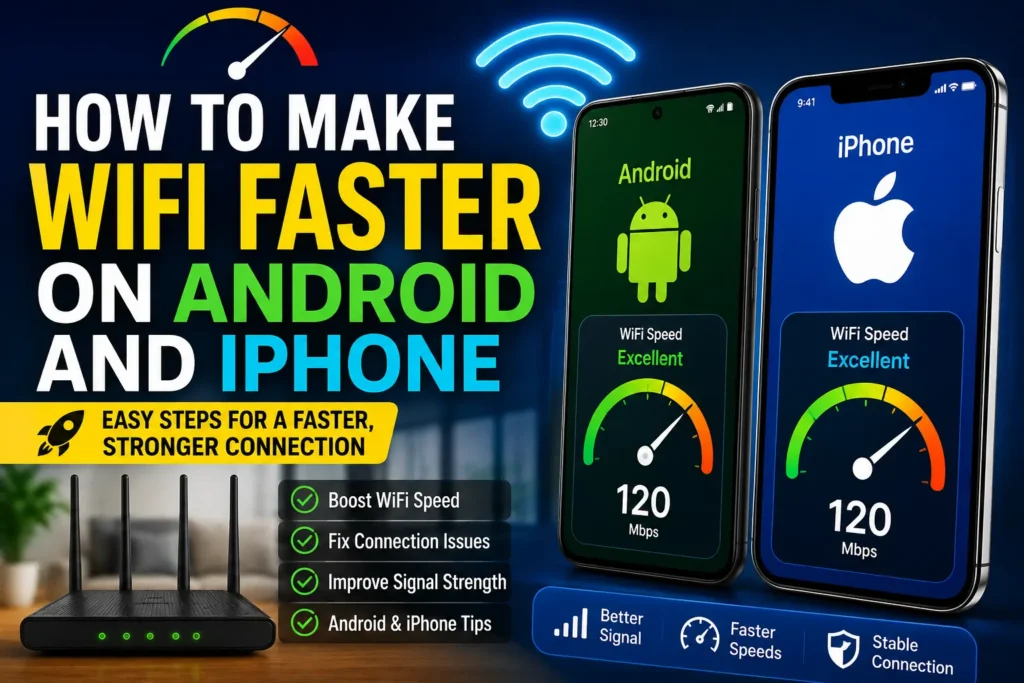
A slow WiFi connection can make an otherwise fast smartphone feel frustratingly slow. Web pages may take longer to open, videos may buffer, apps can struggle to load, and downloads may take much longer than expected. If the same WiFi network works well on another device, the problem may be related to your Android phone or iPhone rather than your internet package.
If you are searching for how to make WiFi faster on Android and iPhone, the first step is to determine whether the problem is caused by the phone, WiFi signal, router, or internet service. Simple fixes such as moving closer to the router, reconnecting to WiFi, restarting the phone and router, closing bandwidth-heavy apps, and installing system updates can often improve performance.
This guide explains practical methods for improving WiFi performance on both Android and iPhone without relying on unnecessary or risky settings.
Quick Answer
To make WiFi faster on Android and iPhone, first restart your phone and router and test the connection close to the router. If the WiFi becomes faster when you move closer, the main issue is probably signal strength or interference rather than your internet plan.
Next, forget the WiFi network and reconnect, stop unnecessary downloads and cloud backups, update your phone, and check whether other devices experience the same slowdown. If only your phone is affected, concentrate on its network settings and applications.
If every device connected to the same router is slow, the problem may be with the router, WiFi coverage, internet connection, or ISP. In that situation, upgrading your phone is unlikely to solve the problem.
Why WiFi Becomes Slow on Android and iPhone
Before changing settings, it helps to understand why WiFi performance can deteriorate.
Your Phone Is Far From the Router
WiFi signals become weaker as the distance between your phone and router increases. Walls, floors, furniture, and other physical obstacles can further reduce signal quality.
You may notice that a website loads quickly when you are sitting near the router but becomes slow in a bedroom or another floor of the house.
WiFi Interference
Your phone shares the wireless environment with other nearby networks and devices. In a crowded area, multiple wireless networks can interfere with each other.
The problem can be particularly noticeable in apartments, offices, and other locations with many routers operating nearby.
Too Many Devices Are Connected
A single internet connection may be shared by phones, laptops, smart TVs, gaming consoles, tablets, cameras, and other devices.
If several devices are streaming video, downloading games, backing up photos, or uploading files simultaneously, your phone may receive less available bandwidth.
Background Activity
Your smartphone can continue performing tasks while you are using it.
Examples include:
- Cloud photo synchronization
- App updates
- Video uploads
- File backups
- Large downloads
- Social media synchronization
- System updates
These activities can consume network resources and make WiFi appear slower.
Router Problems
Sometimes the phone is working correctly but the router needs attention.
A temporary router software issue, poor placement, outdated firmware, or heavy network usage can affect wireless performance across multiple devices.
The Internet Service Is Slow
WiFi and internet service are related but not identical.
Your phone may have an excellent connection to the router while the router itself has a slow connection to the ISP. In that situation, changing phone settings will not increase the internet speed coming into your home.
How to Make WiFi Faster on Android and iPhone
The following methods start with simple solutions and progress toward more specific troubleshooting.
Method 1: Move Closer to the WiFi Router
The easiest test is to move your Android phone or iPhone closer to the router.
Open a website or run a reputable speed test while standing near the router. Then repeat the test in the location where you normally experience slow WiFi.
If the connection is substantially better near the router, your phone is probably dealing with weak WiFi coverage.
You can improve the situation by moving the router to a more central and open location.
Avoid placing it:
- Inside a closed cabinet
- Behind large furniture
- On the floor when a better location is available
- Next to large metal objects
- In an enclosed corner
A central position can provide more consistent coverage throughout the home.
Method 2: Restart Your Android or iPhone
A simple restart can resolve temporary wireless problems.
For either platform:
- Save anything important you are working on.
- Restart your phone.
- Wait until the phone completely starts again.
- Turn WiFi back on.
- Connect to your home network.
- Test several websites or apps.
If WiFi becomes normal after restarting but repeatedly slows down later, investigate background activity, software updates, or the router rather than repeatedly restarting the phone.
Method 3: Restart the WiFi Router
If several devices are experiencing slow WiFi, restart the router.
Generally:
- Turn off the router.
- If your setup includes separate modem or fiber equipment, follow the equipment manufacturer’s recommended restart sequence.
- Wait briefly.
- Turn the equipment back on.
- Allow the network connection to return.
- Reconnect your Android phone or iPhone.
- Test the internet again.
Do not repeatedly unplug and reconnect the equipment within a few seconds.
If restarting temporarily improves the connection but the same problem keeps returning, there may be a deeper router or ISP issue.
Method 4: Forget the WiFi Network and Reconnect
If your phone has trouble with one particular network, removing the saved connection and reconnecting can help.
Android
The exact menus differ between Samsung, Google Pixel, Xiaomi, OnePlus, and other Android phones. In general:
- Open Settings.
- Open WiFi or Network & Internet.
- Select your connected network.
- Choose the option to forget or remove the network.
- Return to the WiFi list.
- Select your home network.
- Enter the WiFi password again.
iPhone
On an iPhone:
- Open Settings.
- Tap Wi-Fi.
- Find your connected network.
- Tap the information button next to it.
- Choose Forget This Network.
- Confirm the action.
- Select the network again.
- Enter your WiFi password.
Make sure you know the password before forgetting the network.
Method 5: Turn WiFi Off and Back On
If you notice a temporary connection problem, simply reconnecting WiFi can sometimes restore normal performance.
Turn WiFi off, wait a few seconds, and turn it back on.
Then reconnect to your home network.
This is particularly useful when your phone appears connected to WiFi but websites are not loading correctly.
Method 6: Stop Unnecessary Downloads and Backups
Check whether your phone is performing network-intensive tasks.
For example, a large photo library may be synchronizing with cloud storage while you are trying to watch a video. Similarly, an app or game may be downloading a large update.
Temporarily pause unnecessary activity and test WiFi again.
Pay particular attention to:
- Cloud photo backups
- Large app downloads
- Video uploads
- File synchronization
- Game updates
- Automatic application updates
If the connection becomes noticeably better after these activities stop, network usage was likely contributing to the problem.
Method 7: Close or Limit Bandwidth-Heavy Apps
Not every slow connection is caused by an app, but certain applications can use considerable network resources.
Video streaming, cloud storage, social media uploads, and large file-transfer applications can consume bandwidth.
If your phone is struggling while one of these activities is running, stop the activity temporarily and test another website.
On Android, app settings vary by manufacturer, so look for network, data usage, battery, or background activity controls.
On iPhone, you can review which applications are permitted to use certain background features through iOS settings.
Do not disable important system functions simply because they use data. Investigate the application responsible before making changes.
Method 8: Check Whether Other Devices Are Slow
This is one of the most important troubleshooting steps.
Connect another phone or computer to the same WiFi network and test it.
If the other device is also slow, the issue probably isn’t specific to your Android phone or iPhone.
The possible causes include:
- Router performance
- Weak WiFi coverage
- Network congestion
- ISP problems
- Router configuration
- Internet service limitations
If other devices work normally but your phone is slow, focus on the phone.
Method 9: Test WiFi Near the Router
A speed test performed far from the router can be misleading because it combines internet performance with WiFi signal limitations.
Perform a test close to the router.
Then compare it with a test from the room where you normally use your phone.
For example:
Near router: Fast connection
Bedroom: Much slower connection
This pattern suggests a coverage problem.
If both locations are similarly slow, investigate the router, internet connection, or phone itself.
Method 10: Try Another WiFi Network
Connect your Android phone or iPhone to another trusted WiFi network if one is available.
You could test the phone at another location, such as a workplace, library, or another household.
If the phone works normally on another network but remains slow on your home WiFi, your home network is the more likely source of the problem.
If the phone is slow everywhere, investigate the phone’s software, hardware, or network configuration.
Avoid connecting to unknown or unsecured public networks simply for testing.
Android-Specific Solutions
Android phones from different manufacturers use different interfaces, so the exact names of settings may vary.
Check for Android Updates
An outdated operating system can sometimes contribute to connectivity problems.
Open your phone’s system update section and check whether an official update is available.
If an update exists, install it according to the manufacturer’s instructions.
Keep your phone sufficiently charged and avoid interrupting an important system update.
Check Network Settings
If WiFi continues to behave incorrectly, review your phone’s network settings.
Some Android phones provide a network reset option. This can remove saved WiFi networks and other network-related information.
Important: Before using a network reset, make sure you know the passwords for WiFi networks you regularly use. You may need to reconnect Bluetooth devices and other network connections afterward.
Do not perform a full factory reset merely because WiFi is slow. A factory reset is a much more disruptive procedure and is generally unnecessary for ordinary WiFi troubleshooting.
iPhone-Specific Solutions
iPhones also provide several options for troubleshooting wireless connections.
Restart the iPhone
A normal restart should be your first step before attempting more advanced changes.
After restarting, reconnect to WiFi and compare performance.
Check for iOS Updates
Go to the software update area in iPhone settings and check whether a newer version of iOS is available for your device.
Keeping the operating system updated can provide bug fixes and compatibility improvements.
Reset Network Settings
If other troubleshooting methods fail, resetting network settings may help with persistent connection problems.
However, this should not be your first option.
A network reset can remove saved WiFi networks and other network-related settings. Make sure you have the information required to reconnect to your networks afterward.
Router and WiFi Solutions
If both Android and iPhone devices are slow, focus on the router.
Improve Router Placement
Place the router in an open, central location.
The ideal location depends on the layout of your home, but avoid unnecessarily surrounding the router with walls, cabinets, and large objects.
Check the WiFi Band
Many modern routers support multiple wireless bands.
Depending on the router and phone, one band may perform better at longer distances while another may provide better performance when the device is relatively close.
If your router provides separate network names for different bands, you can test them individually to see which performs better in your home.
Reduce Network Congestion
Check what other people and devices are doing on the network.
Large downloads, streaming, cloud backups, and uploads can consume available bandwidth.
If the router supports traffic-management features, consult its official documentation before changing advanced settings.
Check Router Firmware
Router manufacturers may release firmware updates for supported devices.
Use the manufacturer’s official instructions to check whether an update is available.
Do not install firmware intended for a different router model.
Things to Check Before Trying Advanced Solutions
Before changing advanced network settings, work through these simple checks.
Check Your Internet Plan
Know what speed your ISP package provides. Compare your speed-test results with the expected service level while keeping in mind that WiFi performance can be lower than a wired connection because of local wireless conditions.
Check Multiple Devices
If every device is slow, the problem probably isn’t just your phone.
If only one device is slow, investigate that device first.
Check Multiple Websites
If one website is slow but others work normally, the website or service itself may be experiencing an issue.
Check at Different Times
If the connection is noticeably slower at certain times, record when the problem occurs.
A consistent pattern may help your ISP diagnose network congestion or other service problems.
Check the Router’s Physical Connections
For setups using separate modem, router, or fiber equipment, check that cables are firmly connected and that equipment indicators appear normal according to the manufacturer’s documentation.
Common Mistakes to Avoid
Buying a New Phone Immediately
A slow WiFi connection does not automatically mean your phone is defective.
Test another device first.
Upgrading Your Internet Plan Without Testing
A faster internet package will not necessarily fix weak WiFi coverage.
If the router delivers a strong connection close by but your phone struggles several rooms away, improving coverage may be more appropriate.
Changing Random DNS or Router Settings
Changing advanced settings without understanding their purpose can make troubleshooting harder.
Start with simple tests and only change settings when you know what problem the change is intended to address.
Ignoring the Router
If both Android and iPhone devices are slow, spending time changing settings on one phone is unlikely to solve the whole problem.
Test the router and internet connection as well.
Factory Resetting Your Phone Too Early
A factory reset removes personal data and settings and requires significant preparation.
It should not be the first response to a slow WiFi connection.
If you eventually need to reset a device, back up important information first and make sure you understand what the reset will remove.
When to Get Professional Help
Contact your internet provider if multiple devices are consistently slow, especially when testing close to the router or using an Ethernet-connected computer where possible.
You should also contact your ISP if:
- The internet frequently disconnects.
- Your router repeatedly loses its internet connection.
- Speeds remain unusually low despite troubleshooting.
- You suspect an outage.
- The connection becomes unusable at predictable times.
- Router and device troubleshooting has not solved the problem.
For a problem affecting only one phone, contact the phone manufacturer’s support service if basic troubleshooting, updates, and network reconnection do not help.
If your home has difficult WiFi coverage because of its size, multiple floors, or thick construction, a qualified networking professional may also be able to recommend a suitable coverage solution.
Frequently Asked Questions
How can I make WiFi faster on my Android phone?
Start by moving closer to the router, restarting the phone and router, forgetting and reconnecting to WiFi, stopping unnecessary downloads, and checking for system updates. Also compare the phone’s performance with another device on the same network.
How can I make WiFi faster on my iPhone?
Restart the iPhone and router, test WiFi near the router, forget and reconnect to the network, stop unnecessary network activity, and install available iOS updates. If the problem continues, compare the iPhone with another device to determine whether the home network or phone is responsible.
Why is WiFi slow on my phone but fast on other devices?
The problem may be specific to the phone’s WiFi connection, software, saved network configuration, background activity, or wireless hardware. Forgetting and reconnecting to WiFi and testing another network can help narrow down the cause.
Does moving closer to the router make WiFi faster?
It can. Moving closer generally gives the phone a stronger wireless connection when distance or physical obstacles are limiting WiFi performance. If the connection improves significantly near the router, improving WiFi coverage may be more useful than upgrading your internet plan.
Does restarting a router increase internet speed?
Restarting a router can resolve temporary connection or software problems, but it does not permanently increase the speed provided by your ISP. If the router repeatedly slows down, investigate the underlying cause.
Why is my iPhone WiFi slower than my Android phone?
Different phones have different wireless hardware, software, antenna designs, and network behavior. Before assuming the iPhone has a hardware problem, test both phones in the same location on the same network and under similar conditions.
Should I reset network settings to fix slow WiFi?
A network reset can help with persistent connection problems, but it should generally be considered after simpler troubleshooting methods. It can remove saved network information, so make sure you know your WiFi passwords before performing the reset.
Can too many devices make my phone’s WiFi slow?
Yes. When multiple devices share the same connection, heavy downloads, streaming, uploads, and backups can consume available bandwidth. Disconnecting unnecessary devices can help determine whether network congestion is responsible.
Final Thoughts
Learning how to make WiFi faster on Android and iPhone is mostly about finding where the slowdown occurs rather than changing random settings.
Start with the simplest checks: restart the phone and router, move closer to the router, test another device, and compare performance in different areas of your home. If only your phone is affected, investigate its WiFi connection, background activity, operating system, and saved network configuration.
If every device is slow, focus on the router, WiFi coverage, network congestion, and internet service. A speed test close to the router can help separate a WiFi problem from an ISP problem.
Most importantly, avoid unnecessary factory resets or advanced router changes. Troubleshoot one factor at a time, keep track of what improves the connection, and contact your internet provider when the evidence points to a problem beyond your home network.