How to Free Up Storage Space on Android: 15 Safe and Effective Ways
Running out of storage on an Android phone can happen surprisingly quickly. Photos and videos accumulate, messaging apps store media, applications become larger over time, and downloaded files can remain on the device long after you stop using them. When storage becomes nearly full, you may also have trouble installing apps, downloading files, recording videos, or completing system updates.
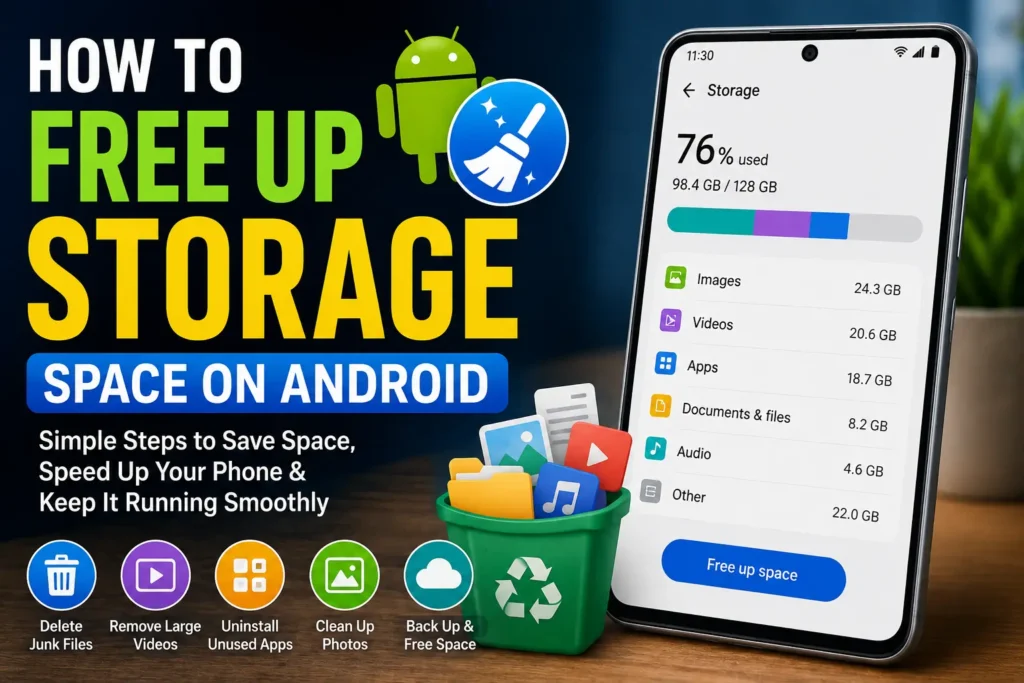
If you are looking for How to Free Up Storage Space on Android, the best approach is to find out exactly what is consuming your storage before deleting anything important. Android provides built-in storage tools that can show how much space is being used by applications, images, videos, documents, and other files.
In this guide, you will learn safe ways to remove unnecessary files, manage large apps, clean downloads, deal with messaging media, move photos, and prevent your Android storage from filling up again.
Quick Answer
The fastest way to free up storage space on Android is to open your phone’s Settings → Storage section and identify the categories using the most space. Depending on your Android version and phone manufacturer, the menu names may be slightly different.
Start by deleting unnecessary downloads, removing apps you no longer use, reviewing large videos and duplicate photos, clearing unnecessary app cache, and checking media stored by messaging applications. If you use Google Photos or another cloud service, you can also remove local copies of photos that have already been safely backed up.
Important: Do not delete photos, videos, documents, WhatsApp media, or other personal files simply because they appear large. Confirm that you have a backup or no longer need the file before deleting it.
Why Android Storage Gets Full
Understanding what consumes storage makes it easier to clean your phone without accidentally removing important information.
Photos and Videos Take Up a Lot of Space
Camera photos and especially videos can gradually become one of the largest categories on an Android device.
You may have hundreds or thousands of images stored locally, including:
- Camera photos
- Screen recordings
- Downloaded videos
- Screenshots
- Social media images
- Shared videos
- Edited copies
- Messaging attachments
Old videos are often worth checking first because a relatively small number of large files can consume significant storage.
Apps Become Larger Over Time
An application does not necessarily use exactly the same amount of storage after months of use.
Apps may accumulate downloaded content, databases, temporary files, offline media, and other data.
Social media, streaming, navigation, gaming, and messaging apps can become particularly large because they may store substantial amounts of content locally.
Downloads Are Easy to Forget
Files downloaded from browsers, email attachments, websites, and messaging services may remain on your phone after you no longer need them.
Your Downloads folder is therefore one of the easiest places to find files that can be safely removed.
Messaging Apps Store Media
A busy messaging account can accumulate photos, videos, voice recordings, documents, GIFs, and other attachments.
Even if you do not manually save these files, some applications can store media locally.
Cached Data Accumulates
Apps can create temporary cached files to make frequently accessed content load more quickly.
Cache is not the same as your personal documents or photos. However, depending on the application and Android version, cached data can grow and become worth reviewing.
How to Free Up Storage Space on Android
The safest approach is to work from the largest storage categories toward the smaller ones.
Method 1: Check Android Storage Usage First
Before deleting anything, find out what is actually consuming space.
On many Android phones, you can start with:
Settings → Storage
The exact location and wording may vary between Samsung, Google Pixel, Xiaomi, OnePlus, Motorola, and other manufacturers.
You may see categories such as:
- Apps
- Images
- Videos
- Audio
- Documents
- Downloads
- System
- Other files
Take note of the largest categories.
If videos consume most of the storage, deleting unused apps will not solve the main problem. If applications are taking most of the space, focus on app management instead.
Method 2: Delete Unnecessary Downloads
The Downloads folder often contains files that were needed only temporarily.
You may find:
- Old PDFs
- APK files
- Images
- ZIP archives
- Documents
- Installation files
- Videos
- Duplicate downloads
To clean Downloads:
- Open your phone’s file manager.
- Find Downloads.
- Sort files by size or date if the file manager provides that option.
- Review large and old files.
- Open important files before deleting them if you are unsure what they contain.
- Delete only files you no longer need.
- Empty the file manager’s trash or recycle bin if your device provides one.
Warning: Do not delete documents simply because they are old. Some files may be needed for work, school, applications, or future reference. Keep important documents backed up before removing them.
Method 3: Remove Apps You No Longer Use
Unused applications can occupy hundreds of megabytes or several gigabytes, particularly games and media-heavy apps.
Review your installed applications and identify software you have not used for a long time.
Then:
- Open Settings.
- Go to Apps or Apps & notifications, depending on your Android version.
- Review installed applications.
- Select an app you no longer need.
- Choose the uninstall option.
- Confirm the removal.
You can also uninstall applications through your phone’s official app store when supported.
Before uninstalling an application, consider whether it contains locally stored information that has not been synchronized.
Method 4: Find Large Files
Instead of manually checking every file, use your Android file manager or an official storage-management tool to identify large files.
Look for files that are several hundred megabytes or larger and ask whether you still need them.
Common storage-heavy files include:
- Long videos
- Screen recordings
- Movie downloads
- Large ZIP files
- Offline maps
- Game files
- Backup archives
- Repeated copies of documents
Large files can provide a quick way to recover storage without deleting dozens of small files.
Method 5: Review Photos and Videos
Your camera library deserves careful attention.
Open your gallery or photo application and review:
- Long videos
- Duplicate photos
- Screenshots
- Blurry images
- Accidental recordings
- Old social media downloads
- Repeated copies of the same image
Delete only items you no longer need.
Warning: Before deleting personal photos or videos, make sure important memories are backed up. If you use Google Photos or another cloud service, verify that the files have successfully backed up before removing local copies.
Method 6: Use Google Photos to Remove Backed-Up Copies
If you use Google Photos and your photos have already been backed up, the service may provide an option to remove copies stored locally on your phone.
The exact interface can change with app updates, but Google Photos includes storage-management features that can help identify backed-up content.
Before using any option that removes local files:
- Open Google Photos.
- Confirm that important photos and videos are backed up.
- Check that you can access them from your Google Photos library.
- Use the available storage-management option to remove backed-up local copies.
- Recheck your Android storage afterward.
This can be particularly useful if photos and videos are consuming most of your internal storage.
Method 7: Clear App Cache When Appropriate
Some Android phones allow you to clear an application’s cached data.
A typical path may look similar to:
Settings → Apps → Select App → Storage → Clear Cache
The exact wording differs by manufacturer and Android version.
Clearing cache can remove temporary files without intentionally deleting the app itself or its main personal data.
However, do not confuse Clear Cache with Clear Storage, Clear Data, or similarly named options.
Warning: Clearing an app’s storage/data can remove locally stored app information and may sign you out or reset the application. If you are not sure what an option does, do not select it.
Cache cleaning is most useful when a particular application has accumulated a large temporary cache. It is not necessary to repeatedly clear every app’s cache.
Method 8: Clean Messaging App Media
Messaging applications can quietly consume a large amount of storage.
Check conversations containing lots of:
- Videos
- Photos
- Documents
- Voice recordings
- GIFs
- Stickers
- Other attachments
Some messaging apps provide their own storage-management tools that let you identify large files and remove them selectively.
Before deleting messaging media, consider whether the files are important and whether you have another copy.
For important conversations, review the application’s backup options before performing large-scale cleanup.
Method 9: Remove Offline Downloads
Streaming applications often allow users to download content for offline viewing or listening.
These downloads can consume substantial storage.
Check applications such as:
- Video streaming services
- Music applications
- Podcast apps
- Navigation apps
- Reading applications
Look for offline content you no longer need.
If you downloaded a series for a trip months ago, for example, those files may still be occupying storage even though you have already watched them.
Method 10: Check Screenshots and Screen Recordings
Screenshots are easy to forget, particularly if you take them frequently.
Screen recordings can be even larger.
Open your gallery and look for albums containing:
- Screenshots
- Screen recordings
- Downloaded images
- Edited photos
Delete files that are no longer useful.
This is often a safer cleanup method than deleting random files from system folders.
Method 11: Remove Duplicate Files Carefully
Duplicate photos, videos, documents, and downloads can unnecessarily consume storage.
Some Android phones or trusted file-management tools can help identify duplicate or unnecessary files.
However, do not automatically delete every file identified as a duplicate.
Two files can have similar names while containing different information.
Before deleting a suspected duplicate:
- Open both files.
- Compare their contents.
- Check the dates and locations.
- Keep the version you actually need.
- Delete the confirmed duplicate.
Method 12: Review Large Apps and Games
Games can occupy substantial storage, particularly when additional downloadable content is installed.
Go to your Android storage or app settings and sort applications by size if your device supports this feature.
Then ask:
- Do I still play this game?
- Do I need this application?
- Is the offline content still useful?
- Can I reinstall it later if needed?
If you rarely use an application, uninstalling it may recover more storage than clearing its cache.
Method 13: Check Files in Cloud Storage Apps
Cloud storage applications can sometimes keep files available offline.
Review apps such as Google Drive and other cloud-storage services for files that have been deliberately saved offline.
If you no longer need local copies, use the application’s own option for removing the offline copy rather than deleting the cloud file itself.
Important: Be careful with cloud storage. Removing a file from a synchronized folder may remove it from the cloud as well, depending on how the service works. Confirm whether you are removing only a local offline copy or deleting the actual cloud file.
Method 14: Use Android’s Built-In Storage Recommendations
Many newer Android phones provide storage recommendations or cleanup suggestions.
Depending on your device, these may help identify:
- Unused apps
- Large files
- Duplicate files
- Backed-up photos
- Unnecessary downloads
Review each recommendation instead of approving everything automatically.
The safest cleanup is one where you understand what will be removed.
Method 15: Empty Trash or Recycle Bins
Deleting a file does not always immediately return all of its storage space.
Gallery applications and file managers may place deleted items into a trash or recycle folder for a period of time.
If you are certain that you no longer need the deleted items, empty the relevant trash.
Check:
- Gallery trash
- Google Photos trash
- File manager recycle bin
- Other application-specific deleted-item folders
Warning: Emptying trash can permanently remove files. Do this only after confirming that the deleted content is not needed.
Android-Specific Storage Solutions
Android storage management differs slightly between manufacturers, but the basic principles remain similar.
Samsung Phones
Samsung devices may provide storage and device-care tools that show categories and recommendations for freeing space.
Look through the device’s storage information and review large files and applications.
Do not delete system files simply because they appear in a storage category you do not recognize.
Google Pixel Phones
Pixel devices provide storage-management options through Android settings and Google’s ecosystem.
The exact menus depend on the Android version, so use the storage section in Settings as your starting point.
Google Photos can also be useful if your photos and videos are backed up.
Other Android Manufacturers
Xiaomi, OnePlus, Motorola, Oppo, Vivo, and other manufacturers may use their own storage-management interfaces.
The names can differ, but look for:
Settings → Storage
or a device-maintenance/security application that provides storage recommendations.
Things to Check Before Trying Advanced Solutions
Before deleting large amounts of data, perform a few basic checks.
Check Available Storage
First, record how much free space is available.
Then identify the largest storage category.
This gives you a baseline for measuring the result of your cleanup.
Back Up Important Data
Before removing photos, videos, documents, or application data, create a reliable backup.
Important information can be backed up using an appropriate cloud service, computer, external storage, or another trusted method.
Do not assume that every file is automatically backed up.
Check Cloud Backup Status
If you plan to remove local photos or documents because you believe they are stored online, verify that the backup has completed.
A file appearing in a cloud application does not always mean that every local file you care about has been successfully synchronized.
Check Your SD Card
If your phone supports a microSD card, determine whether your photos, videos, and other files are stored internally or on the card.
Do not format or remove an SD card without understanding what information it contains.
Check Whether the Problem Is Actually Storage
If your phone reports low storage but you recently deleted a large amount of data, restart the device and check the storage information again.
Some storage calculations may take time to update.
Common Mistakes to Avoid
Deleting Photos Without a Backup
This is one of the biggest risks during storage cleanup.
Always confirm that important photos and videos exist somewhere else before deleting them.
Clearing App Data Instead of Cache
These options can have very different consequences.
Clearing cache generally targets temporary files, while clearing application storage/data can reset the app.
Read the option carefully before confirming.
Deleting Unknown System Files
Do not browse random Android system folders and delete files simply because they look large or unfamiliar.
You could cause application or system problems.
Use Android’s storage tools and reputable file-management features instead.
Installing Random Cleaner Apps
You do not necessarily need a third-party “phone cleaner” to free up storage.
Android and Google already provide storage-management tools on many devices.
A cleaner application can also introduce additional permissions, advertisements, or background activity.
Deleting Cloud Files by Mistake
Be careful when cleaning files synchronized with cloud services.
Deleting a synchronized file may remove it from other devices or from the cloud as well.
Understand whether you are deleting the local copy, removing an offline copy, or deleting the original.
Ignoring Large Videos
People often delete dozens of small files while leaving a handful of large videos untouched.
Check the largest files first when you need to recover storage quickly.
When to Get Professional Help
Most Android storage problems can be handled through the phone’s built-in tools. However, professional assistance may be appropriate if storage behaves unusually.
Consider contacting the device manufacturer or a qualified technician if:
- Storage remains full despite deleting large amounts of data.
- The storage capacity appears incorrect.
- Files repeatedly reappear after deletion.
- The phone cannot access internal storage normally.
- The device crashes when opening storage settings.
- You suspect internal storage hardware failure.
- Important files have been accidentally deleted and are not available from a backup.
If important data has been accidentally deleted, stop unnecessary use of the device before attempting recovery. Creating new files or installing recovery applications can potentially overwrite recoverable data.
For valuable or irreplaceable information, professional data-recovery assistance may be safer than experimenting with multiple recovery applications.
Frequently Asked Questions
How can I free up storage space on Android quickly?
Start by checking Settings → Storage and identify the largest categories. Delete unnecessary downloads, remove unused apps, review large videos, clean old screen recordings, remove unwanted offline downloads, and delete unnecessary messaging media.
What takes up the most storage on an Android phone?
The largest categories vary by user, but photos, videos, games, applications, downloaded media, messaging attachments, and offline content commonly consume substantial storage. Check your phone’s storage screen rather than assuming which category is responsible.
Does clearing cache free up storage on Android?
Yes, clearing an application’s cached files can recover some storage when the cache has grown large. However, the amount varies by application. Use the Clear Cache option carefully and do not confuse it with Clear Storage or Clear Data.
How do I free up Android storage without deleting photos?
You can uninstall unused apps, delete old downloads, remove offline streaming content, clear appropriate app caches, delete unnecessary documents, remove duplicate files, and review messaging attachments. Moving photos to reliable external or cloud storage can also help if you need to keep them.
Can I delete the Android folder to free up space?
You should not randomly delete Android system folders or files simply because they consume storage. Some folders contain application or system information, and deleting the wrong files can cause problems. Use Android’s storage-management tools instead.
Why is my Android storage full even after deleting files?
Deleted files may still be stored in a trash or recycle folder. Other possibilities include large application data, cached files, offline content, backups, or storage calculations that have not yet updated. Check the storage categories again and empty appropriate trash folders after confirming the deleted files are no longer needed.
How do I find large files on Android?
Open your phone’s file manager or storage-management tool and look for options to sort or identify files by size. You can then review large videos, archives, downloads, and other files before deciding what to remove.
Does deleting unused apps improve Android performance?
Removing unused apps can free storage and eliminate applications that may perform background activity. However, the performance benefit depends on the phone and what was causing the slowdown. The main immediate benefit is recovering the storage occupied by those applications and their data.
Should I use a storage cleaner app?
Usually, start with Android’s built-in storage tools and trusted services such as Google Photos or your manufacturer’s official storage manager. Third-party cleaner apps are not automatically necessary, and you should review their permissions and behavior carefully before installing them.
Final Thoughts
Learning How to Free Up Storage Space on Android does not require deleting everything from your phone. The safest approach is to first identify where your storage is being used and then remove unnecessary content from the largest categories.
Start with large videos, unused applications, old downloads, offline media, screenshots, screen recordings, and unnecessary messaging attachments. If your photos are already safely backed up, you may also be able to remove local copies to recover substantial space.
Always check what you are deleting before confirming. Back up important files, distinguish between clearing an app’s cache and clearing its data, and be particularly careful with synchronized cloud files.
Finally, make storage cleanup a regular habit rather than waiting until the phone is completely full. Removing unused apps and old downloads periodically can help keep enough free space available for new photos, applications, updates, and everyday Android use.