How to Free Up Storage on Windows 11: 15 Safe and Effective Methods
Running out of storage on a Windows 11 PC can become a frustrating problem. When the system drive is nearly full, you may not have enough space for Windows updates, new applications, personal files, or large downloads. Your computer may also become harder to manage because you have to constantly decide which files can be removed.
If you are searching for How to Free Up Storage on Windows 11, the best approach is not to randomly delete folders. Windows 11 includes several built-in tools that can show exactly what is consuming your storage, including temporary files, installed applications, documents, downloads, pictures, and system files.
This guide explains practical ways to recover storage safely, identify large files, remove unnecessary Windows data, manage applications, clean Downloads, and prevent your drive from becoming full again.
Quick Answer
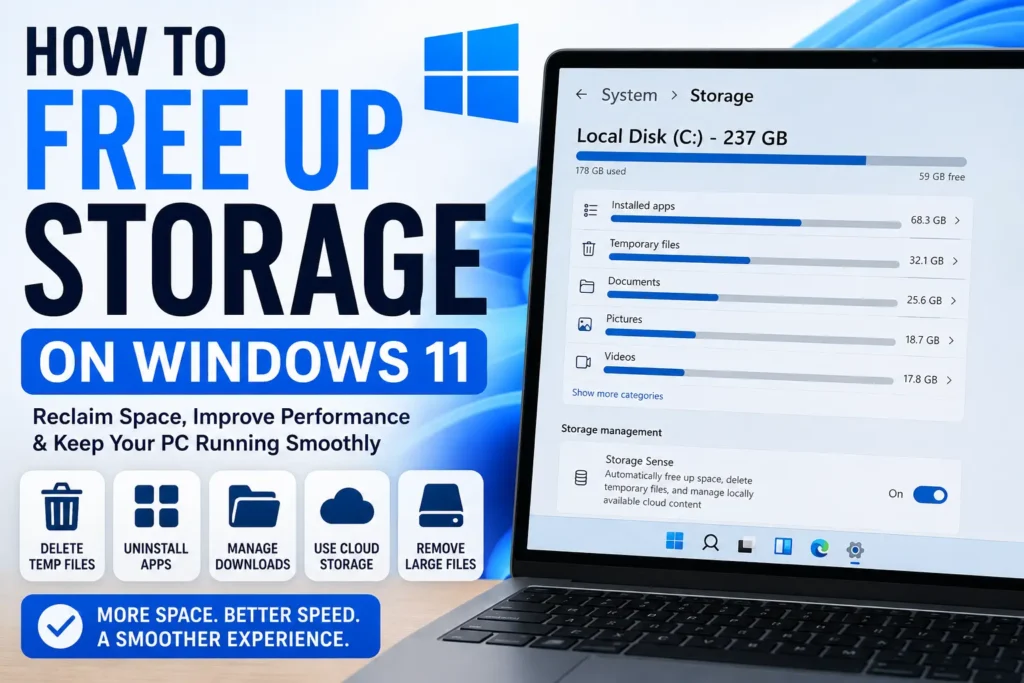
The easiest way to free up storage on Windows 11 is to open Settings → System → Storage and check which categories are using the most disk space. Windows 11 can identify temporary files, installed apps, documents, pictures, videos, and other storage categories.
Start with safe cleanup options such as temporary files, Windows cleanup recommendations, unnecessary downloads, unused applications, and large personal files you have already backed up. You can also enable Storage Sense to automatically remove certain unnecessary files.
Avoid manually deleting unknown files from Windows, Program Files, or system folders. Before removing personal documents, photos, videos, or other important data, make sure you have a reliable backup.
Why Windows 11 Storage Gets Full
Your storage drive can become full for several different reasons. Understanding the cause helps you recover space without accidentally removing something important.
Temporary Files Accumulate
Windows and installed applications can create temporary files during normal operation. Some are automatically removed later, while others can remain until they are cleaned.
Temporary data may include items associated with:
- Windows updates
- Application processes
- Installation files
- Delivery optimization
- Thumbnails
- Temporary internet files
- System error reporting
The exact categories shown on your PC depend on the Windows installation and software you use.
Large Applications and Games
Modern applications and PC games can require significant disk space.
A few large games may occupy more storage than hundreds of small documents. If you no longer use a large application, uninstalling it can be one of the quickest ways to recover space.
Downloads Folder Becomes Cluttered
The Downloads folder is often forgotten.
Over time, it can contain:
- ZIP archives
- Setup files
- PDFs
- Images
- Videos
- Windows-related downloads
- Duplicate documents
- Files downloaded only for temporary use
Review this folder before deleting anything because some downloads may still be important.
Photos and Videos Use Significant Space
Personal media can gradually consume a large portion of your drive.
High-resolution photos, long videos, screen recordings, and exported video projects can be particularly large.
Previous Windows Installation Files
After certain Windows upgrades, the system may retain files that allow you to return to a previous Windows installation for a limited period.
These files can consume substantial storage. However, removing them can affect your ability to return to the previous installation.
Cloud Files May Be Stored Locally
Services such as OneDrive can synchronize files to your PC. Depending on your configuration, files may be available locally and therefore occupy disk space.
Windows and OneDrive provide options for keeping some files online-only when appropriate.
How to Free Up Storage on Windows 11
The safest method is to start with Windows’ own storage analysis and work from the largest categories.
Method 1: Check Storage Usage in Windows 11
Before deleting anything, find out what is consuming your drive.
- Open Settings.
- Select System.
- Choose Storage.
- Wait for Windows to calculate storage usage.
- Review the categories displayed.
You may see categories such as:
- Installed apps
- Temporary files
- Documents
- Pictures
- Videos
- Music
- Other
- System and reserved
The exact categories and amounts can vary between computers.
If installed apps are using most of your space, focus on applications and games. If videos are the largest category, review your media instead of deleting system files.
Method 2: Remove Temporary Files
Windows 11 provides a built-in way to review temporary files.
Go to:
Settings → System → Storage → Temporary files
Windows will display categories that may be removable.
Review the list carefully before selecting items.
You can usually find categories related to temporary data, but the exact options depend on your system.
Then:
- Select the temporary file categories you want to remove.
- Read the description for each category.
- Avoid selecting personal files unless you understand what they contain.
- Choose the option to remove the selected files.
- Wait for Windows to complete the cleanup.
Warning: Some cleanup options can remove files you may still need. In particular, pay attention to categories related to previous Windows installations or personal downloads.
Method 3: Use Windows 11 Cleanup Recommendations
Windows 11 can provide recommendations for recovering storage.
Depending on your version of Windows 11, you can find these recommendations in the Storage settings.
Look for suggestions involving:
- Temporary files
- Large or unused files
- Files synchronized with the cloud
- Unused applications
Review each recommendation rather than accepting everything automatically.
This is particularly useful if you are unsure where your storage is being consumed.
Method 4: Delete Unnecessary Files From Downloads
Your Downloads folder is one of the best places to look for files you no longer need.
To review it:
- Open File Explorer.
- Select Downloads.
- Change the folder view if necessary.
- Sort files by size or date.
- Review large and old files.
- Delete files you are certain you no longer need.
- Empty the Recycle Bin if you want the disk space to become available immediately.
Warning: Do not delete files simply because they are old. Installation files, work documents, tax documents, school files, and other downloads may still be valuable.
If you are uncertain about a file, move it to an external drive or backup location instead of permanently deleting it.
Method 5: Uninstall Unused Applications and Games
Removing software you no longer use is one of the most effective ways to free up storage on Windows 11.
Open:
Settings → Apps → Installed apps
Review the applications installed on your PC.
Pay particular attention to large programs and games that you no longer use.
You can then:
- Find an application you no longer need.
- Open its available options.
- Choose Uninstall when available.
- Follow the application’s removal instructions.
- Restart Windows if requested.
Some applications use their own uninstallers, so the process may vary.
Important: Do not uninstall Windows components or hardware drivers unless you know exactly what they are and why they are installed.
Method 6: Find and Remove Large Personal Files
Instead of deleting hundreds of small files, look for the largest files first.
Use File Explorer to examine locations such as:
- Downloads
- Videos
- Documents
- Pictures
- Desktop
Sort the contents by size where possible.
Large files may include:
- Video recordings
- Backup archives
- ZIP files
- Old installation packages
- Virtual machine files
- Large project files
- Duplicate media
Before deleting a large file, open it or check its properties so you understand what it is.
If it is important but you do not need it on the PC every day, consider moving it to an external storage device or another suitable storage location.
Method 7: Empty the Recycle Bin
When you delete files in Windows, they may initially move to the Recycle Bin instead of being permanently removed.
If you are certain the deleted files are no longer needed:
- Open the Recycle Bin.
- Review its contents.
- Confirm there are no important files.
- Choose the option to empty it.
Warning: Emptying the Recycle Bin permanently removes the files from their normal recovery location. Check carefully before doing so.
If you accidentally deleted an important file, do not immediately empty the Recycle Bin.
Method 8: Enable Storage Sense
Storage Sense is a Windows feature designed to help manage storage automatically.
You can generally find it under:
Settings → System → Storage → Storage Sense
When configured appropriately, Windows can automatically clean certain unnecessary files.
Review the available options before enabling automatic cleanup.
Storage Sense is useful for people who regularly forget to clean temporary files or other eligible data.
However, automatic cleanup should not replace backups. Important personal files should always have a separate backup.
Method 9: Review OneDrive Storage Settings
If you use OneDrive, files synchronized to your computer may consume local storage.
OneDrive can support Files On-Demand, which allows certain files to remain available online while reducing the amount of local disk space they use.
Before changing synchronization settings:
- Open OneDrive settings.
- Review your synchronization configuration.
- Identify folders or files that consume significant local space.
- Use supported OneDrive options to make appropriate files online-only when available.
- Confirm that important files remain accessible through your OneDrive account.
Warning: Do not simply delete synchronized files from File Explorer without understanding the effect. Depending on the action and configuration, you could remove files from the cloud as well.
Use OneDrive’s own storage-management options when you want to reduce local storage usage while keeping files online.
Method 10: Clean Up Old Windows Update Files Carefully
Windows can store files associated with updates and system maintenance.
Some temporary update-related data can be removed through Windows’ built-in cleanup options.
However, do not manually delete Windows Update folders just because they appear large.
Use:
Settings → System → Storage → Temporary files
and review the available Windows-related cleanup categories.
This is safer than manually modifying system directories.
Method 11: Check Previous Windows Installation Files
If your computer was recently upgraded to a newer Windows version, you may see an option associated with a previous Windows installation.
These files can provide a way to return to the previous installation while the option is available.
If you are completely sure you will not need to go back, removing the previous installation files may recover storage.
Warning: Once the previous installation files are removed, the normal rollback option may no longer be available. Do not remove them immediately after an upgrade if you are still testing the new Windows installation.
Method 12: Move Large Files to External Storage
You do not always have to delete large files to free internal storage.
If you have important videos, photos, project archives, or documents that you rarely access, you can move them to an appropriate external storage device.
A practical process is:
- Connect your external drive.
- Confirm that Windows recognizes it.
- Copy the files.
- Open several copied files to verify the transfer.
- Confirm the important files are present.
- Only then consider deleting the original copies from the internal drive.
Important: Copying files is safer than immediately moving them. Verify the backup before removing the originals.
Method 13: Review Desktop Files
The Windows desktop is also a normal storage location.
Many users save:
- Screenshots
- PDFs
- ZIP files
- Videos
- Installers
- Work documents
directly on the Desktop and forget about them.
Open your Desktop folder and review large files.
Move important files to an organized folder or external backup rather than keeping everything on the Desktop.
Method 14: Remove Unnecessary Offline Content
Some applications download content for offline use.
Examples include:
- Streaming applications
- Games
- Maps
- Cloud storage applications
- Media editing programs
Check the applications you use regularly for offline downloads.
If you no longer need downloaded movies, music, maps, or other offline content, remove it through the application’s own settings whenever possible.
Method 15: Use Disk Cleanup When Appropriate
Some Windows 11 installations still provide access to the traditional Disk Cleanup utility.
You can search Windows for Disk Cleanup and select the appropriate drive.
The tool can provide additional cleanup categories.
Review the available categories carefully before proceeding.
For modern Windows 11 systems, however, the Settings-based Storage tools should generally be your first choice because they integrate directly with Windows’ current storage-management features.
Windows 11-Specific Storage Solutions
Windows 11 provides several built-in locations that are particularly useful when your system drive is full.
Use Settings Instead of Random Cleanup Tools
Start with:
Settings → System → Storage
This gives you a useful overview of where your disk space is going.
Third-party cleaner programs are not required for ordinary Windows storage maintenance.
Check Installed Apps by Size
Open:
Settings → Apps → Installed apps
If your system provides sorting by size, use it to identify large applications.
This can quickly reveal games and programs that are consuming more space than expected.
Review Temporary Files Before Major Cleanup
Temporary files are often safer to remove than unknown system folders.
However, always read the description of each category before selecting it.
Things to Check Before Trying Advanced Solutions
Before making major changes, perform a few basic checks.
Check Which Drive Is Full
If your computer has multiple drives, determine which one is running low.
Your Windows installation is commonly located on the C: drive, but this is not guaranteed.
Do not clean another drive simply because it contains many files.
Back Up Important Personal Data
Before deleting large amounts of information, make sure important documents, photos, videos, and project files exist in another safe location.
A backup should not depend solely on the same physical drive you are trying to clean.
Check Your Downloads and Desktop First
These locations often contain forgotten files and can be reviewed manually without touching Windows system files.
Identify the Largest Category
Do not use a one-size-fits-all cleanup strategy.
If games consume 300 GB, clearing a small amount of temporary data will not solve the problem. If temporary files are unusually large, Windows’ cleanup tools may recover more space.
Common Mistakes to Avoid
Do Not Delete Windows System Folders Manually
Folders such as Windows and Program Files contain important system and application components.
Deleting files from these locations without understanding their purpose can cause applications or Windows itself to stop working correctly.
Do Not Delete Files You Cannot Identify
A large file is not automatically an unnecessary file.
Check its location, name, type, and purpose before deleting it.
Do Not Empty the Recycle Bin Without Checking It
The Recycle Bin may contain files you accidentally deleted.
Always review it before permanently removing everything.
Do Not Delete Cloud Files Carelessly
Synchronized folders require extra caution. A deletion may affect the cloud copy and other connected devices.
Understand your cloud service’s behavior before removing synchronized content.
Do Not Install Multiple Cleaner Programs
Installing several cleanup utilities can add unnecessary software and complexity.
Windows 11 already provides built-in storage management features for many common cleanup tasks.
Do Not Remove Previous Windows Files Without Considering Rollback
Previous installation files may be useful if you need to return to the earlier Windows installation.
Only remove them when you are confident you will not need that option.
When to Get Professional Help
Most storage problems can be solved without professional assistance. However, additional help may be appropriate when your storage behaves unexpectedly.
Consider contacting a qualified technician if:
- The drive reports incorrect capacity.
- Files disappear unexpectedly.
- Storage fills again immediately after cleanup.
- Windows repeatedly reports disk errors.
- The drive makes unusual noises if it is a mechanical hard drive.
- Windows cannot access important files.
- You suspect drive failure.
- Important data has been accidentally deleted.
If you suspect a failing drive, avoid repeatedly writing new data to it.
For important or irreplaceable files, professional data recovery may be safer than installing multiple recovery programs or repeatedly modifying the drive.
Frequently Asked Questions
How can I free up storage on Windows 11 quickly?
Open Settings → System → Storage and identify the largest categories. Then review temporary files, unused applications, Downloads, large videos, and other personal files. Uninstalling large unused games and applications can often recover significant space.
What is taking up so much space on my Windows 11 PC?
Common causes include installed applications, games, videos, downloads, temporary files, Windows-related files, cloud-synchronized data, and personal documents. Check the Storage page in Windows 11 to see which category is largest on your specific computer.
Is it safe to delete temporary files in Windows 11?
Many temporary files can be safely removed using Windows’ built-in Storage settings. However, review the categories first because some cleanup options can remove downloads or previous Windows installation files that you may still need.
How do I free up C drive space in Windows 11?
Start with Settings → System → Storage. Remove unnecessary temporary files, uninstall unused applications, review Downloads, delete or move large personal files, manage offline cloud files, and empty the Recycle Bin after checking its contents.
Does Storage Sense delete personal files?
Storage Sense is designed to manage certain categories of unnecessary files according to its configuration. Because settings and behavior can vary, review the Storage Sense options before enabling automatic cleanup and make sure important personal files are backed up.
Can I delete Windows.old in Windows 11?
Windows may allow removal of previous Windows installation files through its cleanup options. However, these files can be important if you need to return to the previous Windows installation. Only remove them when you are sure you no longer need that option.
How do I find large files on Windows 11?
Open File Explorer and review folders such as Downloads, Videos, Documents, Pictures, and Desktop. You can sort files by size where supported. Windows’ Storage settings can also help identify categories consuming significant disk space.
Should I use a third-party PC cleaner to free storage?
You generally do not need a third-party cleaner for basic Windows 11 storage management. Start with Windows’ built-in Storage, Temporary Files, Storage Sense, and application management tools. If you use additional software, choose it carefully and understand what it will delete.
Will freeing storage make Windows 11 faster?
Having adequate free space can make storage management easier and ensure there is room for Windows updates and applications. However, freeing storage does not automatically fix every performance problem. Slow performance can also be caused by insufficient RAM, background applications, hardware limitations, malware, or other issues.
Final Thoughts
Learning How to Free Up Storage on Windows 11 is much easier when you first determine exactly what is consuming your drive. Instead of randomly deleting folders, start with Settings → System → Storage and work through the largest categories.
Temporary files, unused applications, old downloads, large videos, offline content, and unnecessary personal files are usually the best places to start. Windows 11 also provides Storage Sense and other built-in tools that can help you maintain free space over time.
Always back up important files before deleting them, especially personal photos, videos, documents, and project files. Be particularly careful with cloud-synchronized folders, previous Windows installation files, and system directories.
The most effective long-term strategy is to review your storage regularly. Remove applications you no longer use, clean the Downloads folder, manage large media files, and keep important data backed up. This helps prevent the C: drive from becoming critically full and makes future Windows maintenance much easier.