How to Fix a Laptop That Is Running Very Slowly: 15 Practical Solutions
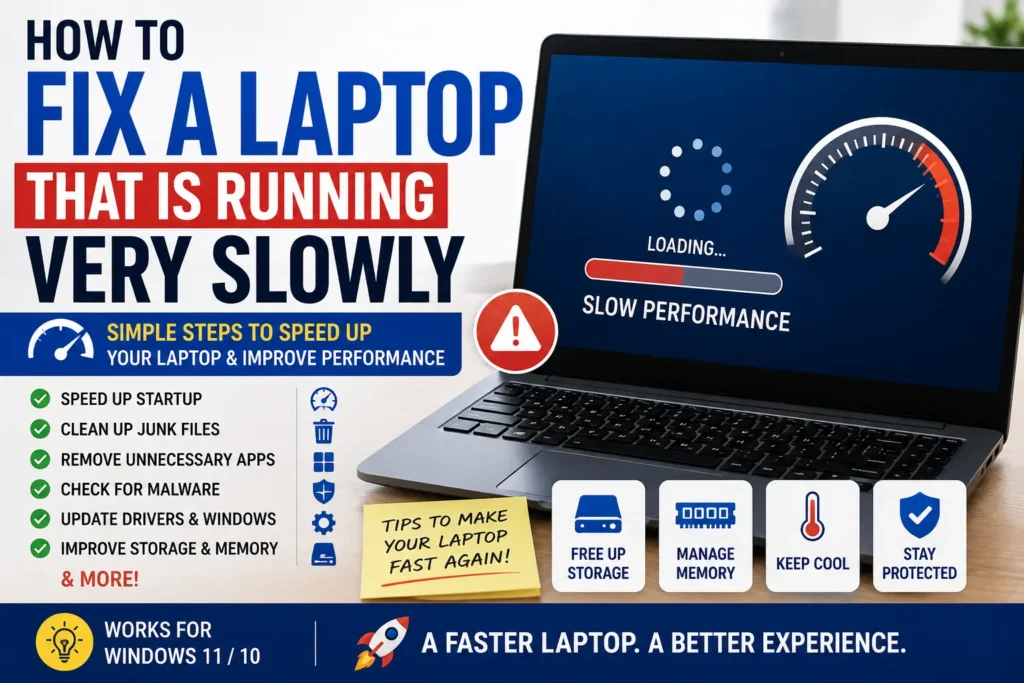
A laptop that once felt fast can gradually become slow, frustrating, and difficult to use. Programs may take longer to open, Windows can take several minutes to start, websites may lag, and even simple tasks such as opening File Explorer can feel delayed.
If you are wondering How to Fix a Laptop That Is Running Very Slowly, the cause is usually not just one thing. Too many startup applications, insufficient free storage, excessive background processes, outdated drivers, browser extensions, overheating, malware, limited RAM, or an aging hard drive can all contribute to poor performance.
The good news is that you can identify many of these problems without immediately replacing the laptop. This guide explains practical troubleshooting methods for Windows laptops, including Windows 10 and Windows 11, so you can determine what is making your computer slow and choose the appropriate fix.
Quick Answer
To fix a laptop that is running very slowly, start by restarting the computer and checking Task Manager to see whether the CPU, memory, disk, or another resource is being heavily used. Next, disable unnecessary startup applications, uninstall software you no longer use, free up storage space, install Windows and driver updates, and reduce unnecessary background activity.
If the laptop becomes slow after running for a while, check whether overheating is causing the processor to reduce its speed. Also scan for malware and inspect the health and type of the storage drive. An older laptop using a mechanical hard disk drive may feel significantly slower than a system using an SSD.
Do not immediately perform a factory reset or delete system files. First identify the source of the slowdown. If the laptop is still slow after software troubleshooting, hardware limitations such as insufficient RAM, an aging drive, or an older processor may be responsible.
Why a Laptop Becomes Very Slow
Before changing settings, it helps to understand what can cause Windows to slow down.
Too Many Startup Programs
Many applications configure themselves to start automatically when Windows boots.
Examples can include:
- Cloud synchronization software
- Messaging applications
- Game launchers
- Update utilities
- Printer software
- Manufacturer utilities
- Media applications
Each additional startup program can increase the amount of work Windows performs before the computer is ready to use.
Not Enough Free Storage
Windows needs available storage for temporary files, updates, application data, and normal system operations.
If the main drive is nearly full, storage management can become more difficult and some operations may take longer.
Removing unnecessary files and applications can therefore be an important part of troubleshooting a slow laptop.
High Memory Usage
RAM, or random access memory, is the temporary workspace used by Windows and running applications.
If you open many browser tabs and applications at the same time, the system may run short of available memory.
This can result in increased use of the storage drive for memory-related operations, which may feel much slower than having sufficient RAM available.
Too Many Background Processes
Some applications continue running even when their windows are closed.
Background synchronization, updates, antivirus scans, cloud services, and other processes can consume CPU, memory, network bandwidth, or disk resources.
Slow or Aging Storage
Older laptops often use mechanical hard disk drives. These drives can be considerably slower for many everyday tasks than modern solid-state drives.
If the laptop has an older HDD and performance has deteriorated over time, storage hardware may be an important part of the problem.
Overheating
A laptop that becomes too hot may reduce processor performance to control temperatures.
This can happen because of:
- Blocked air vents
- Dust accumulation
- Heavy workloads
- Poor airflow
- High room temperature
- Cooling system problems
A laptop that starts quickly but becomes slower after extended use may deserve a temperature and cooling check.
Malware or Unwanted Software
Malware can consume system resources, create background processes, or perform unwanted network activity.
Unexpected pop-ups, unknown applications, unusual browser behavior, high resource usage, or sudden performance changes can justify a security check.
How to Fix a Laptop That Is Running Very Slowly
Work through these solutions from the simplest checks to more advanced troubleshooting.
Method 1: Restart the Laptop
If your laptop has been running continuously for a long time, start with a normal restart.
Restarting can close stuck applications and clear temporary system conditions.
- Save your work.
- Close applications normally.
- Open the Windows Start menu.
- Select the power option.
- Choose Restart.
- Wait for Windows to start completely.
- Test the laptop before opening all your usual applications.
If the computer becomes fast immediately after restarting but gradually slows again, pay attention to which applications and processes are running when the problem returns.
Method 2: Check Task Manager for the Cause
Task Manager is one of the most useful Windows tools for diagnosing a slow laptop.
Press:
Ctrl + Shift + Esc
Then open the Processes section.
Look at resource usage for:
- CPU
- Memory
- Disk
- Network
- GPU
If one application is using an unusually large amount of CPU or memory, investigate that application before ending its process.
For example, if your browser is consuming significant memory, reducing open tabs or disabling unnecessary extensions may help.
If Disk usage remains extremely high, storage activity or a specific background process may be responsible.
Warning: Do not randomly end Windows system processes. Some processes are required for Windows or other applications to function correctly.
Method 3: Disable Unnecessary Startup Apps
Reducing the number of applications that automatically start with Windows can improve startup time and reduce background activity.
In Windows 11:
- Press Ctrl + Shift + Esc.
- Open Startup apps.
- Review the applications listed.
- Check which programs have a high startup impact.
- Disable applications you do not need immediately after Windows starts.
Windows 10 may display startup controls through Task Manager as well, although the interface can differ.
Disable only programs you recognize and understand.
For example, if you do not need a game launcher to start every time you turn on your laptop, you can usually prevent it from launching automatically and open it manually when needed.
Do not disable security software or essential hardware-related software without knowing its purpose.
Method 4: Uninstall Programs You No Longer Use
Unused applications consume storage and some may continue running background services.
Open:
Settings → Apps
On Windows 11, select Installed apps. Windows 10 may use a similar Apps & features section.
Review the installed software.
Remove applications that you are certain you no longer need.
Pay special attention to:
- Old games
- Duplicate utilities
- Trial software
- Applications you installed for a one-time task
- Large programs you no longer use
Warning: Do not uninstall drivers, Microsoft components, or manufacturer utilities unless you know exactly what they do.
Method 5: Free Up Storage Space
A nearly full system drive can make laptop maintenance more difficult.
Open:
Settings → System → Storage
on Windows 11.
Windows 10 has similar storage controls under its System settings.
Review categories such as:
- Temporary files
- Apps
- Documents
- Pictures
- Videos
- Downloads
Delete unnecessary files carefully.
Start with items you can easily identify, such as old downloads, duplicate videos, unused installers, and applications you no longer need.
Important: Back up important documents, photos, videos, and other personal files before performing major cleanup.
Method 6: Reduce Browser Load
Web browsers can become surprisingly resource-intensive.
If your laptop becomes slow mainly while browsing, check how many tabs and extensions you have open.
Try the following:
- Close tabs you no longer need.
- Restart the browser.
- Review installed extensions.
- Remove extensions you do not use.
- Update the browser.
- Test whether the laptop is faster with fewer tabs open.
If the browser is consuming substantial memory in Task Manager, reducing the number of active tabs can make a noticeable difference on laptops with limited RAM.
Be cautious when installing browser extensions. Only use extensions from trusted sources and remove extensions you no longer need.
Method 7: Install Windows Updates
Windows updates can include security improvements, bug fixes, compatibility changes, and other system improvements.
Open Windows Update through Settings and check for available updates.
Before updating:
- Save important work.
- Keep the laptop connected to power when appropriate.
- Make sure important data is backed up.
- Allow Windows to complete the update process.
If the slowdown started immediately after a particular update, do not assume the update is automatically responsible. Other changes may have occurred at the same time.
Method 8: Update Important Drivers
Drivers allow Windows to communicate properly with hardware components.
Relevant drivers can include those for:
- Graphics
- Network adapters
- Chipset components
- Storage controllers
- Audio hardware
Windows may automatically provide many driver updates through Windows Update, while some manufacturers provide additional drivers through their official support pages.
If you need a driver, download it from the laptop manufacturer’s official website or another trusted source.
Avoid downloading random driver packages from unfamiliar websites.
Method 9: Check for Malware
If the laptop has suddenly become slow, especially alongside unusual pop-ups or browser behavior, perform a security scan.
Use Windows Security or another reputable security solution.
In Windows, open the security settings and review available virus and threat protection options.
A scan can help identify malicious or unwanted software that may be consuming resources.
Avoid installing several antivirus programs simultaneously because they can interfere with each other and consume additional system resources.
If malware is detected, follow the security software’s recommended removal process.
Method 10: Check for Overheating
A laptop should have adequate airflow around its cooling system.
If the computer becomes extremely warm and slows down during demanding tasks, overheating may be contributing to the problem.
Check that:
- Air vents are not blocked.
- The laptop is not being used on a soft bed or pillow.
- Air can circulate around the device.
- Dust is not visibly blocking the vents.
- The cooling fan is operating normally.
Use the laptop on a hard, stable surface when possible.
Do not open the laptop unless you are comfortable working with computer hardware and understand the risks.
If the cooling system is heavily clogged or the fan is failing, professional cleaning or repair may be appropriate.
Method 11: Reduce Unnecessary Background Activity
Some applications continue working even when you are not actively using them.
Cloud storage, synchronization programs, launchers, and communication apps can all consume resources.
Review which programs are running through Task Manager.
If an application is not necessary, close it normally or adjust its settings to reduce unnecessary background activity.
Do not disable essential Windows services simply to reduce the number of processes displayed in Task Manager.
Method 12: Adjust Visual Effects
Windows provides visual effects that can make the interface look smoother but may consume additional system resources.
On older hardware, reducing unnecessary visual effects may make the interface feel more responsive.
Search Windows for Adjust the appearance and performance of Windows and review the available performance options.
You can choose settings that prioritize performance rather than visual effects.
This is more useful on older or lower-powered hardware than on a modern laptop with sufficient resources.
Method 13: Check the Storage Drive
The type and condition of your storage drive can have a major effect on laptop performance.
If your laptop uses a traditional HDD, everyday operations may feel slower than on an SSD.
You should also pay attention to warning signs such as:
- Files taking unusually long to open
- Frequent freezing
- Unexpected errors
- Unusual mechanical noises from an HDD
- Windows reporting drive problems
- Applications frequently becoming unresponsive
Important: If you suspect a failing drive, back up important data immediately.
Do not wait until the drive completely fails.
If the laptop has an old HDD and supports an SSD upgrade, replacing the storage drive can be a significant hardware improvement. Compatibility should be confirmed for the specific laptop model before purchasing an upgrade.
Method 14: Check RAM Usage
Open Task Manager and look at memory usage while the laptop is slow.
If memory usage remains very high during normal activities, your workload may exceed the available RAM.
Try closing unnecessary applications and browser tabs first.
If the problem continues and the laptop supports a memory upgrade, additional RAM may help.
However, not every laptop allows RAM upgrades. Some models have memory soldered to the motherboard, so check the exact model’s specifications before purchasing anything.
Method 15: Reset or Reinstall Windows Only as a Last Resort
If software problems continue after other troubleshooting steps, reinstalling or resetting Windows can be considered.
This should not be the first solution to a slow laptop.
Before considering a reset:
- Back up important files.
- Confirm that you can access your important accounts.
- Make sure you have required application installers or access to official download sources.
- Check whether you have product keys or licenses that need to be preserved.
- Review Windows’ reset options carefully.
Warning: Some reset and reinstall options can remove applications and personal data. Make a reliable backup before proceeding.
A clean Windows installation may help when the system has accumulated significant software problems, but it will not fix failing hardware, insufficient RAM, overheating, or an aging storage drive.
Windows 10 and Windows 11 Solutions
The troubleshooting principles are similar on Windows 10 and Windows 11, but menus can look different.
Windows 11
Start with:
Settings → System → Storage
for storage management.
For applications:
Settings → Apps → Installed apps
For startup programs, use Task Manager and open Startup apps.
Windows 10
Windows 10 uses similar settings but may display them differently.
You can generally find storage management under:
Settings → System → Storage
and installed applications under:
Settings → Apps
Task Manager can also be opened with:
Ctrl + Shift + Esc
The exact appearance depends on your Windows version and updates.
Things to Check Before Trying Advanced Solutions
Before making major changes to your laptop, perform these basic checks.
Determine When the Laptop Becomes Slow
Ask yourself whether the problem happens:
- Immediately after startup
- Only after several hours
- While browsing
- During gaming
- When opening files
- During video editing
- When the laptop is hot
- When many programs are open
The timing can help identify the cause.
Check Task Manager Before Changing Settings
Do not guess which component is responsible.
When the laptop is slow, open Task Manager and observe CPU, memory, and disk activity.
A high CPU reading points toward processing activity, while high memory usage can indicate RAM pressure. High disk activity may suggest storage-related activity or a demanding background process.
Back Up Important Data
Before performing major troubleshooting, make sure important documents and personal files exist somewhere safe.
This becomes particularly important before:
- Resetting Windows
- Reinstalling Windows
- Updating hardware
- Working on the storage drive
- Attempting data recovery
Check Available Storage
If the system drive is almost full, clean unnecessary files before attempting complicated performance fixes.
Test After Each Major Change
Do not change ten different settings at once.
Make one meaningful change, restart if necessary, and test the laptop.
This makes it easier to identify what actually helped.
Common Mistakes to Avoid
Installing Random PC Booster Programs
Programs claiming to dramatically speed up a laptop can introduce additional software, advertisements, background processes, or unnecessary system changes.
Start with Windows’ built-in tools.
Disabling Essential Windows Services
A large list of processes in Task Manager does not mean Windows is broken.
Do not disable services simply because their names are unfamiliar.
Deleting System Files
Never manually delete files from Windows system folders just because they consume storage.
Use Windows’ built-in cleanup options instead.
Ignoring Overheating
If a laptop becomes extremely hot and slows down under load, repeatedly changing Windows settings will not solve a physical cooling problem.
Check airflow and seek professional assistance if necessary.
Assuming a Factory Reset Fixes Everything
A reset can help with certain software problems, but it cannot repair a failing SSD, damaged RAM, overheating hardware, or an aging processor.
Diagnose the problem first.
Running Too Many Programs at Once
Older laptops with limited RAM can struggle when browsers, video applications, games, cloud synchronization, and other programs are running simultaneously.
Close programs you are not using.
When to Get Professional Help
You may be able to solve most software-related slowdowns yourself, but professional help is appropriate when the problem appears to involve hardware.
Contact a qualified technician or the laptop manufacturer’s support service if:
- The laptop freezes frequently.
- The storage drive reports errors.
- The computer shuts down unexpectedly.
- The laptop becomes extremely hot.
- The cooling fan makes unusual noises.
- You hear unusual sounds from a mechanical hard drive.
- RAM or storage needs replacement.
- Windows cannot start correctly.
- Important data is inaccessible.
- The laptop remains extremely slow after a clean software installation.
If the laptop contains important files and you suspect storage failure, prioritize data backup or professional data recovery rather than repeatedly restarting the machine.
Frequently Asked Questions
Why is my laptop suddenly running very slowly?
A sudden slowdown can be caused by a background process, software update, malware, low available storage, high memory usage, overheating, or a failing hardware component. Start by checking Task Manager when the laptop is slow.
How can I make my slow laptop faster without buying anything?
Restart the laptop, disable unnecessary startup applications, uninstall unused software, free up storage, reduce browser tabs and extensions, install Windows updates, scan for malware, and check for overheating. These steps can improve performance when the problem is software-related.
Why is my laptop slow even when I am not running programs?
Windows may still be running background processes such as updates, synchronization, security scans, or other applications. Open Task Manager while the laptop is slow to identify which resources are being used.
Does low storage make a laptop slow?
A nearly full system drive can make storage management and certain operations more difficult. Freeing unnecessary space is a sensible troubleshooting step, particularly when the drive has very little available capacity.
Can adding RAM make a slow laptop faster?
Additional RAM can help when the laptop regularly runs out of available memory during normal use. However, RAM is not a universal solution. If the problem is caused by a slow drive, overheating, malware, or high CPU usage, adding RAM may not address the main cause.
Is an SSD better than an HDD for a slow laptop?
An SSD generally provides much faster storage access than a traditional mechanical HDD. If an older compatible laptop still uses an HDD, upgrading to an SSD can significantly improve tasks such as Windows startup, application launching, and file access.
Should I reset Windows if my laptop is slow?
A Windows reset should usually be considered after simpler troubleshooting has failed. Back up important data first because some reset options can remove applications and personal files.
How do I know if overheating is making my laptop slow?
If the laptop becomes noticeably hot and performance decreases during longer sessions or demanding tasks, overheating may be contributing. Check that air vents are clear and that the laptop is being used on a hard surface with adequate airflow.
Why does my laptop take so long to start?
Slow startup can be caused by too many startup applications, slow storage, Windows processes, insufficient resources, or software problems. Check Task Manager’s Startup apps section and disable unnecessary programs from starting automatically.
Can malware make a laptop very slow?
Yes. Malicious or unwanted software can consume CPU, memory, storage, and network resources. If the slowdown is accompanied by unusual pop-ups, browser changes, unknown applications, or other suspicious behavior, run a security scan using a trusted security solution.
Final Thoughts
Learning How to Fix a Laptop That Is Running Very Slowly starts with finding the actual cause instead of immediately reinstalling Windows or purchasing new hardware.
Begin with the basics: restart the laptop, open Task Manager, check CPU and memory usage, review startup applications, remove unused programs, and free up unnecessary storage. Then check Windows updates, browser extensions, malware, background applications, and cooling.
If the laptop remains slow, investigate the hardware. An aging HDD, limited RAM, overheating, or another failing component can create performance problems that software adjustments cannot fully resolve.
Most importantly, back up your important files before performing risky troubleshooting. If you suspect a failing drive or other hardware problem, protect your data first and seek professional assistance when necessary.
By working through these checks systematically, you can determine whether your laptop needs simple cleanup, software changes, a hardware upgrade, or professional repair rather than guessing at the solution.