How to Recover Deleted Photos From Android: 10 Practical Methods That Can Work
Accidentally deleting important photos from an Android phone can be stressful, especially when those pictures contain family memories, work documents, travel moments, or other information that cannot easily be replaced. Fortunately, deleting a photo does not always mean it is permanently gone.
If you want to know how to recover deleted photos from Android, the first thing to do is stop using the phone for unnecessary activity. New downloads, photos, app installations, and other storage activity can make recovery more difficult if the deleted data has not already been permanently removed.
The good news is that Android phones and popular photo services often provide several places where deleted pictures may still be available. In this guide, we will go through the safest methods first, including Google Photos Trash, Gallery recycle bins, cloud backups, file managers, messaging apps, and computer-based recovery options.
Quick Answer
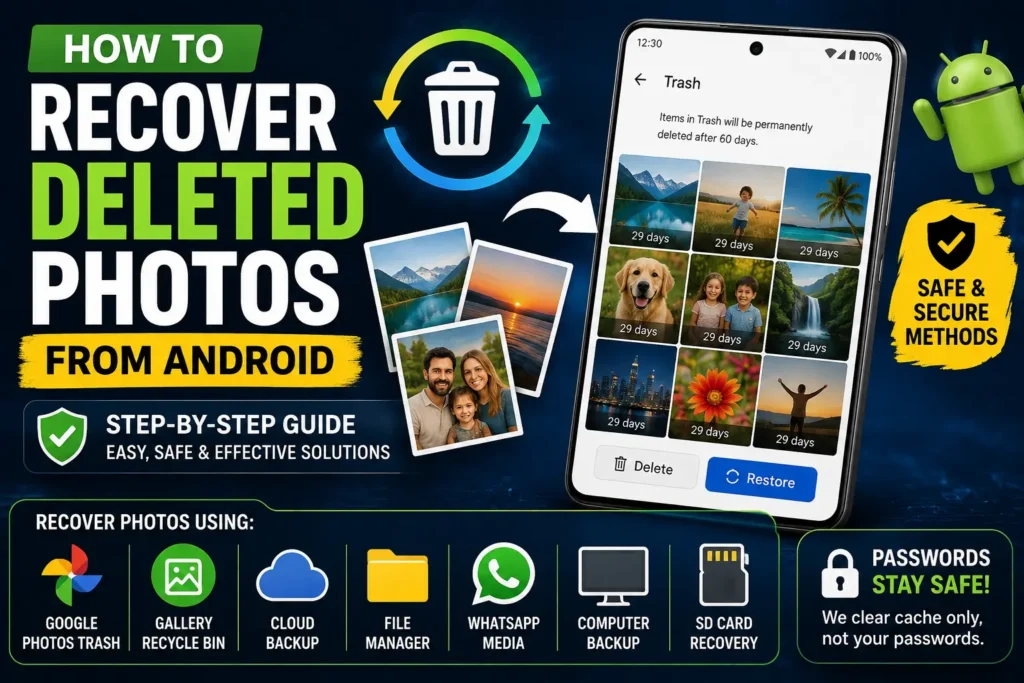
The easiest way to recover deleted photos from Android is to check the Trash or Recently Deleted folder in the app where the photos were originally stored. If you use Google Photos, open the app and check its Trash. Samsung Gallery and some other Android gallery applications also provide a Recycle Bin or Trash feature.
If the photos are not there, check whether they were backed up to Google Photos, OneDrive, Samsung Cloud or another cloud service, depending on your phone and backup settings. You should also check messaging apps, file managers, social media downloads, and folders where copies of the photos may exist.
If you permanently deleted the pictures and no backup or Trash copy exists, recovery becomes much less certain. Avoid installing multiple recovery applications on the same phone because doing so can write additional data to storage. For particularly important files, professional data-recovery services may be a better option.
Why Deleted Photos May Still Be Recoverable
When you delete a photo, several things can happen depending on the Android version, phone manufacturer, gallery application, storage location, and backup configuration.
In many cases, the photo is first moved to a temporary Trash, Recycle Bin, or Recently Deleted folder. This gives you an opportunity to restore it without using specialized recovery software.
If the photo was synchronized with a cloud service, a copy may also exist online even if the local copy was deleted from your phone.
For example, you may find a deleted picture in:
- Google Photos Trash
- Samsung Gallery Recycle Bin
- Another manufacturer’s Gallery Trash
- Google Photos cloud storage
- OneDrive
- A computer backup
- An external storage device
- WhatsApp or another messaging app
- A social media conversation
- A file manager’s recycle bin
However, not every deleted photo can be recovered. If the only copy was permanently deleted and the storage space has subsequently been reused, recovery may be impossible.
How to Recover Deleted Photos From Android
Start with the simplest and safest methods before trying recovery applications or advanced procedures.
Method 1: Check Google Photos Trash
Google Photos is one of the first places you should check if you previously used it to view or back up pictures.
The exact interface can change between Google Photos versions, but the basic process is similar.
- Open Google Photos.
- Look for the Collections or library-related section.
- Open Trash.
- Look for the deleted photo.
- Select the photo if it is available.
- Choose the option to Restore.
If the picture is still in Trash and Google Photos allows restoration, the photo can be returned to your photo library.
Check the Correct Google Account
One common reason people cannot find their photos is that they are checking the wrong Google Account.
If you have multiple Google Accounts on your phone, open Google Photos and verify which account is currently being used.
You may have backed up the photos under a different account.
Important Google Photos Limitation
Google Photos does not necessarily keep deleted items indefinitely. The retention period and behavior can depend on how and when the item was deleted and the type of backup involved.
Therefore, do not wait unnecessarily if you discover that important photos have been deleted.
Method 2: Check Your Android Gallery’s Recycle Bin
Many Android phones provide a built-in deleted-items folder.
Samsung phones, for example, may provide a Recycle Bin through Gallery, although menu names and available features can vary by device and software version.
Try this:
- Open your phone’s Gallery app.
- Open its menu or settings.
- Look for Recycle Bin, Trash, or Recently Deleted.
- Open the folder.
- Find the deleted photo.
- Select it.
- Tap Restore.
The exact location depends on your phone manufacturer.
Why This Method Is Important
The Gallery app may have a separate deleted-items system from Google Photos.
For example, if you normally used the manufacturer’s Gallery application, checking Google Photos alone may not show every locally deleted picture.
Check both when appropriate.
Method 3: Check Google Photos for Backed-Up Copies
A photo may have disappeared from your phone’s local storage while a backed-up copy remains in Google Photos.
Open Google Photos and search through your library.
You can also check:
- Different dates
- Albums
- Archive
- Shared albums
- Screenshots
- Downloads
- Camera folders
- Other device folders
If you find the picture in Google Photos, you may be able to download or save a copy back to your device.
Check Backup Settings
If you are unsure whether your photos were backed up, look at Google Photos’ backup settings.
The presence of a photo in the cloud depends on whether backup was enabled and whether that particular folder was included in the backup process.
Not every folder on an Android phone is automatically backed up.
Method 4: Check the Recently Deleted Folder in Other Photo Apps
If you use a third-party gallery or photo-management application, check whether it has its own Trash or Recently Deleted folder.
Some applications may keep deleted images temporarily before removing them permanently.
Open the application you normally used to manage your pictures and look through its settings and storage options.
Do not immediately uninstall the application.
If the application contains a recoverable copy, uninstalling it could remove locally stored application data.
Method 5: Check File Manager Folders
Sometimes a photo is not actually deleted. It may simply have been moved to another folder.
Open your Android file manager and search for common image file types such as:
- JPG
- JPEG
- PNG
- WEBP
- HEIC
You can also inspect folders associated with:
- DCIM
- Camera
- Pictures
- Screenshots
- Downloads
- Telegram
- Bluetooth
- Social media applications
The exact folder structure varies by Android version and application.
Use File Search Instead of Browsing Everything
If your file manager provides a search feature, search for the photo’s filename or image extension.
For example, if you remember that the picture was called IMG_2026..., search for that name.
You may discover that the file was moved rather than deleted.
Method 6: Check OneDrive or Other Cloud Storage
Some Android phones and applications can synchronize photos with cloud services such as OneDrive.
If you previously enabled photo backup, log in to the relevant cloud account from the app or a web browser.
Check:
- Photos
- Camera Uploads
- Recycle Bin
- Recently Deleted
- Device folders
- Shared folders
Cloud services may have their own deletion and retention rules.
If the picture exists online, download a copy rather than repeatedly modifying the cloud library while troubleshooting.
Method 7: Check WhatsApp and Messaging Apps
If you received or sent the photo through a messaging application, there may be another copy.
For example, check relevant WhatsApp conversations and media sections.
You may also find copies in application-specific folders on your device, depending on the app and Android version.
Search the original conversation where the picture was shared.
If the photo was sent to someone else, you could also ask that person to send it back.
This is often much safer than immediately installing a data-recovery application.
Method 8: Check Your Computer Backup
If you previously connected your Android phone to a Windows PC or Mac and copied your photos, check that computer.
Look through folders such as:
- Pictures
- Downloads
- Desktop
- Documents
- Android backup folders
- External hard drives
- USB storage devices
Also check cloud-sync folders if you used a desktop application for OneDrive, Google Drive, or another service.
Search by File Type
If you cannot remember the filename, use your computer’s search functionality to find common photo formats.
Search for:
*.jpg
*.jpeg
*.png
*.heic
The exact search syntax can vary by operating system.
Method 9: Check an SD Card If Your Phone Used One
If the deleted photos were stored on a removable microSD card, the situation can be different from photos stored in internal phone storage.
If you suspect the pictures were on an SD card:
- Stop saving new files to the card.
- Remove the card if your device supports safe removal.
- Do not format it.
- Connect it to a computer using an appropriate card reader.
- Check whether the photos are already present.
- If they are genuinely deleted, consider using a reputable recovery tool.
Important Warning
Do not format the SD card if you are trying to recover deleted photos.
Formatting can make recovery more difficult and can remove the file-system information that recovery tools may rely on.
For valuable photos, create an appropriate image or backup of the card before attempting advanced recovery when possible.
Method 10: Try Android Photo Recovery Software Carefully
If the pictures are not in Trash, cloud backups, messaging apps, or existing backups, you may consider recovery software.
However, this is where you should be especially careful.
Many Android recovery applications advertise the ability to recover permanently deleted photos, but their effectiveness depends heavily on the device, Android version, storage technology, permissions, and whether the deleted storage space has been reused.
Some apps may also require permissions that you should carefully review.
Before Using Recovery Software
Ask yourself:
- Is the photo extremely important?
- Do I have another backup?
- Is the photo stored on internal storage or an SD card?
- Has the phone been heavily used since deletion?
- Does the recovery application require root access?
- Is the software from a reputable source?
- Does it clearly explain what data it accesses?
Do not install several recovery applications one after another.
Installing applications can create additional storage activity, potentially reducing the chances of recovering deleted files.
Things to Check Before Trying Advanced Recovery
Before attempting advanced recovery, perform these basic checks.
Stop Taking New Photos
If important photos were accidentally deleted, avoid using the camera until you have checked recovery options.
New photos may use storage space that could otherwise contain remnants of deleted data.
Avoid Large Downloads
Do not download movies, games, large applications, or other unnecessary files.
The less unnecessary activity you perform, the better.
Do Not Factory Reset the Phone
Warning: A factory reset can remove data from the device. Do not reset your phone when your goal is to recover deleted photos unless you have already secured the photos through another method.
Do Not Install Random Recovery Apps
A recovery application is not automatically trustworthy because it claims to recover deleted files.
Research the software and understand what permissions it requests before using it.
Check Backups First
Cloud backups and existing copies are usually safer recovery options than attempting low-level storage recovery.
Always check them first.
Can Permanently Deleted Photos Be Recovered?
Sometimes, but there is no guarantee.
Modern Android devices commonly use flash storage, and modern operating systems use storage-management mechanisms that can make deleted-file recovery difficult.
When a photo is deleted, the operating system may mark its storage space as available for reuse. Later, other data can occupy that space.
If the original data is overwritten or otherwise made unavailable, software may not be able to reconstruct the original image.
This is why acting quickly matters.
Why Recovery Apps Cannot Guarantee Results
A recovery application cannot guarantee that every deleted photo will be restored.
Results depend on:
- Storage type
- Android version
- Device manufacturer
- Whether the file was on internal storage
- Whether it was on an SD card
- Time since deletion
- Storage activity after deletion
- Encryption
- File-system behavior
- Backup availability
- Permissions and device access
Anyone promising guaranteed recovery should be treated cautiously.
Common Mistakes to Avoid
Taking More Photos After Deletion
Continuing to use the phone normally can create new storage activity.
If the deleted photos are important, reduce unnecessary usage until you have checked your recovery options.
Emptying the Trash
If you find the photos in a Trash or Recently Deleted folder, do not empty that folder.
Restore the photos first.
Clearing Google Photos Data Without Checking Backup
Be careful when changing app storage or account settings while troubleshooting.
First determine whether your pictures exist in Google Photos or another cloud service.
Factory Resetting the Phone
A factory reset is not a photo-recovery solution.
It can make an already difficult recovery situation worse.
Rooting the Phone Without Understanding the Risks
Some advanced Android recovery methods may involve root access or bootloader-related procedures.
These procedures vary significantly between manufacturers and devices and can have serious consequences.
Do not attempt them simply because a recovery application recommends them without understanding the risks.
Paying for Recovery Software Immediately
Before paying for recovery software, check free and existing recovery options:
- Google Photos
- Gallery Trash
- Cloud backups
- File manager
- Messaging apps
- Computer backups
- SD card
You may already have a recoverable copy.
When to Get Professional Help
Professional data recovery may be worth considering when the deleted photos are extremely valuable and no backup exists.
This is particularly relevant if:
- The phone has suffered physical damage.
- The storage is failing.
- The phone cannot boot.
- The device was exposed to water.
- The photos are business-critical.
- The data is legally or financially important.
- A removable storage card is physically damaged.
- You have already tried basic recovery options without success.
Avoid repeatedly experimenting with the device when the data is extremely important.
A professional service can assess the storage and determine whether specialized recovery is realistic.
Frequently Asked Questions
Can I recover permanently deleted photos from Android?
Sometimes, but recovery is not guaranteed. First check Google Photos, Gallery Trash, cloud backups, messaging applications, computer backups, and SD cards. If no copy exists, advanced recovery may be necessary.
Where do deleted photos go on Android?
Depending on your phone and application, deleted photos may move to a Trash, Recycle Bin, or Recently Deleted folder. If they were backed up, another copy may also exist in a cloud service.
How long do deleted photos stay in Google Photos Trash?
The retention period can depend on Google’s current policies and the circumstances under which the item was deleted. Check the Trash as soon as possible rather than assuming a deleted photo will remain there indefinitely.
Can I recover deleted photos without a backup?
It may be possible in some circumstances, particularly when the deleted data has not been overwritten, but there is no guarantee. Recovery is generally more difficult for files deleted from internal Android storage.
Can Google Photos recover photos deleted from my phone?
If the photos were backed up to Google Photos, you may still have access to them there. You should also check Google Photos Trash if the photos were recently deleted.
Does factory reset recover deleted photos?
No. A factory reset is designed to erase user data and should not be used as a recovery method. If you need to recover photos, avoid resetting the phone.
Can I recover deleted photos from an SD card?
Recovery can be more feasible with an SD card than with modern internal phone storage in some situations. Stop using the card, do not format it, and consider using a computer-based recovery method or professional service.
Will a recovery app recover all my deleted photos?
No recovery application can guarantee that every deleted photo will be recovered. Results depend on the device, storage technology, deletion process, and whether the relevant storage space has been reused.
Should I stop using my phone after deleting photos?
If the photos are important, it is sensible to minimize unnecessary use. Avoid taking new photos, downloading large files, installing applications, or performing other activities that create substantial storage activity until you have checked recovery options.
Final Thoughts
Knowing how to recover deleted photos from Android starts with checking the safest recovery locations rather than immediately installing recovery software.
First, check Google Photos Trash, your phone’s Gallery Recycle Bin or Recently Deleted folder, and any cloud backup service you previously used. Then look for copies in messaging applications, file-manager folders, computers, external drives, and SD cards.
If the photos were permanently deleted and no backup exists, recovery becomes much less certain. At that point, minimize phone usage and avoid unnecessary installations, downloads, formatting, or factory resets.
For irreplaceable photos, professional data recovery may be safer than experimenting with multiple recovery applications. Going forward, automatic photo backups and periodic copies to another location can greatly reduce the risk of losing important Android photos permanently.