How to Recover Deleted WhatsApp Messages and Photos: Complete Guide for Android and iPhone
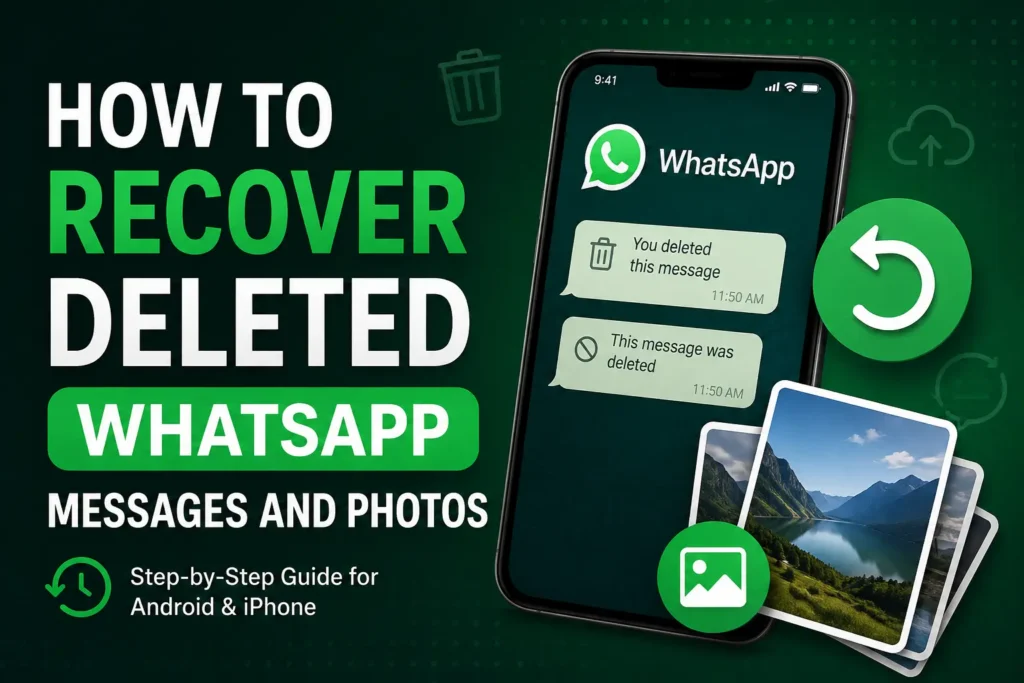
Deleting an important WhatsApp message or photo can be frustrating, especially when the conversation contains personal information, work details, receipts, documents, or memorable pictures. Fortunately, How to Recover Deleted WhatsApp Messages and Photos is not always a hopeless problem. Your chances depend mainly on whether WhatsApp created a backup before the content was deleted and whether the deleted photos still exist somewhere else on your phone or cloud storage.
WhatsApp does not normally provide a simple recycle bin for deleted messages. Instead, recovery usually depends on an existing WhatsApp backup, Android’s local backup files, your phone’s photo trash folder, Google Photos, iCloud Photos, or another copy of the media.
This guide explains the safest recovery methods for Android and iPhone, including what to check before reinstalling WhatsApp, how backup restoration works, and what to do if you cannot find an older backup.
Quick Answer
The best way to recover deleted WhatsApp messages is to restore a WhatsApp backup that was created before the messages were deleted. On Android, WhatsApp backups can be associated with your Google Account, while iPhone WhatsApp backups use iCloud. WhatsApp can also use local backup files on Android in supported configurations.
For deleted WhatsApp photos, first check your phone’s Gallery or Photos app, Trash/Recently Deleted folder, Google Photos, iCloud Photos, and the WhatsApp media folder. A photo may have disappeared from the chat while still being stored on the device.
Before restoring a backup, check its date carefully. Restoring an older backup can replace the current WhatsApp chat history with the version contained in that backup. Therefore, if your current chats contain important newer messages, save or export anything important before attempting a restoration.
If there is no backup and the deleted data is no longer stored anywhere on the device or cloud, recovery may not be possible through WhatsApp itself. Be particularly cautious with third-party “WhatsApp recovery” apps that request broad permissions or promise guaranteed recovery.
Why Deleted WhatsApp Messages and Photos Disappear
Understanding what happened to the content helps determine which recovery method is worth trying.
The message was deleted from the chat
When a message is deleted from a WhatsApp conversation, it may no longer be visible in the normal chat history. WhatsApp does not offer a general feature that lets you browse all previously deleted messages and restore them whenever you want.
If a backup was created while the message still existed, however, that backup may contain the older version of the conversation.
The WhatsApp backup was created before deletion
This is one of the most important factors in recovery.
For example, suppose you received an important message on Monday and accidentally deleted it on Tuesday. If your WhatsApp backup was created on Monday evening, that backup could contain the message.
If the only available backup was created after the message was deleted, restoring it generally will not bring the message back.
The photo was removed from the chat but remains on the phone
WhatsApp media can sometimes exist separately from the visible conversation. Depending on your phone, storage settings, and how the media was handled, a photo might still be available in your Gallery, Google Photos, Files app, or a WhatsApp media folder.
The photo was deleted from the phone
A deleted WhatsApp photo may still be in a Trash or Recently Deleted folder. Many Android gallery applications and Apple Photos provide temporary deleted-item storage, although the exact retention period and options vary by device and settings.
A backup was replaced or is unavailable
If an older WhatsApp backup has been replaced by a newer backup, the older version may no longer be available for restoration. This is why checking backup information before making changes to WhatsApp is important.
How to Recover Deleted WhatsApp Messages and Photos
There are several recovery methods worth trying. Start with the least risky options and only move to backup restoration after checking what is already available on your phone.
Method 1: Check WhatsApp Backup Before Restoring Anything
This should be your first step if you are trying to recover deleted messages.
On Android
WhatsApp backups may be associated with the Google Account used for WhatsApp backups. The exact screens can vary by WhatsApp and Android version, but you can generally check WhatsApp’s backup settings.
- Open WhatsApp.
- Open Settings.
- Go to Chats.
- Select Chat backup.
- Look at the available backup information and its date.
Do not immediately uninstall WhatsApp.
First determine whether the backup is older than the time when the messages or photos disappeared.
For example:
- Message deleted: Tuesday at 3 PM
- Available backup: Monday at 11 PM
- Recovery possibility: potentially useful
But:
- Message deleted: Tuesday at 3 PM
- Available backup: Wednesday at 2 AM
- Recovery possibility: the backup may already reflect the deletion
The backup date is therefore more important than simply having a backup.
On iPhone
WhatsApp uses iCloud for its chat backup system on iPhone.
- Open WhatsApp.
- Go to Settings.
- Select Chats.
- Tap Chat Backup.
- Check the available backup date and size.
If the backup predates the deletion, restoration may be worth considering.
Method 2: Restore WhatsApp From an Older Backup
This is generally the most useful method for recovering deleted WhatsApp messages when a suitable backup exists.
Warning: Restoring an older backup can cause newer WhatsApp messages that are not contained in that backup to disappear from the restored chat history. Back up or otherwise preserve important current information before proceeding.
Android restoration
If you have confirmed that an appropriate backup exists, WhatsApp can generally restore it during the account setup process.
The broad process is:
- Confirm the backup date before making changes.
- Make sure you know the Google Account associated with the WhatsApp backup.
- Make sure you can verify the same WhatsApp phone number.
- Remove and reinstall WhatsApp only after you have checked the backup information.
- Open WhatsApp.
- Verify your phone number.
- When WhatsApp detects the available backup, choose the restore option.
- Allow the restoration process to finish.
- Open the relevant conversation and check whether the deleted messages or media have returned.
WhatsApp may also restore media after the initial chat restoration, so photos and videos might take additional time to appear.
Do not assume that reinstalling WhatsApp automatically creates access to every historical backup. The account, phone number, backup availability, and backup date all matter.
iPhone restoration
On iPhone, the process generally relies on the WhatsApp backup stored through iCloud.
- Check WhatsApp > Settings > Chats > Chat Backup first.
- Confirm that the backup is old enough to contain the deleted content.
- Preserve important current information before restoration.
- Remove and reinstall WhatsApp if necessary.
- Verify the same phone number.
- Follow WhatsApp’s restoration prompt when the appropriate iCloud backup is detected.
- Wait for the chats and media to finish restoring.
Your iPhone must be able to access the relevant iCloud backup. If the required backup is unavailable, reinstalling WhatsApp will not magically recreate it.
Method 3: Look for Deleted WhatsApp Photos in Gallery or Photos
If your main goal is recovering a deleted picture rather than a message, do not start by restoring WhatsApp.
Check the phone itself first.
Android
Open your phone’s Gallery or Photos application and look for:
- WhatsApp Images
- Camera
- Downloads
- Recently Deleted
- Trash
- Albums
- Other folders containing WhatsApp media
The names and locations vary between Samsung, Google Pixel, Xiaomi, OnePlus, Oppo, Vivo, and other Android devices.
If you use Google Photos, also check its Trash and search for the image by date or other available information.
If the photo is still present in the phone’s storage, you may be able to recover it without touching your WhatsApp installation.
iPhone
Open the Photos app and check:
- Recently Deleted
- Your main photo library
- Relevant albums
- Search results
- iCloud Photos, if enabled
Apple’s Photos app provides a Recently Deleted area, but items are not necessarily retained there indefinitely. If the image is no longer available there, check whether another copy exists in iCloud, a computer backup, another device, or a conversation where someone else sent the same image.
Method 4: Check WhatsApp Media Folders on Android
Android users have another possible place to look: WhatsApp’s stored media folders.
The exact folder path can vary between Android versions and manufacturers. On newer Android versions, WhatsApp data may be located within Android’s media storage structure rather than the older folder arrangement found on some older phones.
You can use a file manager and search for folders or files associated with WhatsApp media.
Look for image, video, audio, or document files that correspond to the approximate date of the deleted conversation.
For example, a WhatsApp image may still exist in device storage even when you cannot see it in the chat.
Important: Do not randomly delete, move, rename, or modify WhatsApp database or media files while searching. If you find important files, copy them to another safe location first.
Method 5: Check Google Photos or iCloud for Another Copy
Sometimes WhatsApp is not the only place where a photo exists.
Google Photos
If Google Photos backup was enabled, the image may have been uploaded independently of WhatsApp.
Open Google Photos and:
- Search by approximate date.
- Check the relevant album or device folders.
- Open the Trash section.
- Look through older photos around the date the WhatsApp image was received.
The photo may have been backed up even if it was later removed from WhatsApp.
iCloud Photos
On an iPhone, check the Photos library and Recently Deleted area. If iCloud Photos was enabled, the photo may also be synchronized with your iCloud photo library.
This is separate from relying solely on a WhatsApp chat backup.
Android-Specific Recovery Options
Android provides some additional possibilities, but they vary considerably by device and Android version.
Check Local WhatsApp Backups
Some Android WhatsApp installations can have local chat backup files stored on the device.
The availability, file location, naming, and retention behavior can vary depending on WhatsApp’s current implementation and the Android version.
If you find multiple local backup files, do not delete them simply because their filenames look unfamiliar.
A local database backup can be useful only if it actually contains the conversation from before the deletion and WhatsApp can recognize and restore it correctly.
Because working with WhatsApp database files incorrectly can result in lost or inaccessible data, this method is better suited to users who understand Android file storage and backup management.
Check the Android Trash Folder
Some Android manufacturers include a Trash or Recycle Bin feature in their Gallery or file management apps.
Open your Gallery and look for options such as:
- Trash
- Recycle Bin
- Recently Deleted
The exact location depends on the manufacturer and app version.
If you find the deleted WhatsApp photo there, restoring it is usually much safer than reinstalling WhatsApp.
iPhone-Specific Recovery Options
iPhone recovery is more dependent on WhatsApp’s iCloud backup and Apple’s own photo backup systems.
Check Recently Deleted in Photos
If the WhatsApp image was saved to your iPhone’s Photos library, check Photos > Recently Deleted.
If you find the image there, restore it before its temporary deletion period expires.
Check iCloud Photos
If you use iCloud Photos, search your library for the missing image. Remember that iCloud Photos and WhatsApp chat backups are different systems.
An image might be present in iCloud Photos even if the WhatsApp conversation no longer contains it.
Restore WhatsApp From iCloud Backup
If the deleted message exists in an older WhatsApp backup, restoring that backup can bring back the corresponding chat history.
However, this should not be treated as a way to selectively restore one deleted message while leaving everything else untouched. Backup restoration can change the state of the WhatsApp data currently on the phone.
Can You Recover WhatsApp Messages Without a Backup?
Sometimes, but there is no universal recovery method.
If a message was deleted and there is no WhatsApp backup, no local copy, no notification record, and no other copy of the information, WhatsApp itself generally does not provide a normal feature for retrieving that deleted message.
There are a few situations where the information may still exist elsewhere.
For example, an Android notification history feature may have retained a notification containing part of a text message. However, notification history is not a complete WhatsApp backup and availability varies by Android version, manufacturer, settings, and whether the feature was enabled beforehand.
Likewise, another participant in the conversation may still have the message or photo.
For media, look outside WhatsApp as well. The file might remain in your phone’s storage, cloud photo backup, computer, or another device.
Things to Check Before Trying Advanced Solutions
Before uninstalling WhatsApp or restoring anything, go through these checks:
- Check the WhatsApp backup date. Make sure it predates the deletion.
- Check Google Photos or Apple Photos. The photo may have been backed up independently.
- Check Trash or Recently Deleted. Look in both your photo application and any relevant file manager.
- Check the WhatsApp media folders on Android. A media file may still be stored locally.
- Ask the other person in the conversation. They may still have the message or photo.
- Preserve newer WhatsApp conversations. Do not restore an old backup without considering what newer information could be affected.
- Avoid unnecessary phone cleanup. Storage-cleaning tools can remove cached or unused files that might otherwise help locate a missing photo.
- Confirm the correct Google Account or Apple/iCloud account. A backup belonging to a different account will not necessarily appear where you expect it.
Common Mistakes to Avoid
Reinstalling WhatsApp immediately
Uninstalling WhatsApp should not be your first step. Check the available backup and preserve important current information first.
Restoring a backup without checking its date
A backup is useful only if it contains the information you want. Restoring the wrong backup can also leave you without newer chats that were created afterward.
Assuming every deleted photo is gone
A deleted WhatsApp photo may still be in Google Photos, iCloud Photos, Gallery Trash, Recently Deleted, or local storage.
Using random recovery applications
Be careful with applications claiming they can recover every deleted WhatsApp message. Some may require extensive permissions, access to notifications, storage, or other sensitive information.
WhatsApp conversations can contain private messages, photographs, documents, authentication codes, and personal information. Installing an untrusted recovery application can create a privacy risk.
Continuing to use the phone heavily after important files disappear
If you are dealing with potentially recoverable local files, avoid unnecessary storage-intensive activity until you have checked your backups and existing media. New data can potentially overwrite storage space that previously held deleted files.
Deleting existing backup files
Never delete an older backup while attempting recovery unless you are certain you no longer need it.
When to Get Professional Help
Professional assistance may be appropriate if the deleted WhatsApp data is extremely important and you suspect that files were lost from damaged or failing storage rather than simply deleted from a chat.
Consider contacting a reputable data recovery specialist when:
- The phone has physical storage damage.
- The device no longer starts normally.
- Important files disappeared after hardware failure.
- You have no usable cloud backup and the data is particularly valuable.
- You are dealing with a damaged storage device rather than an ordinary WhatsApp deletion.
Be cautious when giving a phone containing private WhatsApp conversations to a third party. Choose a reputable service, ask how your data will be handled, and avoid sharing account passwords unless absolutely necessary.
If the problem is specifically related to WhatsApp’s account or backup behavior, consult WhatsApp’s official support resources rather than relying on an application that promises guaranteed recovery.
Frequently Asked Questions
Can I recover deleted WhatsApp messages without a backup?
There is no guaranteed WhatsApp feature for recovering permanently deleted messages without a backup. You may still find copies in notification history, local files, another device, or the other participant’s conversation, but these are not equivalent to restoring a complete WhatsApp backup.
Can I recover deleted WhatsApp photos from my phone?
Yes, potentially. Check your Gallery or Photos app, Trash or Recently Deleted folder, Google Photos, iCloud Photos, and Android WhatsApp media folders. If the photo still exists in one of these locations, you may not need to restore WhatsApp at all.
Will restoring a WhatsApp backup delete my current chats?
Restoring an older backup can replace the current WhatsApp chat history with the version contained in that backup. Before doing this, carefully consider which newer messages or media may not exist in the older backup.
How do I recover deleted WhatsApp messages on Android?
First check WhatsApp > Settings > Chats > Chat backup and compare the backup date with the time the message was deleted. If an appropriate backup exists, you can consider restoring it. Also check Android’s local WhatsApp media and backup files, notification history where available, and Google Photos for associated images.
How do I recover deleted WhatsApp messages on iPhone?
Check WhatsApp > Settings > Chats > Chat Backup for an iCloud WhatsApp backup created before the deletion. If a suitable backup exists, WhatsApp can generally restore it during setup after verification. For photos, also check Apple’s Photos app, Recently Deleted, and iCloud Photos.
Can I recover a WhatsApp photo if the message was deleted?
Possibly. Deleting a message from a chat does not necessarily mean every copy of the associated photo has disappeared from your phone. Check your Gallery or Photos app, cloud photo backups, Recently Deleted or Trash, and Android’s WhatsApp media storage.
Does WhatsApp keep deleted messages on its servers for recovery?
You should not rely on WhatsApp’s servers as a personal recovery archive. WhatsApp’s normal user-facing recovery method is based on available backups and copies of the data stored on your devices or other services. If you need an old conversation, check your backups rather than expecting WhatsApp to provide a deleted-message history.
Are WhatsApp recovery apps safe?
Not necessarily. Some third-party applications may request access to sensitive device information or make claims that exceed what they can reliably recover. Treat apps promising guaranteed recovery of all deleted WhatsApp messages with caution, especially when they require extensive permissions or ask for sensitive account information.
Final Thoughts
The most reliable approach to How to Recover Deleted WhatsApp Messages and Photos is to work from the safest recovery option to the riskiest. Start by checking whether the deleted photo still exists in your Gallery, Google Photos, iCloud Photos, Trash, or device storage. For deleted conversations, check the date of your WhatsApp backup before making any changes.
If a backup was created before the deletion, restoring that backup may recover the missing conversation and associated media. On Android, local backup files can provide another possible avenue in some configurations. On iPhone, WhatsApp’s iCloud backup and Apple’s Photos ecosystem are particularly important places to check.
Most importantly, do not rush into uninstalling WhatsApp or restoring an old backup. First identify what backup or copy of the data actually exists and protect any newer information you cannot afford to lose.
If no backup or remaining copy exists, recovery may not be possible through WhatsApp. In that situation, checking the other participant’s device, existing photo backups, and legitimate local copies is safer than trusting an unknown recovery application with private conversations.