How to Fix Slow Internet Speed at Home: Complete Troubleshooting Guide
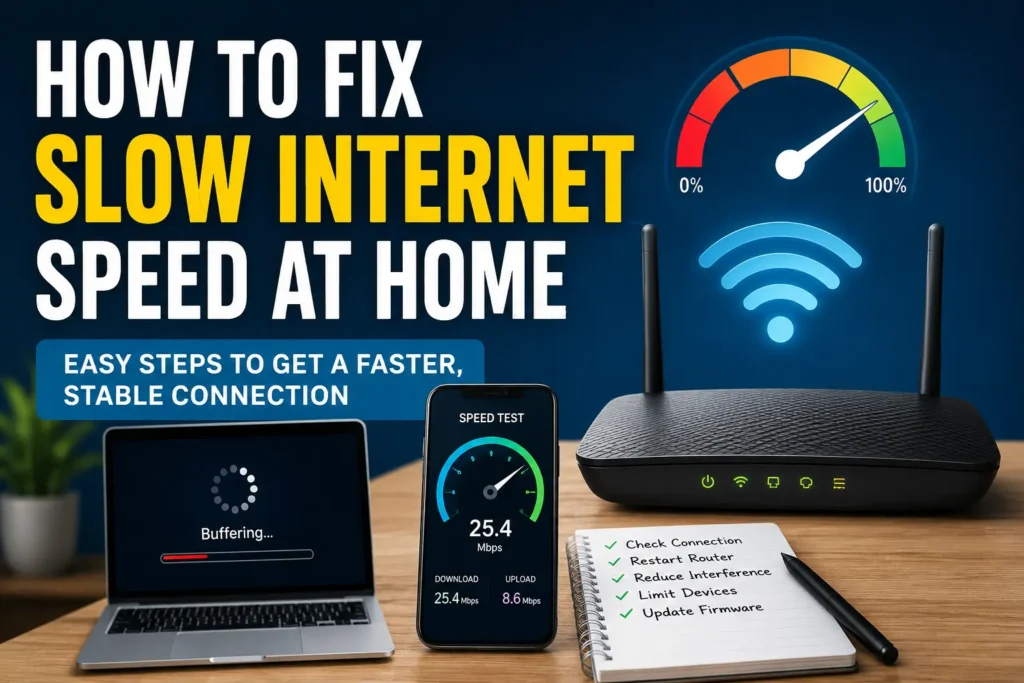
Slow internet can turn simple online activities into a frustrating experience. Web pages may take too long to load, YouTube videos can buffer, video calls may freeze, and downloads can take much longer than expected. The good news is that slow internet does not always mean you need a faster internet package.
If you are wondering how to fix slow internet speed at home, start by identifying whether the problem comes from your internet connection, Wi-Fi network, router, device, or the website or service you are using. Simple steps such as restarting the router, checking your internet speed, moving closer to the router, reducing network congestion, and updating network software can often improve performance.
This guide explains practical ways to diagnose and fix slow internet at home on phones, computers, and other connected devices.
Quick Answer
To fix slow internet speed at home, first restart your modem and router, then run a speed test to compare your actual download and upload speeds with the speed included in your internet plan. If the speed is normal near the router but slow in another room, the problem is likely related to Wi-Fi coverage rather than your internet connection.
Next, disconnect devices that are not being used, stop large downloads or uploads, check for background applications consuming bandwidth, and test the connection on another device. If possible, connect a computer directly to the router with an Ethernet cable. A fast wired connection but slow Wi-Fi connection usually indicates a wireless network problem.
If your wired connection is also consistently slow, check your ISP’s service status and contact your internet provider. Problems with the line, modem, service plan, congestion, or equipment may require assistance from the provider.
Why Internet Speed Becomes Slow at Home
There is no single cause of slow internet. Several different problems can produce similar symptoms.
Too Many Devices Are Using the Connection
Every connected device can consume bandwidth. Phones, laptops, smart TVs, gaming consoles, security cameras, tablets, and smart home devices may all communicate with the internet.
For example, someone streaming a high-resolution movie while another person downloads a large game can make the connection feel slower for everyone else.
Weak Wi-Fi Signal
Wi-Fi performance decreases as you move farther away from the router. Walls, floors, furniture, metal objects, and other obstacles can also affect wireless signals.
You may therefore experience good internet speed in the room containing the router but poor performance in a bedroom or upstairs area.
Router Problems
A router that has been running continuously for a long period can occasionally develop temporary performance problems. Software glitches, overheating, outdated firmware, or configuration issues can also affect its operation.
Restarting the router is one of the simplest troubleshooting steps because it allows the device to establish a fresh connection.
Network Congestion
Your internet connection can become busy when several devices are using bandwidth simultaneously. Activities such as video streaming, cloud backups, online gaming, large downloads, and video uploads can consume significant bandwidth.
ISP or Service Problems
Sometimes the problem is outside your home. Your internet provider may be experiencing an outage, maintenance, line problem, or temporary congestion.
If every device in your home has a slow connection, particularly when connected directly to the router, an ISP-related problem becomes more likely.
Background Applications
Computers and phones can perform downloads and synchronization tasks without making them obvious.
Examples include:
- Cloud storage synchronization
- Operating system updates
- App updates
- Game downloads
- Photo backups
- File transfers
- Software updates
These activities can consume bandwidth while you are trying to browse or stream.
How to Fix Slow Internet Speed at Home
The best approach is to troubleshoot the connection systematically rather than changing several settings at once.
Method 1: Restart Your Modem and Router
Restarting network equipment is one of the easiest ways to eliminate temporary connection problems.
Follow these steps:
- Save any important work that depends on the internet.
- Turn off your router.
- If you have a separate modem or fiber ONT, turn it off as well.
- Wait for a short period.
- Turn the modem or ONT back on first if your setup has separate equipment.
- Wait for its connection lights to return to their normal state.
- Turn the router back on.
- Wait for the Wi-Fi network to become available.
- Test the internet again.
Do not repeatedly power-cycle the equipment every few seconds. Give the devices enough time to shut down and reconnect properly.
If the internet becomes faster after restarting but becomes slow again frequently, there may be an underlying equipment, connection, or provider problem that needs further investigation.
Method 2: Run an Internet Speed Test
Before changing your Wi-Fi settings, determine how fast your connection actually is.
Use a reputable internet speed-testing service and check:
- Download speed
- Upload speed
- Ping or latency
Run the test while connected to your normal Wi-Fi network.
For a more useful comparison, perform the test:
- Near the router.
- In the room where you normally experience slow internet.
- On another device.
- At different times of day if the problem appears to be intermittent.
Do not assume that one speed test represents the performance of your entire network.
If the connection is fast near the router but much slower farther away, Wi-Fi coverage is likely the main issue.
Method 3: Test With an Ethernet Cable
An Ethernet connection can help determine whether the problem is with your internet service or Wi-Fi network.
Connect a compatible computer directly to the router using an Ethernet cable and run another speed test.
If the wired connection is much faster than Wi-Fi, your internet service may be working normally. The problem could instead involve:
- Distance from the router
- Wireless interference
- Router placement
- Wi-Fi configuration
- Device limitations
- Weak signal coverage
If the wired connection is also consistently slow, investigate the modem, router, Ethernet cable, service plan, and ISP connection.
Method 4: Move the Router to a Better Location
Router placement can make a noticeable difference to Wi-Fi coverage.
Try placing the router:
- In a central location
- On a shelf or elevated surface
- Away from large metal objects
- Away from thick walls where possible
- Away from sources of significant electronic interference
- In an open area rather than inside a cabinet
Avoid hiding the router behind furniture or placing it on the floor if you have better placement options.
The goal is to give the wireless signal a clearer path to the areas where you regularly use your devices.
Method 5: Disconnect Devices You Don’t Need
Check the list of devices connected to your router.
If you have many devices online, temporarily disconnect those that are not needed.
For example, turn off or disconnect:
- Unused tablets
- Old phones
- Gaming consoles
- Smart TVs
- Computers
- Streaming devices
- Other unnecessary smart devices
Then test your internet again.
If performance improves significantly, network congestion may have been contributing to the problem.
Method 6: Stop Large Downloads and Uploads
Large file transfers can consume a substantial portion of your available bandwidth.
Check whether anyone in the household is:
- Downloading games
- Uploading videos
- Backing up large folders
- Synchronizing cloud storage
- Downloading operating system updates
- Streaming high-resolution content
Pause unnecessary transfers temporarily and run another speed test.
If your internet becomes noticeably faster, you have identified bandwidth usage as part of the problem.
Method 7: Restart the Device With Slow Internet
If only one phone, laptop, or computer is experiencing slow internet, the problem may be specific to that device.
Restart the device and reconnect to Wi-Fi.
Then test another website or application.
If other devices work normally while one device remains slow, focus your troubleshooting on that particular device rather than resetting the entire home network.
Method 8: Forget and Reconnect to Wi-Fi
If a particular device has trouble maintaining a good Wi-Fi connection, removing the saved wireless network and reconnecting can sometimes resolve connection problems.
On many devices, the process generally involves:
- Open Wi-Fi settings.
- Select your home network.
- Choose the option to forget or remove the saved network.
- Turn Wi-Fi off and back on.
- Select your home network again.
- Enter the Wi-Fi password.
- Test the connection.
The exact menu names vary between Android phones, iPhones, Windows PCs, and different manufacturers.
Make sure you know your Wi-Fi password before forgetting the network.
Method 9: Check for Wi-Fi Interference
Nearby wireless networks and household electronics can sometimes affect wireless performance.
If your router supports more than one Wi-Fi band, try connecting the device to the available band that works best for its location.
In general, a lower-frequency Wi-Fi band can provide better range, while a higher-frequency band may offer better performance at shorter distances. Actual results depend on the router, device, walls, interference, and network environment.
If the connection is excellent close to the router but poor through several walls, coverage rather than your internet package may be the real issue.
Method 10: Update Your Router Firmware
Router manufacturers sometimes release firmware updates that improve stability, security, compatibility, or performance.
Check your router manufacturer’s official instructions to determine whether a firmware update is available.
Before updating:
- Make sure you have the correct router model.
- Follow the manufacturer’s instructions.
- Avoid interrupting the update.
- Do not use firmware intended for a different model.
If you are unsure how to update the router, consult the manufacturer’s documentation rather than installing unofficial firmware.
Platform-Specific Solutions
Different devices require slightly different troubleshooting approaches.
Android
If internet speed is slow on an Android phone:
- Turn Wi-Fi off and back on.
- Restart the phone.
- Move closer to the router.
- Forget and reconnect to your Wi-Fi network.
- Test another Wi-Fi network if available.
- Check whether other devices have the same problem.
- Install available system updates.
- Check whether an app is consuming unusual amounts of data.
Android settings differ between manufacturers such as Samsung, Google, Xiaomi, OnePlus, and others, so menu names may not be identical.
iPhone
On an iPhone, try:
- Toggle Wi-Fi off and back on.
- Restart the iPhone.
- Move closer to the router.
- Forget the Wi-Fi network and reconnect.
- Test another network.
- Install available iOS updates.
- Compare the connection with another device.
If the problem only occurs on the iPhone, investigate the phone’s network settings rather than immediately changing your router configuration.
Windows 10 and Windows 11
On a Windows PC:
- Restart the computer.
- Disconnect unnecessary VPN connections.
- Check whether Windows or another application is downloading updates.
- Restart the Wi-Fi connection.
- Test using Ethernet if possible.
- Check the network adapter in Windows settings.
- Install appropriate Windows and network adapter updates.
If Ethernet works normally but Wi-Fi is slow, investigate the wireless adapter, router, signal strength, and Wi-Fi environment.
Google Chrome
If websites are slow only in Chrome while other applications work normally, the internet connection may not be the actual problem.
Try:
- Opening another website.
- Testing another browser.
- Restarting Chrome.
- Checking browser extensions.
- Updating Chrome.
- Clearing unnecessary browsing data if appropriate.
If another browser loads websites normally, investigate Chrome rather than replacing your internet service.
Things to Check Before Trying Advanced Solutions
Before changing advanced router settings, check the basics.
Check Every Device
Determine whether the problem affects:
- One device
- Several devices
- Every device
This distinction is extremely important.
If only one device is slow, focus on that device.
If every device is slow, investigate the router, modem, Wi-Fi network, or ISP.
Check Different Websites
One website can experience its own performance problems.
If one website is slow but others load normally, your home internet connection may not be responsible.
Check the Time of Day
If internet performance becomes worse during particular periods, record when the problem happens.
For example, if the connection is consistently slower during busy evening hours, the issue may involve network congestion. Contact your ISP if the problem continues and affects your normal use.
Check Your Internet Plan
Know the speed your internet plan is supposed to provide. The advertised package is a useful reference, but actual performance can vary depending on network conditions, equipment, Wi-Fi, and other factors.
Check Your Cables
For wired connections, inspect Ethernet cables for obvious damage and make sure connectors are properly seated.
If you have separate modem, router, or ONT equipment, make sure the connections between them are secure.
Common Mistakes to Avoid
Immediately Buying a New Router
A new router may help in some situations, but it is not automatically the solution.
If the ISP connection itself is slow, replacing your router may not solve the problem.
Running a Speed Test Far From the Router Only
A test performed in a distant room may measure Wi-Fi limitations rather than your actual internet service.
Compare results close to the router and, when possible, over Ethernet.
Changing Advanced Settings Without Understanding Them
Router settings can affect wireless performance and security. Randomly changing channels, security options, DNS settings, or other advanced configurations can create additional problems.
Change one thing at a time and record the original configuration where possible.
Ignoring Other Users
If several people share the same connection, their activity matters.
A large download on one computer can affect streaming, gaming, browsing, and video calls on another device.
Assuming More Speed Always Fixes Wi-Fi
If the issue is weak wireless coverage, upgrading your internet package may not solve the underlying problem.
Improve the Wi-Fi environment first when tests show that wireless coverage is the bottleneck.
When to Get Professional Help
Contact your internet provider if:
- Every device has unusually slow internet.
- Wired testing is also consistently slow.
- The connection frequently disconnects.
- The modem or ONT repeatedly loses its connection.
- You have checked your equipment and cables but the issue remains.
- Your service does not appear to deliver the expected performance under appropriate testing conditions.
- You suspect an outage or line problem.
When contacting your ISP, explain what you have already tested. Tell them whether the problem affects all devices and whether Ethernet testing produces the same result.
If the issue is limited to one computer, phone, or other device, manufacturer or technical support may be more appropriate.
Frequently Asked Questions
Why is my internet suddenly so slow?
A sudden slowdown can result from router problems, ISP issues, network congestion, background downloads, Wi-Fi interference, or a device-specific problem. Restart your networking equipment and compare multiple devices to determine where the problem occurs.
How can I fix slow Wi-Fi without buying a new router?
Start by moving the router to a better location, reducing unnecessary connected devices, stopping large downloads, restarting the router, and checking Wi-Fi coverage. Testing close to the router can also reveal whether distance is causing the slowdown.
Why is my Wi-Fi slow but Ethernet fast?
If Ethernet is fast while Wi-Fi is slow, your internet service may be working correctly. The problem is more likely related to Wi-Fi signal strength, interference, router placement, wireless configuration, or the device’s wireless adapter.
Why is my internet slow on only one device?
If other devices have normal speeds, the issue may be specific to that phone, computer, or tablet. Restart the device, reconnect to Wi-Fi, check background activity, update the operating system, and test the device on another network.
Does restarting the router make internet faster?
Restarting can resolve temporary router or connection problems, but it does not permanently increase the speed provided by your ISP. If the connection repeatedly becomes slow after restarting, investigate the underlying cause.
Can too many devices slow down Wi-Fi?
Yes. Multiple devices can compete for available bandwidth, particularly when they are streaming, downloading, uploading, or performing other data-intensive activities. Disconnecting unnecessary devices can help determine whether network congestion is contributing to the problem.
Should I upgrade my internet plan if my Wi-Fi is slow?
Not necessarily. First determine whether the problem is your internet service or Wi-Fi network. If Ethernet delivers the expected speed but Wi-Fi does not, improving wireless coverage may be more useful than purchasing a faster plan.
Why is my internet slower in one room?
Distance, walls, floors, furniture, and wireless interference can weaken the Wi-Fi signal. If your connection is fast near the router but slow in a particular room, consider improving router placement or Wi-Fi coverage.
Final Thoughts
Learning how to fix slow internet speed at home starts with identifying where the slowdown occurs. Do not immediately assume that your ISP or internet package is responsible.
Begin with simple steps: restart your modem and router, run speed tests, compare different devices, and test the connection close to the router. If possible, use Ethernet to determine whether the problem is related to Wi-Fi.
If the connection is fast near the router but slow elsewhere, focus on Wi-Fi coverage, router placement, interference, and connected devices. If every device remains slow even through a wired connection, contact your internet provider and provide them with the results of your troubleshooting.
Most importantly, change one thing at a time. This makes it much easier to identify the actual cause and avoid unnecessary equipment purchases or complicated settings changes.