How to Stop Unwanted Notifications on Android: 15 Easy Ways to Take Back Control
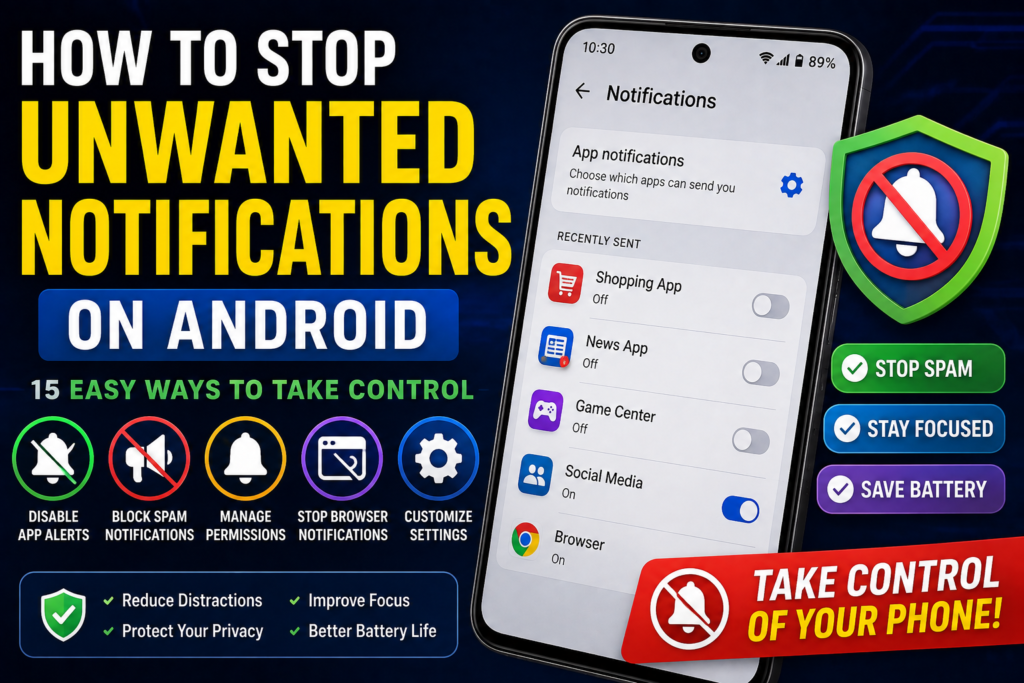
Unwanted notifications can quickly turn an Android phone into a constant source of distractions. You may receive repeated promotional alerts, shopping offers, news updates, game reminders, social media notifications, website notifications, or alerts from apps you rarely use. Some notifications are useful, but others provide little value and interrupt you throughout the day.
If you are searching for How to Stop Unwanted Notifications on Android, the good news is that you usually do not need to uninstall every app or disable all notifications. Android provides several ways to control notifications at the app, category, lock-screen, browser, and system levels.
The exact menus can vary between Android versions and manufacturers such as Samsung, Google Pixel, Xiaomi, OnePlus, Motorola, and others. This guide explains the most practical methods so you can identify where unwanted notifications are coming from and stop them without accidentally disabling important alerts.
Quick Answer
The easiest way to stop unwanted notifications on Android is to identify the app sending them and disable its notifications. When an unwanted notification appears, press and hold it, then look for an option such as Turn off notifications, Settings, or Manage notifications. From there, you can disable all notifications or only specific notification categories.
You can also open Settings > Notifications > App notifications and review which applications are allowed to send alerts. If unwanted notifications are coming from Chrome or another browser, check the browser’s notification permissions and remove notifications from websites you do not recognize.
For persistent or suspicious notifications, avoid tapping unfamiliar links. Review recently installed apps, browser permissions, and notification access. If the alerts continue even after disabling the responsible app, additional troubleshooting may be necessary.
Why Unwanted Notifications Happen on Android
Android notifications can come from many different sources. Understanding the source makes it easier to stop the right type of alert.
Apps Send Promotional Notifications
Many free apps send notifications about promotions, new content, recommendations, reminders, or special offers. These notifications may be legitimate but unnecessary for you.
The solution is usually to disable the relevant notification category instead of uninstalling the entire application.
Social Media Apps Generate Frequent Alerts
Social networking applications can send alerts about messages, comments, likes, recommendations, live broadcasts, new followers, and other activity.
Most social apps provide notification settings that allow you to reduce these alerts.
Shopping Apps Send Marketing Alerts
Shopping applications often notify users about sales, price changes, recommendations, and promotions. If you do not need these alerts, you can disable promotional notification categories.
Websites Can Send Browser Notifications
If you previously allowed a website to send notifications through Chrome or another browser, that website can display alerts even when you are not actively visiting it.
These notifications can sometimes look similar to normal Android app notifications.
Games Can Be Very Notification-Heavy
Mobile games may send reminders to return to the game, announce events, or promote in-game activities. Android’s notification controls can help you silence these alerts.
Suspicious Apps Can Create Unwanted Alerts
If notifications suddenly started appearing after installing an unfamiliar application, that app deserves attention.
Do not assume every unwanted notification is malware, but unexpected alerts from unknown applications should be investigated carefully.
Things to Check Before Trying Advanced Solutions
Before changing Android settings, look closely at one of the unwanted notifications.
Check:
- Which app sent it?
- Is the notification from Chrome or another browser?
- Does it contain promotional content?
- Does it appear repeatedly?
- Did the notifications begin after installing a new app?
- Does the notification show a specific category?
- Is the notification coming from an app you actually need?
This information can help you disable the correct notification without blocking important alerts.
Also remember that Android menus differ between devices. If you cannot find an option mentioned below, use the Settings search box and search for Notifications, App notifications, or the name of the application.
How to Stop Unwanted Notifications on Android
The following methods cover the most common sources of unwanted Android notifications.
Method 1: Turn Off Notifications Directly From the Notification
The fastest solution is often available directly from the unwanted notification.
- Wait for the unwanted notification to appear.
- Press and hold the notification.
- Look for notification controls or Settings.
- Review the available notification categories.
- Turn off the unwanted category.
- Keep other important notification categories enabled if necessary.
The exact controls depend on your Android version and phone manufacturer.
This method is useful because you can immediately identify which application is responsible.
Method 2: Disable Notifications for a Specific App
If an app constantly sends unnecessary alerts, you can manage all of its notification permissions from Android Settings.
- Open Settings.
- Tap Notifications.
- Select App notifications or a similarly named option.
- Find the application.
- Turn notifications off if you do not want any alerts from it.
On some phones, you may instead need to go to:
Settings > Apps > [App Name] > Notifications
If you still need some notifications from the app, do not disable everything. Use notification categories where available.
Method 3: Disable Only Promotional Notification Categories
Completely blocking an app may not be necessary.
For example, you may want notifications from a shopping app when an order is delivered but not want sales advertisements.
Open the application’s notification settings and look for categories related to:
- Promotions
- Offers
- Recommendations
- Marketing
- Events
- Suggestions
- News
Turn off unnecessary categories while leaving useful alerts enabled.
This provides more control than simply disabling every notification.
Method 4: Stop Chrome Website Notifications
Chrome can display notifications from websites that you previously allowed to send alerts.
If you are receiving unwanted website notifications:
- Open Chrome on your Android phone.
- Open Chrome’s menu.
- Go to Settings.
- Look for Site settings or Notifications.
- Review websites that have permission to send notifications.
- Remove or block notification permission for websites you do not recognize or no longer want.
The exact menu names can change between Chrome versions.
Be especially careful with unfamiliar websites that send messages claiming your device is infected, your account is at risk, or you have won a prize. Do not tap suspicious links simply because the notification looks urgent.
Method 5: Block Notifications From an Unwanted App
If you no longer use an application, disabling its notifications may not be enough.
Consider uninstalling it if you do not need it.
- Open Settings.
- Select Apps.
- Find the unwanted application.
- Open its app information page.
- Choose Uninstall if the option is available.
- Confirm the removal.
You can also uninstall many applications directly through the Play Store.
Warning: Before uninstalling an app, make sure you do not need locally stored information inside it. Some applications store files or data that may not automatically be restored after removal.
Do not uninstall essential system applications simply because you do not recognize their names.
Method 6: Review Recently Installed Apps
If unwanted notifications appeared recently, think about what changed on your phone.
Check applications installed around the time the problem began.
- Open the Google Play Store.
- Review your installed applications.
- Identify apps you do not recognize or no longer need.
- Check their names and publishers.
- Remove suspicious or unnecessary apps when appropriate.
- Restart the phone.
- Monitor whether the notifications stop.
Avoid downloading applications from unknown websites simply to identify or remove another app.
Method 7: Reduce Notifications From Social Media Apps
Social media applications can generate many different types of alerts.
Instead of disabling the entire application, open its own notification settings and decide which alerts you actually need.
You might keep:
- Direct messages
- Important account alerts
- Security notifications
And disable:
- Recommendations
- Suggested accounts
- Promotional content
- Live notifications
- Unimportant activity alerts
The available categories depend on the individual social media application.
Method 8: Stop Unwanted Notifications From Shopping Apps
Shopping applications can send frequent marketing alerts.
Open the shopping app and look for its notification or communication settings. Some applications allow you to disable promotional messages separately from important order notifications.
Keep alerts that help you track:
- Orders
- Deliveries
- Returns
- Payments
- Account security
Disable marketing categories when available.
Method 9: Control Notifications From Games
If games are responsible for repeated reminders, review both Android’s notification settings and the game’s own settings.
Look for options related to:
- Daily reminders
- Events
- Promotions
- Special offers
- News
- Recommendations
If you no longer play the game, uninstalling it may be the simplest solution.
Method 10: Use Android’s Notification History
Some Android phones provide Notification history, which can help identify notifications you accidentally dismissed.
The location varies, but it is often available under:
Settings > Notifications > Notification history
If your phone supports this feature, it can show recently dismissed notifications and help identify the application responsible.
This is particularly useful when an unwanted notification disappears before you can determine its source.
Method 11: Manage Lock Screen Notifications
If you do not necessarily want to stop notifications but want to prevent them from appearing prominently on your lock screen, Android provides lock-screen notification controls on many devices.
Depending on your phone, you may be able to choose whether notifications:
- Appear on the lock screen
- Show sensitive content
- Are hidden completely from the lock screen
This is useful if privacy is your main concern rather than notification volume.
Method 12: Use Do Not Disturb for Temporary Silence
If you want notifications to remain available but do not want them interrupting you during specific periods, use Do Not Disturb.
It can be useful during:
- Sleep
- Meetings
- Study
- Work
- Travel
- Important activities
Android versions and manufacturers provide different options for allowing calls, alarms, or selected applications through Do Not Disturb.
This is different from permanently disabling notifications. The notifications may still be available later depending on your settings.
Method 13: Turn Off Pop-Up or Floating Notifications
Some Android phones display notifications as banners or floating pop-ups while you are using another application.
If these interruptions are the main problem, check the notification settings for the affected application and look for controls related to:
- Pop-ups
- Banners
- Floating notifications
- Heads-up notifications
The terminology differs between manufacturers.
You may be able to keep notifications in the notification panel while preventing them from appearing as large interruptions on the screen.
Method 14: Review Special Notification Permissions
Some applications can have additional notification-related access depending on their purpose and your Android version.
If a notification source is difficult to identify, review applications that have unusual permissions or special access.
Do not disable system permissions randomly. Instead, investigate the application first and determine why it has the access.
If you suspect an unfamiliar application is responsible, uninstalling the app may be safer than changing unrelated system permissions.
Method 15: Check for Suspicious Notifications
Not every unwanted notification is harmless advertising.
Be cautious if notifications:
- Claim your phone is infected
- Say you have won an unexpected prize
- Demand immediate payment
- Ask for passwords
- Request banking information
- Tell you to install unknown software
- Use alarming language to make you click immediately
Do not tap the notification.
Instead:
- Identify which app or website generated it.
- Disable its notification permission.
- Remove the suspicious application if appropriate.
- Run your phone’s available security checks.
- Change important passwords if you entered credentials into a suspicious website.
Never provide passwords, payment information, or verification codes through an unexpected notification link.
Android-Specific Solutions for Samsung, Pixel, and Other Phones
Android notification controls are not identical across manufacturers.
Samsung Galaxy
Samsung devices may place notification controls under Settings > Notifications and provide additional options for individual applications.
You can generally select an app and control its available notification categories.
Samsung’s menu names can differ depending on the One UI version, so use Settings search if a particular option is difficult to find.
Google Pixel
Pixel phones use Google’s version of Android, and notification settings are generally accessible through the main Settings > Notifications area.
Individual app notification controls can be accessed from the application notification settings.
Other Android Manufacturers
Xiaomi, OnePlus, Motorola, OPPO, Vivo, and other manufacturers may reorganize notification controls.
If the menu path does not match your phone, open Settings and search for:
App notifications
or
Notifications
This usually provides a faster route to the relevant settings.
How to Stop Browser Notifications That Look Like App Alerts
Browser notifications can be confusing because they may look like normal app notifications.
If you see a notification with the Chrome icon or another browser icon, the browser may be the source.
Review the browser’s site notification permissions rather than searching through dozens of installed apps.
Remove notification access from websites you do not recognize.
Be particularly cautious about websites that repeatedly create fake security warnings. Legitimate security notifications should not be used as a reason to click unknown links or install random applications.
Common Mistakes to Avoid
Disabling All Notifications Without Checking the Source
You may accidentally block useful alerts such as messages, authentication codes, delivery updates, or security notifications.
Identify the source first.
Blocking Important Security Notifications
Do not automatically disable account-security or device-security alerts just because they are inconvenient.
Review the category before turning it off.
Clicking Suspicious Notifications
An unexpected notification can be designed to make you panic and click.
If it looks suspicious, investigate the source through Settings instead.
Installing a “Notification Cleaner”
You usually do not need a third-party application to manage Android notifications. Your phone already provides notification controls.
Adding another app can introduce unnecessary permissions or additional notifications.
Uninstalling System Applications
Some Android components may have unfamiliar names but are important to the operating system.
Do not remove or disable system components unless you understand their purpose.
Resetting the Phone
A factory reset is almost never necessary just because you are receiving unwanted notifications.
Warning: A factory reset erases personal information and settings. Back up your important data before considering one.
When to Get Professional Help
Unwanted notifications generally do not require a technician. However, professional assistance may be useful if the notification problem is accompanied by broader security or system issues.
Consider contacting the device manufacturer or a qualified technician if:
- The phone behaves strangely beyond notifications.
- Unknown applications repeatedly reinstall themselves.
- You cannot remove an unfamiliar application.
- Settings change without your permission.
- The device repeatedly displays security warnings that you cannot explain.
- The phone has been compromised or physically damaged.
- You suspect someone has unauthorized access to your device.
If you believe an online account has been compromised, use the account provider’s official security tools rather than responding to suspicious notifications.
Frequently Asked Questions
How do I stop unwanted notifications on Android?
Press and hold an unwanted notification to identify its source, then open its notification settings and disable the unnecessary category. You can also go to Settings > Notifications > App notifications and manage notifications for individual applications.
How do I stop spam notifications on my Android phone?
First identify which app or website is sending them. Disable notifications for the responsible app or remove the website’s notification permission in your browser. If the alerts started after installing an unfamiliar application, investigate or uninstall that application if appropriate.
Why am I getting notifications from websites on Android?
You may have previously granted a website permission to send browser notifications. Open your browser’s notification or site-permission settings and remove notification access from websites you do not recognize or no longer want.
How do I stop Chrome notifications on Android?
Open Chrome’s Settings and review its notification and site-permission controls. Remove notification permission for unwanted websites. The exact menu names can vary depending on the Chrome version.
Can I block notifications from one app but keep notifications from other apps?
Yes. Android allows notification management on an app-by-app basis. You can usually disable notifications for one application while leaving other apps unaffected. Many apps also provide separate notification categories.
How do I stop notifications at night without turning them off permanently?
Use Android’s Do Not Disturb feature. Depending on your phone, you can configure schedules and choose which notifications, calls, or alarms are allowed during the quiet period.
Are unwanted Android notifications a sign of a virus?
Not necessarily. Many unwanted notifications come from legitimate applications or websites that have notification permission. However, suspicious alerts from unfamiliar apps or websites should be investigated, especially if they demand money, passwords, or immediate action.
Why do I keep getting notifications after disabling them?
Check whether the notifications are actually coming from another application or browser website. Some services use multiple notification categories, so disabling one category may not stop another. Notification history can help identify the real source if your Android phone supports it.
Should I install an app to block unwanted Android notifications?
Usually, no. Android already provides built-in notification controls. Using the system’s notification settings is generally preferable to installing another application that may request additional permissions.
Final Thoughts
Learning How to Stop Unwanted Notifications on Android starts with identifying the source rather than disabling everything at once. Press and hold an unwanted notification to see which application or service generated it, then adjust that app’s notification categories.
For persistent alerts, review your installed applications and browser website permissions. Chrome notifications are especially important to check when alerts appear to come from websites rather than normal apps.
If you want fewer interruptions without losing important information, use notification categories, lock-screen controls, and Do Not Disturb instead of completely disabling every notification.
Finally, treat suspicious alerts differently from ordinary promotional notifications. Never click unfamiliar security warnings, prize messages, payment demands, or links asking for sensitive information. Identify the source through Android Settings and remove its notification permission or the responsible application when appropriate.
With a few targeted changes, you can significantly reduce unwanted Android notifications while keeping the alerts that actually matter.