How to Fix Google Chrome Running Slow: 15 Practical Solutions
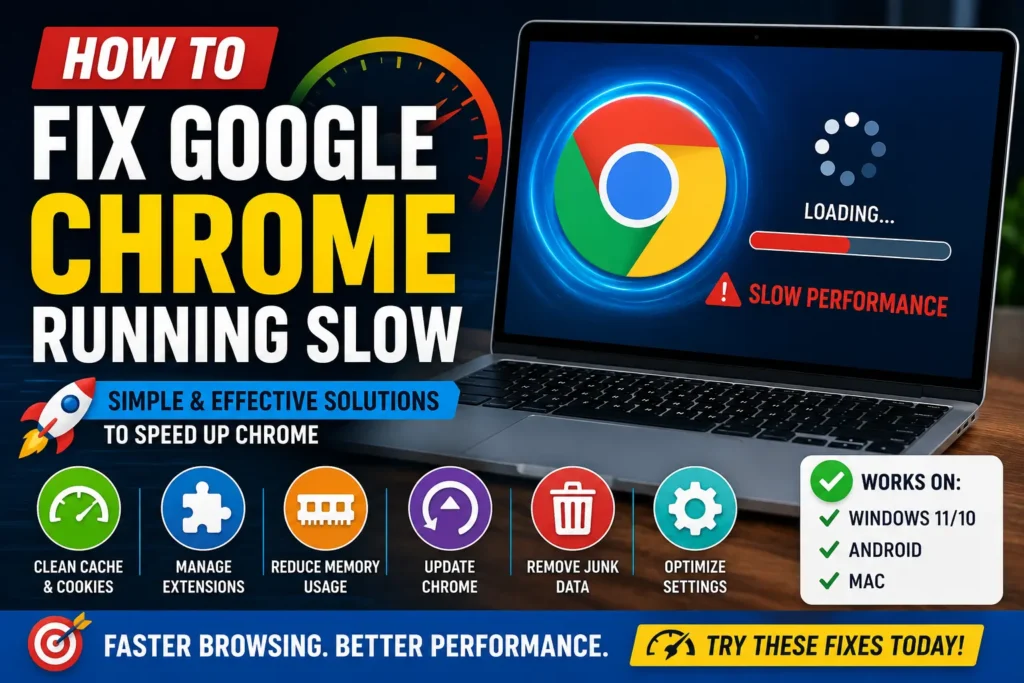
Google Chrome is one of the most widely used web browsers, but it can become noticeably slow over time. Pages may take longer to load, tabs can freeze, scrolling may feel delayed, or Chrome may use a large amount of RAM and CPU.
If you are searching for How to Fix Google Chrome Running Slow, the problem is usually caused by something specific rather than Chrome simply being “old.” Too many open tabs, extensions, cached data, background processes, outdated software, limited system resources, or a problematic website can all affect browser performance.
The good news is that you can usually identify and fix the cause without immediately reinstalling Chrome. This guide explains practical ways to speed up Chrome on Windows, Android, and other supported devices while avoiding unnecessary changes that could affect your browsing data.
Quick Answer
To fix Google Chrome running slow, start by closing unnecessary tabs and restarting Chrome. Then open Chrome’s built-in Task Manager to identify tabs or extensions consuming excessive CPU or memory. Disable extensions you do not need, update Chrome, and clear appropriate browsing data if accumulated cache or site data is contributing to the problem.
If Chrome is still slow, check your computer’s available RAM and storage, test whether a specific website is responsible, and review Chrome’s performance-related settings. On Android, updating Chrome, closing unused tabs, clearing temporary cache, and restarting the phone can help.
Avoid deleting all browser data immediately. Clearing cookies and site data can sign you out of websites and remove locally stored website information. Start with less disruptive troubleshooting methods and move to more advanced solutions only when necessary.
Why Google Chrome Runs Slow
Chrome performance can decline for several different reasons. Understanding the cause makes troubleshooting much easier.
Too Many Open Tabs
Every open tab requires system resources. Some websites are lightweight, while others continuously run videos, advertisements, scripts, online editors, dashboards, or other processes.
Keeping dozens of tabs open can therefore make Chrome and the entire computer feel slower.
Too Many Browser Extensions
Extensions can add useful features to Chrome, but each extension can potentially consume resources or interact with websites.
An extension may also become problematic after an update or conflict with another extension.
High RAM Usage
Chrome can use a significant amount of memory when many tabs, extensions, and web applications are running.
If your computer has limited available RAM, Windows may rely more heavily on storage for temporary memory operations, which can make the entire system feel sluggish.
Outdated Chrome
An outdated browser can sometimes have performance, compatibility, or security problems.
Chrome normally updates automatically, but updates can occasionally be delayed if the browser has not been restarted or if the device has restrictions.
Excessive Cached Data
Chrome stores temporary files to make websites load efficiently.
A cache is useful, but corrupted or unusually large temporary data can occasionally contribute to website or browser problems.
A Problematic Website
Sometimes Chrome itself is not the problem.
A particular website may use excessive CPU or memory because of:
- Video playback
- Complex web applications
- Large scripts
- Live dashboards
- Browser-based games
- Cryptocurrency-related scripts
- Poorly optimized website code
If Chrome becomes slow only when one website is open, investigate that website before changing the entire browser.
Slow Computer or Internet Connection
A slow browser and slow internet connection are not the same thing.
If Chrome opens quickly but websites take a long time to load, the problem may involve your internet connection, DNS, router, Wi-Fi signal, or the website’s server.
If Chrome’s menus, tabs, and settings are also slow, the problem is more likely related to the device or browser itself.
How to Fix Google Chrome Running Slow
Try these solutions in order. The first methods are simple and unlikely to affect your saved browser information.
Method 1: Close Unnecessary Chrome Tabs
The easiest way to reduce Chrome’s resource usage is to close tabs you no longer need.
- Review your open tabs.
- Close pages that you are no longer using.
- Keep only frequently needed tabs open.
- Restart Chrome if performance remains poor.
If you regularly need many pages, consider bookmarking important websites instead of leaving every page open.
You can also organize frequently used pages into bookmark folders.
Method 2: Restart Google Chrome
Chrome can accumulate temporary processes during a long browsing session.
Restarting it can clear temporary activity and give the browser a fresh session.
- Save any unfinished work in web applications.
- Close Chrome completely.
- Wait a few seconds.
- Open Chrome again.
- Test the websites that were previously slow.
If Chrome becomes fast after restarting but slows down again later, an extension, website, or resource-heavy tab may be responsible.
Method 3: Use Chrome Task Manager
Chrome includes its own Task Manager, which is particularly useful when you want to know exactly what is consuming browser resources.
On Windows, you can open Chrome’s Task Manager from the Chrome menu or by using Chrome’s keyboard shortcut.
Look for columns such as:
- Memory footprint
- CPU
- Network
- Process ID
A tab or extension using unusually high CPU or memory deserves investigation.
To troubleshoot:
- Open Chrome Task Manager.
- Sort the list by CPU or memory.
- Identify unusually resource-intensive processes.
- Determine whether the process belongs to a website, extension, or Chrome component.
- Close the problematic tab or disable the extension if appropriate.
Warning: Do not end a process simply because you do not recognize its name. Some Chrome processes are essential to normal browser operation.
Method 4: Disable Unnecessary Extensions
Extensions are one of the most important things to check when Chrome suddenly becomes slow.
Open Chrome’s extensions management page and review the extensions you have installed.
Remove or disable extensions that you:
- No longer use
- Do not recognize
- Installed temporarily
- Rarely need
- Suspect may be causing problems
A useful troubleshooting approach is to disable extensions temporarily rather than deleting everything immediately.
Then restart Chrome and test it.
If Chrome becomes faster, enable extensions one at a time until you identify the one associated with the slowdown.
Method 5: Update Google Chrome
Keeping Chrome updated can improve compatibility and address known problems.
To check for an update:
- Open Chrome.
- Open the Chrome menu.
- Go to Help.
- Select About Google Chrome.
- Allow Chrome to check for available updates.
- Restart the browser if Chrome asks you to relaunch it.
The exact appearance of the menu can change between Chrome versions, but the About Chrome page remains the normal place to check the browser version and update status.
After updating, test the same websites that previously performed poorly.
Method 6: Clear Chrome’s Cached Files
Chrome stores cached files so that certain website resources can be reused.
If temporary browser data has become problematic, clearing cached files may help.
Open Chrome’s browsing-data settings and select the option for cached images and files.
Important: You do not necessarily need to delete everything.
If your goal is troubleshooting Chrome performance, start with temporary cached files rather than immediately deleting cookies, saved passwords, or other browsing information.
After clearing the cache:
- Close Chrome.
- Reopen it.
- Visit the websites that were slow.
- Compare their performance.
The first visit to some websites may temporarily require more downloading because cached resources have been removed.
Method 7: Check Available RAM and CPU
Chrome may be working normally while your computer is struggling with limited resources.
On Windows, open Task Manager and check:
- CPU usage
- Memory usage
- Disk usage
- Applications running in the background
If another application is consuming most of the available CPU or RAM, Chrome may have fewer resources available.
Examples include:
- Video editing software
- Games
- Large file transfers
- Virtual machines
- Cloud synchronization
- Multiple office applications
Close applications you do not currently need and test Chrome again.
Method 8: Free Up Disk Space
A computer with very little available storage can experience broader performance problems.
Check how much free space is available on your Windows system drive.
If storage is nearly full, remove unnecessary files using Windows’ built-in storage management tools.
You can review:
- Temporary files
- Recycle Bin contents
- Unused applications
- Large personal files
- Old downloads
Warning: Do not delete files simply because they look unfamiliar. Confirm that personal files are backed up before removing them.
Freeing storage may improve overall Windows performance, which can indirectly improve Chrome responsiveness.
Method 9: Test Chrome Without Extensions
If you are unsure whether an extension is responsible, test Chrome after disabling extensions.
This creates a useful comparison.
If Chrome becomes noticeably faster with extensions disabled, re-enable them individually.
The goal is not to disable every extension permanently. Instead, identify the extension that changes Chrome’s behavior.
This method is especially useful if Chrome became slow shortly after installing a particular extension.
Method 10: Check Whether One Website Is Causing the Problem
If Chrome slows down only on one website, do not assume the browser itself is defective.
Test several unrelated websites.
For example:
- Open a search engine.
- Open a simple news page.
- Open another website you regularly use.
- Compare loading and scrolling performance.
If most websites work normally but one page freezes or consumes excessive resources, the problem may be specific to that site.
You can also try the same website in an Incognito window as a troubleshooting test. Keep in mind that Incognito changes how extensions and site data are handled, so the comparison is useful but not a perfect representation of normal browsing.
Method 11: Check Chrome’s Performance Settings
Chrome includes performance-related controls that can help manage memory usage and inactive tabs.
Depending on your Chrome version and device, available performance features may include memory-management options.
Open Chrome’s settings and look under the Performance section.
If available, review settings related to:
- Memory usage
- Inactive tabs
- Performance management
- Battery or energy savings
Chrome’s available options can change between versions, so do not worry if your settings screen looks different from screenshots in older tutorials.
The goal is to reduce unnecessary resource usage while keeping the websites you actively use available.
Method 12: Restart Your Computer
If Chrome and other applications are slow, restarting Windows can be more effective than repeatedly restarting Chrome.
A restart can clear temporary system processes and release resources held by applications.
Before restarting:
- Save open documents.
- Finish important downloads if possible.
- Close applications.
- Select Start → Power → Restart.
- Wait for Windows to load completely.
- Open Chrome and test performance.
If Chrome is still slow immediately after restarting, the problem is less likely to be caused simply by a long-running Chrome session.
Method 13: Check Your Internet Connection
A slow website does not always mean slow Chrome.
If pages are taking a long time to load, check whether other devices connected to the same network experience similar problems.
Try:
- Restarting the router if appropriate
- Testing another device
- Testing another website
- Moving closer to the Wi-Fi router
- Temporarily using another network
If every device has slow internet, contact your internet provider or troubleshoot your home network.
If only Chrome on one computer is slow, focus on the browser and computer instead.
Method 14: Reset Chrome Settings Carefully
If Chrome continues behaving strangely after extensions and cached data have been checked, resetting Chrome settings can be considered.
Chrome provides a reset option that restores certain browser settings to their defaults.
However, you should understand what will change before confirming the reset.
A reset can affect settings such as:
- Startup behavior
- Search engine settings
- Pinned tabs
- Some site settings
- Extensions and themes behavior
Warning: Do not use reset as your first troubleshooting method. If you have customized Chrome extensively, review the reset information carefully before confirming it.
Method 15: Reinstall Chrome as a Last Resort
If Chrome remains unusually slow despite troubleshooting, reinstalling the browser can be considered.
Before doing so, make sure important browser information is synchronized or backed up as appropriate.
Check that you know the Google Account associated with your Chrome profile if you rely on Chrome Sync.
Then uninstall and reinstall Chrome using an official Google source.
A reinstall is most useful when the browser installation itself is damaged or when other troubleshooting methods have failed.
It will not fix a slow computer, defective hardware, or a poor internet connection.
Platform-Specific Solutions
Google Chrome on Windows 11
On Windows 11, check both Chrome and the operating system.
Open Windows Task Manager and see whether CPU, memory, or disk usage is unusually high.
If Windows itself is slow, Chrome may simply be affected by a broader performance problem.
Also check for Windows updates and make sure your computer has sufficient free storage.
Google Chrome on Android
If Chrome is slow on an Android phone:
- Close unnecessary Chrome tabs.
- Update Chrome through Google Play when an update is available.
- Restart the phone.
- Check available phone storage.
- Clear Chrome’s temporary cache through Android’s app settings if needed.
- Test Chrome after restarting.
Android settings vary between manufacturers and versions, so the exact path to Chrome’s storage settings may differ.
Warning: Be careful when selecting options that clear app data rather than cache. Clearing app data can have more significant effects than clearing temporary files.
Google Chrome on iPhone
On iPhone, start with less disruptive steps:
- Close unnecessary tabs.
- Restart Chrome.
- Update Chrome through the App Store.
- Restart the iPhone if other applications are also slow.
- Check available iPhone storage.
- Clear browsing data only when appropriate.
Avoid deleting Chrome immediately if you have important browsing information that has not been synchronized or backed up.
Things to Check Before Trying Advanced Solutions
Before changing Chrome settings, ask these questions:
Is Only Chrome Slow?
Open another browser.
If other browsers are also slow, the problem may involve Windows, macOS, Android, iOS, hardware, or your internet connection.
Are All Websites Slow?
If only one website is slow, investigate the website before changing Chrome.
Did the Problem Start Recently?
Think about recent changes:
- New extension
- Chrome update
- Operating system update
- New security software
- New application
- New browser setting
The timing can provide an important clue.
Is Your Device Running Out of Resources?
Check RAM, CPU, storage, and background applications.
A browser cannot perform well if the entire device is heavily overloaded.
Common Mistakes to Avoid
Keeping Every Tab Open
Saving dozens of tabs for later can gradually increase resource usage. Bookmark pages that you do not need immediately.
Installing Too Many Extensions
Only install extensions from sources you trust and keep the ones you actually use.
Clearing All Browsing Data Immediately
Deleting cookies and site data can sign you out of websites and remove locally stored information.
Start with less disruptive troubleshooting.
Assuming Slow Chrome Means Slow Internet
Chrome itself may be responsive while websites load slowly because of network problems.
Test other browsers and devices before reaching a conclusion.
Installing “Chrome Speed Booster” Software
Be cautious about third-party programs claiming to dramatically accelerate Chrome.
Some may provide little benefit, while others can introduce unwanted software or privacy risks.
Chrome’s own settings and Windows’ built-in tools are usually the better starting points.
Ignoring System Performance
If Windows has high CPU, RAM, or disk usage, changing Chrome settings alone may not solve the problem.
When to Get Professional Help
Most Chrome performance problems can be handled with basic troubleshooting, but professional assistance may be appropriate when:
- The entire computer frequently freezes.
- Windows crashes repeatedly.
- The storage drive shows signs of failure.
- The computer overheats.
- Malware is suspected.
- Chrome is being redirected to unknown websites.
- Unknown extensions repeatedly return.
- Multiple browsers behave strangely.
- The device has suffered physical damage.
- Performance problems continue after a clean browser installation.
If you suspect malware, avoid entering sensitive passwords until the device has been properly checked.
For a work computer managed by an organization, contact your IT administrator before changing security or browser policies.
Frequently Asked Questions
Why is Google Chrome running so slow?
Chrome can become slow because of too many tabs, extensions, high memory usage, outdated software, cached data, resource-heavy websites, or an overloaded computer. Check Chrome Task Manager and your system’s CPU and memory usage to identify the cause.
How do I make Google Chrome faster?
Start by closing unnecessary tabs, disabling unused extensions, updating Chrome, restarting the browser, and checking system resources. If necessary, clear temporary cached files and review Chrome’s performance settings.
Does clearing Chrome cache make it faster?
Clearing cached files can help when temporary browser data is corrupted or causing a particular problem. However, clearing the cache is not a guaranteed performance boost. Chrome will rebuild cached files as you browse.
Why is Chrome slow but other browsers are fast?
If other browsers work normally, the problem may be related to Chrome’s extensions, settings, profile data, or browser installation. Disable extensions and test Chrome before considering a reset or reinstall.
Why does Chrome use so much RAM?
Chrome separates many browser activities into different processes. Multiple tabs, extensions, and complex websites can therefore use considerable memory. High RAM usage becomes more noticeable when the computer has limited available memory.
Can extensions make Chrome slow?
Yes. Extensions can consume system resources and interact with websites. If Chrome becomes faster after extensions are disabled, enable them individually to identify a potentially problematic extension.
How do I fix Chrome running slow on Android?
Update Chrome, close unnecessary tabs, restart the phone, check available storage, and clear Chrome’s temporary cache if needed. Android menus vary between manufacturers, so the exact steps may differ.
Should I reinstall Chrome if it is slow?
Reinstalling Chrome should generally be a later troubleshooting step. First check tabs, extensions, Chrome updates, system resources, cached data, and internet performance. Reinstalling Chrome will not fix an underlying Windows, hardware, or network problem.
Can low storage make Chrome slow?
Low available storage can contribute to broader device performance problems, particularly when the operating system has very little working space. Check your device’s available storage and remove unnecessary files safely.
How can I tell whether Chrome or my internet is slow?
Open several websites and compare Chrome with another browser or device. If the entire network is slow, the issue may be your internet connection. If Chrome’s interface itself is sluggish while other browsers work normally, investigate Chrome or the computer.
Final Thoughts
When How to Fix Google Chrome Running Slow is the question, the most important step is finding the actual source of the slowdown instead of immediately reinstalling the browser.
Start with simple actions: close unnecessary tabs, restart Chrome, check Chrome Task Manager, disable unused extensions, and update the browser. Then check your computer’s RAM, CPU, storage, and internet connection. If the problem affects only a specific website, investigate that site rather than changing Chrome globally.
For Android and iPhone users, updating Chrome, reducing open tabs, restarting the device, and checking available storage are useful starting points. More advanced options, such as resetting Chrome or reinstalling it, should come later.
If Chrome remains slow after these steps and other applications are also experiencing performance problems, the browser may not be the real cause. In that situation, investigate Windows, the device’s hardware, storage, or network connection. This approach can save time and help you fix the underlying problem rather than repeatedly treating the symptoms.