How to Fix Windows 11 Startup Problems: Complete Troubleshooting Guide
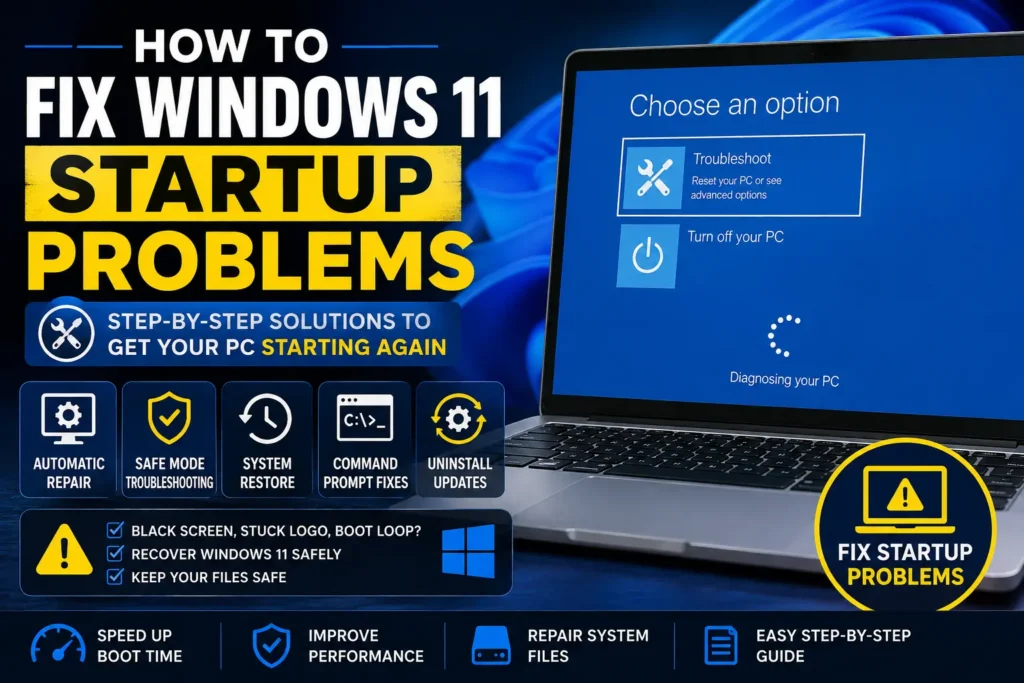
Windows 11 startup problems can be stressful, especially when your computer gets stuck on the logo, shows a black screen, repeatedly restarts, displays an automatic repair message, or refuses to load Windows normally.
If you are searching for How to Fix Windows 11 Startup Problems, the right approach is to identify where the startup process is failing before making major changes. A startup problem can be caused by a failed update, corrupted system files, incompatible drivers, damaged boot configuration, problematic startup software, storage problems, or hardware issues.
Fortunately, Windows 11 includes several recovery and diagnostic tools that can help you troubleshoot these situations. In this guide, you will learn how to restart Windows safely, enter the Windows Recovery Environment, use Startup Repair, start Safe Mode, remove problematic updates, repair system files, restore Windows when appropriate, and determine when professional assistance is needed.
Quick Answer
To fix Windows 11 startup problems, first disconnect unnecessary USB devices and restart the computer. If Windows still does not start, enter the Windows Recovery Environment (WinRE) and try Startup Repair. Windows can use Startup Repair to diagnose and repair certain problems that prevent the operating system from starting correctly.
If Startup Repair does not work, try Safe Mode to determine whether a recently installed driver, application, or startup program is causing the problem. You can also use System Restore, uninstall a recent Windows update, or run Windows system-file repair tools such as SFC and DISM when appropriate.
Do not immediately reset or reinstall Windows. Those options can affect applications and personal data. If important files are stored on the computer, back them up or consider professional data recovery before attempting risky repairs, particularly if you suspect that the SSD or hard drive is failing.
Why Windows 11 Startup Problems Happen
Windows does not always fail to start for the same reason. The symptoms can provide useful clues.
A Failed Windows Update
Windows updates modify system components and may occasionally be followed by startup problems.
If the computer stopped booting shortly after an update, removing the most recent update through Windows Recovery options may be worth trying.
Corrupted System Files
Windows depends on many system files to start and operate correctly.
If important files become corrupted because of an interrupted update, software problem, disk issue, or another cause, Windows may fail to boot normally.
Damaged Boot Configuration
Windows needs boot information to locate and load the operating system.
Problems with boot configuration can result in messages such as:
- Boot device not found
- Operating system not found
- Windows fails to start
- Automatic Repair repeatedly appears
The exact message depends on the cause.
Problematic Drivers
A newly installed or incompatible hardware driver can cause Windows to crash during startup.
Graphics, storage, network, and other hardware drivers can all potentially be involved.
Startup Applications
Sometimes Windows starts correctly but becomes extremely slow, freezes, or crashes immediately after login.
In this situation, a startup application rather than the Windows boot process itself may be responsible.
Storage Drive Problems
An SSD or hard drive that is developing errors can cause Windows to become unstable or fail to start.
Warning signs may include:
- Frequent freezing
- Missing files
- Repeated crashes
- Unexpected repair screens
- Very slow file access
- Disk-related error messages
If you suspect drive failure, protect your important data before repeatedly attempting repairs.
Hardware Problems
Startup problems can also result from faulty or poorly connected hardware.
Potential causes include:
- Failing storage
- Defective RAM
- Power problems
- Display issues
- Motherboard problems
- External hardware conflicts
Software troubleshooting cannot repair a physically failing component.
How to Fix Windows 11 Startup Problems
Work through the following methods in order. Start with the least invasive option before moving toward advanced recovery.
Method 1: Disconnect Unnecessary USB Devices
Before using advanced Windows recovery tools, remove unnecessary external devices.
Disconnect devices such as:
- USB flash drives
- External hard drives
- Card readers
- Printers
- USB hubs
- Game controllers
- Other unnecessary accessories
Keep essential devices such as the keyboard and mouse connected if needed.
Then restart the computer.
Sometimes a computer can attempt to boot from an external device or encounter a problem involving connected hardware.
If Windows starts normally after disconnecting a device, reconnect your accessories one at a time to determine whether a particular device is involved.
Method 2: Perform a Normal Restart
If Windows is responding, begin with a normal restart.
- Save your work if possible.
- Close open applications.
- Select Start.
- Choose the Power option.
- Select Restart.
- Wait for Windows to complete the startup process.
If the computer is completely frozen and cannot respond, a forced shutdown may be necessary, but use this only when normal shutdown is impossible.
Repeatedly interrupting Windows startup is not a substitute for proper troubleshooting.
Method 3: Enter the Windows Recovery Environment
The Windows Recovery Environment, commonly called WinRE, contains tools specifically designed for startup and recovery problems.
If Windows cannot start normally, Windows may automatically enter recovery after detecting repeated startup failures.
You can also reach recovery options through supported Windows recovery methods when Windows is still accessible.
Once you reach the recovery screen, look for:
Troubleshoot → Advanced options
You may see tools such as:
- Startup Repair
- Startup Settings
- System Restore
- Uninstall Updates
- Command Prompt
- UEFI Firmware Settings
The exact options available can vary depending on your Windows installation and device.
Method 4: Run Startup Repair
Startup Repair should usually be one of the first recovery tools to try.
To use it:
- Enter the Windows Recovery Environment.
- Select Troubleshoot.
- Choose Advanced options.
- Select Startup Repair.
- Select your Windows account if requested.
- Enter your account password if required.
- Allow Windows to analyze the startup configuration.
- Follow any instructions displayed on the screen.
- Restart the computer when prompted.
Startup Repair is designed to address certain problems that prevent Windows from starting.
It will not fix every possible startup problem, especially hardware failures.
If Startup Repair reports that it could not repair your PC, continue with the next troubleshooting method rather than repeatedly running the same repair.
Method 5: Start Windows 11 in Safe Mode
Safe Mode starts Windows with a limited set of drivers and services.
This can help determine whether a third-party driver or application is responsible for the startup problem.
From WinRE:
- Select Troubleshoot.
- Choose Advanced options.
- Select Startup Settings.
- Choose Restart.
- After the computer restarts, select the appropriate Safe Mode option.
The exact key or option displayed can vary.
If Windows starts successfully in Safe Mode, consider what changed shortly before the problem appeared.
Possible causes include:
- A recently installed driver
- New security software
- A newly installed application
- Graphics software
- A hardware utility
- A startup program
Safe Mode does not necessarily mean the problem is solved. It is primarily a diagnostic step.
Method 6: Remove a Recently Installed Application or Driver
If Windows starts in Safe Mode, investigate software installed shortly before the startup problem.
Open:
Settings → Apps → Installed apps
and review recently installed applications.
If a particular application was installed immediately before the problem began, consider uninstalling it.
For drivers, use Device Manager carefully.
Warning: Do not remove hardware drivers simply because they appear unfamiliar. If you are unsure about a driver, identify the device and check the manufacturer’s documentation before making changes.
After removing a suspected application or driver, restart Windows normally and test the system.
Method 7: Uninstall a Recent Windows Update
If Windows stopped starting after an update, WinRE provides an option to uninstall certain recent updates.
From recovery:
- Select Troubleshoot.
- Choose Advanced options.
- Select Uninstall Updates.
- Review the available choices.
- Select the appropriate update-removal option.
- Follow the instructions provided by Windows.
The exact options depend on what updates are installed and what Windows makes available for removal.
Do not remove updates randomly. If the startup problem began immediately after a particular update, that timing is useful evidence, but it does not automatically prove that the update caused the problem.
Method 8: Use System Restore
System Restore can return Windows system settings and certain software-related changes to an earlier restore point.
It can be useful when the startup problem resulted from a recent configuration or software change.
To use it:
- Enter WinRE.
- Select Troubleshoot.
- Choose Advanced options.
- Select System Restore.
- Choose an available restore point.
- Review the affected programs if Windows provides that information.
- Confirm the restoration.
Important: System Restore is not a replacement for a personal backup. It does not function like a complete backup of your documents, photos, videos, and other personal files.
Choose a restore point carefully.
Method 9: Repair Windows System Files
If Windows system files are damaged, System File Checker can sometimes repair them.
When Windows can start, open an elevated Command Prompt or Windows Terminal and run:
sfc /scannowAllow the scan to complete.
If Windows cannot boot normally, you may also use Command Prompt through WinRE, but offline repair requires additional care because the Windows installation may not use the same drive letter shown during normal Windows operation.
For this reason, do not blindly run commands designed for a normal Windows session inside recovery without first identifying the correct Windows installation.
Method 10: Use DISM When Appropriate
DISM, or Deployment Image Servicing and Management, is another Windows repair utility.
When Windows is running normally, an elevated terminal can be used to run:
DISM /Online /Cleanup-Image /RestoreHealthAfter DISM completes, running:
sfc /scannowcan be useful for checking and repairing Windows system files.
These tools are particularly relevant when corruption is suspected.
Warning: Command-line repair becomes more complicated when Windows cannot boot. Offline repair commands require the correct Windows drive and paths. Do not copy random commands from the internet without understanding which Windows installation they target.
Method 11: Check the Boot Configuration Carefully
Some startup failures involve boot configuration rather than ordinary Windows files.
WinRE includes Command Prompt for advanced troubleshooting.
Commands such as bootrec have historically been used for boot-related repairs, but modern Windows systems commonly use UEFI and an EFI System Partition, so older boot-repair instructions found online do not always apply directly.
Do not repeatedly run commands such as:
bootrec /fixmbr
bootrec /fixboot
without first understanding your system’s boot configuration.
On a UEFI-based Windows 11 installation, the appropriate repair process may involve identifying the EFI System Partition and rebuilding boot files using the correct tools.
If you are unfamiliar with partitions, UEFI, EFI System Partitions, or disk management, this is a good point to seek professional help rather than experimenting with commands that could make recovery more difficult.
Method 12: Check Whether the Storage Drive Is Detected
If Windows says that no boot device is available, the storage drive may not be detected correctly.
Check whether the drive appears in the computer’s UEFI/firmware setup.
The method for entering firmware settings varies by manufacturer. Common keys include keys such as F2, Delete, or other manufacturer-specific keys during startup.
If the drive is not detected at the firmware level, Windows recovery commands may not solve the problem.
The issue could involve:
- A failed SSD
- A failed HDD
- A connection problem
- Firmware configuration
- Motherboard or storage-controller problems
Avoid repeatedly attempting software repairs if the physical storage device is failing.
Method 13: Check for Overheating and Hardware Problems
A computer that shuts down, freezes, or restarts during startup may have a hardware issue.
Check whether:
- The laptop becomes unusually hot.
- Fans are not working correctly.
- Air vents are blocked.
- The computer shuts down under load.
- The device shows memory-related errors.
- The storage drive produces warning signs.
- The computer recently experienced physical damage.
For a desktop PC, internal hardware connections can also matter.
Do not open a laptop or desktop unless you understand the hardware and safety requirements.
If the computer is under warranty, contacting the manufacturer’s support service may be preferable to opening it yourself.
Method 14: Use Windows Recovery Options to Reset the PC
If Windows remains unusable after other recovery methods, Reset this PC may be an option.
Windows provides reset choices that can differ in how they handle personal files and installed applications.
Before using Reset this PC:
- Back up important personal files.
- Confirm that important files are accessible elsewhere.
- Make sure you know your Microsoft account credentials if required.
- Understand which reset option you are selecting.
- Read Windows’ warnings before confirming.
Warning: Resetting Windows can remove applications and may remove personal data depending on the option selected. Do not use it as a first troubleshooting step when you have important files that have not been backed up.
Method 15: Reinstall Windows as a Last Resort
A clean Windows installation can resolve severe software corruption, but it should be considered a last resort when other recovery methods fail.
A reinstall does not repair defective RAM, a failing SSD, overheating, or other physical hardware problems.
Before reinstalling:
- Back up personal files.
- Verify the backup.
- Confirm access to important accounts.
- Save required application data.
- Make sure you have installation media from an official Microsoft source.
- Check hardware compatibility.
- Understand which partitions and drives contain important data.
If the storage drive is failing, reinstalling Windows onto it may make the data-recovery situation worse.
Platform-Specific Solutions for Windows 11 Startup Problems
Windows 11 Recovery Environment
WinRE is the main recovery platform for a Windows 11 system that cannot boot normally.
Useful options include:
- Startup Repair
- Safe Mode through Startup Settings
- System Restore
- Uninstall Updates
- Command Prompt
- Reset this PC
The options shown depend on the state and configuration of your installation.
Windows 11 Safe Mode
Safe Mode is particularly useful when Windows starts but immediately crashes or becomes unstable.
If Safe Mode works normally, investigate recently installed software, drivers, and startup programs.
UEFI Firmware Settings
Windows 11 computers commonly use UEFI firmware.
If the computer cannot find a boot device, checking whether the storage drive is recognized by UEFI can help distinguish a Windows software problem from a hardware or firmware issue.
Things to Check Before Trying Advanced Solutions
Before modifying boot files or resetting Windows, perform these simple checks.
Check What Happened Before the Failure
Ask yourself:
- Did Windows install an update?
- Did you install a driver?
- Did you install a new application?
- Did you connect new hardware?
- Did the computer lose power unexpectedly?
- Did the computer freeze before this happened?
- Was the storage drive almost full?
The answer can help determine which recovery method makes the most sense.
Disconnect External Devices
Remove unnecessary USB devices and external storage before troubleshooting.
Listen for Hardware Warning Signs
Unusual noises, repeated clicking from a mechanical hard drive, frequent freezes, or complete drive detection failure should be treated seriously.
Back Up Data Before Risky Repairs
If Windows still starts occasionally, copy important files before performing major repairs.
If the files are irreplaceable and the drive appears unstable, professional data recovery may be safer.
Common Mistakes to Avoid
Do Not Repeatedly Force Windows to Shut Down
Interrupting startup repeatedly can complicate troubleshooting and may contribute to additional file-system problems.
Use recovery options instead.
Do Not Delete Random System Files
A missing Windows file can make an existing startup problem worse.
Use Microsoft’s built-in recovery and repair tools.
Do Not Run Random Boot Commands
Commands copied from old tutorials may have been written for different Windows versions or BIOS/MBR configurations.
Windows 11 systems commonly use UEFI, so boot-repair procedures need to match the actual disk configuration.
Do Not Reset Windows Before Backing Up
A reset can remove applications and, depending on the selected option, personal data.
Back up first whenever possible.
Do Not Assume Every Startup Problem Is Software
A failing SSD, RAM problem, overheating, power issue, or motherboard fault can prevent Windows from starting.
Software repair tools cannot fix physically defective hardware.
When to Get Professional Help
Professional assistance is recommended when:
- The storage drive is not detected.
- The computer repeatedly shuts down.
- You hear unusual sounds from an HDD.
- Important files are inaccessible.
- Windows recovery tools fail repeatedly.
- The computer suffered physical or liquid damage.
- The laptop overheats severely.
- You are uncomfortable using Command Prompt and disk-management tools.
- You suspect a failing SSD or HDD.
- The computer is still under warranty.
If important data is involved, tell the technician that the files need to be preserved before attempting a Windows reinstall.
If the storage drive is failing, avoid unnecessary attempts to boot and repair it repeatedly.
Frequently Asked Questions
Why won’t Windows 11 start?
Windows 11 may fail to start because of corrupted system files, failed updates, incompatible drivers, damaged boot configuration, storage problems, or hardware failure. Start with Windows Recovery Environment and try Startup Repair.
How do I get Windows 11 into Startup Repair?
Windows can automatically enter recovery after certain failed startup attempts. You can then select Troubleshoot → Advanced options → Startup Repair. If recovery is not appearing, the method for accessing WinRE can depend on whether Windows can still start and on the computer manufacturer.
What should I do if Windows 11 is stuck on the logo?
First disconnect unnecessary external devices and restart the computer. If it remains stuck, enter Windows Recovery Environment and try Startup Repair. If that fails, test Safe Mode, System Restore, or uninstall a recent update depending on what changed before the problem started.
Can Safe Mode fix Windows 11 startup problems?
Safe Mode itself does not repair every startup problem. It starts Windows with a limited set of drivers and services, which can help identify whether a third-party driver, application, or startup program is causing the problem.
What if Windows 11 Startup Repair does not work?
Try other WinRE options such as Safe Mode, System Restore, or Uninstall Updates. If system-file corruption is suspected, SFC and DISM may help when used correctly. If the storage drive is failing or Windows cannot detect it, hardware troubleshooting may be necessary.
Will System Restore delete my personal files?
System Restore is designed to restore system settings and certain software-related changes rather than function as a complete personal-file backup. Nevertheless, you should always have a current backup of important files before performing recovery operations.
Should I reset Windows 11 if it won’t boot?
Resetting Windows should generally be considered after less destructive recovery methods have failed. Review the reset options carefully and back up important files first.
Why does Windows 11 keep going into Automatic Repair?
Repeated Automatic Repair can indicate that Windows is detecting a startup problem it cannot resolve normally. Possible causes include system-file corruption, failed updates, driver problems, boot configuration issues, or storage problems.
Can a failing SSD cause Windows 11 startup problems?
Yes. A failing SSD can cause missing files, crashes, freezing, boot failures, and drive-detection problems. If you suspect storage failure and have important data, prioritize data preservation before repeatedly attempting repairs.
Can I fix Windows 11 startup problems without losing files?
Many startup problems can be investigated without immediately deleting personal files. Startup Repair, Safe Mode, System Restore, and some update-recovery options can often be attempted before a reset or clean installation. However, always maintain a separate backup because no recovery method is guaranteed.
Final Thoughts
Knowing How to Fix Windows 11 Startup Problems can save you from immediately reinstalling Windows or taking your computer to a repair shop. The key is to work from the safest troubleshooting method toward more advanced recovery only when necessary.
Start by disconnecting unnecessary external devices and restarting the computer. If Windows still will not load, use the Windows Recovery Environment and try Startup Repair. If that does not solve the issue, Safe Mode can help identify problematic drivers or applications, while System Restore and update removal can address certain recent changes.
For more serious problems, Windows provides tools such as SFC, DISM, Command Prompt, and Reset this PC. However, advanced boot and partition commands require caution because Windows 11 commonly uses UEFI-based configurations.
Most importantly, protect your data. If the computer shows signs of a failing SSD or hard drive, do not repeatedly experiment with repairs or immediately reinstall Windows. Back up important files or seek professional data-recovery assistance first.
By identifying whether the problem comes from software, Windows configuration, boot files, or hardware, you have a much better chance of restoring Windows 11 without unnecessary data loss.