How to Fix Bluetooth Problems on Windows 11: 12 Practical Solutions
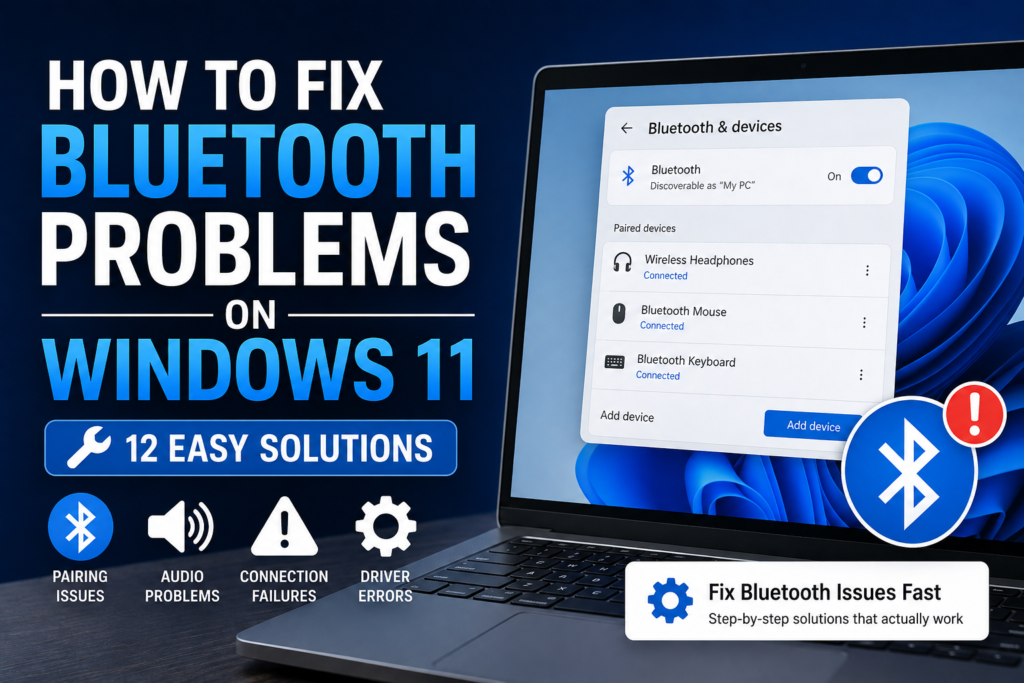
Bluetooth is one of the easiest ways to connect wireless headphones, speakers, keyboards, mice, game controllers, smartphones, and other accessories to a Windows 11 PC. However, Bluetooth can sometimes stop working properly. Your computer may fail to detect a device, refuse to pair, disconnect repeatedly, or show that Bluetooth is unavailable altogether.
If you are searching for How to Fix Bluetooth Problems on Windows 11, this guide will walk you through the most useful solutions in a safe order. You will learn how to check Bluetooth settings, restart related services, run Windows troubleshooters, update or reinstall Bluetooth drivers, remove problematic devices, and reset relevant settings.
The exact cause can vary between laptops, desktops, Bluetooth adapters, and Windows 11 versions. Therefore, start with the simple checks and move toward advanced solutions only when necessary.
Quick Answer
To fix Bluetooth problems on Windows 11, first make sure Bluetooth is enabled under Settings > Bluetooth & devices and confirm that your wireless accessory has power and is in pairing mode. Keep the device close to the computer and temporarily disconnect it from other devices.
If Windows 11 still cannot connect, restart both devices, remove the Bluetooth device from Windows and pair it again, run the built-in Bluetooth troubleshooter, and install available Windows updates. You should also check the Bluetooth driver in Device Manager.
For persistent problems, restart the Bluetooth Support Service, update or reinstall the Bluetooth driver, check for hardware-related issues, and reset relevant Windows network settings if appropriate. Avoid performing a full Windows reset unless other troubleshooting methods have failed.
Why Bluetooth Problems Happen on Windows 11
Bluetooth problems on Windows 11 do not always have the same cause. The problem can come from Windows settings, the Bluetooth driver, the accessory, or even the computer’s Bluetooth hardware.
Bluetooth Is Turned Off
Windows 11 includes a Bluetooth switch that can be disabled accidentally. If Bluetooth is off, nearby wireless devices may not appear in the pairing list.
On some computers, Bluetooth can also be affected by hardware controls or manufacturer-specific wireless settings.
The Bluetooth Device Is Not in Pairing Mode
A wireless accessory usually needs to be discoverable before Windows can find it.
For example, headphones may need you to hold a pairing button, while a mouse or keyboard may have a dedicated Bluetooth pairing control.
Simply powering on an accessory does not always put it into pairing mode.
The Device Is Already Connected Somewhere Else
A Bluetooth accessory may automatically connect to another computer, tablet, phone, or smart device.
This can prevent Windows 11 from establishing a new connection, especially with headphones, earbuds, speakers, and other devices that remember previous connections.
Bluetooth Drivers Are Outdated or Corrupted
Windows uses a Bluetooth driver to communicate with the computer’s Bluetooth hardware. If that driver is outdated, damaged, incompatible, or incorrectly installed, Bluetooth may stop working correctly.
Driver problems can become noticeable after Windows updates, hardware changes, or system configuration changes.
Bluetooth Services Are Not Running Correctly
Windows relies on background services to manage Bluetooth functionality. If a required service is stopped or experiencing a temporary problem, Bluetooth connections may fail even though the Bluetooth switch is visible.
Windows 11 Has a Temporary Software Problem
A temporary Windows process or system glitch can interfere with Bluetooth detection and pairing. Restarting the computer can sometimes resolve the issue without changing any settings.
The Bluetooth Adapter Has a Hardware Problem
Desktop computers may use a USB Bluetooth adapter, while many laptops have built-in Bluetooth hardware. A faulty adapter, loose connection, damaged hardware, or other physical problem can prevent Bluetooth from functioning.
Things to Check Before Trying Advanced Solutions
Before changing drivers or Windows services, perform these basic checks.
- Confirm Bluetooth is turned on.
- Make sure the Bluetooth accessory has sufficient battery power.
- Place the accessory close to the Windows 11 computer.
- Put the accessory into pairing mode.
- Check whether it is already connected to another device.
- Turn Bluetooth off and back on.
- Restart Windows 11.
- Restart the Bluetooth accessory.
- Check whether another Bluetooth device can connect.
- Check Windows Update for available updates.
- If you use a USB Bluetooth adapter, make sure it is properly connected.
- Check whether Airplane mode or another wireless control is affecting connectivity.
These checks are important because they can distinguish a simple pairing problem from a Windows or hardware problem.
How to Fix Bluetooth Problems on Windows 11
Work through the following methods in order. You do not necessarily need to try every method. Once Bluetooth works normally again, you can stop troubleshooting.
Method 1: Turn Bluetooth Off and Back On
A quick Bluetooth restart can clear a temporary connection problem.
- Press Windows + I to open Settings.
- Select Bluetooth & devices.
- Find the Bluetooth switch.
- Turn Bluetooth off.
- Wait several seconds.
- Turn Bluetooth back on.
- Try connecting your accessory again.
You can also use the Quick Settings area from the taskbar to access Bluetooth controls, although the available layout may vary between Windows 11 versions.
If Bluetooth is missing entirely from Settings, continue to the driver and hardware troubleshooting methods below.
Method 2: Restart Your Windows 11 PC
Restarting Windows is a simple but important troubleshooting step.
- Save your open work.
- Open the Start menu.
- Select the power option.
- Choose Restart.
- Wait until Windows has completely loaded.
- Turn on the Bluetooth accessory.
- Put it into pairing mode.
- Try connecting again.
A restart can reload Windows Bluetooth components and drivers that may not have been functioning correctly.
Method 3: Make Sure the Bluetooth Accessory Is in Pairing Mode
If Windows cannot find your device, the accessory may simply not be discoverable.
The process varies by device.
For example:
- Wireless earbuds may require holding a button on the charging case.
- Headphones may require holding the power or Bluetooth button.
- Keyboards may have a dedicated pairing key.
- Mice may have a Bluetooth selection or pairing button.
- Speakers may use a Bluetooth button.
Follow the accessory manufacturer’s pairing instructions.
Once the device is in pairing mode:
- Open Settings.
- Select Bluetooth & devices.
- Choose the option to add a device.
- Select Bluetooth.
- Wait for Windows to detect the accessory.
- Select the correct device.
- Complete the pairing process.
If the accessory does not appear, continue with the next solutions.
Method 4: Remove the Bluetooth Device and Pair It Again
If the device appears in Windows but refuses to connect, its saved pairing information may be causing a problem.
- Open Settings.
- Select Bluetooth & devices.
- Find the problematic device.
- Open its available options.
- Select Remove device.
- Confirm the removal.
- Put the accessory into pairing mode.
- Select Add device.
- Choose Bluetooth.
- Select the accessory when it appears.
Important: Removing a Bluetooth device from Windows deletes its saved pairing information from that PC. It does not normally delete files from the accessory or Windows computer.
You may need to follow the accessory’s pairing instructions again after removing it.
Method 5: Run the Windows Bluetooth Troubleshooter
Windows 11 includes built-in troubleshooting tools that can identify certain Bluetooth configuration problems.
The exact troubleshooting interface can change between Windows 11 releases. A convenient approach is to search Windows Settings for Bluetooth troubleshooter or Troubleshoot Bluetooth.
You can also check:
Settings > System > Troubleshoot > Other troubleshooters
If Bluetooth is listed, run the relevant troubleshooter and follow the instructions.
The troubleshooter may detect configuration problems and recommend actions. It cannot fix every Bluetooth hardware or driver issue, but it is worth trying before making manual changes.
Method 6: Check the Bluetooth Driver in Device Manager
The Bluetooth driver is an important part of Windows wireless connectivity. If it is missing, disabled, outdated, or malfunctioning, Bluetooth may not work correctly.
To inspect it:
- Right-click the Start button.
- Select Device Manager.
- Look for a category named Bluetooth.
- Expand the Bluetooth category.
- Locate the relevant Bluetooth adapter.
- Right-click the adapter.
- Select Properties if you want to inspect its status.
If Windows displays a warning icon, the driver or device may require attention.
You can also try:
- Right-click the Bluetooth adapter.
- Select Update driver.
- Choose the available driver-search option.
- Allow Windows to check for an appropriate driver.
- Restart the computer if Windows recommends it.
Driver options vary depending on your hardware and Windows configuration.
Method 7: Download the Bluetooth Driver From Your PC Manufacturer
If Windows Update does not resolve the driver problem, check your computer manufacturer’s support website.
This can be particularly useful for laptops from manufacturers such as Dell, HP, Lenovo, ASUS, Acer, or others because the manufacturer may provide a Bluetooth driver specifically intended for your model.
Before downloading anything, identify your exact computer model.
Then:
- Visit the manufacturer’s official support website.
- Search for your computer model.
- Open its driver or downloads section.
- Find the Bluetooth or wireless driver.
- Check that it supports your Windows version.
- Download the appropriate driver.
- Install it according to the manufacturer’s instructions.
- Restart Windows.
- Test Bluetooth again.
Avoid downloading Bluetooth drivers from random third-party driver websites. Official manufacturer sources are preferable.
Method 8: Restart the Bluetooth Support Service
Windows uses background services to manage Bluetooth functionality. Restarting the relevant service can help when Bluetooth has stopped responding correctly.
To check the service:
- Press Windows + R.
- Type
services.msc. - Press Enter.
- Look for Bluetooth Support Service.
- Right-click the service.
- Choose Restart if the option is available.
- If the service is stopped, check its available start option.
- Close the Services window.
- Test Bluetooth again.
The exact service configuration can vary between Windows installations. Do not change unrelated services just because they appear in the list.
Method 9: Disable and Re-enable the Bluetooth Adapter
If Windows recognizes the Bluetooth hardware but it is not behaving correctly, disabling and re-enabling the adapter can refresh its connection to Windows.
- Open Device Manager.
- Expand Bluetooth.
- Right-click the Bluetooth adapter.
- Select Disable device.
- Confirm the action if Windows asks.
- Wait several seconds.
- Right-click the adapter again.
- Select Enable device.
- Try Bluetooth again.
Warning: Disabling the adapter temporarily disconnects Bluetooth devices from the computer. Do not disable unrelated hardware.
If the Bluetooth adapter disappears from Device Manager after other changes, restart Windows and check again.
Method 10: Reinstall the Bluetooth Driver
If the Bluetooth driver appears corrupted or Windows reports a driver problem, reinstalling it may help.
Warning: Before removing a driver, make sure you know how to obtain a compatible replacement. If possible, download the correct Bluetooth driver from your computer manufacturer’s official support page before uninstalling the existing driver.
To reinstall:
- Open Device Manager.
- Expand Bluetooth.
- Right-click the relevant adapter.
- Select the available uninstall-device option.
- Review the confirmation carefully.
- Confirm only if you are certain you have the correct replacement or Windows can appropriately reinstall the device.
- Restart the computer.
- Allow Windows to detect the hardware again.
- Install the manufacturer’s Bluetooth driver if necessary.
Do not remove random devices from Device Manager. If you are unsure which entry is the Bluetooth adapter, stop and identify your hardware first.
Method 11: Check Windows Update
Windows updates can include driver updates, bug fixes, and improvements affecting hardware compatibility.
To check for updates:
- Open Settings.
- Select Windows Update.
- Select Check for updates.
- Install available updates as appropriate.
- Restart the PC if required.
- Test Bluetooth again.
You can also review available optional updates if Windows presents driver updates there. Not every optional driver update is necessary, so review the description before installing it.
If Bluetooth stopped working immediately after a recent update, do not automatically assume the update is the cause. First try the standard troubleshooting methods and check for a newer update.
Method 12: Check Power Management Settings
Some Windows PCs include power-management settings that can affect hardware behavior.
In Device Manager, the Bluetooth adapter’s properties may include a Power Management tab, although the available options vary by hardware and driver.
If you see an option allowing Windows to turn off the device to save power, review it carefully.
Power management settings should not be changed blindly because they can affect battery life and device behavior.
If Bluetooth disconnects mainly after your laptop wakes from sleep or when the battery is low, power-management behavior may be worth investigating.
Windows 11 Solutions for Bluetooth USB Adapters
If you use a USB Bluetooth adapter on a desktop PC, check the adapter itself before making major Windows changes.
Try these steps:
- Remove the USB Bluetooth adapter.
- Restart Windows.
- Connect the adapter again.
- Try another compatible USB port if available.
- Check Device Manager for the adapter.
- Install the manufacturer’s official driver if required.
- Test Bluetooth with another accessory.
If the adapter works on another computer but not your Windows 11 PC, the issue may involve Windows configuration or drivers.
If the adapter is not detected on multiple computers, the adapter itself may be faulty.
How to Tell Whether the Problem Is Windows or the Bluetooth Device
One of the best troubleshooting techniques is to test both sides of the connection.
For example, if your wireless headphones do not connect:
- Try the headphones with a smartphone.
- Try a different Bluetooth headset with your Windows 11 PC.
- Check whether the PC detects other Bluetooth devices.
The results can narrow down the cause.
If several Bluetooth devices work elsewhere but none work on your PC: investigate Windows drivers, services, settings, and Bluetooth hardware.
If your PC connects to other Bluetooth devices but one accessory fails: investigate the accessory, its pairing mode, battery, firmware, or saved connections.
If the accessory fails with multiple devices: the accessory may require repair or replacement.
Common Mistakes to Avoid
Do Not Reinstall Windows Immediately
A Bluetooth problem usually does not justify reinstalling Windows as the first solution. Driver, pairing, service, or hardware checks should come first.
Do Not Delete Random Device Manager Entries
Device Manager contains many hardware components. Removing an unrelated driver can create additional problems.
Only modify the Bluetooth adapter or another device when you know exactly what it represents.
Do Not Use Random Driver Download Websites
Third-party driver sites can provide incorrect or unwanted software. Start with Windows Update or the official computer manufacturer’s support page.
Do Not Assume Bluetooth Is Broken Because One Device Will Not Connect
A single accessory can have its own battery, pairing, firmware, or hardware problem.
Test another Bluetooth device before concluding that the PC’s Bluetooth hardware has failed.
Do Not Keep Pairing Without Removing a Corrupted Connection
If Windows repeatedly remembers a device but cannot reconnect to it, remove the saved device and create a fresh pairing.
Do Not Ignore the Accessory’s Battery
Low battery can cause strange behavior, including failed pairing and unexpected disconnections.
Charge the accessory before spending time changing Windows settings.
When to Get Professional Help
You may need technical support if Bluetooth still does not work after updating drivers, checking Windows settings, restarting services, and testing multiple accessories.
Contact your PC manufacturer’s support team if:
- Bluetooth hardware is missing from Device Manager.
- Windows cannot detect the internal Bluetooth adapter.
- Bluetooth stopped working after physical damage.
- The laptop has experienced liquid exposure.
- Multiple Bluetooth devices fail consistently.
- The manufacturer’s driver does not install correctly.
- The Bluetooth adapter appears to have a hardware error.
For a USB Bluetooth adapter, contact the adapter manufacturer if it is not detected on multiple computers.
If only one accessory fails while other Bluetooth devices work normally, contact the accessory manufacturer instead.
Frequently Asked Questions
How do I fix Bluetooth problems on Windows 11?
Start by checking that Bluetooth is enabled and the accessory is in pairing mode. Restart both devices, remove and re-add the Bluetooth device, run Windows’ Bluetooth troubleshooting tools, check for Windows updates, and inspect the Bluetooth driver in Device Manager. If the problem continues, restart the Bluetooth Support Service and consider reinstalling the manufacturer’s Bluetooth driver.
Why is Bluetooth missing from Windows 11 Settings?
Bluetooth may be missing because the adapter is disabled, its driver is not installed correctly, Windows cannot detect the hardware, or the computer does not have Bluetooth hardware. Check Device Manager for a Bluetooth category or adapter and verify that the computer’s manufacturer provides Bluetooth support for the model.
Why does Windows 11 see my Bluetooth device but not connect to it?
The device may already be connected to another computer or phone, or the saved pairing information may be causing a conflict. Put the accessory into pairing mode, remove it from Bluetooth & devices in Windows, and pair it again.
How do I update my Bluetooth driver in Windows 11?
Open Device Manager, expand Bluetooth, right-click the Bluetooth adapter, and select Update driver. You can also check Windows Update or download the appropriate driver from your computer manufacturer’s official support website.
Why does my Bluetooth keep disconnecting on Windows 11?
Repeated disconnections can be caused by low accessory battery, distance, interference, driver problems, power-management behavior, outdated firmware, or hardware issues. Test the accessory close to the computer and compare it with another Bluetooth device to determine whether the problem is specific to the accessory or PC.
Will resetting Windows network settings fix Bluetooth?
It can help with certain wireless configuration problems, but it is not guaranteed to solve every Bluetooth issue. Before performing any network reset, review what Windows says will be reset because network settings and saved wireless connections may be affected.
Why does my Bluetooth work after restarting Windows but stop working later?
This can indicate a temporary software issue, driver problem, service problem, power-management behavior, or interference from another application or device. If the problem repeatedly returns, update Windows and the Bluetooth driver and check the Bluetooth Support Service rather than relying on restarts as a permanent solution.
Can I use Bluetooth on a Windows 11 desktop without built-in Bluetooth?
Yes, if the desktop does not have built-in Bluetooth, a compatible USB Bluetooth adapter can add Bluetooth functionality. The adapter may require its own driver, depending on the hardware and Windows support.
Final Thoughts
Learning How to Fix Bluetooth Problems on Windows 11 starts with determining whether the issue is caused by pairing, the Bluetooth accessory, Windows software, drivers, or hardware.
Begin with the basics: turn Bluetooth off and on, restart Windows, check the accessory’s battery, place it into pairing mode, and make sure it is not connected to another device. If Windows still cannot connect, remove the saved device and pair it again.
For more persistent problems, run the Windows Bluetooth troubleshooter, inspect the Bluetooth adapter in Device Manager, install available Windows updates, restart the Bluetooth Support Service, and obtain the correct driver from your computer manufacturer’s official website when necessary.
The most useful diagnostic step is to test another Bluetooth accessory with your Windows 11 PC and test the original accessory with another device. This can quickly tell you whether you should focus on Windows or the Bluetooth hardware.
Avoid unnecessary factory-style resets or Windows reinstallation until you have exhausted the safer troubleshooting options. If Bluetooth remains unavailable across multiple devices or the adapter is not detected at all, professional support may be the appropriate next step.