How to Fix Bluetooth Not Connecting on Android: 12 Easy Solutions
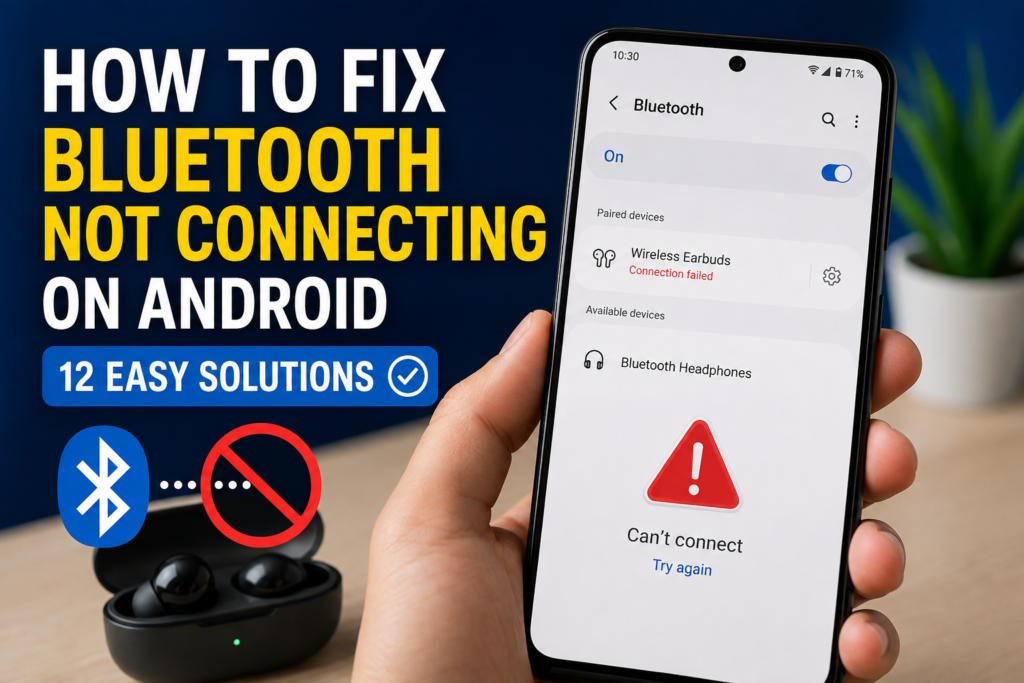
Bluetooth makes it easy to connect Android phones to wireless earbuds, headphones, speakers, smartwatches, cars, keyboards, and other accessories. However, it can be frustrating when Bluetooth is turned on but your Android phone refuses to connect to a device.
If you are searching for How to Fix Bluetooth Not Connecting on Android, the problem is usually caused by a temporary Bluetooth glitch, an accessory that is already connected elsewhere, outdated software, pairing information that has become corrupted, or a problem with the accessory itself.
The good news is that most Bluetooth connection problems can be fixed without resetting your phone. This guide explains the safest solutions first and then moves toward more advanced troubleshooting. The exact menu names can vary between Android versions and manufacturers such as Samsung, Google Pixel, Xiaomi, OnePlus, Motorola, and others.
Quick Answer
To fix Bluetooth not connecting on Android, first make sure Bluetooth is enabled on both devices and place them close together. Turn Bluetooth off and back on, restart your Android phone and the Bluetooth accessory, and make sure the accessory is in pairing mode.
If that does not work, remove the old Bluetooth pairing from your Android phone and pair the device again. You can also check whether the accessory is already connected to another phone, tablet, computer, or car.
For persistent problems, install available Android updates, clear Bluetooth-related cache where your device provides that option, reset network settings, and test the accessory with another phone. If several Bluetooth devices fail to connect to your Android phone while working normally elsewhere, the phone itself may need further technical support.
Why Bluetooth Is Not Connecting on Android
Bluetooth connection failures can have several causes. Identifying the likely cause can help you avoid unnecessary resets or data loss.
1. Temporary Bluetooth software glitch
Android’s Bluetooth service can occasionally stop responding correctly. Bluetooth may appear to be enabled while scanning, pairing, or connecting fails.
Turning Bluetooth off and back on or restarting the phone can often clear a temporary problem.
2. The accessory is not in pairing mode
A Bluetooth device normally needs to be placed into pairing or discovery mode before a new phone can connect to it.
Simply turning on wireless earbuds, headphones, or a speaker does not always make them available for a new connection.
3. The device is already connected elsewhere
Many Bluetooth accessories automatically reconnect to the last phone, tablet, laptop, or other device they used.
For example, your earbuds may connect to your Windows laptop immediately after you turn them on. Your Android phone may then see the earbuds but fail to establish a connection.
4. Old pairing information is causing a conflict
Android stores information about previously paired Bluetooth devices. If that information becomes inconsistent after a software update, device reset, or repeated pairing attempts, removing the old connection and pairing again can help.
5. The devices are too far apart
Bluetooth works best when the phone and accessory are reasonably close together. Walls, electronic interference, and physical distance can also affect the connection.
6. Software is outdated
An Android update may contain Bluetooth stability or compatibility improvements. Conversely, some connection problems can appear after an update if the accessory’s firmware or the phone’s software is not fully compatible.
7. The accessory has a problem
Sometimes the Android phone is not the cause at all. A damaged speaker, low battery, faulty earbuds, or malfunctioning car Bluetooth system can prevent a successful connection.
Things to Check Before Trying Advanced Solutions
Before changing network settings or performing more serious troubleshooting, check these basic points:
- Make sure Bluetooth is enabled on your Android phone.
- Make sure the accessory has enough battery.
- Keep the two devices close together.
- Confirm the accessory is powered on.
- Put the accessory into pairing mode.
- Make sure it is not already connected to another device.
- Turn off Bluetooth on nearby devices that may automatically connect.
- Check whether the accessory appears under Available devices.
- Try restarting both devices.
- Check for Android system updates.
- If the accessory has a companion app, check whether it requires an update.
These simple checks can solve many Bluetooth problems without changing anything important on your phone.
How to Fix Bluetooth Not Connecting on Android
Work through the following methods in order. Start with the simplest solutions before moving to settings that can affect other wireless connections.
Method 1: Turn Bluetooth Off and Back On
The quickest solution is to restart the Bluetooth connection.
- Swipe down from the top of your Android screen to open Quick Settings.
- Tap the Bluetooth icon to turn it off.
- Wait about 10 seconds.
- Turn Bluetooth back on.
- Open your Bluetooth settings and look for the accessory.
- Try connecting again.
If the device does not appear, open the full Bluetooth settings screen and wait for Android to scan for nearby devices.
Menu names may differ by manufacturer. On many Android phones, Bluetooth can be found under Settings > Connected devices or Settings > Connections.
Method 2: Restart Your Android Phone
A restart can reload Android’s wireless services and clear temporary software problems.
- Press and hold the phone’s power button, or use the power menu available on your device.
- Select Restart.
- Wait for the phone to boot completely.
- Turn Bluetooth on if necessary.
- Put your accessory into pairing mode.
- Try connecting again.
This is particularly useful if Bluetooth was working earlier but suddenly stopped connecting.
Method 3: Restart the Bluetooth Accessory
The problem may be on the accessory side rather than the Android phone.
Turn off the headphones, earbuds, speaker, smartwatch, car system, or other Bluetooth device. Wait several seconds and turn it back on.
For battery-powered accessories, make sure the battery is not nearly empty. Some devices may power on but behave unpredictably when the battery is very low.
If the accessory has a dedicated pairing button, use the manufacturer’s normal procedure to enter pairing mode.
Method 4: Forget the Bluetooth Device and Pair It Again
If your Android phone remembers the device but cannot connect to it, deleting the existing pairing and creating a fresh connection is one of the most useful solutions.
- Open Settings.
- Go to Bluetooth or Connected devices.
- Find the problematic accessory under saved or paired devices.
- Tap the settings icon next to it.
- Select Forget, Unpair, or a similar option.
- Confirm the action.
- Put the accessory into pairing mode.
- Return to the Bluetooth settings on Android.
- Select the accessory from the available devices list.
- Complete the pairing process.
Important: Forgetting a Bluetooth device removes its saved pairing information from the phone. It does not normally delete your photos, apps, contacts, or other personal files.
If the accessory asks for a PIN, use the pairing instructions provided by its manufacturer rather than guessing repeatedly.
Method 5: Make Sure the Accessory Is Not Connected to Another Device
This is a very common reason Bluetooth pairing fails.
Suppose your wireless headphones were previously connected to a laptop. When you turn them on, they may automatically reconnect to that laptop before your Android phone gets a chance to connect.
Try the following:
- Turn off Bluetooth on nearby phones, tablets, laptops, and other devices.
- If necessary, disconnect the accessory manually from the device it is currently using.
- Put the accessory into pairing mode.
- Open Bluetooth settings on Android.
- Select the accessory and try pairing again.
If the accessory supports multipoint connections, its behavior may be different. Check its documentation if you need simultaneous connections to multiple devices.
Method 6: Move the Devices Closer Together
Keep your Android phone and Bluetooth accessory close to each other while pairing.
For troubleshooting, place them within a short distance and remove unnecessary obstacles between them.
Also temporarily move away from environments with heavy wireless activity if the connection repeatedly fails. Once pairing works at close range, test the connection at a normal distance.
If Bluetooth only works when the phone is extremely close to the accessory, the problem may involve interference, hardware, or the accessory itself.
Method 7: Check for Android Software Updates
Android updates can include fixes for wireless connectivity and compatibility problems.
To check for an update:
- Open Settings.
- Look for System, Software update, or a similar option.
- Select the available update option.
- Install an update if one is available.
- Restart the phone if required.
- Test Bluetooth again.
The exact location depends on your Android manufacturer and software version.
Also check whether the Bluetooth accessory has a firmware update. Some headphones, earbuds, watches, speakers, and vehicle systems use a companion application for firmware updates.
Method 8: Clear Bluetooth Cache or App Data When Available
Some Android devices provide options for clearing cache or data associated with Bluetooth system services. However, these settings are not available in exactly the same place on every phone.
If your device provides a Bluetooth-related system app under application settings, you may see options such as Clear cache.
Cache is temporary data used by applications and system components. Clearing it can sometimes resolve corrupted temporary information without deleting your personal files.
Do not randomly delete data from system applications if you are unsure what the option does. The wording and available controls vary by Android version and manufacturer.
If you cannot find a Bluetooth cache option, skip this method and continue with the other troubleshooting steps.
Method 9: Reset Network Settings
If Bluetooth still refuses to connect, resetting network settings can help with persistent wireless configuration problems.
On many Android phones, you can find an option similar to:
Settings > System > Reset options > Reset Wi-Fi, mobile & Bluetooth
Other manufacturers may place it under General management, Connections, or another settings category.
Warning: A network settings reset can remove saved Wi-Fi networks and passwords and reset Bluetooth pairings. It may also affect other network-related settings. It does not normally erase your photos, apps, or personal files, but you should review the confirmation screen before proceeding.
To perform the reset:
- Open Settings.
- Search for Reset network settings if you cannot locate it manually.
- Open the relevant reset option.
- Review what will be removed or reset.
- Confirm the reset.
- Restart the phone if necessary.
- Pair your Bluetooth accessory again.
Because this changes wireless configuration, use it after the simpler methods have failed.
Method 10: Test the Bluetooth Accessory With Another Phone
This step helps determine whether the problem is with Android or with the Bluetooth accessory.
Take another compatible smartphone and try pairing the same accessory.
If the accessory connects normally to the second phone, the original Android phone may have a software or hardware problem.
If the accessory also fails to connect to the second phone, the accessory itself may be the source of the problem.
You can perform the reverse test as well: try connecting a different Bluetooth accessory to your Android phone.
This creates a useful troubleshooting comparison:
- Only one accessory fails: the accessory or its pairing information may be the problem.
- Several accessories fail: the Android phone’s Bluetooth configuration or hardware may be involved.
- The accessory fails everywhere: the accessory may need repair or replacement.
Method 11: Check Bluetooth Permissions and Related Settings
Modern Android versions use permissions and privacy controls for some device discovery and companion applications.
If you are using a Bluetooth accessory that depends on a dedicated app, open Settings > Apps, select the relevant application, and review its available permissions.
For example, some apps may request nearby-device permissions to find and communicate with compatible hardware.
Do not grant unnecessary permissions simply to make Bluetooth work. Only allow permissions that are appropriate for the accessory and its official application.
Also make sure battery-saving restrictions are not preventing an accessory’s companion app from operating correctly in the background.
Method 12: Try Safe Mode if You Suspect a Third-Party App
A recently installed application can occasionally interfere with wireless behavior.
Android manufacturers provide different procedures for entering Safe Mode, so the exact steps depend on your phone.
In Safe Mode, many downloaded third-party applications are temporarily disabled. If Bluetooth works correctly there, a recently installed or updated app may be contributing to the problem.
If you identify a likely problematic application, restart the phone normally and consider updating or uninstalling that app.
Do not uninstall applications blindly. Focus on software that was installed or updated around the time the Bluetooth problem began.
Android-Specific Solutions for Samsung, Pixel, Xiaomi, OnePlus, and Other Phones
Bluetooth settings are not identical across Android manufacturers.
Samsung Galaxy
Samsung devices commonly place Bluetooth under Settings > Connections > Bluetooth. You can also use Settings search to find Bluetooth or reset-related options.
If a Samsung phone cannot connect to several Bluetooth devices, check for software updates and consider the available network reset option.
Google Pixel
Pixel phones generally place Bluetooth under Settings > Connected devices. Depending on the Android version, additional Bluetooth controls may be available through the connected-device settings.
Use Settings search if you cannot find the exact menu described in another guide.
Xiaomi, Redmi, and POCO
These devices may use different settings layouts depending on MIUI, HyperOS, and the device model. Look under Bluetooth, Connection & sharing, or use Settings search.
Battery optimization can also behave differently on these devices, so check the official accessory app if it needs to maintain a background connection.
OnePlus and Other Android Phones
OnePlus and other manufacturers can change menu names between software versions. Rather than following a menu path designed for another phone, search Settings for terms such as:
- Bluetooth
- Connected devices
- Reset
- Network settings
- Software update
- Nearby devices
This is often the fastest way to find the appropriate control.
Common Bluetooth Problems and the Best Fix
Different symptoms can point toward different solutions.
Bluetooth is turned on but no devices appear
Try:
- Move the accessory closer.
- Make sure it is in pairing mode.
- Turn Bluetooth off and on.
- Restart both devices.
- Turn off Bluetooth on nearby devices.
- Test with another Bluetooth accessory.
The device appears but will not pair
Try forgetting the old pairing and pairing it again. Also make sure the accessory is not connected to another device.
The device pairs but immediately disconnects
Check battery level, distance, interference, software updates, and the accessory’s companion app.
If the problem happens only with one accessory, test that accessory on another phone.
Bluetooth keeps turning off
Restart the phone and check for system updates. If the problem continues across multiple Bluetooth devices, investigate whether a software issue or hardware fault is affecting the phone.
Bluetooth works with headphones but not with a car
Car Bluetooth systems can have compatibility and saved-device limitations. Delete the phone’s old Bluetooth connection from the car and remove the car from the phone’s saved Bluetooth devices. Then perform a fresh pairing according to the vehicle’s instructions.
Common Mistakes to Avoid
When trying to fix Bluetooth not connecting on Android, avoid these mistakes:
Repeatedly tapping Pair without checking pairing mode
If the accessory is not actually discoverable, repeated attempts usually will not help.
Forgetting the accessory without knowing how to pair it again
Before removing a saved device, make sure you know how to place the accessory into pairing mode.
Resetting the entire phone too quickly
A factory reset is rarely the first step for a Bluetooth problem. Try basic Bluetooth troubleshooting, re-pairing, software updates, and network reset options first.
Assuming the phone is always the problem
Testing the accessory with another phone can quickly reveal whether the hardware is responsible.
Installing random Bluetooth booster or cleaner apps
Third-party apps claiming to repair Bluetooth may not solve the underlying issue and can introduce unnecessary permissions or other problems.
Ignoring the accessory’s firmware
Some modern Bluetooth devices depend on firmware updates from their official companion apps. Check the manufacturer’s support information when basic troubleshooting fails.
When to Get Professional Help
You may need manufacturer or professional support if:
- Multiple Bluetooth accessories fail to connect.
- Bluetooth cannot be enabled or repeatedly turns itself off.
- Bluetooth problems started after physical damage or liquid exposure.
- The phone cannot detect any nearby Bluetooth devices despite repeated troubleshooting.
- The same accessory works normally with other phones.
- The problem remains after updating Android and resetting network settings.
- The phone has recently undergone a repair or major hardware change.
If only one accessory fails while everything else works, contact that accessory’s manufacturer first.
If several Bluetooth devices fail specifically on the Android phone, contact the phone manufacturer or an authorized repair provider.
Avoid opening the phone yourself unless you have the appropriate technical experience. Bluetooth hardware is integrated into the device, and improper repair can cause additional damage.
Frequently Asked Questions
Why is my Android phone not connecting to Bluetooth?
The most common causes include pairing mode problems, an accessory already connected to another device, corrupted old pairing information, temporary Bluetooth glitches, software issues, or a faulty accessory. Restarting both devices and forgetting and re-pairing the accessory are good first steps.
How do I reset Bluetooth on my Android phone?
There is not one identical Bluetooth reset option on every Android phone. You can first turn Bluetooth off and on, restart the phone, forget the problematic device, and pair it again. If the problem continues, use your phone’s Reset network settings option if available. Be aware that this can remove saved Wi-Fi networks and Bluetooth pairings.
Why does my Bluetooth device show up but not connect?
The accessory may already be connected to another device, or the saved pairing information may be corrupted. Put the accessory into pairing mode, turn off Bluetooth on nearby devices, forget the accessory on Android, and pair it again.
Why does Bluetooth keep disconnecting from my Android phone?
Frequent disconnections can result from low battery, excessive distance, interference, software problems, accessory firmware issues, or a hardware fault. Test the accessory close to the phone and compare its behavior with another smartphone.
Will resetting network settings delete everything on my Android phone?
A network settings reset is different from a factory reset. It is generally intended to reset wireless configurations rather than erase personal files. However, it can remove saved Wi-Fi networks, Bluetooth pairings, and other network-related settings. Always read your phone’s confirmation screen before proceeding.
How can I tell whether my Bluetooth accessory or Android phone is faulty?
Test the accessory with another compatible phone and test a different Bluetooth accessory with your Android phone. If the accessory fails on multiple phones, it may be faulty. If several accessories fail only on your Android phone, the phone’s software or hardware may be responsible.
Do I need to factory reset my Android phone to fix Bluetooth?
Usually, no. A factory reset should be considered only after other troubleshooting methods have failed and after you have backed up important data. Most Bluetooth connection problems can be investigated without erasing the phone.
Final Thoughts
Knowing How to Fix Bluetooth Not Connecting on Android can save you from unnecessary factory resets and repairs. Start with the simplest checks: confirm pairing mode, move the devices closer together, restart both devices, and make sure the accessory is not connected elsewhere.
If the problem continues, forget the old Bluetooth connection and pair the accessory again. Then check Android and accessory software updates. For persistent problems, a network settings reset can be useful, but remember that it may remove saved Wi-Fi connections and Bluetooth pairings.
The most important troubleshooting step is to identify whether the problem follows the Android phone or the Bluetooth accessory. Testing both with another device can provide a clear answer.
If multiple Bluetooth devices consistently fail on your Android phone even after software and network troubleshooting, professional support may be appropriate. Avoid jumping straight to a factory reset, especially when simpler solutions have not yet been exhausted.