How to Back Up Android Phone Before Factory Reset: Complete Guide
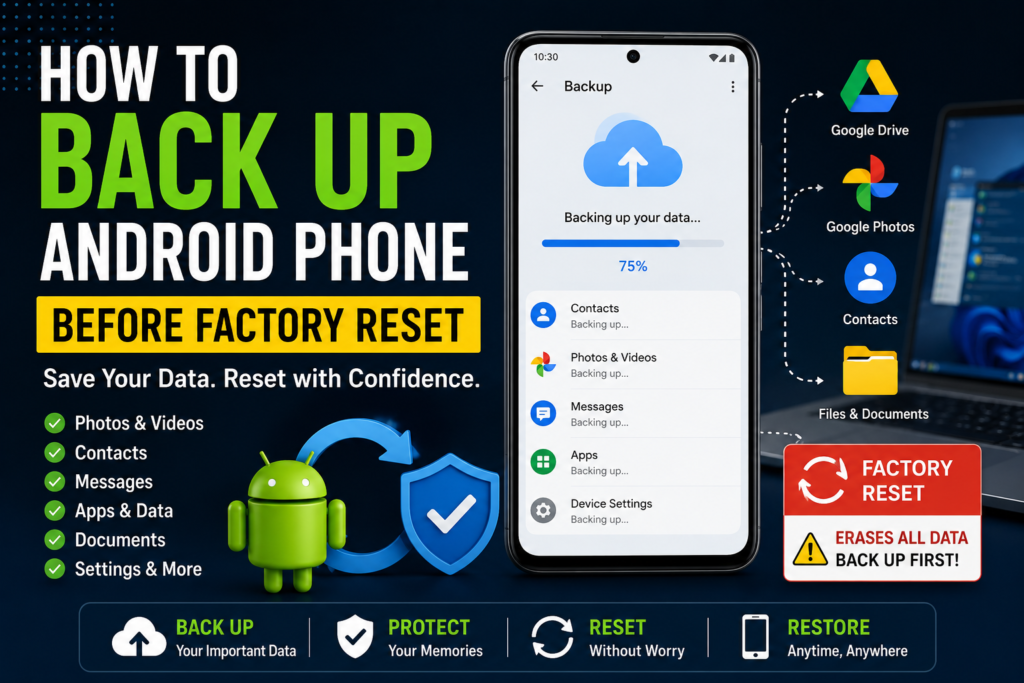
A factory reset can solve many Android problems, including persistent software errors, severe performance issues, unwanted apps, and problems that remain after ordinary troubleshooting. However, a factory reset also removes data stored on the phone. If you reset your Android device without preparing a backup, you could lose photos, videos, contacts, messages, files, app data, and other important information.
That is why learning How to Back Up Android Phone Before Factory Reset is an important step before selecting the reset option.
The good news is that you do not have to rely on just one backup method. Android provides Google backup options, while photos can be copied to Google Photos or a computer, and important files can be saved separately. Some manufacturers also provide their own backup and migration tools.
This guide explains how to back up an Android phone before a factory reset, what different backup methods actually save, how to verify your backups, and what you should check before permanently erasing the device.
Quick Answer
The safest way to back up an Android phone before a factory reset is to use several backup methods rather than depending on a single copy. Start by checking Android’s Google backup settings and create a current backup. Then make sure your photos and videos are safely backed up, and manually copy important documents, downloads, recordings, and other files to a computer or cloud storage.
Before resetting the phone, verify that you can access the Google Account used for your backup and check important files from another device when possible. If your phone contains irreplaceable information, do not factory reset it until you have confirmed that the backup contains what you need.
A factory reset is different from simply restarting the phone. It is a destructive operation that returns the device to its setup state and removes user data from the device. The exact menus vary by Android version and manufacturer, so Samsung, Google Pixel, Xiaomi, OnePlus, Motorola, and other Android phones may display different backup and reset options.
Why You Need a Backup Before a Factory Reset
A factory reset is designed to erase user data from the phone. This can include information that exists only on the device and has never been synchronized or backed up elsewhere.
Depending on your applications and settings, information at risk can include:
- Photos and videos
- Contacts stored only on the phone
- Text messages
- Call history
- Downloaded files
- Documents
- Voice recordings
- Music files stored locally
- Screenshots
- Notes
- Some application data
- Device settings
- Wi-Fi information
- Home-screen arrangements
- Accounts and locally stored credentials
Not every item is necessarily lost if it has already been synchronized or backed up. For example, contacts synchronized with your Google Account can generally be restored after signing back into that account. Photos backed up to a cloud service can also be downloaded or synchronized again.
The important point is to determine where your data currently exists before resetting the phone.
How to Back Up Android Phone Before Factory Reset
For the most complete backup, use a combination of Google backup, photo backup, and manual file copying.
A practical order is:
- Check and run Android’s Google backup.
- Back up photos and videos.
- Verify contacts are synchronized.
- Copy important files to a computer or another storage location.
- Check application-specific backups.
- Save important authentication and account information.
- Verify the backups before performing the factory reset.
This layered approach is safer than assuming that one backup option captures every file on the phone.
Method 1: Use Android’s Built-In Google Backup
Most modern Android phones provide backup options through Google services, although the exact menu names vary between Android versions and manufacturers.
The backup can include certain device information and application-related data, but you should not assume it is a complete copy of everything stored on the phone.
To check your backup:
- Open Settings on your Android phone.
- Look for Google or a backup-related section.
- Open the Backup settings.
- Review which Google Account is being used.
- Check the available backup information.
- Start a backup if the option is available.
- Keep the phone connected to the internet while the backup is being created.
- Wait for the backup process to finish.
On some devices, backup settings may be located under a section such as System, Accounts and backup, or another manufacturer-specific menu.
The exact wording is not identical on every Android phone.
Check Which Google Account Is Being Used
This is one of the most important checks before a factory reset.
If you have multiple Google Accounts on your phone, you need to know which account contains the information you expect to restore.
Write down or securely remember the Google Account you use for backup.
Also make sure you know the password and can complete any required account verification. A backup is not very useful if you cannot sign back into the account after resetting the phone.
Method 2: Back Up Photos and Videos With Google Photos
Photos and videos are often the most valuable files stored on an Android phone.
Even if Android’s general backup is enabled, you should separately check Google Photos if you use it for photo backup.
To check Google Photos:
- Open Google Photos.
- Tap your profile picture or account icon.
- Check the backup status.
- Confirm that the correct Google Account is being used.
- Review whether there are items waiting to be backed up.
- Leave the phone connected to Wi-Fi or another reliable internet connection while the backup completes.
Do not assume that every picture visible in the phone’s gallery has already been uploaded.
Photos can come from different folders, including:
- Camera
- Screenshots
- Downloads
- Messaging applications
- Social media applications
- Edited-image folders
- Other application-specific folders
Google Photos can have backup settings for different device folders, so review the folders that contain pictures you actually want to preserve.
Verify Your Photos Before Resetting
A backup icon or status message is not the same as independently verifying your files.
Before resetting:
- Open Google Photos on another phone or computer.
- Sign in with the same Google Account.
- Find several older photos.
- Check recent photos.
- Check important videos.
- Look for pictures from different folders if you backed up those folders.
- Confirm that the files can actually be opened.
If important photos are missing from the cloud library, do not perform the factory reset yet.
Method 3: Back Up Android Data to a Computer
A computer provides another useful layer of protection because you can keep a local copy of important files.
Connect your Android phone to a Windows PC using a suitable USB cable.
Then:
- Unlock your Android phone.
- Connect it to the computer.
- Look for the USB notification.
- Select File Transfer or a similarly named option if required.
- Open File Explorer on Windows.
- Select This PC.
- Open the connected Android phone.
- Browse through the internal storage.
- Copy important folders to the computer.
- Open some copied files to verify them.
The exact folders vary by phone and applications, but useful locations can include:
- DCIM for camera photos
- Pictures for images
- Download for downloaded files
- Documents for documents
- Movies for locally stored videos
- Music for local audio
- Recordings or similar folders for voice recordings
Do not assume that every application stores its data in an accessible folder. Some apps keep their information in protected storage or use their own cloud synchronization.
Method 4: Back Up Important Files to Cloud Storage
If you do not have a computer, cloud storage can provide another way to preserve important files.
You can use a supported cloud storage service to upload documents, videos, PDFs, recordings, or other files.
The basic process is:
- Open your preferred cloud-storage application.
- Sign in to the correct account.
- Select the files you need to preserve.
- Upload them.
- Wait until the uploads finish.
- Access the same account from another device.
- Confirm that important files are available.
Cloud storage is particularly useful for documents and individual files that may not be included in your regular Android backup.
Remember that cloud storage accounts have storage limits. If you are uploading a large video collection, check how much available space remains before starting.
Back Up Your Contacts Before a Factory Reset
Contacts require special attention because they can be stored in different places.
Some contacts may be synchronized with Google, while others may be stored locally on the phone or associated with another account.
To check your contacts:
- Open the Contacts app.
- Review where your contacts are stored.
- Check whether they are synchronized with your Google Account or another account.
- Look for contacts marked as device-only or stored locally.
- Export or move important contacts if necessary.
If your Contacts app provides an export option, you can create a contact file and save it somewhere outside the phone.
After doing this, verify that the exported file exists before resetting the device.
Back Up WhatsApp Before a Factory Reset
WhatsApp has its own backup system, so do not assume that Android’s general device backup automatically gives you everything you need.
If you use WhatsApp, check its backup settings before resetting.
The general process is:
- Open WhatsApp.
- Open Settings.
- Go to Chats.
- Open Chat backup.
- Review the backup date and account.
- Create a fresh backup if appropriate.
- Wait for the process to finish.
- Confirm that the backup information has updated.
WhatsApp media and chat history can be important, so verify the backup before erasing the phone.
If you are also changing to another phone, follow WhatsApp’s supported transfer or restoration process for the new device.
Back Up Messages and Call History
Android’s backup system may preserve certain device information, but you should not assume that every messaging application or every type of message is included in exactly the same way.
If you have important messages inside a third-party application, check whether that application provides its own backup or synchronization feature.
For essential information, determine whether the data is:
- Stored in the app’s cloud account
- Included in an Android backup
- Exportable to a file
- Stored only on the current phone
This is especially important for messaging, note-taking, authentication, and business applications.
Back Up Your Authentication Apps Carefully
Two-factor authentication applications can create a serious problem if you reset your phone without preparing first.
Some authentication apps provide account synchronization or transfer features, while others may require an export or account-specific recovery process.
Before resetting:
- Open your authentication application.
- Check whether your accounts are synchronized or backed up.
- Review the application’s account-transfer or recovery options.
- Make sure you have another supported way to authenticate important accounts.
- Save recovery codes where appropriate.
- Test account recovery before wiping the phone when possible.
Warning: Do not uninstall or reset an authentication app simply to test a backup unless you know how your accounts can be restored.
Losing access to an authentication method can lock you out of email, banking, social media, or other accounts.
Back Up Notes, Recordings, and Downloads
Important information is often hidden outside the camera folder.
Before a factory reset, check applications and folders containing:
- Notes
- Voice recordings
- Downloaded PDFs
- Work documents
- Scanned documents
- Screenshots
- Downloaded videos
- Audio recordings
- Offline files
If an application has its own account or synchronization system, confirm that synchronization has completed.
Do not assume that a file is backed up simply because you can open it on the phone.
Things to Check Before Trying Advanced Solutions
Before performing the factory reset, go through a final backup checklist.
Check the Google Account
Make sure you know the Google Account used on the phone and can sign into it.
Check Your Passwords
A factory reset removes the accounts from the device. Make sure you know the credentials required to sign back in.
Check Two-Factor Authentication
Make sure you can receive verification codes or use another supported authentication method after the reset.
Check Photos From Another Device
Open your photo backup on another device and confirm that important pictures are present.
Check Important Files
Open your computer or cloud backup and confirm that important documents, videos, recordings, and other files are actually there.
Check WhatsApp
Review the WhatsApp backup date before wiping the phone.
Check Contacts
Confirm that important contacts are synchronized or exported.
Keep the Phone Charged
A backup that is interrupted because the phone loses power can leave you with incomplete protection.
Do Not Reset Until You Verify
This is the most important step.
Do not perform the factory reset until you have checked your backups.
How to Perform a Factory Reset After Backing Up
Once your backups have been verified, you can proceed with the reset if it is still necessary.
Warning: A factory reset removes personal data from the phone. Make sure you have completed your backups before continuing.
The exact menu differs between Android devices, but factory reset options are commonly found through a path involving Settings, System, Reset options, or a manufacturer-specific backup/reset section.
On some Samsung devices, for example, reset options are located under the general management area rather than exactly the same location used by stock Android.
Before selecting the final reset command:
- Make sure important data is backed up.
- Make sure the phone is sufficiently charged.
- Confirm that you know the Google Account credentials.
- Confirm that authentication methods are available.
- Review the reset warning shown on the screen.
- Start the reset only when you are certain.
Do not confuse a factory reset with options that reset only network settings or application preferences. Read the description carefully before selecting anything.
Common Mistakes to Avoid
Relying Only on One Backup
A single backup can fail or exclude data you expected it to contain.
For important information, keep more than one copy when practical.
Assuming Google Backup Includes Everything
Google’s device backup is useful, but it does not mean every file and every application stores all information there.
Photos, WhatsApp chats, downloads, recordings, and application-specific information may require separate attention.
Forgetting Local Contacts
Contacts stored only on the device may not appear after you sign into your Google Account on the reset phone.
Check your contact storage location before wiping the device.
Ignoring App-Specific Backups
Applications such as WhatsApp, authentication tools, note-taking apps, and other services can have their own backup systems.
Resetting Before Verification
Seeing a successful backup notification is not enough for irreplaceable files.
Check important information from another device whenever possible.
Forgetting the Google Account Password
After a reset, you may need to sign back into your Google Account during setup. Make sure you can access the account before wiping the phone.
Clearing Data During Troubleshooting
If you are considering a factory reset because an application is malfunctioning, do not immediately clear data from important applications before confirming their backup status.
Clearing application data can remove locally stored information.
When to Get Professional Help
A factory reset is normally a software troubleshooting step, but professional assistance can be valuable when the phone has serious hardware or storage problems.
Consider contacting the device manufacturer, an authorized repair provider, or a reputable data-recovery professional if:
- The phone will not turn on.
- The screen is broken and you cannot access important data.
- The phone has suffered water or physical damage.
- Internal storage appears to be failing.
- Important files exist only on the phone.
- The phone repeatedly crashes before you can complete a backup.
- You cannot access an important account required for restoration.
- You suspect your data is already corrupted.
If the data is irreplaceable, avoid repeatedly factory-resetting, flashing firmware, or using questionable recovery utilities.
Warning: A factory reset is not a backup method and should never be used as a first step when your main concern is protecting data.
If you need professional data recovery, stop using the device as much as possible and explain exactly what information needs to be preserved.
Frequently Asked Questions
How to Back Up Android Phone Before Factory Reset?
Start with Android’s Google backup, then separately back up photos and videos, contacts, WhatsApp, documents, downloads, recordings, and other important files. For the strongest protection, copy important files to a computer or another storage location and verify them before resetting the phone.
Does a Factory Reset Delete Everything on Android?
A factory reset removes user data from the phone and returns it to a setup state. Data that has already been synchronized or backed up elsewhere can generally be restored through the appropriate account or service, but information stored only on the device can be lost.
Does Google Backup Save All My Android Data?
No. Google backup can preserve supported device information and other data, but you should not assume it contains every file or every application’s complete data. Check photos, WhatsApp, documents, recordings, downloads, and application-specific information separately.
How Do I Back Up Android Photos Before a Factory Reset?
You can use Google Photos or copy the photo folders to a computer. Before resetting, open your photo library from another device and verify that important photos and videos are available.
How Do I Back Up WhatsApp Before Resetting My Android Phone?
Open WhatsApp, go to Settings > Chats > Chat backup, review the backup information, and create a current backup when appropriate. Keep the old phone available until you have confirmed that WhatsApp can be restored successfully.
Will My Contacts Come Back After a Factory Reset?
Contacts synchronized with a supported account can generally be restored when you sign back into that account. Contacts stored only on the device may not return, so check where your contacts are stored and export or synchronize important ones before resetting.
What Should I Back Up Before Factory Resetting My Samsung Phone?
Back up important photos, videos, contacts, messages, WhatsApp data, documents, downloads, recordings, and application-specific information. Samsung devices can have manufacturer-specific backup options in addition to Google services, so review both where appropriate.
Can I Back Up My Android Phone to a Computer?
Yes. You can connect many Android phones to a Windows computer using USB and copy accessible files such as photos, videos, documents, downloads, and recordings. However, manually copying files does not necessarily create a complete backup of application data or system settings.
Should I Remove My Google Account Before a Factory Reset?
Do not remove accounts simply because you read that it is required for every reset. Android’s behavior and account-protection requirements can vary. The important preparation is to make sure you know the Google Account credentials associated with the device and understand the reset process shown on your phone.
Final Thoughts
Learning How to Back Up Android Phone Before Factory Reset is essential whenever you are about to erase an Android device.
The safest approach is to think beyond a single backup button. Use Android’s built-in Google backup where appropriate, separately verify Google Photos, check your contacts, create a WhatsApp backup, copy important documents and media to a computer or cloud storage, and prepare authentication applications before resetting.
Most importantly, verify your backups before performing the factory reset. Open important photos from another device, check essential documents, confirm your contacts, review WhatsApp’s backup date, and make sure you can access the accounts required to restore your information.
If the phone contains irreplaceable data and you cannot create a reliable backup, do not rush into a factory reset. Resolve the backup problem first or seek professional assistance. A few extra minutes spent protecting your data can prevent hours of recovery work—or permanent data loss—after the reset.