How to Transfer WhatsApp Data to a New Phone: Complete Android and iPhone Guide
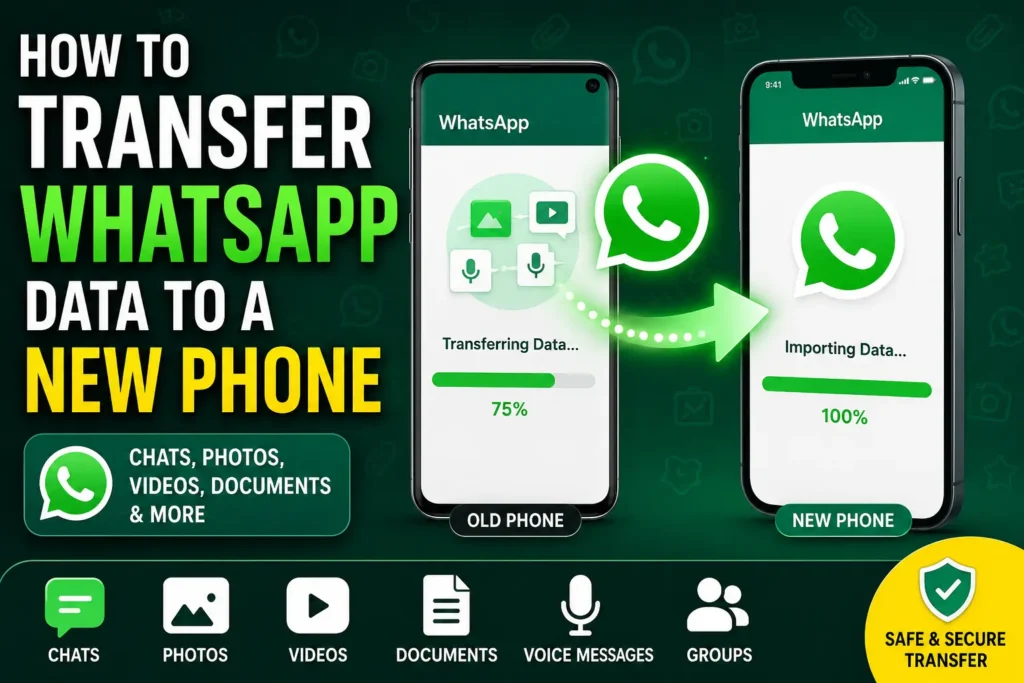
Getting a new phone is exciting until you realize how much important information is stored inside WhatsApp. Your conversations, photos, videos, voice messages, documents, and group chats may represent years of personal or work-related communication. If you move to a new device without preparing WhatsApp correctly, you may end up with an incomplete chat history or missing media.
Fortunately, How to Transfer WhatsApp Data to a New Phone does not have to be complicated. WhatsApp provides several official ways to move your information, including cloud backups, direct phone-to-phone transfers, and platform-specific migration tools.
The best method depends on whether you are moving from Android to Android, iPhone to iPhone, Android to iPhone, or iPhone to Android. This guide explains each situation, what you need before starting, how to transfer your chats and media safely, and what to do if your WhatsApp data does not appear on the new phone.
Quick Answer
The safest way to transfer WhatsApp data to a new phone is to use WhatsApp’s built-in transfer or backup process. Before changing phones, make sure your old WhatsApp account is working, create a current backup when appropriate, and keep the old phone available until you have verified the new device.
For Android-to-Android transfers, you can use WhatsApp’s direct chat-transfer feature when available or restore a WhatsApp backup associated with your Google Account. For iPhone-to-iPhone transfers, you can use WhatsApp’s supported transfer process or restore from an iCloud backup.
Moving between Android and iPhone is different. WhatsApp supports official migration methods for supported devices, but the process can depend on the operating system, phone manufacturer, and whether the new device is being set up for the first time. Do not erase the old phone until you have confirmed that your important WhatsApp conversations and media are available on the new device.
Why WhatsApp Data Does Not Automatically Appear on a New Phone
WhatsApp data is associated with your WhatsApp account and, depending on the transfer method, may also depend on the phone’s local storage or a cloud backup.
Simply installing WhatsApp on another phone does not always bring back your old conversations.
Several things can affect the transfer:
- You are using a different phone number.
- You signed in with a different Google Account or Apple Account.
- A backup was never created.
- The backup is older than expected.
- The backup was incomplete.
- The new phone uses a different operating system.
- WhatsApp was installed before the migration process was completed.
- The old phone is no longer accessible.
- There is insufficient storage on the new device.
- The internet connection is unstable during backup or restoration.
- The WhatsApp version differs significantly between devices.
- The transfer process was interrupted.
This is why preparation matters more than simply downloading WhatsApp from the app store.
How to Transfer WhatsApp Data to a New Phone
Before choosing a method, identify which of these situations applies to you:
- Android → Android: Use WhatsApp’s direct transfer feature or a compatible Google backup.
- iPhone → iPhone: Use WhatsApp’s transfer feature or an iCloud backup.
- Android → iPhone: Use the official Android-to-iPhone migration process supported by WhatsApp and Apple’s device setup process.
- iPhone → Android: Use the supported iPhone-to-Android migration process during setup where available.
The exact screens can vary depending on your WhatsApp version, Android version, iOS version, and phone manufacturer.
Method 1: Transfer WhatsApp From Android to Android
Moving WhatsApp between two Android phones is usually straightforward because both devices use the same mobile platform.
A direct transfer can be useful because it moves information from the old phone to the new phone without relying entirely on a cloud restore.
Before You Start
Make sure:
- WhatsApp works on the old phone.
- You can access your WhatsApp account.
- Both phones have sufficient battery.
- Both phones are close to each other.
- The new phone has enough storage.
- WhatsApp is updated where possible.
- You have not erased the old phone.
If you use a Google Account backup, make sure you know which Google Account is associated with the WhatsApp backup.
Using WhatsApp’s Direct Transfer
When the feature is available on your devices, the general process is:
- Keep WhatsApp active on the old Android phone.
- Open WhatsApp settings.
- Find the chat transfer option under the relevant chat or account settings.
- Start the transfer process.
- Install or open WhatsApp on the new Android phone.
- Verify the same phone number when prompted.
- Follow the transfer instructions shown on the new device.
- Allow WhatsApp to connect the two phones.
- Keep both devices nearby while the transfer takes place.
- Wait until the process finishes before closing WhatsApp or disconnecting the devices.
The exact wording of the menus may change as WhatsApp updates its Android application.
Do not factory-reset the old phone immediately after the transfer. First open several old conversations on the new phone and check photos, videos, documents, and other important media.
Restoring WhatsApp From a Google Backup
If you prefer a backup-based method or direct transfer is not available, you can restore WhatsApp from a compatible backup.
On the old Android phone:
- Open WhatsApp.
- Open Settings.
- Go to Chats.
- Open Chat backup.
- Review the backup information.
- Start a fresh backup if necessary.
- Wait for the backup to complete.
The backup may contain chat history and media depending on your settings and available storage.
On the new Android phone:
- Install WhatsApp.
- Open WhatsApp.
- Verify the same phone number used for the backup.
- Make sure the relevant Google Account is available on the device.
- Follow the restoration prompt if a compatible backup is detected.
- Choose the option to restore.
- Wait for the restoration process to complete.
- Allow additional media to finish restoring if required.
Important: Do not assume that seeing the WhatsApp app on the new phone means your backup has been restored. Open individual chats and check older messages and media.
Method 2: Transfer WhatsApp From iPhone to iPhone
Apple users can move WhatsApp information between iPhones using WhatsApp’s supported transfer process or an iCloud backup.
The easiest option depends on your circumstances and which migration features are available on your devices.
Prepare the Old iPhone
Before moving WhatsApp:
- Open WhatsApp on the old iPhone.
- Go to Settings.
- Open Chats.
- Check Chat Backup.
- Review when the latest backup was created.
- Create a new backup if necessary.
- Keep the old iPhone available.
If your WhatsApp data is important, do not erase the old device before checking the new phone.
Restore Using iCloud
For an iCloud-based restore:
- Make sure the old iPhone has created a current WhatsApp backup.
- Sign in to the appropriate Apple Account on the new iPhone.
- Make sure iCloud is available and there is sufficient storage.
- Install WhatsApp on the new iPhone.
- Verify the same phone number.
- Follow WhatsApp’s restoration instructions.
- Select the available backup when prompted.
- Wait for WhatsApp to restore the chats and media.
The backup must be compatible with the account and number being used during the restoration process.
Method 3: Transfer WhatsApp From Android to iPhone
Moving WhatsApp from Android to iPhone requires more planning because the two platforms use different backup ecosystems.
A Google Drive WhatsApp backup is not simply restored directly into WhatsApp on an iPhone.
For supported devices, WhatsApp and Apple provide an official migration route using the Android-to-iPhone setup process.
The general workflow is:
- Keep WhatsApp working on your Android phone.
- Make sure the Android phone and new iPhone meet the requirements for the supported migration method.
- Begin setting up the iPhone.
- Use Apple’s supported Android-to-iPhone migration process when offered.
- Select WhatsApp-related content when the migration process provides that option.
- Allow the transfer to finish.
- Complete iPhone setup.
- Install WhatsApp from the App Store if it is not already installed.
- Open WhatsApp.
- Verify the same phone number.
- Follow the prompts to import or restore the transferred WhatsApp data.
The exact process can change depending on the iPhone and Android versions involved.
Warning: If the iPhone has already been fully configured, the official migration process may require the device to be reset before using the setup-based transfer method. A factory reset can erase information on the new iPhone, so back up anything important on that device first.
Do not reset your old Android phone until you have confirmed that the WhatsApp migration completed successfully.
Method 4: Transfer WhatsApp From iPhone to Android
The reverse migration is also possible for supported devices, but the exact procedure depends on the Android manufacturer and setup process.
Some Android phones provide a supported migration workflow during initial device setup.
The general process is:
- Keep WhatsApp working on the old iPhone.
- Make sure the new Android phone supports the appropriate WhatsApp migration method.
- Start setting up the Android phone.
- Follow the manufacturer’s device-transfer instructions.
- Connect the phones using the supported transfer method when requested.
- Select WhatsApp data when it is available as a transferable category.
- Allow the migration to finish.
- Install or open WhatsApp on the Android phone.
- Verify the appropriate phone number.
- Follow the WhatsApp import or restoration prompts.
- Check your conversations and media before erasing the old iPhone.
Because Android manufacturers can use different setup tools, the menus may not be identical on Samsung, Google Pixel, or other Android phones.
Android-Specific Tips for Moving WhatsApp
Android phones from different manufacturers can have different menus, but the WhatsApp process remains centered around your account, phone number, and available transfer or backup method.
Check Your Google Account
If you are restoring from a Google backup, confirm that the Google Account associated with the backup is available on the new phone.
Using the wrong Google Account can make it appear as though no WhatsApp backup exists.
Check Your Phone Number
WhatsApp account verification is important during migration. If you are also changing your phone number, do not treat that as an ordinary device transfer.
WhatsApp provides a number-change process designed for situations where your phone number itself is changing. Complete the appropriate account migration before relying on the new number for restoration.
Check Storage
A WhatsApp backup containing years of images and videos can require considerable storage.
If the new phone does not have enough available space, restoration may not complete properly.
iPhone-Specific Tips for Moving WhatsApp
iPhone users should pay particular attention to their Apple Account, iCloud settings, and available storage.
Check iCloud Availability
If you are relying on an iCloud WhatsApp backup, make sure you are using the appropriate Apple Account and have sufficient iCloud storage for the backup process.
Do Not Delete WhatsApp From the Old iPhone Too Early
Deleting WhatsApp or wiping the old phone before verifying the new device can remove an important fallback option.
Keep the old device intact until the new phone has been thoroughly checked.
Things to Check Before Trying Advanced Solutions
Before attempting complicated troubleshooting, check these basic requirements.
1. Confirm the Phone Number
If the new phone is being registered with a different number, the normal restoration process may not behave as expected.
2. Update WhatsApp
Check for available WhatsApp updates on both devices. A migration option may depend on the version installed.
3. Charge Both Phones
Large WhatsApp transfers can take time. Keep both devices adequately charged and avoid interruptions.
4. Free Up Storage
Check available storage on the new phone. Photos and videos can make WhatsApp transfers significantly larger than a text-only chat history.
5. Keep the Old Phone Available
Do not erase, reset, trade in, or sell the old phone until you have confirmed the new WhatsApp installation.
6. Check Your Internet Connection
Cloud backup and restoration require a working internet connection. A direct transfer can reduce reliance on cloud upload and download, but the setup process may still require connectivity.
7. Test Important Chats
After transferring WhatsApp, open several conversations that matter most to you.
Check:
- Recent messages
- Older messages
- Photos
- Videos
- Voice messages
- Documents
- Group conversations
This verification is more useful than simply checking whether WhatsApp opens successfully.
What If WhatsApp Data Does Not Transfer?
If your chats are missing after moving to the new phone, do not immediately erase anything.
First identify whether you used a direct transfer or backup restoration.
If you used a backup:
- Confirm that you used the same phone number.
- Confirm that you are signed into the correct Google Account or Apple Account where applicable.
- Check whether a backup actually existed on the old device.
- Check the backup date.
- Confirm that the new phone has enough storage.
- Make sure WhatsApp is using a compatible restoration process.
- If necessary, review WhatsApp’s official support documentation before making further changes.
If the old phone still contains your chats, it may be possible to repeat the migration rather than attempting recovery from an incomplete transfer.
Common Mistakes to Avoid
Resetting the Old Phone Too Soon
This is one of the biggest mistakes when transferring WhatsApp.
Keep the old phone untouched until you verify the new device.
Assuming a Google Drive Backup Works on iPhone
Android and iPhone use different backup ecosystems. An Android WhatsApp backup is not simply restored through iCloud on an iPhone.
Use the appropriate cross-platform migration method instead.
Using a Different Phone Number Without Preparation
Changing your number and changing your phone are separate situations. If both are happening at the same time, plan the WhatsApp account migration carefully.
Ignoring Media
A transfer may appear successful when you only check text messages. Open older conversations and verify important photos, videos, documents, and voice messages.
Interrupting the Transfer
Avoid switching off either phone, closing the transfer process, or disconnecting required connections while data is being moved.
Deleting the Backup
Do not delete your existing WhatsApp backup simply because you have installed WhatsApp on the new phone.
Keep your backup until you know that the new installation contains everything you need.
When to Get Professional Help
Most WhatsApp transfers can be completed without a technician. However, professional or official support may be appropriate if the old phone is damaged or the data is at risk.
Consider getting help when:
- The old phone will not turn on.
- The phone has suffered physical or liquid damage.
- The storage is failing.
- WhatsApp crashes whenever you try to access your chats.
- Important conversations disappeared before a backup could be created.
- A backup appears corrupted or unavailable.
- You cannot access the account needed to restore the data.
- You have tried several migration attempts and are concerned about losing the remaining data.
If the old phone still contains important WhatsApp information, avoid repeatedly uninstalling WhatsApp, clearing application data, or performing a factory reset.
Warning: Clearing WhatsApp data or resetting a phone can permanently remove locally stored information that has not been backed up. Confirm your backup or migration status before taking any destructive action.
Frequently Asked Questions
How to Transfer WhatsApp Data to a New Phone Without Losing Chats?
Keep the old phone available, create or confirm a recent backup when appropriate, and use WhatsApp’s supported transfer or restoration method for your specific platform combination. Verify chats and media on the new phone before erasing the old device.
Can I Transfer WhatsApp From Android to Android Without Google Drive?
Yes. When WhatsApp’s direct chat-transfer feature is available on your devices, you can transfer supported WhatsApp information directly between the old and new phones. This can be useful when you do not want to rely entirely on a cloud backup.
Can I Transfer WhatsApp From Android to iPhone?
Yes, supported Android-to-iPhone migration methods are available. The process is different from restoring an Android Google backup and generally involves the device setup process and supported migration tools.
Can I Transfer WhatsApp From iPhone to Android?
Yes, supported iPhone-to-Android migration methods exist for compatible devices. The exact steps depend on the Android manufacturer and device setup process.
Will My WhatsApp Photos and Videos Transfer to the New Phone?
Supported WhatsApp migrations can include media along with chat history, but the exact content transferred can depend on the migration method and platform combination. Always open older conversations and check important photos and videos after the transfer.
Do I Need the Same Phone Number to Restore WhatsApp?
For a standard restoration or device transfer, using the same WhatsApp phone number is generally important. If you are changing your number, use WhatsApp’s supported number-change process rather than treating the situation as a normal phone replacement.
Should I Keep My Old Phone After Transferring WhatsApp?
Yes, at least temporarily. Keep it until you have confirmed that your important WhatsApp conversations, photos, videos, documents, and groups are available on the new phone.
Why Can’t WhatsApp Find My Backup?
Common causes include using the wrong Google Account or Apple Account, using a different phone number, having no compatible backup, or encountering a backup or connectivity problem. Check the account, number, backup date, and available storage before trying more advanced steps.
Final Thoughts
Knowing How to Transfer WhatsApp Data to a New Phone can prevent the stress of losing years of conversations and media when upgrading your device.
The most important rule is simple: do not erase the old phone until the new WhatsApp installation has been checked thoroughly. For Android-to-Android and iPhone-to-iPhone moves, you can generally choose between a supported direct transfer and a compatible cloud backup. Cross-platform transfers require their respective official migration processes because Android and iPhone use different backup systems.
Before starting, confirm your phone number, check storage, update WhatsApp where appropriate, and make sure your old device remains accessible. After the transfer, open important chats and verify older messages, photos, videos, documents, and voice messages.
Taking a few extra minutes to verify the result can make the difference between a successful WhatsApp migration and discovering missing data after the old phone has already been erased.